AI Complete Guide
OpenJyotish integrates with local LLMs (Ollama / LM Studio) for Vedic astrology readings, interactive teaching, and predictions. All computation happens locally — your chart data never leaves your machine.
LM Studio (recommended):
- Download from https://lmstudio.ai
- Load any model (Gemma, Llama, Mistral, Qwen...)
- Server mode → Start Server
Ollama:
ollama serve
ollama pull llama3.2    # or mistral, qwen2.5:14b, gemma3:12b
OpenJyotish auto-detects both. No config needed.
In the GUI: AI and Learn → Settings tab:
- Select provider (LM Studio / Ollama)
- Enter model name (auto-detected on first check)
- Click Check Provider
- Green = connected. All AI features unlock.
The vector DB enables textbook-backed readings. Without it, the AI works but lacks textbook authority.
In Settings tab:
- Click Build Vector DB (after provider is verified)
- Wait 5-10 minutes (shows live progress per textbook)
- Green "READY" message when complete
This chunks 16 Vedic textbooks (1.96M chars) and indexes them for semantic search.
OpenJyotish has three AI modes. All require a chart to be computed first.
Generates a full Vedic reading of your chart. The AI receives:
- All 9 planets with signs, houses, nakshatras, dignities
- Shadbala, Bhava Bala, Vimsopaka Bala strengths
- All detected yogas with planet lists
- Current dasa periods with upcoming transitions
- Current transits with SAV scores
- Ashtakavarga bindus per sign
- Upagrahas, special lagnas, chara karakas
- KP sub-lords, marana karaka, vaiseshikamsas
- Textbook citations via FTS5 or vector search
CLI:
# Full reading
jhora ai "1973-03-13 13:55 +0100 45.41 11.88"

# Professional style (more detail)
jhora ai --style professional "birthdata"

# Career focus
jhora ai --topic career "birthdata"

# Relationship focus
jhora ai --topic relationship "birthdata"

# Smaller context for weaker GPUs
jhora ai --context 2048 "birthdata"Topics: general, relationship, career, health, spirituality, children, finance, mundane
GUI: AI and Learn → AI Chat tab. Select topic, click "Interpret Chart".
Example output:
***Vedic Astrological Analysis (Parasara School)***

**Lagna and Core Personality**
Your Ascendant (Lagna) is in Libra (Li), ruled by Venus (Ve). This places
a foundational emphasis on balance, harmony, and relationship dynamics.
The strongest planetary strength (Shadbala) belongs to Jupiter (530 virupas),
indicating that wisdom and moral guidance are central themes...

**Career and Professional Life**
The 10th House (Cn) relates to career. Multiple Dhana Yogas, including
Mercury (L9 in H7), indicate professional success linked to partnerships.
The Raja Yoga: Kendra lord Venus and kona lord Mars in conjunction suggests
high achievement through creative action...
Ask specific questions about your chart. The AI answers with references to your computed data.
# Any question about your chart
jhora ai --mode ask -q "When will I get married?" "birthdata"
jhora ai --mode ask -q "What career suits me?" "birthdata"
jhora ai --mode ask -q "Explain my Saturn placement" "birthdata"
jhora ai --mode ask -q "What do my yogas mean for wealth?" "birthdata"GUI: AI Chat tab → type in the question box → click "Ask"
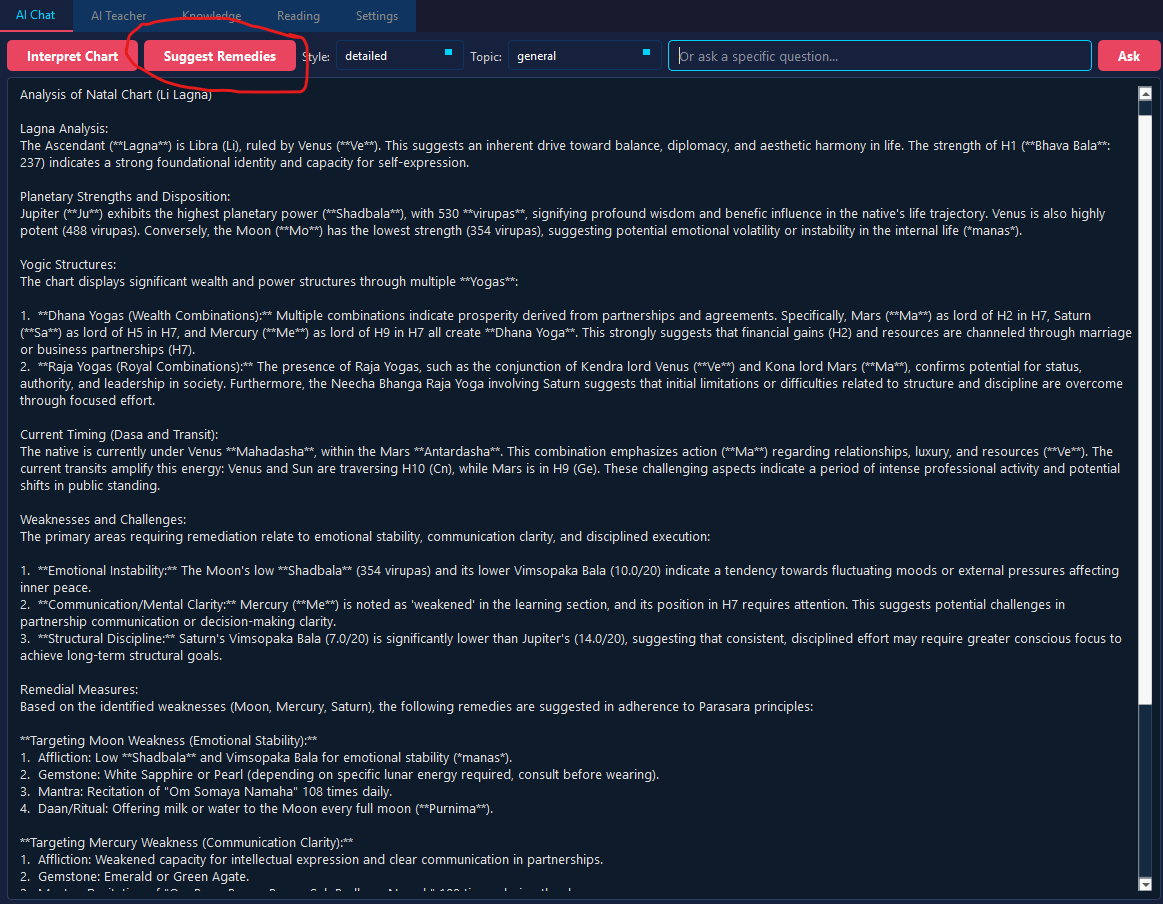
Suggest Vedic remedies (upayas) based on chart weaknesses.
jhora ai --mode remedies "birthdata"Output includes:
- Afflicted planets and their effects
- Recommended gemstones (with metal, weight, finger, day)
- Mantras (with count and timing)
- Rituals or charitable acts (daan)
Interactive Vedic astrology instructor. Ask any question about astrology theory, chart interpretation, or prediction techniques.
# General questions (no chart needed)
jhora teach "What is Vimsopaka Bala?"
jhora teach "How do I predict career from a chart?"
jhora teach "Explain the difference between Shadbala and Bhava Bala"

# With your chart — contextual learning
jhora teach "Explain my 7th house" --chart "birthdata"
jhora teach "What does Jupiter in my chart indicate?" --chart "birthdata"
jhora teach "How do I predict marriage timing?" --chart "birthdata"GUI: AI and Learn → AI Teacher tab. Type question, click "Ask Guru".
The Teacher searches all 16 textbooks for relevant passages and explains concepts step by step with references.
For programmatic use, get all computed data as structured JSON:
jhora analyze "birthdata"
# → 10KB JSON, 16 sections, ready for AI tool-calling
import json, subprocess
data = json.loads(subprocess.run(
["jhora", "analyze", birthdata], capture_output=True, text=True
).stdout)
# Access specific data
current_md = next(md for md in data["dasa"]["mahadashas"] if md["current"])
strongest_planet = max(data["shadbala"].items(), key=lambda x: x[1]["total_virupas"])See CLI Reference for all 27 commands.
-
Use a good model — 7B+ models (Llama 3.2, Mistral, Gemma) produce professional readings. 3B models work but may be less detailed.
-
Build the vector DB — readings gain textbook authority. Without it, the AI relies only on its training data.
-
Choose the right topic —
--topic careerfocuses the reading on 10H, Sun, Saturn, rajayogas.--topic relationshipfocuses on 7H, Venus. -
Use
--style professionalfor the most detail.--style concisefor quick overview. -
Ask follow-up questions — after a reading, use
--mode askto drill deeper. -
Check the data — all AI claims reference computed data. If something seems off, verify with
jhora chart "birthdata". -
LM Studio preferred — embedding generation is faster and more reliable than Ollama for the vector DB build.
| Problem | Solution |
|---|---|
| "AI not connected" | Check server is running. Settings → Check Provider |
| Empty reading | Model may be too small. Try 7B+ model. |
| Garbled text | Clear __pycache__ directories and restart |
| "Embedding failed" | Load nomic-embed-text model in your AI server |
| Build hangs | Use batch_size=5, throttle=1s. Check LM Studio logs |
| PC freezes during build | The build runs in background. Wait for progress updates. |
The GUI provides the same AI features with a visual interface. All computation happens locally — your chart data never leaves your machine.
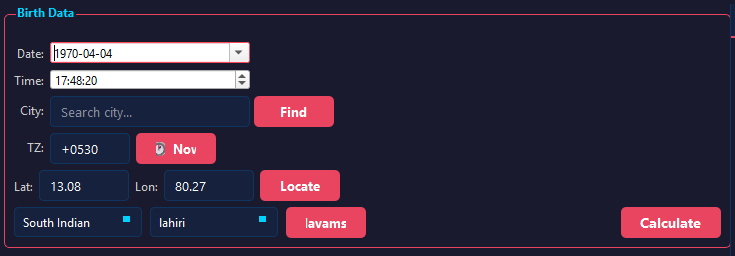
Fill the form with date, time, latitude, longitude, timezone. Use the Find button to search a city (auto-fills coordinates). Click Calculate to compute your chart.
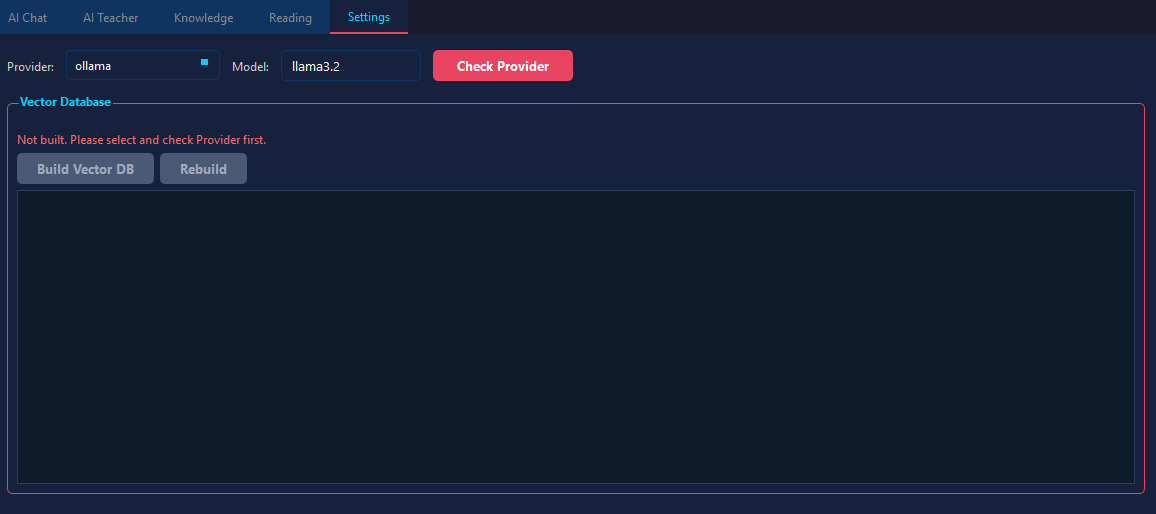
Open AI and Learn → Settings tab:
- Select provider (LM Studio / Ollama)
- Model name auto-detected on first check
- Click Check Provider — green status means connected
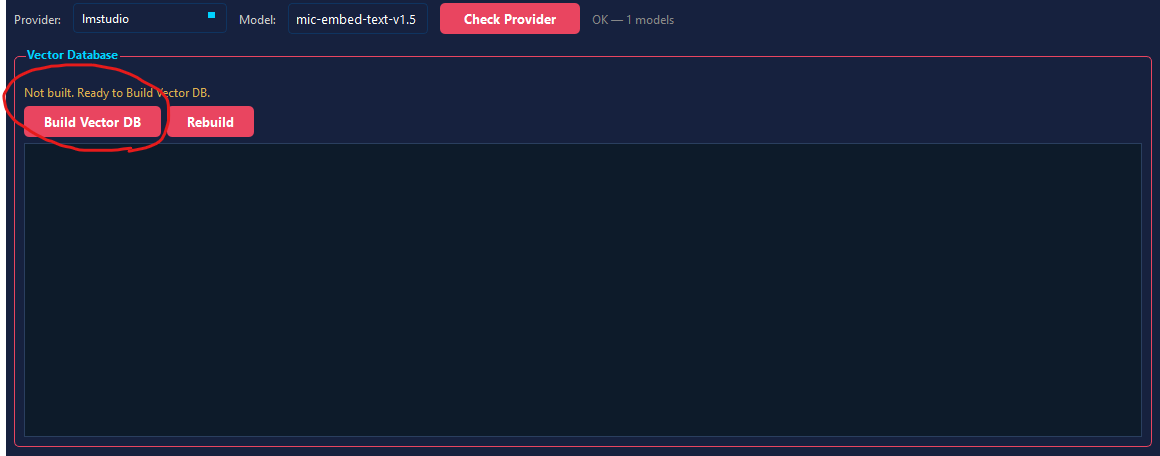
In the same Settings tab:
- Click Build Vector DB
- Wait 5-10 minutes — shows live progress per textbook
- Green "READY" when complete
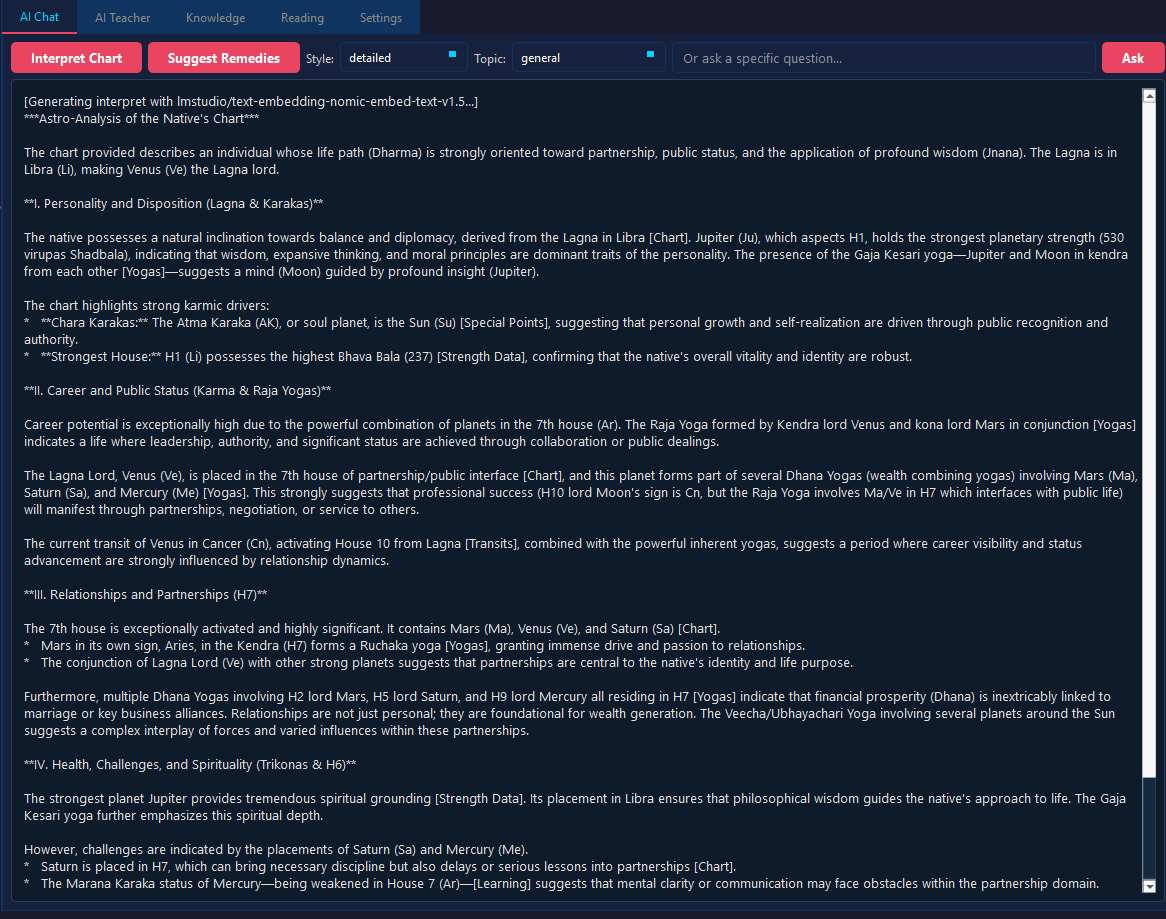
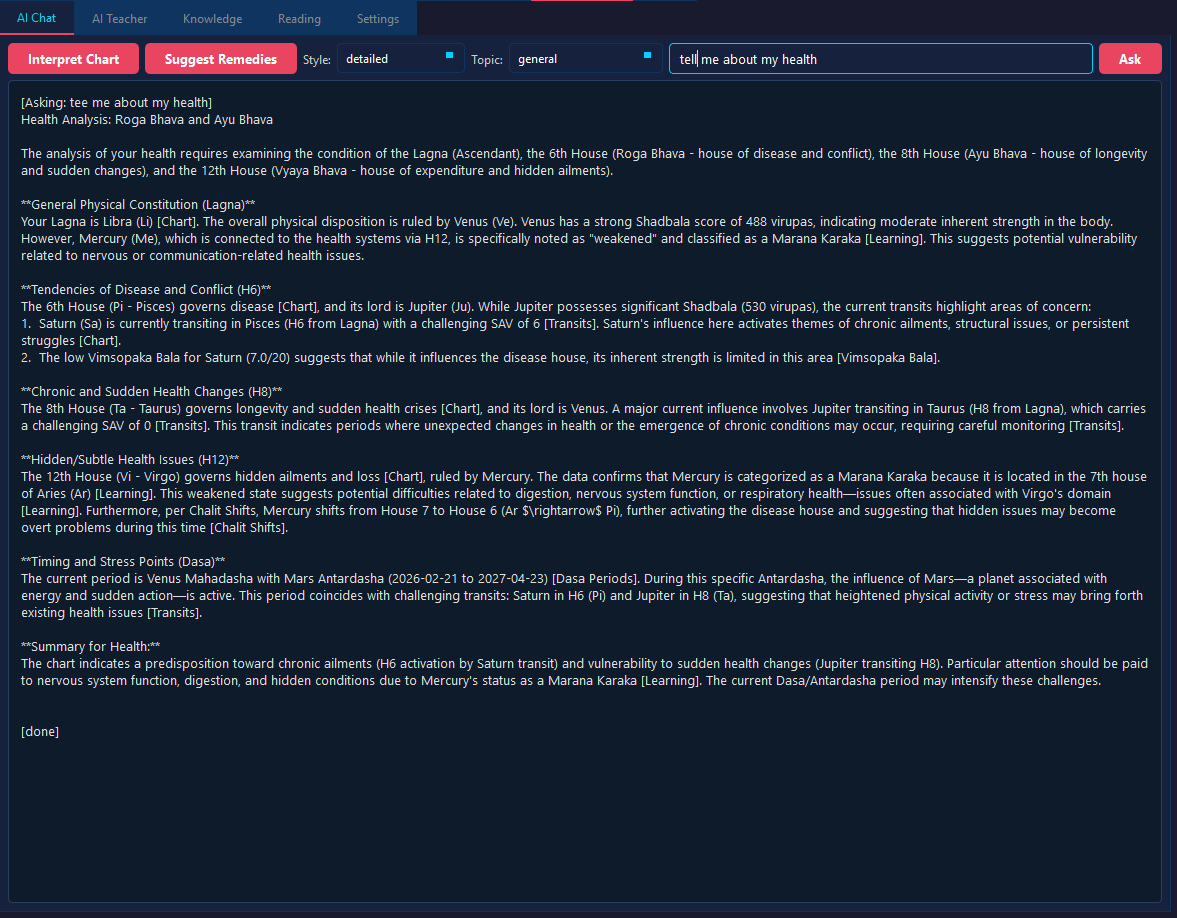
Open AI and Learn → AI Chat tab:
- Select a topic (general, career, relationship, health, etc.)
- Choose style (concise, detailed, professional)
- Click Interpret Chart
- The reading streams live with bold formatting
In the same AI Chat tab:
- Type a question in the input box
- Click Ask
- The AI answers with references to your chart data
Click Suggest Remedies for gemstone, mantra, and ritual recommendations based on your chart's weakest areas.
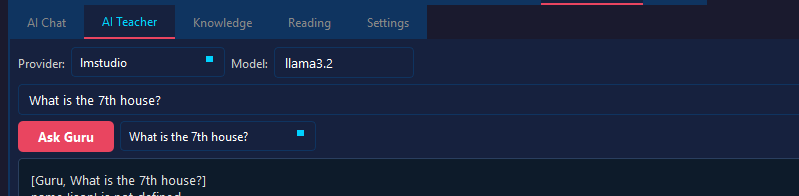
Open AI and Learn → AI Teacher tab:
- Type any astrology question
- Click Ask Guru
- The Teacher searches 16 textbooks and explains step by step
Replace the placeholder images above with actual screenshots. Take screenshots of:
- Birth data form — after clicking Calculate, showing the chart
- Settings → Provider — showing green "ONLINE" status
- Settings → VDB — showing "Built: X chunks with embeddings — READY"
- AI Chat → Interpret — showing a streaming reading in progress
- AI Chat → Ask — showing a Q&A response
- AI Chat → Remedies — showing remedy suggestions
- AI Teacher — showing a teaching response
Create a screenshots/ folder in the wiki repo and upload PNG files with
the filenames shown above. The images will appear automatically.