Repository navigation
Timer Effects
RoomGoblin timers can change presentation as a countdown reaches configurable thresholds. These are optional effects on the existing countdown, not new automation occurrences. Upgrading does not enable effects on existing timers. The alpha.85 release advances receiver version convergence so existing connected displays reload the new renderer after upgrading. Prepared by Kyle Wagner.
Receiver example from the browser fixture (not a live classroom):
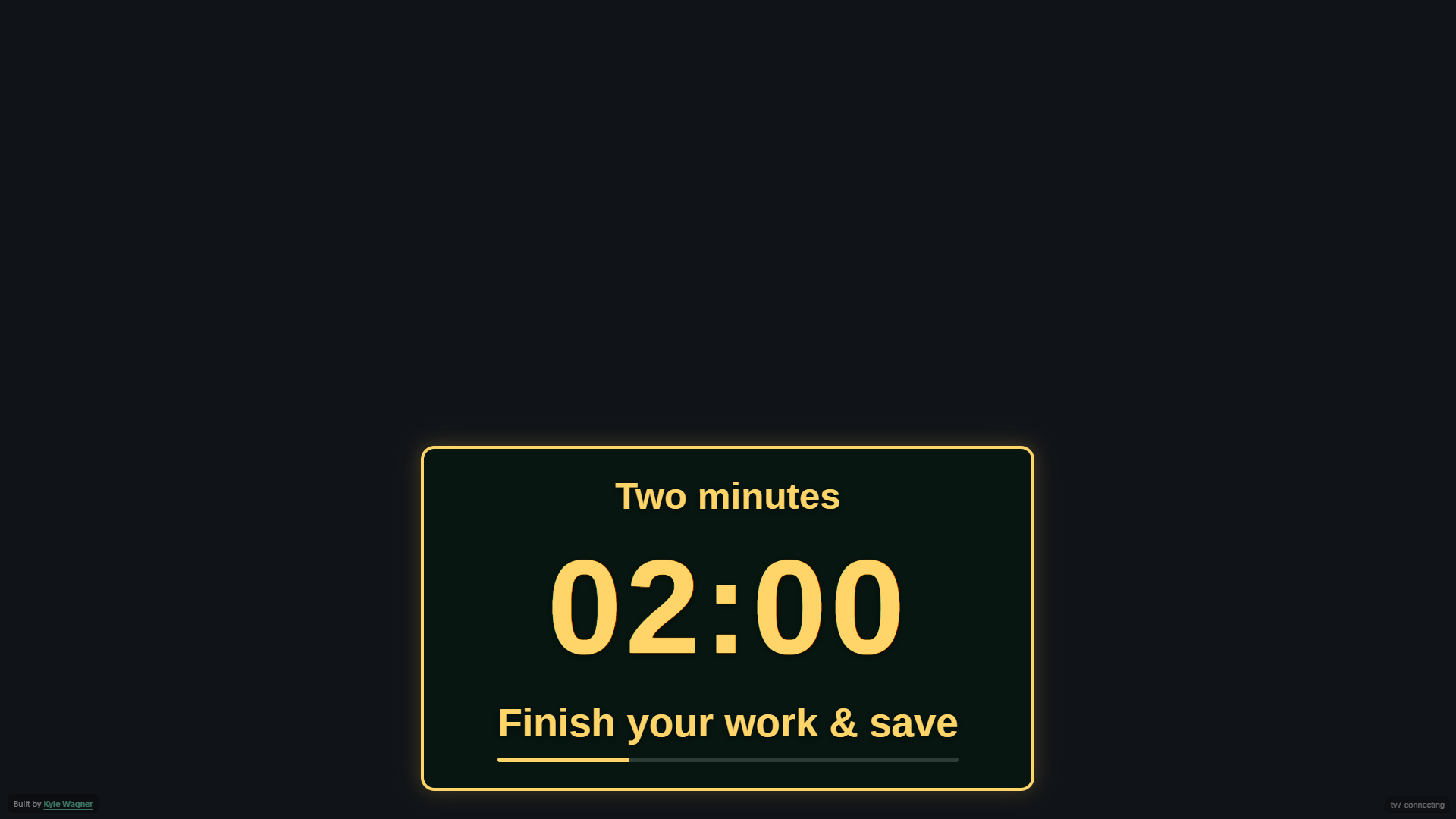
Open Planning > Automation > Edit > Timer & advanced. Enable the timer, choose its existing class/block end, duration or clock deadline, then enable staged timer effects. The initial stage suggestions are five and two minutes.
Built-in presets are Classroom glow, Broadcast strip, Progress ring and Calm. Choose a preset and Apply timer preset to copy its effects into this draft. Appearance supports badge, glass, broadcast strip, ring, minimal and segmented progress styles. Position uses an anchor or percentage coordinates on the same 1920 x 1080 stage as other display content. Width, height, motion preference, intensity, resizing duration, changing-digit animation, progress, dimming and cue volume are independent options. The system reduced-motion preference always wins.
Add up to eight unique thresholds, expressed in minutes (fractional minutes are supported down to one second). Each stage has its own label, message, color, size multiplier, anchor, effect and optional sound. An enlargement duration of zero holds the size until the next stage. A positive duration returns to normal size after that many seconds while retaining the stage's color and text.
Effects include glow, pulse, pop, bounce, slide, ripple and flip. Entrance cues are bounded, rather than continually flashing. Progress and countdown digits continue to update. Maximum geometry and fonts are bounded and fitted by the existing display layout engine; no second fit or receiver resize engine exists. An enlarged timer intentionally covers more of the underlying screen. Images, videos and canvas content remain full size and are never restarted by an effect.
Preview timer effects opens the real receiver renderer in a dedicated, silent preview. It does not connect to a live display WebSocket, receive another screen's current media, or send commands. Stage buttons begin one second before their threshold; Play threshold sequence skips ahead between stages. Drag the outlined timer, or focus Move timer and use arrow keys (Shift moves five percent), to set the selected stage's position. Numerical size/position fields remain available. Preview and Save automation are required to save the routine.
Save a named preset to reuse the appearance and stages in another automation. Saving the same name replaces that saved template; up to twelve are allowed. Select a saved preset to delete it. Templates use the existing reviewed, revision-protected Planning studio preference. Applying a template makes a copy: editing/deleting the template never changes automations that used it earlier. The detailed compatibility editor preserves saved effects while editing legacy fields; use Timer & advanced to change effects.
Effects use the owned countdown's end timestamp. Five minutes means 300 seconds remaining, not five minutes after rendering. The occurrence start/end metadata also prevents the progress bar from restarting after scheduler reconciliation. Countdown source, lunch clock deadlines, continuation boundaries and scheduler winning rules do not change. Count-up timers retain their classic behavior.
Each browser keeps a bounded session history of consumed cues, keyed to the automation occurrence and deadline (or timer instance for manual timers). Initial state/reconnect/reload renders the current phase silently. Live crossings emit only the current cue; delayed/background ticks do not replay missed sounds. No cue history contains credentials or changes server scheduler state.
At zero, choose Hold 00:00, Show a message, Hide timer, or Show message then fade. Message content and fade delay are configurable. Finishing never dismisses students, clears the underlying screen or launches another automation. The next scheduled automation remains responsible for changing content.
Sounds are opt-in: chime, bell or device text-to-speech, capped at 50% volume. Previews are always silent. Browser autoplay rules and missing device speech support can prevent sound; the countdown and visual effects still work. Cues are suppressed/cancelled while receiver video, audio or embedded stream content is present, including Morning Announcements. They do not issue Background Music, volume, media-session or audio-priority commands. Prefer visuals for essential timing information.
timerOverlay.effects is a bounded, validated version-one object stored with the
automation. timerPresets is an optional array in school.planning.studio.v1.
No database schema migration, new network provider or dependency is required.
Existing IDs, receiver targets, action order and compatibility fields stay intact.
Disable staged timer effects to return to the original appearance. Existing
appliance rollback still uses the native backed-up published updater transaction.
Targeted checks cover exact thresholds, bounds, preset round trips, real dispatch deadlines, receiver fitting, media-node preservation, replay/reload, zero behavior, reduced motion, optional audio, and silent desktop/mobile editor previews. Local browser fixtures do not establish physical-TV audio acceptance or deployment.