Repository navigation
Releases: waynetd777/tidemark
Release list
Tidemark 2.0.0

The high-water marks of your Mac.
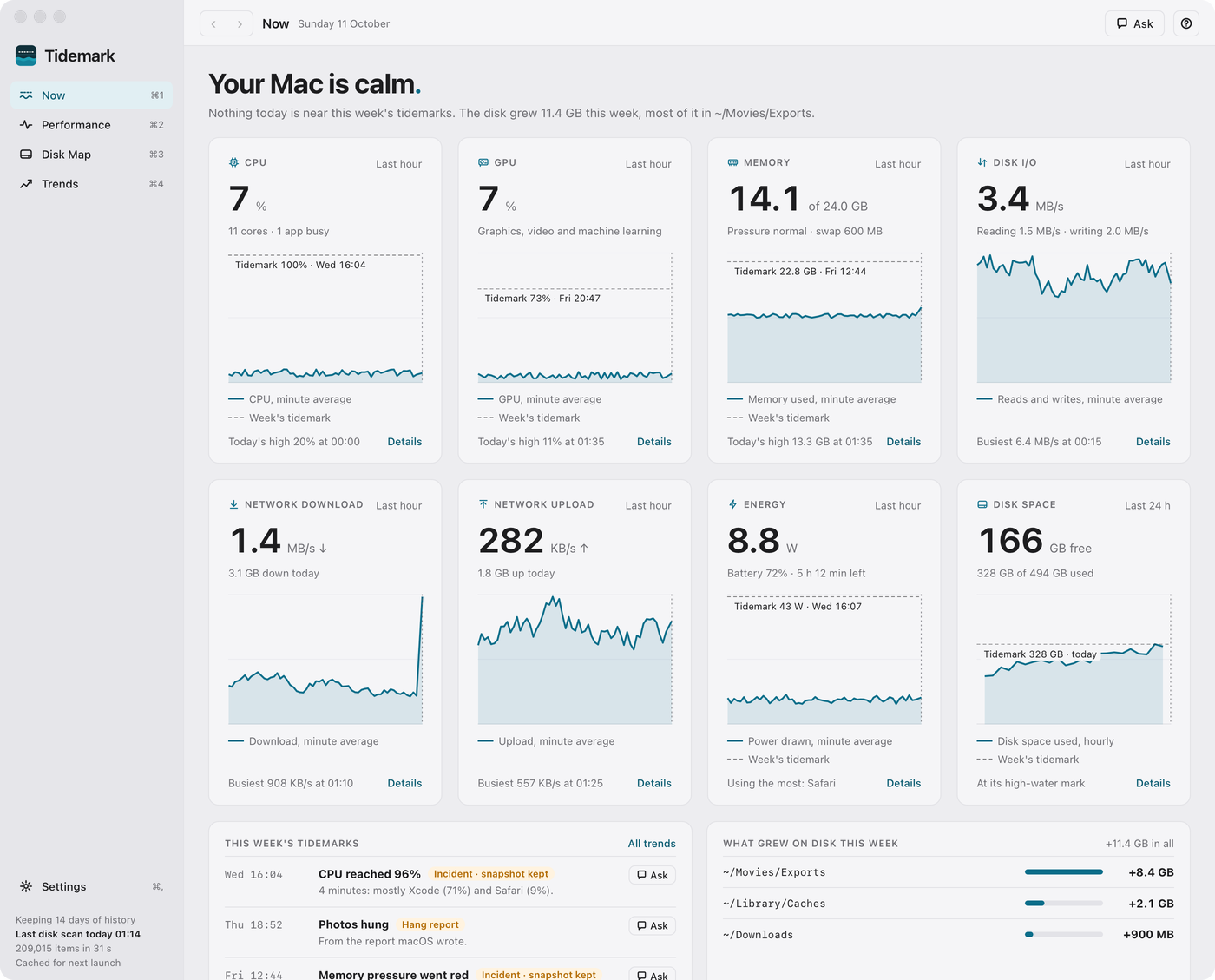
Disk Usage is now Tidemark. It still maps what is using your disk, and now also records how hard your Mac is working, now and over time, and marks the highs.
What's new in 2.0.0
- Now (⌘1): CPU, GPU, memory, disk I/O, network, energy and disk space at a glance, with the week's tidemarks and what grew on the disk.
- Performance (⌘2): every measure over 1 hour to 14 days, what each app was doing at any moment, incidents with a snapshot, and apps that crashed or hung.
- Disk Map (⌘3): the treemap from Disk Usage, with this week's growth marked.
- Trends (⌘4): disk space over 7 days to a year, when it would fill, and when the Mac is busiest.
- Menu bar: live readings, what is using the most, and the action that helps. A background helper keeps recording while the app is quit.
- Ask (⌘K): a chat about your Mac through the AI tool you already use (Claude Code, Codex, Antigravity or GitHub Copilot). An Ask button beside each incident, crash and flagged chart opens it with that thing's details: the apps at an incident's peak, a crash report's summary, a chart's figures.
- Help (
?) covers every screen; About and Settings link to the new website.
See the website and the features for more.
Tidemark is free software under the GNU General Public License, version 3 or later (Disk Usage was MIT).
Install
Apple Silicon, macOS 13 or later.
-
Download Tidemark.dmg below, open it and drag Tidemark onto Applications. It is a new app, so Disk Usage can be deleted afterwards.
-
Open Tidemark. macOS says it can't check the app for malicious software, because it is signed with a self-signed certificate rather than an Apple Developer ID. Click Done, then open System Settings → Privacy & Security, scroll down and click Open Anyway beside Tidemark, then Open Anyway again and enter your password. (Or clear the download flag in Terminal:
xattr -dr com.apple.quarantine "/Applications/Tidemark.app".) -
Give it Full Disk Access (System Settings → Privacy & Security) so it can see inside Mail, Safari, Photos and the other protected folders.
-
To keep recording while it is quit, turn on Keep recording when quit in Settings, and allow Tidemark under System Settings → General → Login Items if macOS asks.
Disk Usage 1.4.0
A nested treemap of what is using the disk on your Mac.
What's new in 1.4.0
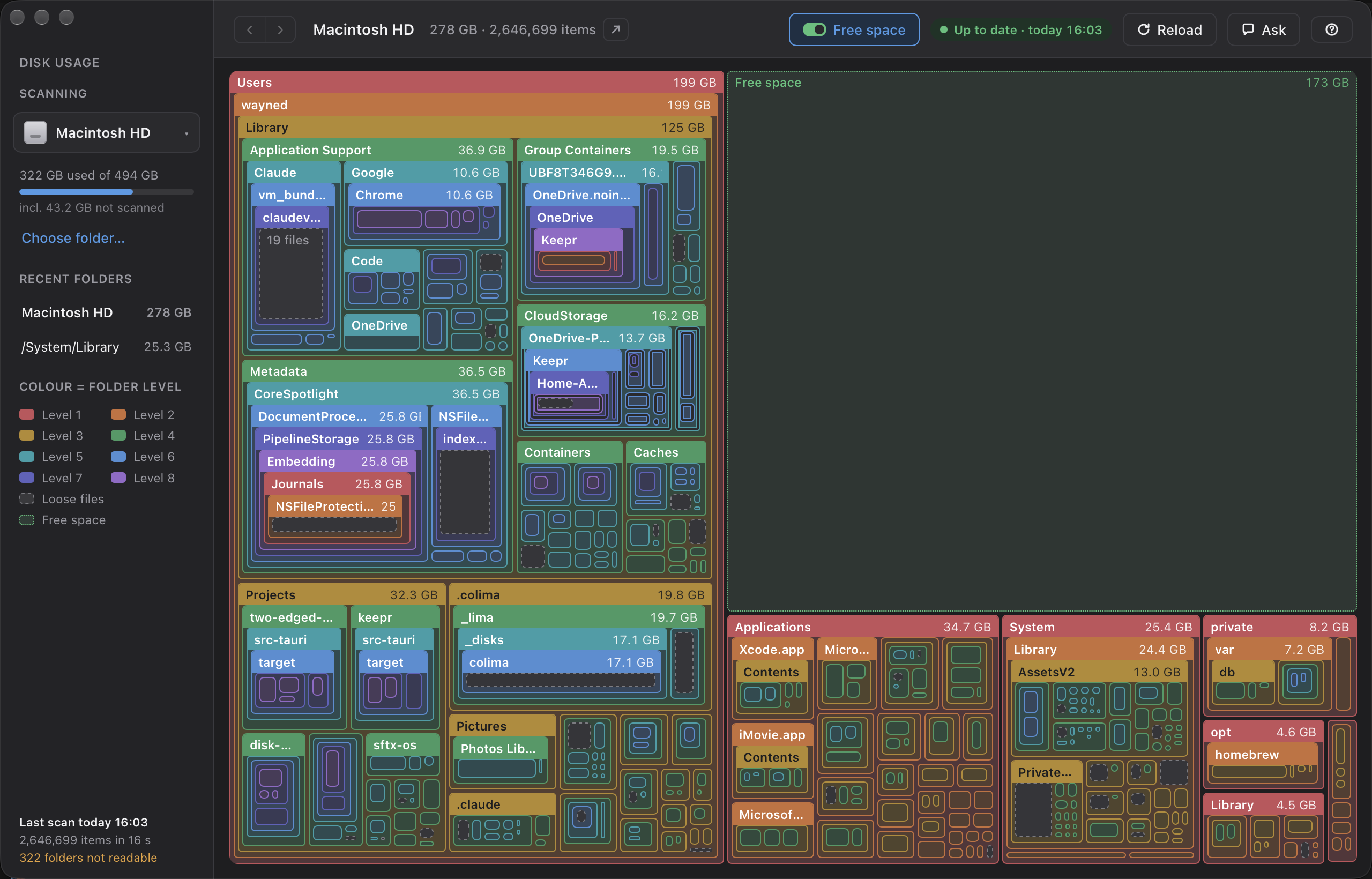
- Ask (⌘K). A chat about the folder on screen: it puts the scan to an AI and asks where space can be reclaimed safely, with suggested questions to start from. It runs through an AI command-line tool already installed and signed in on your Mac (Claude Code, Codex, Antigravity or GitHub Copilot; no key is set up in the app), the model menu lists every model they offer, grouped by tool, and each answer has a Copy button for pasting as text or formatted text. The AI sees names, paths and sizes only; the app deletes nothing. If no tool is installed the button is disabled and says so.
- Help (
?). The new user guide opens in a drawer beside the map, searchable, with a button to hand a question on to Ask. - Big folders no longer hang the app. The file list loads a page at a time as you scroll.
- The app's own tooltips everywhere, kept inside the window.
- Title bar: Free space, status and Reload, then Ask and Help at the edge.
Install
Apple Silicon, macOS 13 or later.
- Download Disk-Usage.dmg below.
- Quit Disk Usage if it is running, open the DMG and drag Disk Usage onto Applications, replacing the previous copy.
- Open Disk Usage from Applications. macOS says it can't check the app for malicious software, because it is signed with a self-signed certificate rather than an Apple Developer ID. Click Done, then open System Settings → Privacy & Security, scroll down and click Open Anyway beside Disk Usage, then Open Anyway again and enter your password. (Or clear the download flag in Terminal:
xattr -dr com.apple.quarantine "/Applications/Disk Usage.app".) - Grant Full Disk Access under System Settings → Privacy & Security, to include protected folders.
Closing the window hides the app; it stays in the menu bar, and Quit is in that menu.
Disk Usage 1.3.0
A nested treemap of what is using the disk on your Mac.
What's new in 1.3.0
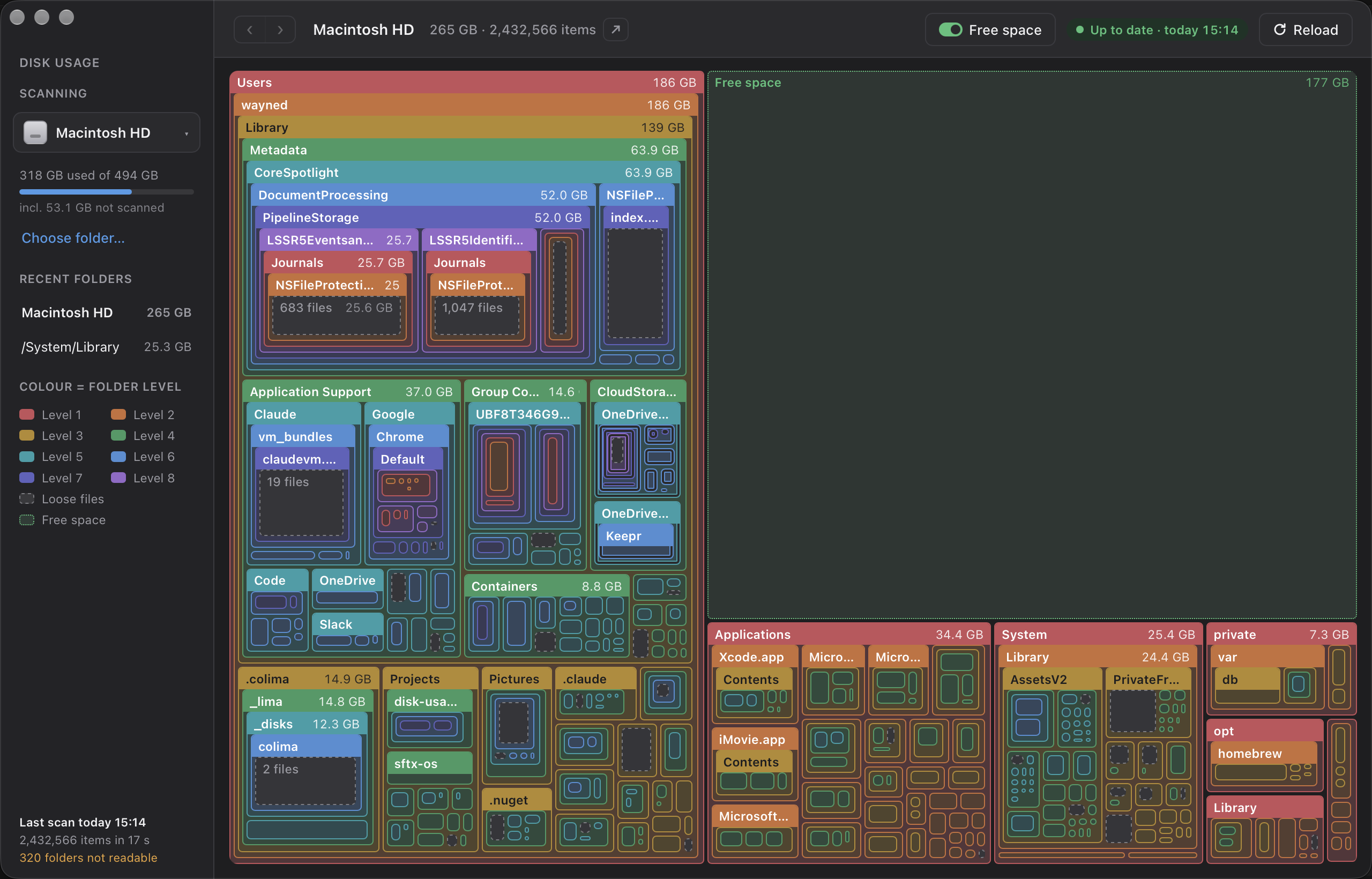
- Free space in the map. At the top of a whole-disk scan, the disk's free space is drawn as a dotted green block beside the folders, so the map shows the whole disk. It is on by default; the Free space switch in the title bar hides it, and the app remembers the choice.
- Hard-linked files are counted once. A file linked into several folders used to be counted once per link, which could make a folder (Spotlight's store in particular) look several times its real size and the whole-disk total larger than the disk's used space. Sizes now match
du. - The app is signed with its own certificate. If you had granted Full Disk Access to an earlier version, grant it again after updating.
Install
Apple Silicon, macOS 13 or later.
- Download Disk-Usage.dmg below.
- Quit Disk Usage if it is running, open the DMG and drag Disk Usage onto Applications, replacing the previous copy.
- Open Disk Usage from Applications. macOS says it can't check the app for malicious software, because it is signed with a self-signed certificate rather than an Apple Developer ID. Click Done, then open System Settings → Privacy & Security, scroll down and click Open Anyway beside Disk Usage, then Open Anyway again and enter your password. (Or clear the download flag in Terminal:
xattr -dr com.apple.quarantine "/Applications/Disk Usage.app".) - Grant Full Disk Access under System Settings → Privacy & Security, to include protected folders.
Closing the window hides the app; it stays in the menu bar, and Quit is in that menu.
Disk Usage 1.2.1
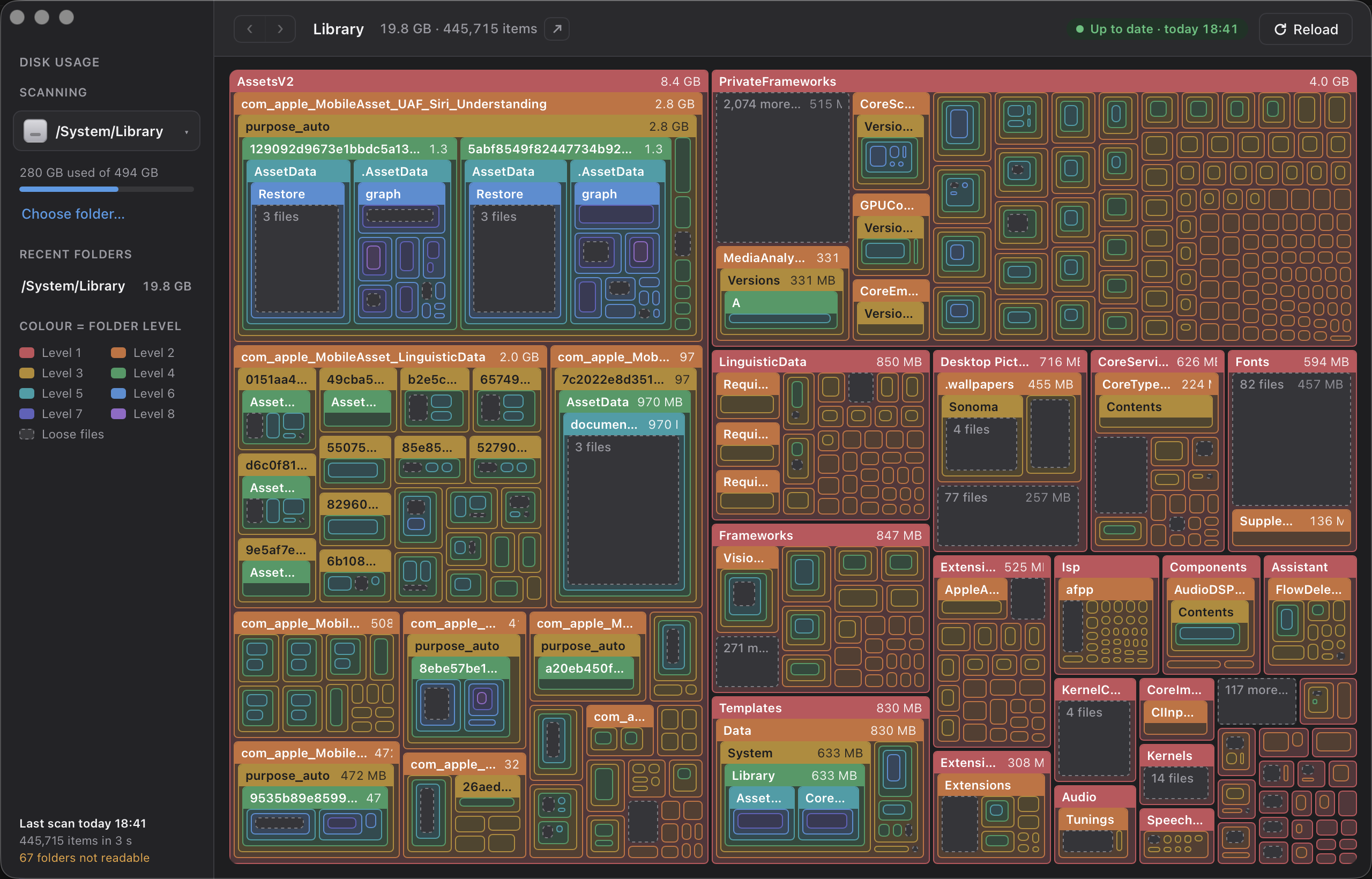
A nested treemap of what is using the disk on your Mac.
What's new in 1.2.1
- The About panel shows the copyright notice.
- Every source file carries the copyright and MIT licence header.
- The Rust and TypeScript code is linted and formatted (clippy, rustfmt, ESLint, Prettier), with a few small React fixes found along the way. No change to how the app works.
Install
Apple Silicon, macOS 13 or later.
- Download Disk-Usage.dmg below.
- Quit Disk Usage if it is running, open the DMG and drag Disk Usage onto Applications, replacing the previous copy.
- Open Disk Usage from Applications. macOS says it can't check the app for malicious software, because it is signed with a self-signed certificate rather than an Apple Developer ID. Click Done, then open System Settings → Privacy & Security, scroll down and click Open Anyway beside Disk Usage, then Open Anyway again and enter your password. (Or clear the download flag in Terminal:
xattr -dr com.apple.quarantine "/Applications/Disk Usage.app".) - Grant Full Disk Access under System Settings → Privacy & Security if you have not already done so, to include protected folders.
Closing the window hides the app; it stays in the menu bar, and Quit is in that menu.
Disk Usage 1.2.0
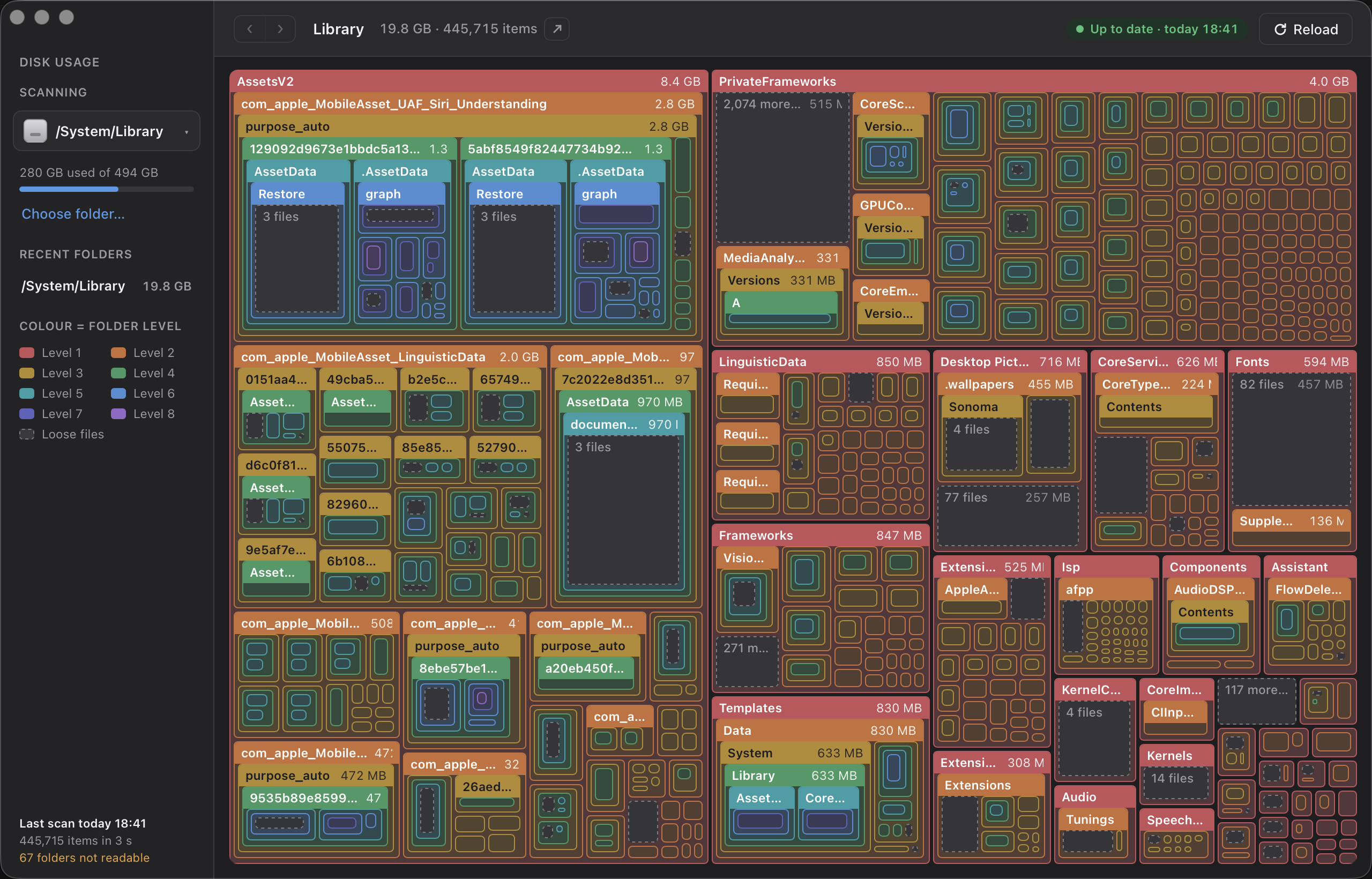
A nested treemap of what is using the disk on your Mac, now with a searchable file table.
What's new in 1.2.0
- Click a grey loose-files block to zoom into its parent folder, just like clicking the folder itself.
- Browse the current folder's files in a Finder-style table with Name, Date Modified, Size, On Disk and Kind columns. In folders containing only files, the files box fills the map area.
- Search filenames, sort by clicking column headings, and double-click a file or use its arrow to reveal it in Finder.
- File listings read current metadata without reading file contents or downloading online-only cloud files. They may differ from the map's last scanned totals.
Install
Apple Silicon, macOS 13 or later.
- Download Disk-Usage.dmg below.
- Quit Disk Usage if it is running, open the DMG and drag Disk Usage onto Applications, replacing the previous copy.
- Open Disk Usage from Applications. macOS says it can't check the app for malicious software, because it is signed with a self-signed certificate rather than an Apple Developer ID. Click Done, then open System Settings → Privacy & Security, scroll down and click Open Anyway beside Disk Usage, then Open Anyway again and enter your password. (Or clear the download flag in Terminal:
xattr -dr com.apple.quarantine "/Applications/Disk Usage.app".) - Grant Full Disk Access under System Settings → Privacy & Security if you have not already done so, to include protected folders.
Closing the window hides the app; it stays in the menu bar, and Quit is in that menu.
Disk Usage 1.1.0
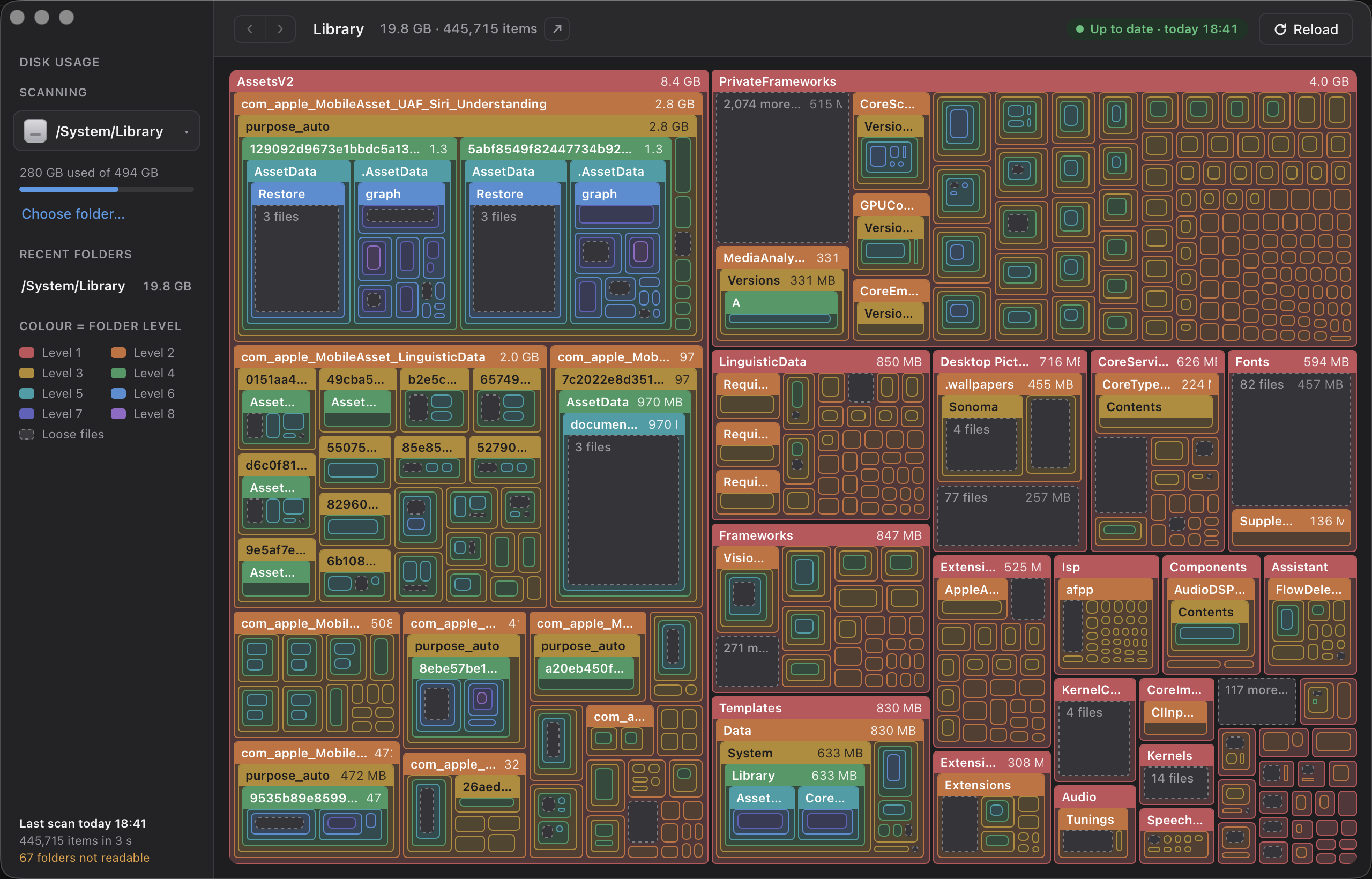
A nested treemap of what is using the disk on your Mac: every folder drawn as a block inside its parent, sized by what it takes up.
What's new in 1.1.0
- The sidebar's "used of total" bar now says how much of the used space the scan cannot reach: incl. n GB not scanned. On a whole-disk scan the disk's own used figure and the folder total never agree, because local Time Machine snapshots, purgeable caches, swap, the recovery volume and folders macOS denies access to all take space without being files a folder walk can find. Hover the line for that explanation.
Install
Apple Silicon, macOS 13 or later.
-
Download Disk-Usage-1.1.0-arm64.zip below.
-
Unzip it and drag Disk Usage.app into Applications.
-
In Terminal, clear the download flag once — the app is signed with a self-signed certificate rather than an Apple Developer ID, so macOS will otherwise refuse to open it:
xattr -dr com.apple.quarantine "/Applications/Disk Usage.app" -
Open it, then grant Full Disk Access under System Settings → Privacy & Security so it can see inside Mail, Safari, Photos and the other protected folders.
Closing the window hides the app; it stays in the menu bar, and Quit is in that menu.
Disk Usage 1.0.0
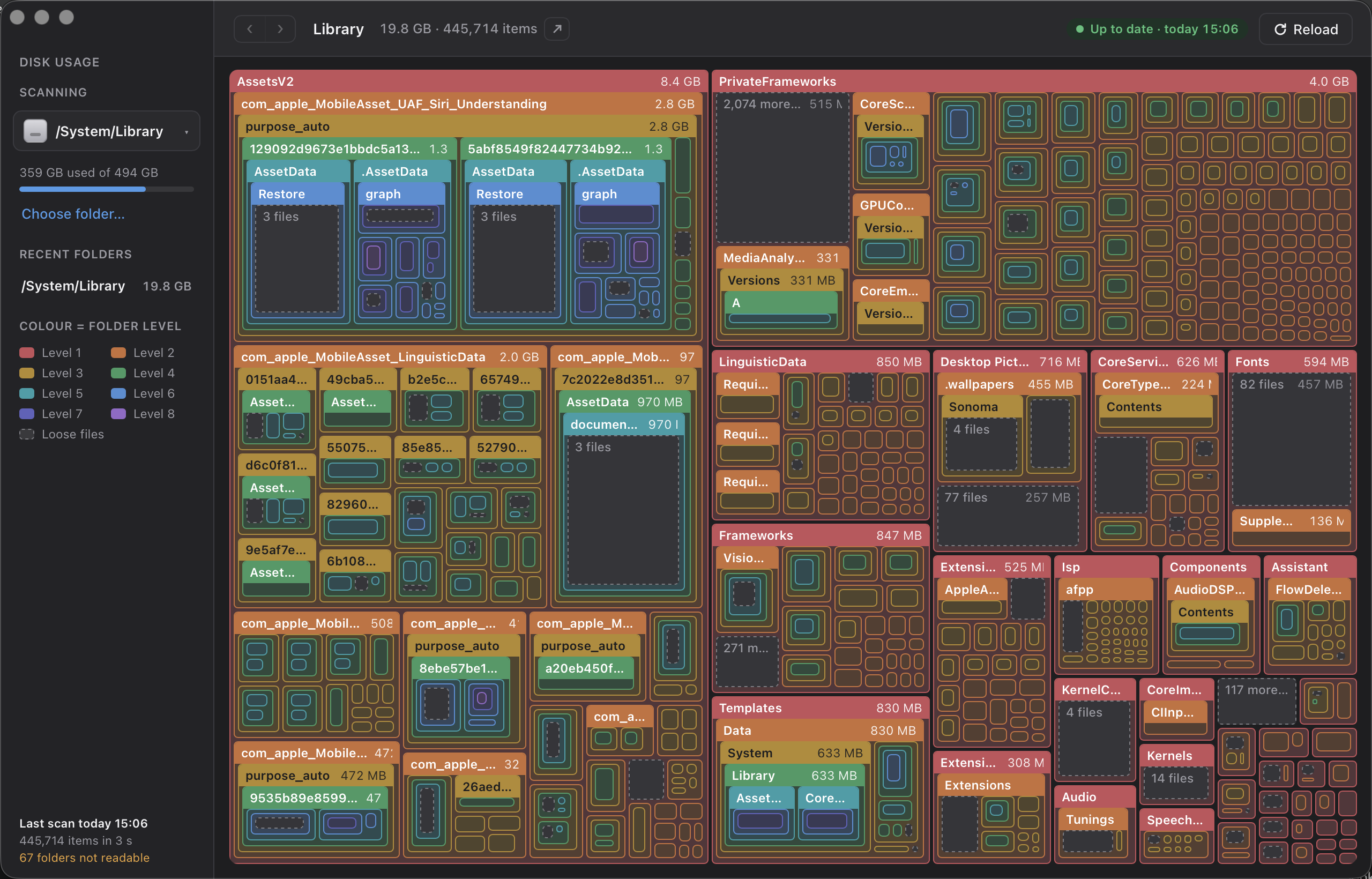
A nested treemap of what is using the disk on your Mac: every folder drawn as a block inside its parent, sized by what it takes up.
Install
Apple Silicon, macOS 13 or later.
-
Download Disk-Usage-1.0.0-arm64.zip below.
-
Unzip it and drag Disk Usage.app into Applications.
-
In Terminal, clear the download flag once — the app is signed with a self-signed certificate rather than an Apple Developer ID, so macOS will otherwise refuse to open it:
xattr -dr com.apple.quarantine "/Applications/Disk Usage.app" -
Open it, then grant Full Disk Access under System Settings → Privacy & Security so it can see inside Mail, Safari, Photos and the other protected folders.
Closing the window hides the app; it stays in the menu bar, and Quit is in that menu.
What it does
- The whole boot volume by default, or any folder you pick; the five most recent roots sit in the sidebar.
- Colour is nesting level, in rainbow order. Files directly in a folder are one grey dashed block; folders too small to draw fold into a "more folders" block, so a folder's area is always its total.
- Cloud folders (OneDrive, iCloud Drive) carry a double edge and show both what is on disk and what is in the cloud — an online-only folder is never drawn away to nothing.
- Click to zoom in; Esc or ⌘↑ up, ⌘[ and ⌘] back and forward. Reveal in Finder from the block header, ⌘-click, the right-click menu or ⌘⇧R.
- Sizes are allocated bytes on disk, not file lengths. A full boot volume of ~2.8M items scans in about 20 seconds; every scan is cached, so the map is on screen a second after launch while a fresh scan runs behind it.