Repository navigation
External SSH access
Help index · Consoles · Internet gateway
These optional features are available in 0.12.0. Console SSH uses the additional Compose service below; Internet-node SSH requires the matching helper image. The device library stays the same.
| Connection | What it provides | What must be running |
|---|---|---|
| External console SSH | The same device console as the browser, including input locks | Core, the optional SSH service and the device; no guest IP or Internet node needed |
| Internet node SSH | A small lab shell with SSH/Telnet tools; also an SSH jump host | That Internet node and reachable guest IP services |
Use the existing Compose configuration with the additional SSH override. Set
these values in .env:
WL_EXTERNAL_CONSOLES=1
WL_SSH_BIND=127.0.0.1
WL_SSH_PORT=2222
WL_SSH_SESSION_SECONDS=28800
Then build/recreate using your normal overrides plus compose.ssh.yaml. For
example, with KVM and Agent:
docker compose -f compose.yaml -f compose.kvm.yaml -f compose.agent.yaml -f compose.ssh.yaml up -d --buildOn installations using the standalone Compose command, substitute
docker-compose for docker compose. Save/stop your devices before recreating
core; this is not a live upgrade. The SSH override builds its own service image
and uses dedicated broker and host-key volumes. It never mounts the Docker socket
or the Agent's state into the SSH service.
The default listener is local to the Docker host. To connect from another
computer, use an SSH tunnel through the host or set WL_SSH_BIND to a host LAN
IPv4 address. Key authentication remains required even with WL_AUTH=0.
Setting WL_EXTERNAL_CONSOLES=0 revokes console access when core is recreated;
remove the SSH service if you also want to remove the listener.
Open Storage → External SSH access. Add a label, paste one OpenSSH public
key (for example, the contents of ~/.ssh/id_ed25519.pub), choose Device
consoles and select reader, writer or administrator. Multiple keys are supported.
The list shows fingerprints and Revoke. Never paste a private key.
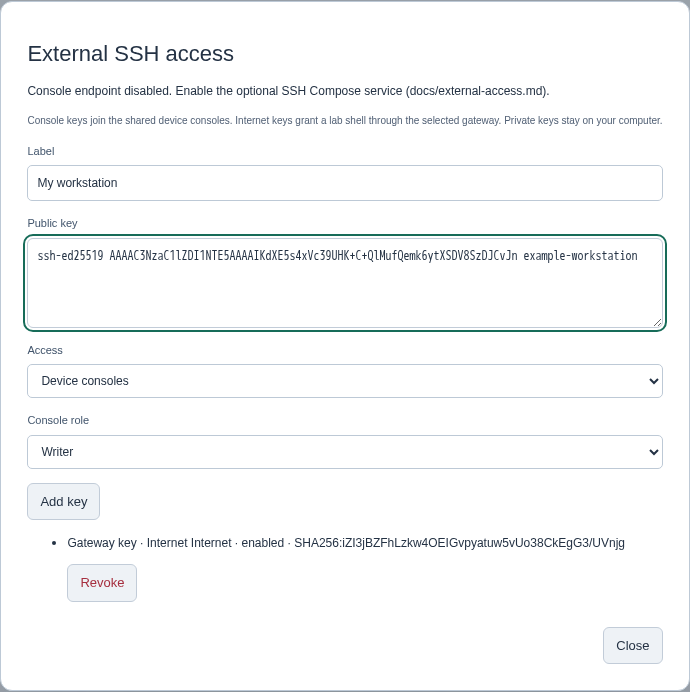
Key registration in a disposable demonstration workspace. Its console endpoint is disabled here; enable the Compose service as described above to connect.
With Weblab authentication enabled, only admin manages keys. Console roles have the same read/input/takeover permissions as the browser. The key is associated with the corresponding account; account lockout, password change or reset makes the grant inactive. Revoke and register it again after correcting that account. An SSH login is its own station: a separate browser logout does not log it out, and two SSH connections using the same key do not share lock ownership.
Revoking a console key closes its active sessions, normally within a second.
Console sessions also expire after WL_SSH_SESSION_SECONDS (60–86400 seconds).
Console host keys persist in the Compose ssh-host-keys volume; retain that
volume to avoid changing the host identity on upgrades. The settings show its
fingerprint after the SSH service registers with core.
On the Docker host, using a registered client key:
ssh -p 2222 console@127.0.0.1          # list consoles and select a node ID
ssh -p 2222 console@127.0.0.1 list     # list only
ssh -t -p 2222 console@127.0.0.1 console r1
Use the actual persistent node ID from the list. The inspector's Copy console SSH command uses the selected node and localhost for a loopback binding, or the browser's server hostname for a LAN binding; adjust the hostname if using a tunnel or a different externally reachable address. The node must already be running. Only the console menu/attach commands are accepted; this endpoint provides no core shell, SCP/SFTP or TCP forwarding. The Inspector button appears for routers, switches and PCs. For an Internet node's shell, use Copy jumpbox SSH command in its SSH settings instead.
Normal keys go to the managed console. Ctrl+] opens its control menu:
| Key | Action |
|---|---|
l / u
|
Lock / unlock input |
t |
Take over, or request control from the owning admin |
a / d
|
Allow / deny a pending request |
c |
Cancel your pending request |
q |
Disconnect, leaving the node running |
| Ctrl+] again | Send a literal Ctrl+] to the device |
Other keys leave the menu without sending input. Takeovers that require
confirmation ask for y. Reader sessions cannot input or control locks. A stopped
or restarted node ends the connection; reconnect explicitly. Output and scrollback
come from the existing shared wrapper. Window resizing does not reconfigure the
shared device PTY or override another station's terminal size.
Pull the matching helper on the Docker host and select it with
WL_INTERNET_IMAGE=ghcr.io/weblab-network/weblab-internet:0.12.0:
docker pull ghcr.io/weblab-network/weblab-internet:0.12.0For source deployments, build the updated helper instead:
docker build -f packaging/internet/Dockerfile -t weblab-internet:dev .For that local build, use WL_INTERNET_IMAGE=weblab-internet:dev. Changing core’s
environment requires recreating core with the same volumes; save and stop the lab
first. In the Internet node settings, open the SSH access tab. Enable it, choose a
host bind address/port (default 127.0.0.1:22022) and, for LAN bindings, an optional
allowed source IPv4/CIDR. Leave source blank for localhost. Stop only this
Internet node to apply listener changes, then start it again.
The Inspector also has an Enable SSH access checkbox and an SSH access settings shortcut. Toggling the checkbox opens the SSH tab with the change staged for review; choose Apply settings to save it. Closing the window without applying discards those edits. The checkbox is disabled while this Internet node is running.
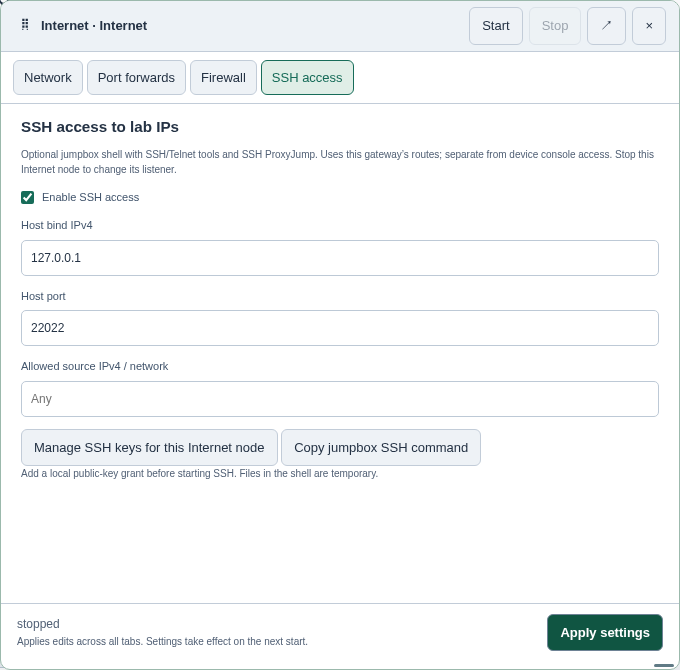
The SSH access tab configures the gateway shell; it is separate from shared console SSH. Click either screenshot for full size.
Use Manage SSH keys for this Internet node to register a key with Internet SSH shell access. These grants are separate from console grants: a console reader key does not grant a shell. With no local grant, SSH stays inaccessible and the settings report it as unconfigured. Adding/revoking keys synchronizes without restarting NAT, normally within a few seconds; changing the grant set disconnects existing shell/jump sessions on that gateway so revocation is effective.
If login fails with Permission denied (publickey), check the key's Access
selection in Storage. Device consoles authorizes console on port 2222;
Internet SSH shell authorizes lab on the selected Internet node's port
(default 22022). To use both, register the same public key in both scopes.
Opening Manage SSH keys for this Internet node preselects the right scope
and node. An “SSH unconfigured” status means no valid key is registered there.
ssh -p 22022 lab@127.0.0.1
# Inside the lab shell:
ssh admin@10.0.10.1
telnet 10.0.10.2
The shell is non-root. Routes and interface configuration remain managed by the Internet node settings. Its outbound connections are limited to the connected lab subnet and configured return networks, excluding the gateway itself and Docker/host uplink. The guest must have the requested service, credentials and a return route to the Internet node's lab IP. This works with any reachable guest IP service, regardless of device vendor. Guest SSH/Telnet sessions use the guest's own authentication and are independent of Weblab's shared-console input locks.
Alternatively connect directly from your workstation through the jump host:
ssh -J lab@lab-host:22022 admin@10.0.10.1Use ~/.ssh/config to specify different keys for the jump host and guest. Guest
authentication and host-key checks remain on the workstation; no private key
needs to be copied into the shell. SSH agent forwarding, remote forwards and
X11 forwarding are disabled. Local TCP forwarding/ProxyJump is subject to the
same lab-only destination policy as shell programs.
The internal SSH helper shares the gateway's network but has separate processes
and storage, no network-administration capability, and no console-broker access.
An SSH helper failure is reported separately from NAT/DNS. Stop/start only that
Internet node to recover it. Weblab's normal Docker logs identify the internal
wl-cloud-…-ssh service if diagnosis is needed.
Keys and access grants belong to this installation, under .external-access
in the core data directory; they are not included in topology JSON or saved ZIP.
Requested Internet SSH settings are exported, but importing a lab does not
register anyone's key. Register local grants for that node on the new installation.
Gateway SSH host identities persist in small Docker volumes named
wl-ssh-<workspace-owner>-<node-hash>, outside saved lab artifacts. A copied lab on
a different installation gets a new host key. These volumes are retained after
node removal; delete an unused one explicitly only when its identity is no longer
needed. User shell files and installed packages are temporary; required clients
are built into the image. This shell is not a persistent Linux workstation.