Repository navigation
Agent window
Help index · External MCP adapter
The optional Agent button opens a floating tabbed window. It uses a separate Codex app-server companion and an operator-selected Ollama model or OpenAI model through ChatGPT sign-in to discover profiles, draft exercises and inspect live consoles. By default it can read and preview. In Settings, separately enable topology apply and node starts and console input to let it request changes. By default each operation requires your approval in Operations. The optional YOLO setting preapproves enabled actions for this session; it is off by default. Topology apply replaces the current topology; all nodes must already be stopped. Stopping/deleting nodes, manipulating live links and uploading images remain manual operations. The agent can configure running devices through their CLI when input is enabled and approved, individually or through YOLO.
You can arrange nodes while approving starts or console input; coordinate-only edits do not invalidate those operations. Settings or cable changes require a fresh review. Applying a replacement topology still checks layout changes too. Preview warnings flag separated switch groups and missing redundant switch paths. For STP blocking/failover practice, review the switch connections and VLANs: a triangle of routed links does not provide a Layer 2 loop.
When requesting a configured lab, the agent can include FRR/LL2S startup snippets and PC addressing in its proposal, then request each start and console check. Review the final device states and protocol evidence; a completed model turn does not guarantee the requested lab is running or configured correctly.
- Create an OSPF/RSTP practice lab · 1:13: generate a topology with FRR routers, LL2S switches and Linux PCs, start the nodes and check the baseline. Two student tasks remain intentionally unfinished.
- Configure and verify an existing lab · 1:16: attach an exercise, approve console access and inspect the resulting switch configuration and explanation.
The Agent issues the console commands; the devices produce the output. The user navigates the workspace and grants permissions, without manually typing console commands. These silent videos have captions and shortened waits. YOLO is explicitly enabled in the demonstrations; individual approvals remain the default.
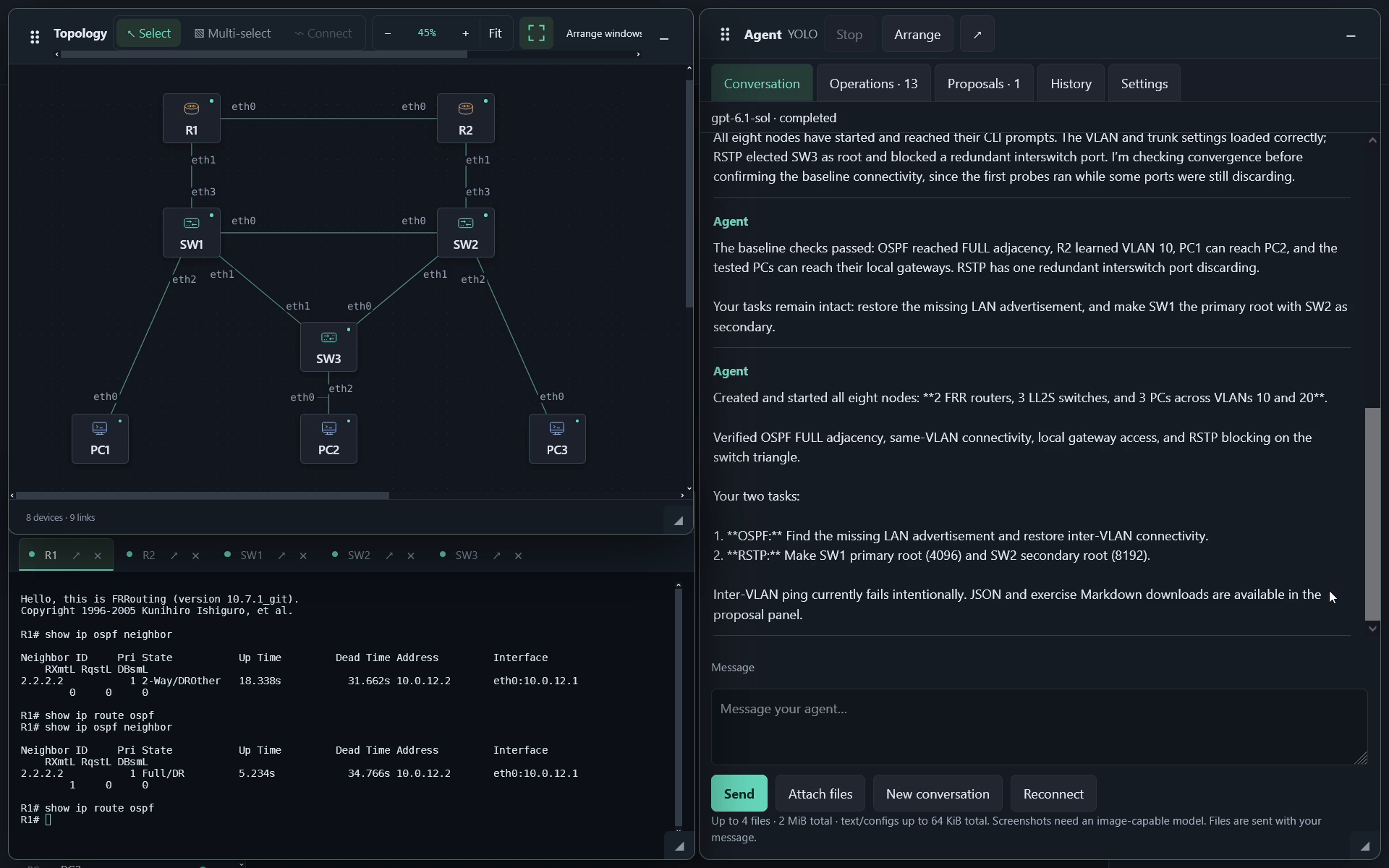
Open the full-size screenshot.
The optional companion is a separate Linux amd64 image,
ghcr.io/weblab-network/weblab-agent. It runs Codex, not model weights. Use the
same released version for Weblab and the companion; v0.5.0 introduces this image.
The Agent is absent from the interface unless the companion is configured.
In a checkout of that release, or a directory with compose.prebuilt.yaml and
compose.agent.prebuilt.yaml from the same release:
For an existing workspace, first save configurations and gracefully shut down
guests. For Junos, use request system power-off and wait for shutdown before
Stop. Export a stopped-lab ZIP before recreating Weblab. Keep the existing
image/data mounts and project name when adding the companion.
mkdir -p images lab-data
export WL_IMAGE=ghcr.io/weblab-network/weblab:0.5.0
export WL_AGENT_IMAGE=ghcr.io/weblab-network/weblab-agent:0.5.0
# For Ollama, use the /v1 URL reachable from the Weblab service:
export WL_AGENT_PROVIDERS=http://YOUR_OLLAMA_HOST:11434/v1
docker compose -f compose.prebuilt.yaml -f compose.agent.prebuilt.yaml pull
docker compose -f compose.prebuilt.yaml -f compose.agent.prebuilt.yaml up -d
For QEMU devices, also download compose.kvm.yaml and add -f compose.kvm.yaml
to both commands. Device images remain separate pulls/uploads; see
installation. For OpenAI-only use, omit WL_AGENT_PROVIDERS
and select OpenAI in Agent Settings; no Ollama server is required. Its unused
default endpoint does not receive OpenAI requests.
Open http://127.0.0.1:8080/ and select Agent → Settings. Keep these same
Compose files, version variables and project directory on subsequent pull,
up, logs and down commands. You can store the variables in the project's
.env. The prebuilt override contains no build instructions; do not combine it
with compose.agent.yaml. Tags become pullable after the release is published.
Three project-scoped named volumes hold sockets, bridge session metadata and
companion conversations/login state. Keep these volumes during upgrades; do not
use down -v unless you intend to remove that state. These volumes are separate
from lab ZIP exports. Do not mount host Codex credentials or share the volumes
between independent Weblab workspaces.
The companion is not bundled in the standard Weblab image. Existing installations continue working without it. To build both services locally, use Docker Compose with the normal lab mounts and any KVM override you already use:
export WL_AGENT_PROVIDERS=http://YOUR_OLLAMA_HOST:11434/v1
docker compose -f compose.yaml -f compose.kvm.yaml -f compose.agent.yaml up -d --build
Omit -f compose.kvm.yaml if you use only container devices. Save and gracefully
shut down running guests before recreating an existing Weblab service; Junos
requires request system power-off from its console first.
WL_AGENT_PROVIDERS is a comma-separated allowlist of complete Ollama /v1
URLs. Settings can select only those destinations. Use addresses reachable from
the Weblab service, not from your browser or the companion. Weblab's normal
host-network Compose setup can reach a host Ollama at http://127.0.0.1:11434/v1.
URLs cannot contain passwords, query strings or fragments. Redirects are not
followed. HTTP is appropriate only on a trusted network; use HTTPS when needed.
The companion has no network interface, host Docker socket, images or lab-data
mounts. It shares a dedicated Unix-socket volume with Weblab. A restricted gateway
relays Ollama requests to the configured endpoint, read/preview operations and
explicitly approved apply/start/console operations. The ordinary Weblab mutation
API is not exposed on that gateway. For OpenAI, a session-scoped HTTPS tunnel
permits only auth.openai.com:443 and chatgpt.com:443; TLS stays end-to-end
between Codex and OpenAI. The Weblab service needs outbound HTTPS access to those
hosts. The companion retains network_mode: none.
Enabling the Agent does not automatically enable the external WL_AUTOMATION
API; existing external MCP setups keep their independent behavior.
- Open Agent → Settings.
- Select Ollama, select the endpoint and enter the exact installed model name. Tested models
include
gpt-oss:20b(the default) andqwen3.5:9b-temp-0.3with Codex 0.160.0. - Use Check model to confirm it is listed by Ollama. This is a discovery check, not proof of tool compatibility. Weblab never pulls a model.
- Keep the context window consistent with the model server's actual capacity.
Default is 32,768 tokens. This sets the Codex context budget, not Ollama
num_ctxor model-server memory allocation. Set a turn deadline between 30 and 3,600 seconds. New sessions default to 900 seconds (15 minutes); existing sessions retain their setting. This is the total time per message, including generation, validation retries, tool calls and approval waits. Temperature follows the Ollama model configuration; arbitrary TOML editing and provider-independent sampling controls are not exposed. - Enable either permission if you want the agent to request changes. Existing
sessions keep their selected model; new sessions default to
gpt-oss:20b. Optionally enable YOLO — automatically approve enabled actions to skip individual approval prompts. It does not enable unchecked permissions. - Save settings, then open Conversation and send a request.
For example:
Draft an FRR router, an LL2S switch and two Alpine PCs for VLAN practice. Discover the installed profiles first and return a preview and short exercise.
Changing provider, endpoint, model or context size starts a new conversation. Changing only the deadline or permissions retains the conversation and proposals; settings can be saved only between turns. After a timeout, increase the deadline if needed and ask the agent to inspect current state and continue unfinished work. Completed actions remain; Weblab does not roll back or automatically replay them. Previous conversations remain in History.
Prompts, attachments, discovered topology (including embedded startup snippets), console output/input and tool results are sent to the selected model endpoint. The response is displayed as plain text. Review shows the proposed nodes/links, JSON and validation warnings. Proposal buttons download the validated JSON and companion Markdown without applying anything. Downloads expire with the server's proposal cache or a Weblab restart; keep copies locally if needed. A valid topology does not establish correct configuration, device boot or protocol behavior: review the generated exercise.
Stop cancels generation, with process termination as a bounded fallback. It also revokes pending approvals. Stopping does not undo an already accepted operation or cancel a command running inside a guest. A model outage or deadline is reported explicitly. Weblab does not automatically resend a failed prompt. If the browser loses its connection while Send is pending, reconnect and inspect the conversation before sending again.
The tab row beneath the title toolbar separates Conversation, Operations, Proposals, History and Settings. Conversation has its own space for messages and your draft; operation cards and proposal previews do not reduce its height. Operations shows requests and results, while Proposals holds preview/download controls. Tabs show item counts; pending approvals also show a Review button above the content without automatically switching tabs. A pending operation also opens an approval dialog, even when the Agent window is hidden. Stop stays in the title toolbar and works from every tab. Use Left/Right or Home/End on a focused tab to switch, or the mouse wheel over an overflowing tab row to scroll it horizontally. An animated activity line shows elapsed time against the deadline and phases such as Thinking, Reading console, Writing response and Waiting for your approval. If no events arrive for 15 seconds it shows the time since the last event; this is not a progress percentage. Raw reasoning is not displayed. Model/provider event support varies, so some periods show Waiting for model. Expand Latest tool error to see the server's validation or execution error. It clears when the same operation succeeds or a new turn begins.
Hiding the window leaves generation running. Reconnect and reloading the same browser tab retrieve its session without resending a prompt. Move, resize, maximize and Arrange use the same controls as other floating windows, including keyboard handles. New conversation preserves the previous conversation in History and starts a fresh Codex thread on the next message. Close session removes the session, its conversations and its dedicated sign-in directory; reopen/reconnect to create a new one.
The introductory hint appears only while a conversation has no messages. After the first Agent response, the input placeholder becomes Message your agent…. New conversations show the starter example again; reopened history keeps the follow-up placeholder. This does not change your typed draft or model settings.
Open History to see this session's conversations, their titles, models, last-update dates and message counts. Titles initially come from the first prompt.
- Open restores the discussion and its provider/model/context settings. It does not send a message, replay commands or change the topology. Continue by sending another prompt. The agent is instructed to read the current lab state again because the topology and consoles may have changed.
- Rename changes the title; Download transcript saves user/assistant messages and text attachments as Markdown. It lists image filenames; download images separately from their messages. The transcript does not include the full tool trace, operation cards or proposal downloads.
- Delete removes an older conversation from Weblab's history. First open another conversation or start a new one to delete the current conversation. Deletion does not change the lab and is not a secure erase of underlying Codex logs/history. Close session removes the entire dedicated session directory.
Switching conversations requires generation and sign-in to be idle. The current lab-change, console-input and YOLO switches remain in effect; historical permissions are never restored. Old approvals, observations and proposal links are discarded. Download wanted proposals before switching. Historical Ollama endpoints must still be in the operator's allowlist.
History belongs to the existing browser session, not to an OpenAI account or the lab topology. Other sessions cannot list or open it. Up to 50 conversations are kept per session; download/delete older ones when the limit is reached. Existing current conversations are migrated automatically, but threads cleared before this feature are not automatically recovered.
By default, access remains in the current browser tab. Settings → Remember this Agent session on this browser optionally retains its access capability in browser local storage so a reopened tab can retrieve it. This is off by default; anyone using that browser profile can access the remembered session, including its existing model login and enabled permissions. Unchecking removes the saved browser capability, while the open tab keeps working. The existing 24-hour inactivity expiry still applies. After expiry, use Reconnect to create a new session; history is not an indefinite archive. Download transcripts you need to keep. Browser-tab drafts are temporary and are not included in server history.
The lab Export dialog can optionally include the current conversation in ZIP or JSON exports. ZIP contains readable Markdown and JSON transcripts; JSON adds reference metadata. Text attachments are included, screenshots are listed only. This does not restore a resumable Agent session on import or replay any actions. See Agent conversation exports for limits, compatibility and sharing precautions.
In Conversation, use Attach files, enter a question or instruction, then Send. Expand an attachment's filename to preview it; Remove drops it from the pending message. Files stay in the browser until Send. The selected provider receives their contents together with your message, so review them first for information you do not want to send there.
- Screenshots: PNG, JPEG and WebP. Use an image-capable model.
gpt-ossselections are rejected for image attachments because they are text-only; text/config attachments still work. Other models depend on their actual image support and provider compatibility; selecting a model does not establish that capability. Weblab does not perform OCR or switch models automatically. - Text/configuration: UTF-8 TXT, Markdown, JSON, YAML, CFG, CONF, CONFIG, LOG, CSV, INI and XML. Their text is included as reference data, not executed or automatically imported into the lab. Attaching YAML for discussion does not add YAML topology import support.
- Limits per message: 4 files, 2 MiB combined, and 64 KiB combined text. Screenshots are limited to 8192 pixels per side and 16 megapixels. Empty files, binary text, unsupported extensions and oversized attachments are rejected; files are not silently truncated or resized. PDF, office documents, SVG and archives are not supported in this version.
Sent files appear under the user message. Expand them to preview or Download attachment; they also remain accessible when reopening that conversation in History. Pending attachments follow drafts while switching conversations in this tab, but are lost on reload. If Send fails, inspect the conversation before resending: a lost response does not prove that the message was rejected.
Attachments live in the companion's dedicated session storage and count toward its 256 MiB history/storage limit. Lab exports exclude them by default; optional conversation exports include text content and screenshot filenames only. Deleting a conversation removes its attachment files; closing a session removes its whole directory. Copies may remain in Codex/provider history, so these actions are not a secure erase of all copies. Reading attachments requires the owning Agent session; no public file URL, host-file access or additional model tool is exposed. Images use Codex's documented local image input.
Screenshot: Agent permission settings
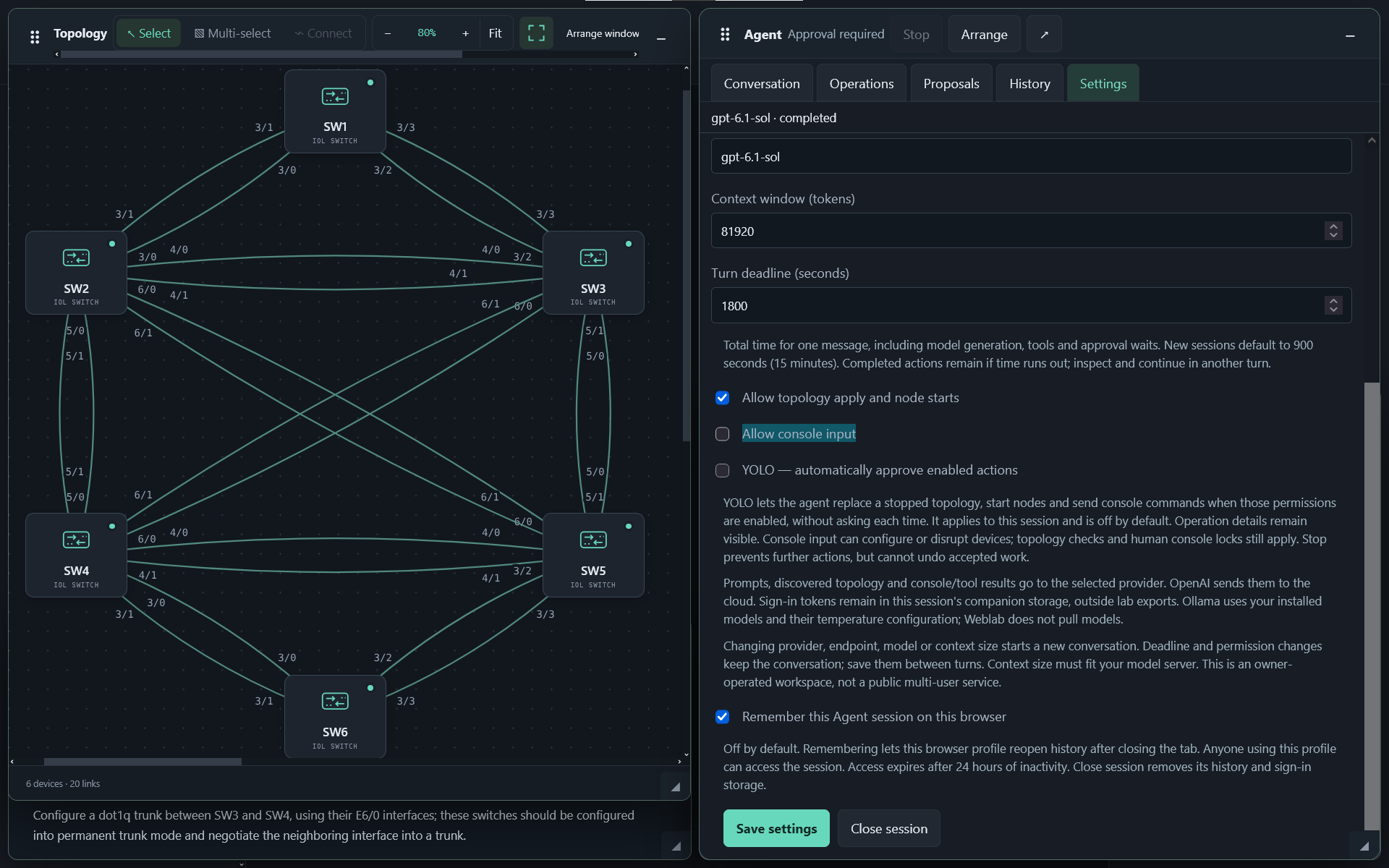
For an owner-operated, self-hosted workspace, the companion supports Codex's ChatGPT account login without putting an API key in Weblab or the browser:
- Open Agent → Settings, select OpenAI · ChatGPT sign-in, and save.
- Click Sign in with OpenAI. When a short code appears, click Open OpenAI sign-in to open a separate tab, enter that code, and authenticate there. You may need to enable device-code login in your ChatGPT security settings; workspace administrators can also control availability.
- Leave Weblab open while signing in. It reports Signed in when Codex confirms completion. No callback port needs to be published from the container.
- Use Refresh account / models to check an existing login and populate model
suggestions. Select an available model and save;
gpt-5.6-solis the prefill, not a promise of account access. The returned catalog is not an entitlement check. - Open Conversation and send a request. Read/preview, permission switches, individual approvals or YOLO work exactly as with Ollama.
Shared usage allowance: OpenAI requests from Weblab count toward your signed-in account's existing Codex / ChatGPT Work limits, shared with your other usage. Weblab provides no separate allowance. Longer conversations and repeated console checks can consume more usage.
Plan eligibility: use a ChatGPT plan with Codex CLI access, such as Plus, Pro or an eligible Business, Enterprise or Edu plan. Free/Go desktop access does not establish compatibility with this companion. Check OpenAI's current plans and usage limits. API-key authentication is not implemented here. Cancel sign-in cancels a pending login; Sign out removes that session's credentials and clears its conversation. Neither stops lab nodes. After a companion restart, refresh the account to see its status.
Each browser session has its own Codex credential/history directory inside the companion's dedicated state volume. Tokens and refresh credentials are managed by Codex in a file, never returned to the browser or included in lab exports. Treat that volume as sensitive; the Docker host administrator can access it. New conversation keeps the login. Changing provider keeps stored credentials available for switching back; sign out before switching if you want them removed. Close session removes its dedicated directory. Existing Ollama conversations retain their legacy history location until a new conversation is started.
OpenAI receives the prompts, attachments, topology, console contents and tool results used in the conversation. This sign-in integration targets local/self-hosted open-source use, not a public hosted agent service or the restricted demo. See the official app-server authentication guidance and device-code login instructions. A public hosted service would need a separately reviewed authentication design.
OpenAI models that require Codex Code Mode use its isolated JavaScript tool router. It exposes only Weblab MCP tools; shell, filesystem and generic network APIs remain unavailable. Ollama keeps its existing direct-tool path. Before each model turn, Weblab checks that the MCP server connected and advertised the configured tools. A missing inventory fails visibly before sending the prompt. If an older companion reports a disabled tool gateway with an OpenAI model, rebuild the agent service and start a New conversation (this keeps sign-in).
A modal dialog asks for approval when an operation is waiting. The Operations
tab keeps the approval card and its result. Both show the operation, exact arguments
and context: the proposed topology and replaced topology, the node to start, or
the target node, recent console output and proposed input. Console input is JSON
escaped so \r, \n and other control characters are visible. A single input
request can contain multiple commands; review the entire string. Approve once
only when you understand its effect. Deny rejects it without executing.
Later or Escape dismisses the dialog without deciding; the request remains
in Operations until it expires. The same request does not reopen the dialog on
every refresh; a new request will. Expired or cancelled requests close it.
To skip subsequent prompts, check Automatically approve subsequent operations in this session (YOLO), then Approve and enable YOLO. This approves the current request and enables the session's existing YOLO setting immediately, including future turns. It does not enable unchecked lab-change or console-input permissions. Already pending requests still need a decision. Deny or Later never enables YOLO, even if the checkbox is checked. Turn it off in Settings between turns; Operations records which approval enabled it.
Screenshot: approval dialog
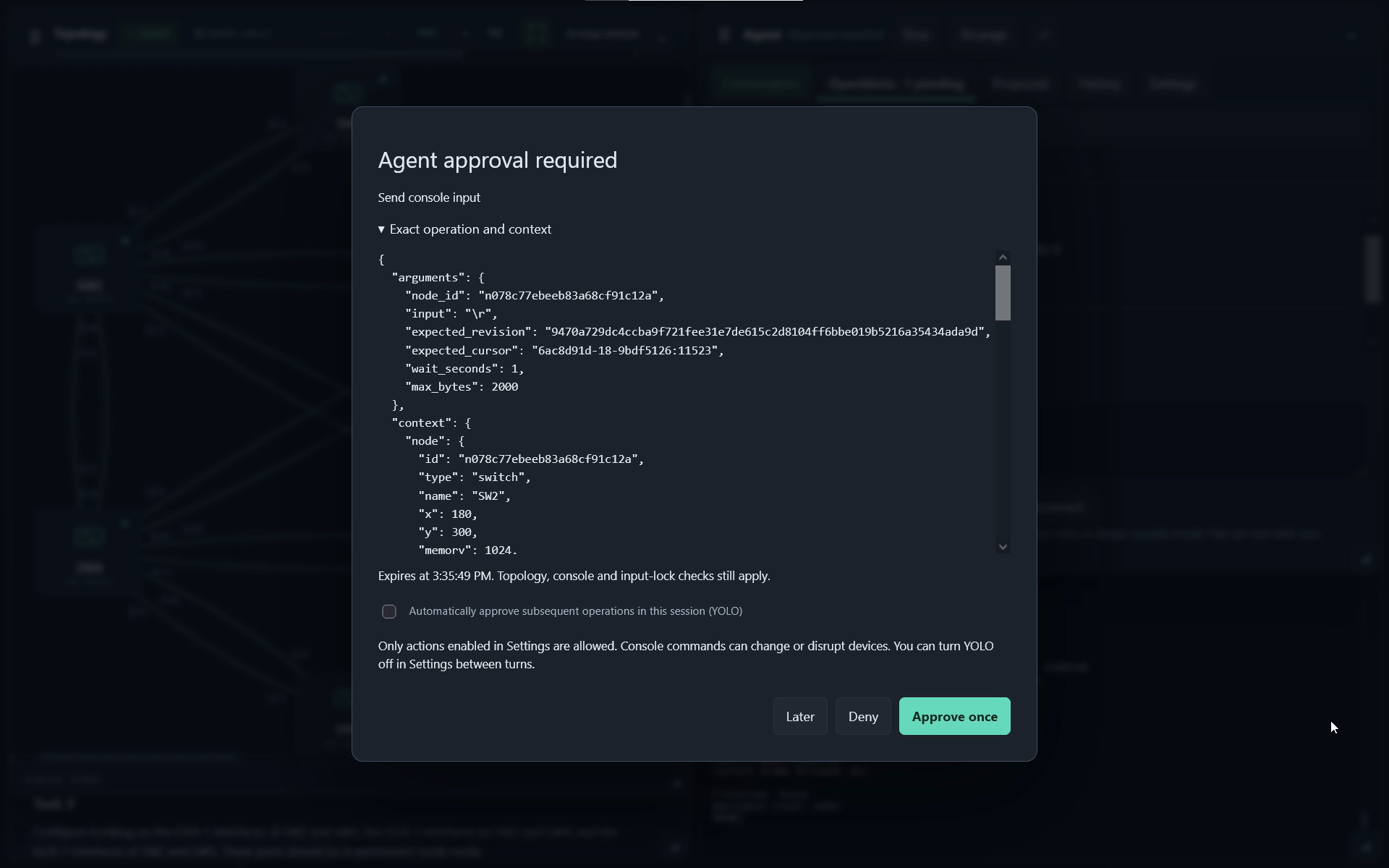
This example requests Enter to inspect a console prompt. Enabling session YOLO explicitly preapproves subsequent enabled actions.
Pending cards expire after at most 60 seconds, within the overall turn deadline. With YOLO enabled, operation cards are recorded as automatically approved and execute immediately. The title bar and cards show YOLO. This permits enabled apply/start/input operations, including potentially disruptive guest commands; it adds no stop/delete/upload tools or host access. The model cannot enable YOLO, approve its own requests, change the approved arguments, or reach the general mutation API through the gateway. Browser reload/hide retains a pending card until expiry. Stop, session reset, closure or a core restart revokes outstanding approvals. No operation is replayed after a restart or an ambiguous turn-submission response.
The server rechecks the topology revision before apply/start/input and rechecks console history and input locks before typing. If you or a guest changes the console while the card is pending, the input may be refused; the agent must read again and request a new approval. Human locks are never taken over. A sent result means transport delivery, not successful configuration. Uncertain means input may have reached the guest: inspect output before retrying. A running launcher similarly does not prove that a guest is ready.
For example, after enabling console input:
Inspect R1's console and current interfaces. Propose the commands needed to configure OSPF, let me approve the input, then read the resulting output.
Device syntax, prompts and permissions still matter. The tools are raw shared consoles, not a vendor-independent configuration engine. They cannot guarantee that model-generated commands are correct. Console text and secrets typed into a console can appear in model context and conversation history. Use this feature only with an endpoint you trust with those contents.
This version targets an owner-operated, trusted workspace. Browser session capabilities separate conversation access; they are not user accounts or multi-user authentication. Do not expose the regular unauthenticated Weblab workspace publicly. The hosted demo/classroom variant is not enabled by this feature.
- One active generation across all sessions, to limit companion/model contention.
- Up to eight browser sessions, expiring after 24 hours of inactivity, with up to 50 conversations per session.
- Accumulated companion history, attachments and logs are checked against a 256 MiB limit. Generation stops at the limit; archive/reset the dedicated companion volume deliberately to continue. This periodic check is not a filesystem quota.
- A prompt is limited to 16,000 characters; conversations are bounded. Start a new conversation when the limit is reached.
- The companion has a 1 GiB memory limit and one CPU. These limits do not limit Ollama model memory/VRAM. Size and limit the model server separately.
- OpenAI authentication and transport have disposable test coverage. A real signed-in model run still needs operator validation; the presence of a cloud model does not guarantee correct guest configuration or boot handling.
Compose uses separate named volumes for the gateway metadata and companion
conversation state. They are excluded from lab JSON/ZIP backups. A container
recreation retains conversations; a turn interrupted by restart is not replayed.
Browser capabilities use that tab's sessionStorage, or optionally browser
localStorage when Remember is checked; closing an unremembered tab can lose
access to its history. Host Codex credentials/config
are never mounted. Do not publish these volumes: they contain prompts and model
history and, for OpenAI sessions, login credentials. Starting a new conversation is not a secure erase of Codex history.
For a new installation, simply omit the Agent override. Source builds use
compose.yaml (optionally with compose.kvm.yaml); prebuilt deployments use
compose.prebuilt.yaml (optionally with compose.kvm.yaml). No model service,
model account or companion container is required.
For an existing installation, first save configurations, gracefully shut down
guests and stop the lab. Junos requires request system power-off before Stop.
Keep the same Compose project directory/name, environment, mounts and KVM settings.
Stop/remove only the optional companion, then recreate the lab without its override:
# Source deployment; retain your KVM override in the final command if needed.
docker compose -f compose.yaml -f compose.agent.yaml stop agent
docker compose -f compose.yaml -f compose.agent.yaml rm -f agent
docker compose -f compose.yaml up -d --build --force-recreate lab
For prebuilt deployments, substitute compose.prebuilt.yaml and
compose.agent.prebuilt.yaml in the first two commands. The final command is
docker compose -f compose.prebuilt.yaml up -d --force-recreate lab
(with your KVM override if used). Reload the browser: the Agent button is absent.
Omitting the override alone does not remove an already running companion.
These commands retain the named Agent volumes, including history and sign-in
state, for later reuse. Deleting those volumes is a separate deliberate operation;
never use a blanket docker compose down -v on an installation with wanted data.
- No Agent button: confirm the lab was rebuilt/recreated with the agent override and reload the page.
-
Companion unavailable: check
docker compose ... logs agentand that both services mount the same socket volume. The companion needs writable dedicated state/socket volumes, but a read-only root filesystem is expected. - Model missing: check the exact name in Ollama; install/pull it on the model server yourself.
- Model connection failed: check endpoint reachability from the lab host, Ollama availability and memory headroom. Check model discovery, then send a new turn. Repeated validation errors may require a simpler prompt/model.
- OpenAI sign-in fails: enable device-code login in your account, check outbound HTTPS access from Weblab, and retry. Cancel a pending login before changing providers. Never copy host Codex credentials into the container.
- Session expired: close/reopen a browser tab to start a fresh session.
The pinned app-server protocol is experimental. Upgrade Codex only after running the companion tests.