Recipes Feature Tutorial – ComfyUI LoRA Manager
The Recipes feature in LoRA Manager makes it easy to save, import, and reuse powerful LoRA combinations. Whether you're importing a generation from Civitai or saving your own custom setup, Recipes ensure you never lose track of the LoRAs and weights that work well together.
This guide explains how to use Recipes, with screenshots to help you follow along.
A Recipe is a combination of LoRAs with their specific weight settings, along with prompts and generation parameters. This feature is especially helpful because:
- We rarely use just one LoRA at a time.
- Some LoRAs work well together only under specific weights.
- Recipes make it easy to recreate or share these configurations.
You can import LoRA recipes from images on Civitai using either an image file or a URL.
- Go to Civitai and copy the URL of an image with metadata.
- Open the Recipes tab in LoRA Manager.
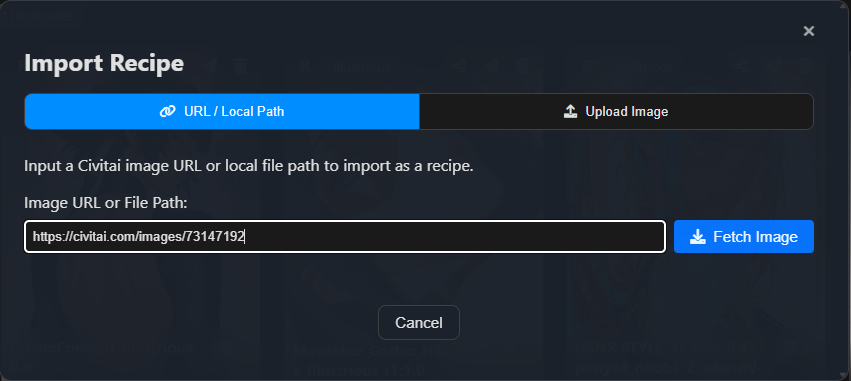
- Click Import > Input URL.
- Paste the URL and click Fetch Image.
- LoRA Manager will analyze the image and show you all the LoRAs used.
- Click Download Missing LoRAs, select a folder, and let LoRA Manager handle the downloads.
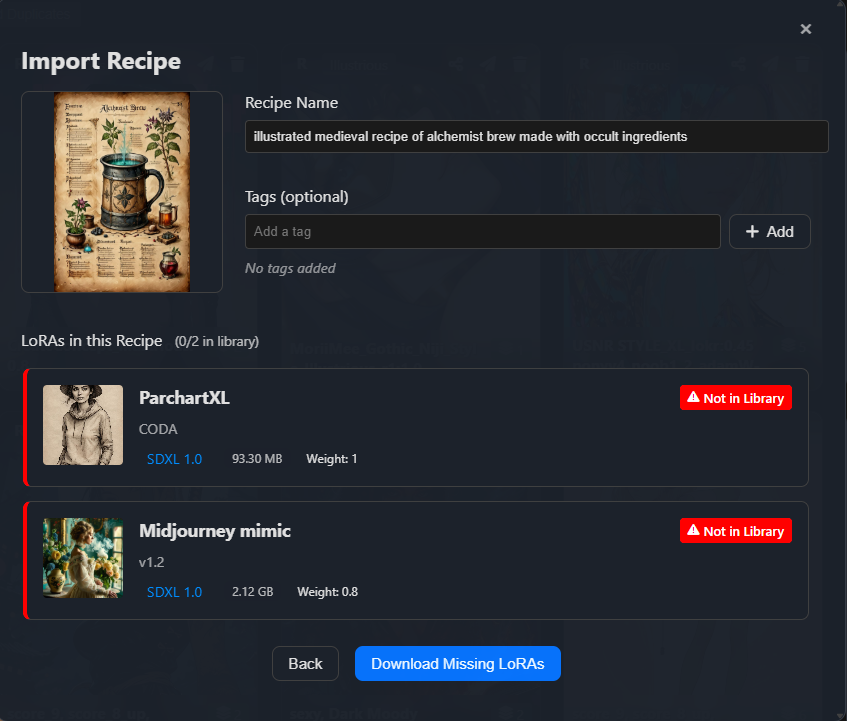
- The recipe is saved. You're ready to use it in your workflow.
- Download a Civitai image (with embedded metadata) to your PC.
- In the Recipes tab, click Import and select the image.
- LoRA Manager will extract the metadata and display all LoRAs and settings used.

In the latest version, you can now send a recipe directly to your ComfyUI workflow, skipping the manual copy-paste.
- Click the Send to Workflow button on a recipe card.
- It will populate the LoRA Loader node with all LoRAs and weights.
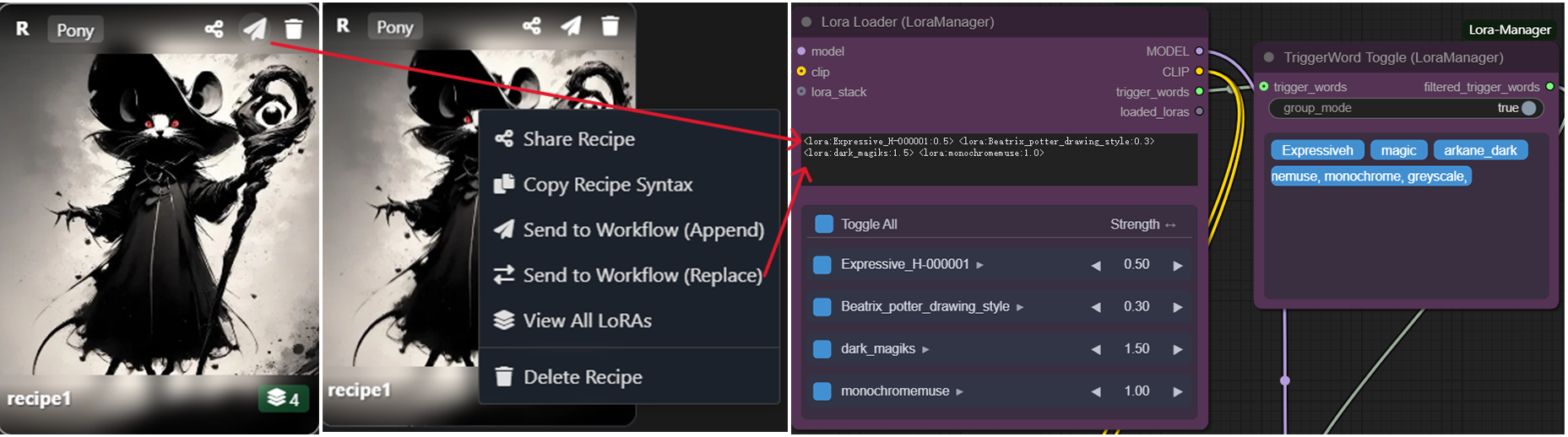
You can also save custom recipes directly from your workflow.
- Right-click any LoRA in your LoRA Loader node.
- Click Save Recipe.
- Your active LoRA configuration (names + weights) will be saved.
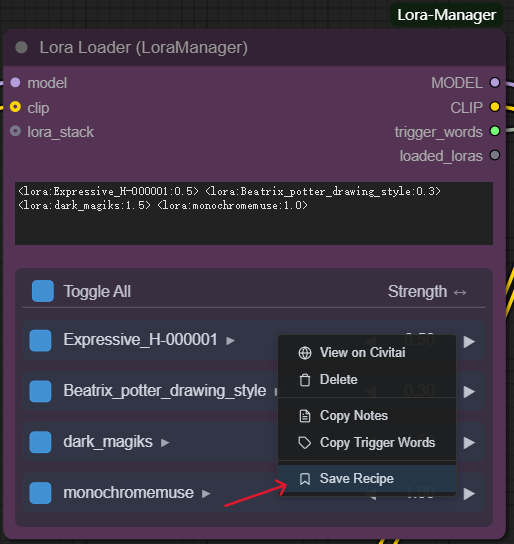
- Click the pencil icon to rename or tag your recipe for easier searching.
- If a LoRA used in a recipe was deleted, it will appear as deleted.
- Click the "deleted" badge to reconnect it.

- Click View all LoRAs in this recipe to inspect them on the LoRAs page.
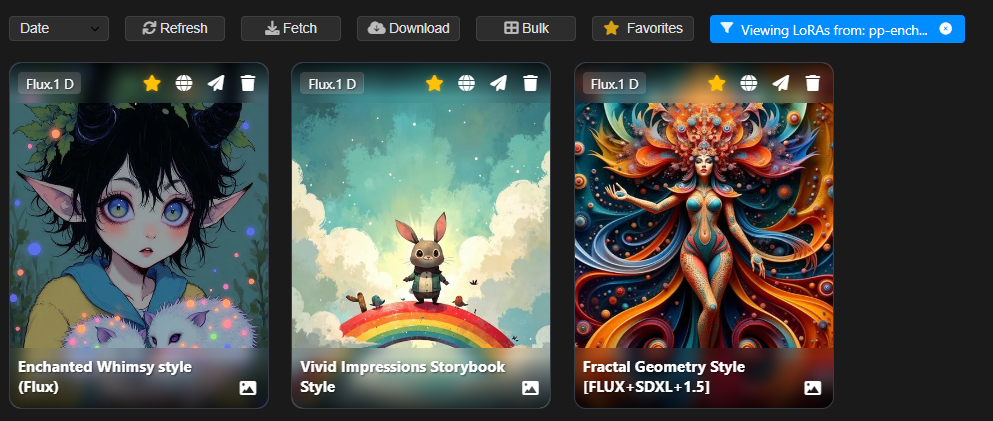
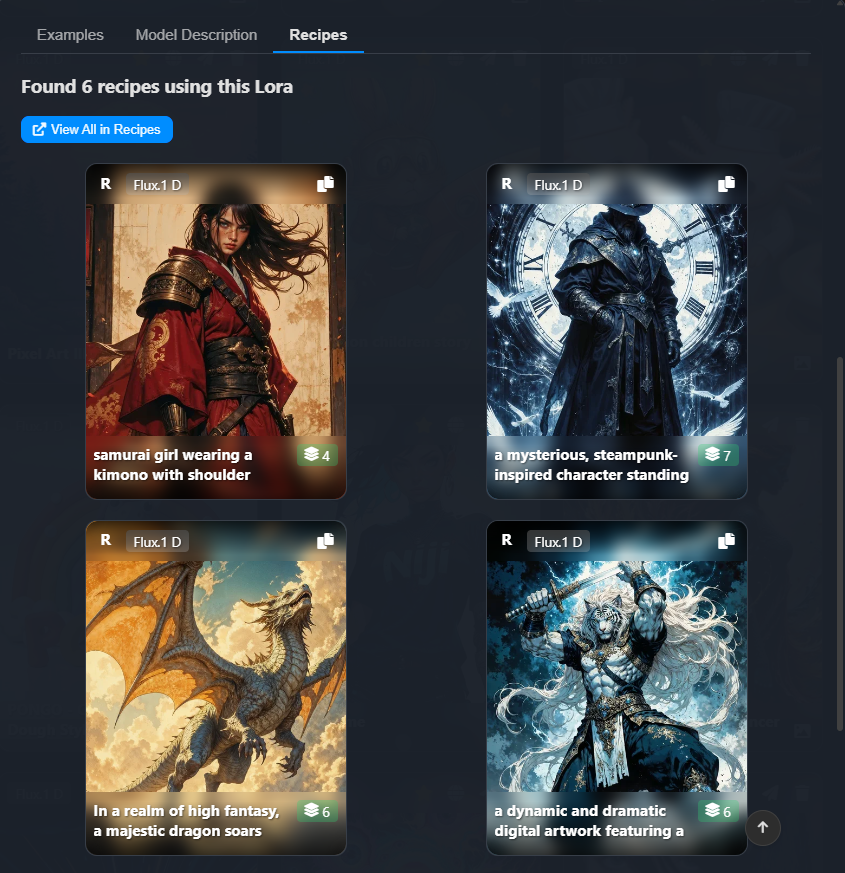
- When viewing a LoRA detail page, go to the Recipes tab.
- Click View All in Recipes to see where it's used.
LoRA Manager supports three metadata formats:
- Native Recipe Metadata – Embedded via the Share button in LoRA Manager.
- Civitai On-Site Metadata – Use Filters: "Made On-Site" + "Metadata Only".
- Forge / A1111 Metadata – Supported formats from Civitai plugins.
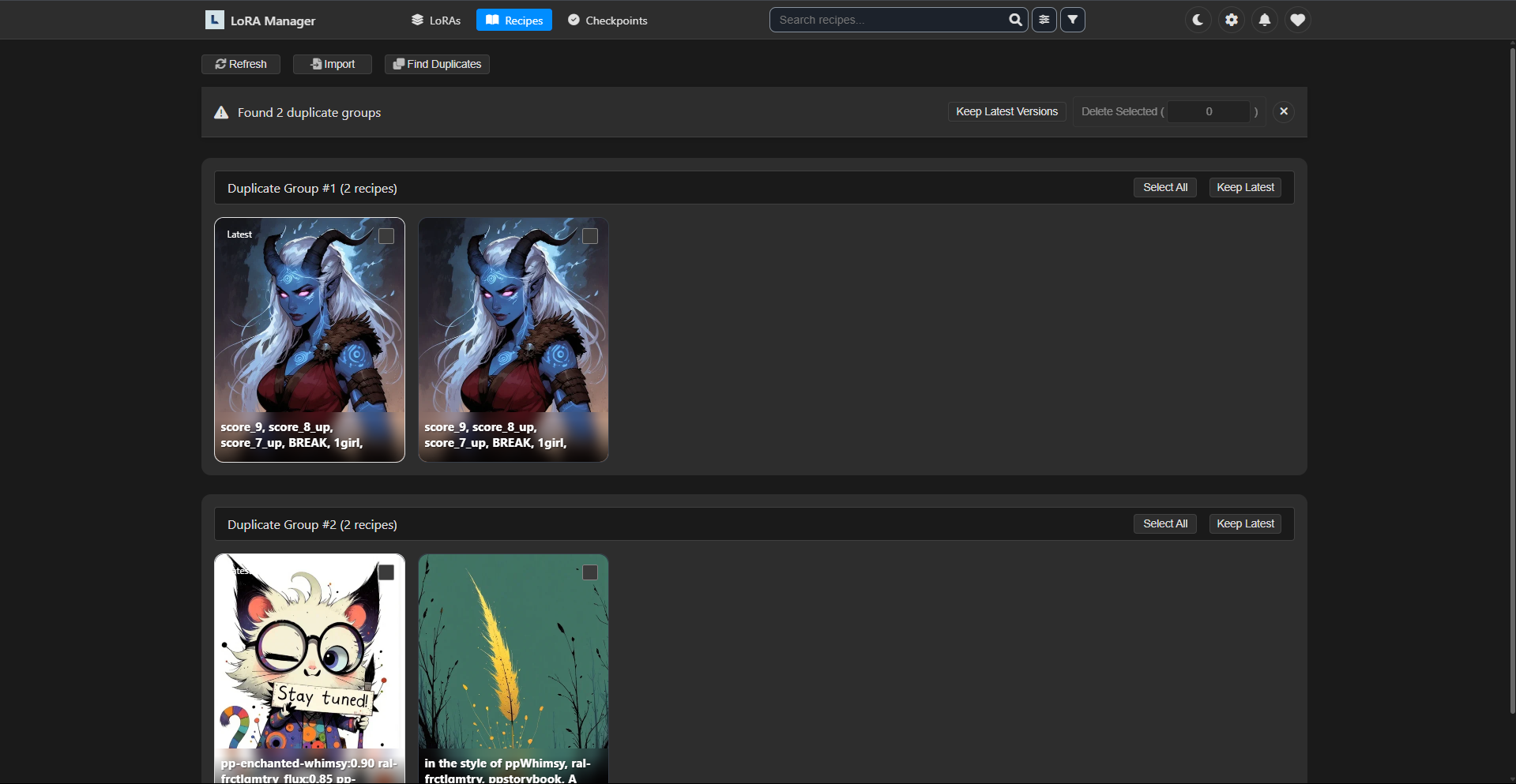
- Click Find Duplicates to scan and batch delete duplicates.
- You'll be notified if duplicates are detected during import.
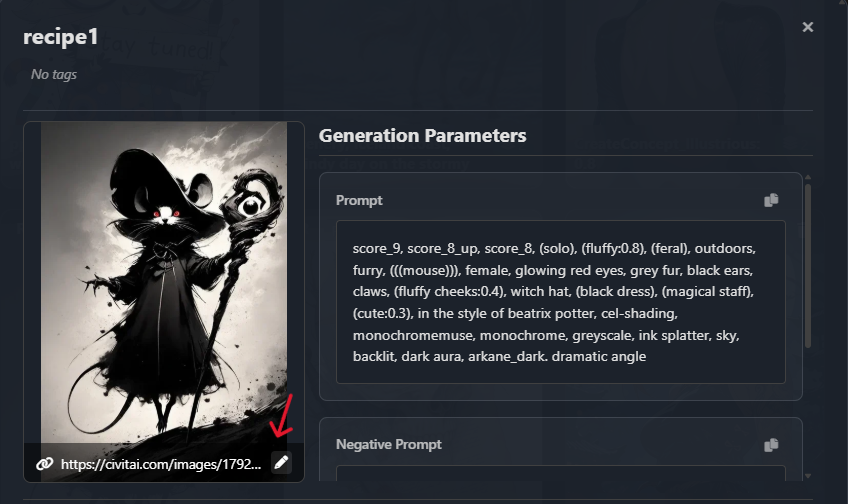
- Recipes imported via URL now store the original Civitai link.
- You can click to view the source or manually edit it in recipe settings.
Recipes let you:
- Import generation metadata from Civitai.
- Automatically fetch missing LoRAs.
- Save and reuse powerful LoRA combinations.
- Send everything directly to your ComfyUI workflow.
Try it out today, and bring consistency and efficiency to your creative process!