
Replies: 2 comments

|
@alibi90 |
|
Shipped in v1.22.0 🎉
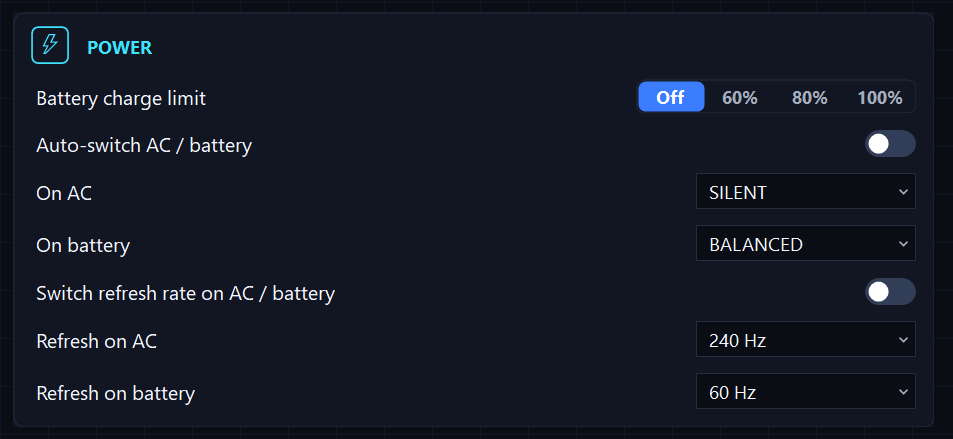
Exactly as discussed: Settings → Power → "Switch refresh rate on AC / battery" (opt-in), with two pickers that list only the modes your panel actually reports - e.g. 240 Hz on AC, 60 Hz on battery. The switch happens automatically on every plug/unplug (and once at startup, so the screen always matches the current power source), with an OSD toast and a change-history entry. Frequency only - resolution and external monitors are left alone. Bonus: since this is a pure Windows display call (no EC involved), it works on every laptop GhostDeck runs on, even unrecognised models. Scripts can read the current rate too: Grab it from the latest release or just hit Install in the Updates tab. There's a longer tour on the wiki: What's new in GhostDeck 1.22. Thanks for the idea, @alibi90 - keep them coming! |


Uh oh!
There was an error while loading. Please reload this page.
Attachment policy
Description
Add a feature that automatically switches the display refresh rate from high performance modes (144Hz/240Hz) to 60Hz when the device is unplugged from power. This would help reduce battery consumption while maintaining higher refresh rates when connected to AC power.
Ideally, the system should remember the user's preferred refresh rate settings and automatically apply the appropriate profile depending on whether the charger is connected or disconnected. This is included in Armoury Crate but not in MSI Center
All reactions