The GUI
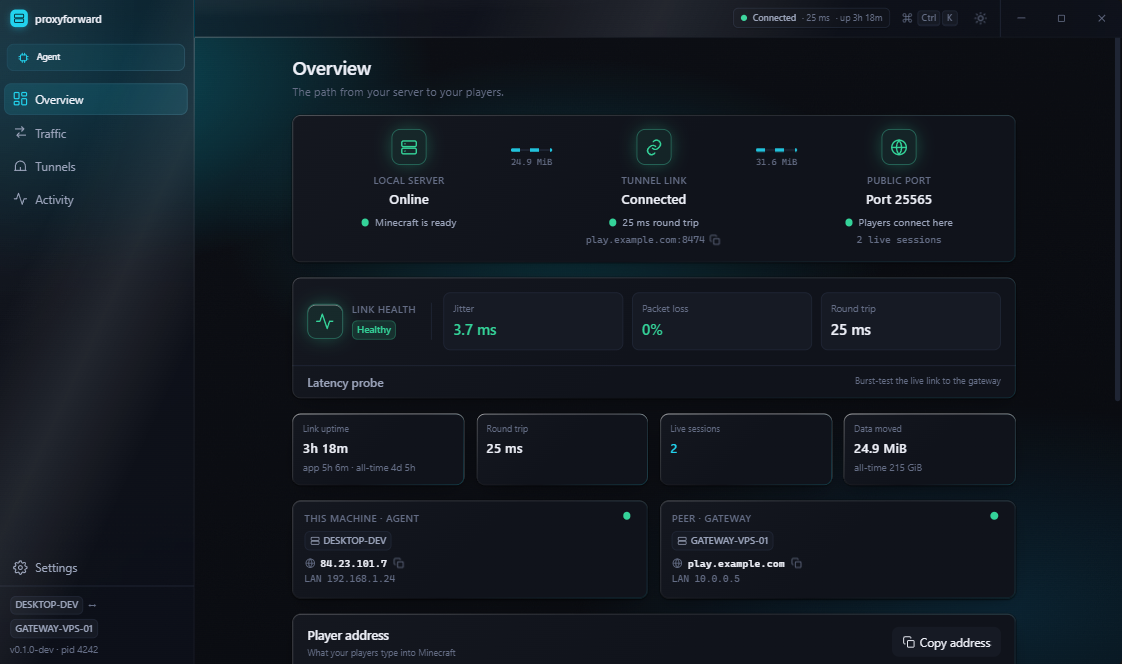
The window shows the same seven screens in either role, but the content adapts — a gateway shows you the pairing code and the security controls; an agent shows you the link to the gateway and your tunnels.
Press Ctrl+K anywhere for the command palette — it's the fastest way to get anywhere or
run anything.
| Screen | What it's for | |
|---|---|---|
Ctrl+1 |
Overview | The "is everything fine?" screen. Link status, health score, round-trip time, jitter and packet loss, current bandwidth, lifetime totals. On a gateway it also shows the pairing code. Buttons here run a latency test and a public reachability test, and restart the engine. |
Ctrl+2 |
Traffic | Who is connected right now. Live connection table with per-connection rates, the bandwidth chart, and traffic broken down by peer. |
Ctrl+3 |
Players | The wall of player heads, and a dossier per player: playtime, session count, latency, where they connect from. Needs Minecraft-aware on the tunnel — see Tunnels. |
Ctrl+4 |
Analytics | The long view. Summary tiles, peak-hours matrix, uptime report, a session browser with a replay timeline, and a world map / country ranking (geography needs your own GeoIP database — see Analytics and Privacy). |
Ctrl+5 |
Tunnels | Add, edit, enable and delete tunnels. Home of Test player path. See Tunnels. |
Ctrl+6 |
Activity | The live log tail, filterable by level and text. Also where you export a diagnostics bundle — which is redacted, see below. |
Ctrl+7 |
Settings | Appearance, behaviour, the gateway connection, security (gateway only), analytics, the Windows service and firewall, backup, and About. |
Before a role is chosen, the app is a three-step wizard instead: pick a role → configure it → go live. It watches the real connection as you finish, so the last step isn't a guess — it turns green when the handshake actually lands. Quick Start walks through it.
You can also import a .pfsetup file here, which is the quickest way to set up a second
agent identically.
- System → Firewall rule — Add rule creates the inbound Windows Firewall rule. One UAC prompt, ever. See Networking and Firewall.
- System → Windows service — install or uninstall the background service. See Windows Service.
-
Security (gateway only) — rotate the auth token.
⚠️ Every agent must re-pair afterwards. -
Analytics — turn off Mojang lookups, or point proxyforward at your GeoIP
.mmdbfiles. -
Backup — export/import your setup as a
.pfsetupfile. - Appearance → Motion — force animations on or off; by default it follows Windows' own "animation effects" setting.
Some toggles on this screen are stored but not implemented yet — minimize-to-tray, autostart, and the Prometheus metrics endpoint. They are listed on Not Yet Implemented.
If a Windows service is already running the engine, the GUI attaches to it rather than starting a second one. You'll see the app note that the service owns the setup — some settings become read-only, because the service's own config is the one in effect. Stop the service if you want the app to own things again.
Activity → export diagnostics produces a bundle you can attach to a bug report. It is redacted by design: tokens, hostnames, IP addresses and player identities are stripped, and peer IPs are replaced with stable pseudonyms so a maintainer can still tell "these twelve connections came from one address" without learning the address. Nothing you export leaks your setup.