Setup Guide English
This guide is for first-time setup and daily VoxType use. It covers Windows voice typing, speech-to-text with Doubao streaming ASR, optional OpenAI-compatible LLM polishing, automatic paste, clipboard restore, hotwords, and troubleshooting. Start with the minimum setup that makes the main workflow usable, then enable quality, trigger, caption, update, and privacy-related options as needed.
Chinese version: 声写 VoxType 用户配置指南
VoxType targets Windows 10/11.
Download the Windows installer from GitHub Releases:
https://github.com/zkwi/VoxType/releases
The installer includes the Microsoft Edge WebView2 Bootstrapper. On a clean machine without WebView2 Runtime, the installer installs it automatically.
Before recording, make sure Windows allows desktop apps to access the microphone:
Windows Settings -> Privacy & security -> Microphone -> Let desktop apps access your microphone
VoxType has five main pages:
| Page | Purpose |
|---|---|
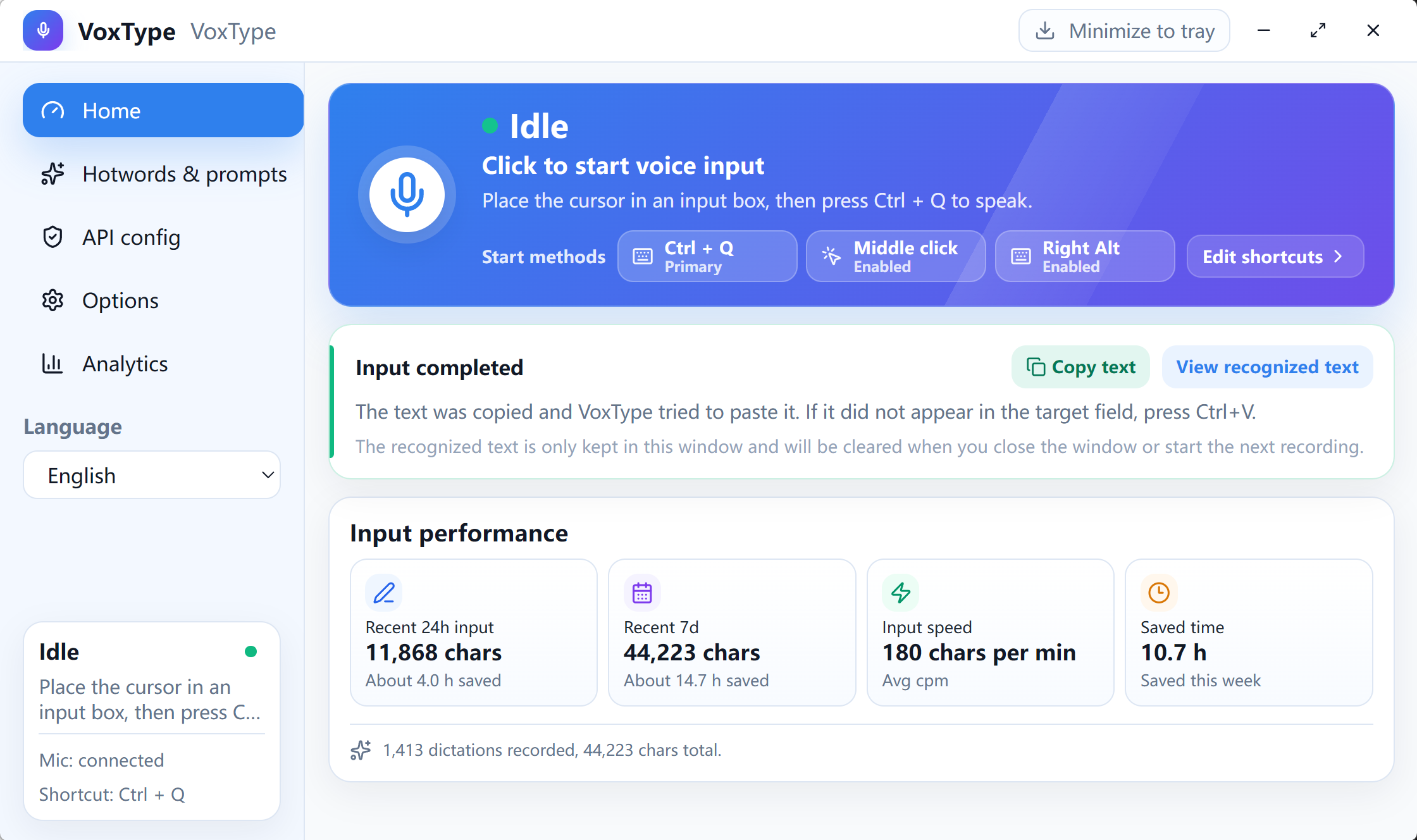
| Home | Check current state, start/stop voice input, and see trigger methods |
| Hotwords & prompts | Manage hotwords, scene notes, polishing prompts, and automatic hotword candidates |
| API Config | Configure required Doubao ASR credentials and optional LLM API |
| Options | Configure shortcuts, paste method, microphone, floating captions, startup, and close behavior |
| Analytics | View recent 24-hour, recent 7-day, and daily usage stats |
The Home voice card shows idle/recording state plus the primary shortcut, middle mouse, and right Alt in compact chips. Recent input and input performance stay below it.
After a successful input, Home shows "Input completed". This means VoxType copied the text and attempted to paste it. If the target field did not receive text, press Ctrl + V, click "Copy text", or inspect the result with "View recognized text". The recognized text is kept only in the current window.
API Config starts with setup health: ASR keys, microphone, paste method, trigger method, and privacy status are shown separately. Only issues that block recording, recognition, or paste should be prominent warnings. Optional settings such as right Alt, middle mouse, recent context, and automatic hotwords should remain softer reminders. Public screenshots should blur real App Keys, Access Keys, and other secrets.
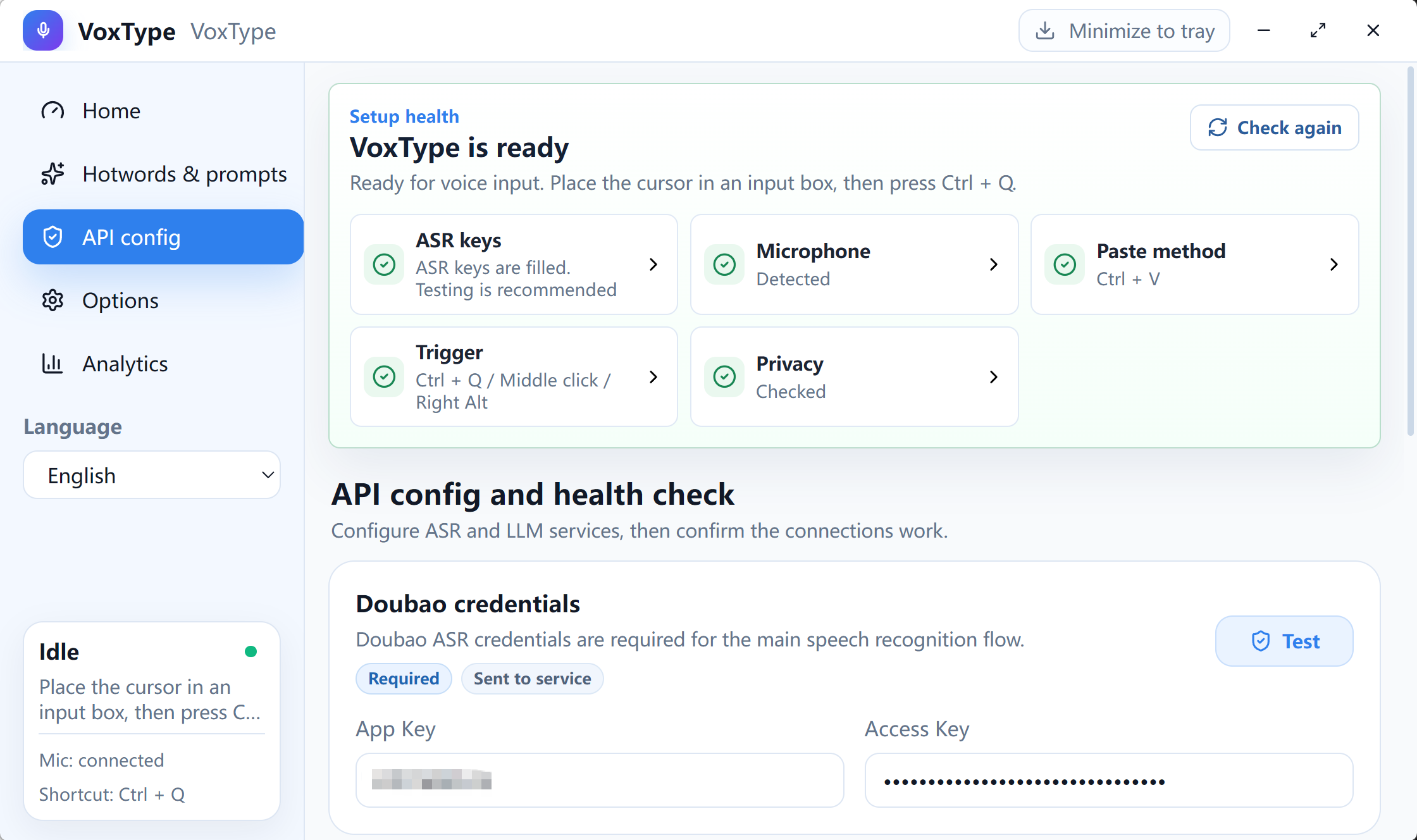
The core workflow depends on Doubao streaming ASR. Without ASR credentials, recording, recognition, and paste stay locked.
Open API Config -> Doubao credentials and fill in:
| Field | Required | Notes |
|---|---|---|
| App Key | Yes | From the Volcano Engine console |
| Access Key | Yes | From the Volcano Engine console |
The default Resource ID is volc.seedasr.sauc.duration. Most users do not need to edit it in the UI; special cases can edit config.toml.
Click Test after filling credentials. When the test passes, return to Home and start voice input.
API Config also includes Recognition language. The default is zh-CN. For English, Japanese, Cantonese, or other languages supported by Doubao docs, switch the language here. Choose Auto/service default to omit the language parameter. If ASR testing fails after changing the language, switch back to Auto/service default or confirm the current API mode.
Doubao official docs:
https://www.volcengine.com/docs/6561/1354869?lang=en
Do not commit real keys, and do not share your local config.toml.
The LLM API is used for:
- Light polishing of recognized text.
- Organizing longer dictated text for common scenarios.
- Generating automatic hotword candidates.
Open API Config -> LLM API:
| Field | Notes |
|---|---|
| Enable polishing | When off, VoxType uses ASR only |
| Base URL | OpenAI-compatible endpoint, for example https://dashscope.aliyuncs.com/compatible-mode/v1
|
| API Key | Provider API key |
| Model | For example qwen3.5-plus
|
Click Test after configuration. If you only need speech recognition, LLM polishing is not required.
Recommendations:
- Thinking is off by default because voice polishing is usually latency-sensitive.
- Text shorter than
min_chars = 40is not polished by default. - If the network is unstable, adjust LLM timeout in
config.toml.
Open Hotwords & prompts.
Use one item per line. Good hotwords include:
- Names, company names, product names.
- Project names, abbreviations, code names.
- Technical terms that ASR often misrecognizes.
Do not add passwords, ID numbers, phone numbers, customer data, or other sensitive information.
VoxType includes a default voice-input polishing prompt. It treats recognized text as source material, not instructions. Even if the transcript contains questions, commands, or prompt-like content, the LLM should polish the text rather than answer, execute, or analyze it.
The Hotwords page lets you:
- Restore the default prompt.
- Preview the final prompt.
- Edit the User Prompt template.
- Adjust the minimum polishing length.
System Prompt stays in config.toml to keep the normal UI concise.
Recent context is off by default. When enabled, VoxType saves recent recognized snippets to local context/recent_context.jsonl to improve continuity.
Notes:
- Only VoxType recognition snippets are saved; keyboard input is not recorded.
- Recent context is not written back to
config.toml. - Delete
context/recent_context.jsonlto clear it.
Automatic hotword candidates are off by default. When enabled, VoxType saves final voice-input text locally. Only when the user clicks "Generate candidates" does it send a summary to the configured LLM service.
Candidates are not added automatically. The user must review and confirm them. The default local history limit is 5000 characters; old 10000-character defaults are migrated to 5000 on config load.
Options shows common settings and troubleshooting entry points directly:
| Section | Visible Settings |
|---|---|
| Usage | Primary shortcut, startup, close-window behavior |
| Output |
Ctrl+V, Shift+Insert, clipboard-only, remove trailing period, restore clipboard after paste |
| Screen OCR context | Capture current foreground window text at recording start, test Windows OCR |
| Microphone | Input device |
| Floating captions | Preview, color presets, opacity presets |
| Updates and diagnostics | Check for updates, update now, open logs, copy diagnostic report |
Additional visible low-frequency settings:
- Alternative triggers: middle mouse and right Alt.
- Recording fallback: low-volume auto-stop.
Screen OCR context is on by default. It captures only the current foreground window, not the full screen. OCR text is lightly normalized, used only for the current ASR/LLM request, and is not written to logs, stats, config, or cache. Disable it in Options when the current window contains sensitive content.
Low-level parameters stay in config.toml: Resource ID, ASR WebSocket URL, model name, final-result timeout, max recording seconds, LLM timeout, main hotkey enable flag, mute system volume while recording, OCR character limit and wait time, caption custom size/position/color, clipboard restore delay, snapshot size, and retry parameters.
| Config | Recommended Value | Reason |
|---|---|---|
| Primary shortcut | Ctrl + Q |
Low conflict, easy to remember |
| Middle mouse | Off | Can conflict with browsers or editors |
| Right Alt | Off | Can conflict with IMEs or shortcuts |
| Paste method | Automatic paste | Works for most text fields |
| Clipboard restore | On | Tries to restore previous clipboard after paste |
| Low-volume auto-stop | 30 seconds, threshold 0.03
|
Less likely to cut off long or quiet dictation |
| Screen OCR context | On | Improves names, UI terms, filenames, and code identifiers; disable on sensitive windows |
| Recent context | Off | More conservative by default |
| Automatic hotword candidates | Off | Does not save transcript history by default |
| Mute system volume while recording | Off | Avoids interrupting meetings, videos, and alerts |
| Thinking | Off | Faster for voice polishing |
Minimum ASR config:
[auth]
app_key = ""
access_key = ""
resource_id = "volc.seedasr.sauc.duration"
Optional LLM config:
[llm_post_edit]
enabled = false
base_url = "https://dashscope.aliyuncs.com/compatible-mode/v1"
api_key = ""
model = "qwen3.5-plus"
min_chars = 40
enable_thinking = false
Recording:
[audio]
max_record_seconds = 300
silence_auto_stop_seconds = 30
silence_level_threshold = 0.03
mute_system_volume_while_recording = false
Triggers:
[triggers]
hotkey_enabled = true
middle_mouse_enabled = false
right_alt_enabled = false
Output:
[typing]
paste_method = "ctrl_v"
remove_trailing_period = true
restore_clipboard_after_paste = true
clipboard_restore_delay_ms = 800
Screen OCR context:
[screen_context]
enabled = true
max_chars = 1200
timeout_ms = 700
Updates:
[update]
auto_check_on_startup = true
github_repo = "zkwi/VoxType"- Install and start VoxType.
- Open API Config.
- Fill in Doubao ASR App Key and Access Key; keep the default Resource ID unless you have a special reason.
- Click Test for Doubao ASR.
- Return to Home and put the cursor in a target input field.
- Press
Ctrl + Qto start recording; press it again to stop, or wait for low-volume auto-stop. - Wait for final recognition and optional polishing.
- If text does not appear in the target field, press
Ctrl + Vmanually.
- To improve recognition quality, read Features and Usage Optimization.
- For shortcut, paste, microphone, startup, or update issues, read Troubleshooting.
No. VoxType's core workflow is Windows voice typing with Doubao ASR speech-to-text. LLM polishing is optional.
Yes. In Options, choose clipboard-only output. VoxType will leave the recognized text in the clipboard and skip simulated paste.
Names, product names, project names, abbreviations, and technical terms. Do not put secrets or sensitive customer data there.
They save voice-input text history locally. VoxType keeps them off by default to reduce privacy risk.
Screen OCR context is on by default, but it does not save transcript history. It reads only the current foreground window at recording start, lightly normalizes OCR text, and attaches it temporarily to the current ASR/LLM request. It does not cache recent OCR screenshots or text.