
A friendly home screen for KOReader. Browse your library by series, author, genre, collection, or anything you like; pick a book, glance at its cover, blurb, rating, and progress, and start reading. Browse online catalogues (Project Gutenberg, Standard Ebooks, and friends) the same way and download straight to your shelf. A build-your-own start menu puts your shortcuts, folders, and live panels a tap away in the corner.


-
Download the latest bookshelf.koplugin.zip from Releases.
-
Unzip it onto your device's KOReader plugins folder:
Device Plugins folder Kindle /mnt/us/koreader/plugins/Kobo /mnt/onboard/.adds/koreader/plugins/Android <koreader-dir>/plugins/ -
Restart KOReader.
-
Open KOReader's menu and set Start with -> Bookshelf. Without this, KOReader opens its standard file browser on launch; you can still open Bookshelf manually from the menu.
The Start with setting only appears in the menu of KOReader's File Manager screen, not while a book is open. If you can't find it, close the book first (or launch KOReader without one open), then open the menu from the file browser.
You also need CoverBrowser enabled (Settings -> More plugins -> CoverBrowser). It supplies the covers and metadata Bookshelf uses. If it's disabled, Bookshelf shows a one-time notice and steps aside to KOReader's standard file browser.
Once it's running, the top menu has a Bookshelf section with everything else: shelf size, chips, Hardcover, updates, and settings.
Each "chip" is a shelf. Tap one to switch shelves. Out of the box you get Home, Recent, Series, and Favourites, but you can rename, reorder, hide, or delete any of them and add as many of your own as you like.
A chip can point at:
- Home -- your library as folders, or as a flat list of every book.
- Recent or Latest -- books you read recently, or books added recently.
- A stack of series, authors, genres, collections, formats, ratings, or reading statuses. Tap a stack to drill into one of its members.
- A specific series, author, genre, collection, format, rating, folder, or reading status -- a shelf showing just that one slice of your library.
- Favourites -- the built-in starred shelf.
- An OPDS catalogue -- an online book catalogue browsed as a shelf, with downloads. See OPDS catalogues.
Each chip remembers its own filters (reading status, genre, language, format, rating, collection, or folder -- see Chip sources, filters, and sorts), sort priority (up to three levels deep, e.g. surname, then series, then series number), label, icon, colour, and whether it's enabled.
To edit a chip: long-press it. The footer of the editor has + Add new chip if you'd like to start a fresh one.
The same menu (menu -> Bookshelf chips…) also has Chip bar font size for adjusting how big the chips render across the top of the screen.
When you have more chips than fit across the screen, the bar splits into pages: tap the > / < chevrons at the end of the row, or swipe left/right on the bar, to move between them (the active chip's page shows first). On e-ink the change plays as a wipe -- see Animations.
Tap the search icon at the right of the chip bar. Search looks across authors, series, genres, collections, and book titles in one go, and groups the results by category. Tapping a result drills into it; back-swipe to return to whichever shelf you were on.
Folder names aren't searched by default: in most libraries the folders mirror the author/series/genre stacks, so matching a folder just duplicates the metadata result of the same name. If you navigate by folder, turn on Settings -> Library & search -> Include folder names in search results.
On an OPDS catalogue shelf, the same search icon searches the catalogue itself (when the catalogue supports search), so you can look up a title or author across the whole catalogue rather than just the page on screen.
The big card at the top of the screen previews the focused book. Tap a cover on the grid to focus it; the card refreshes with its title, author, description, rating, and progress. Tap the hero card cover to open the book.
The hero card has eight sections you can show, hide, or restyle:
- Status line -- top right; defaults to disk space, battery, frontlight, Wi-Fi, and time.
- Rating -- five tappable stars (off by default; tap a star to set or clear).
- Title
- Author
- Metadata -- a free-form line; the default shows the series and series number for books in a series.
- Description -- the book blurb. Tap to read the full text in a scrollable viewer.
- Tags (interactive) -- a strip of tappable pills for the book's author, series, genres, collections, and parent folder. Tap a pill to jump straight to that shelf. Off by default.
- Progress -- bottom-anchored line with an inline progress bar.
To edit them, open menu -> Settings -> Edit book detail view (see Customising the hero card below).
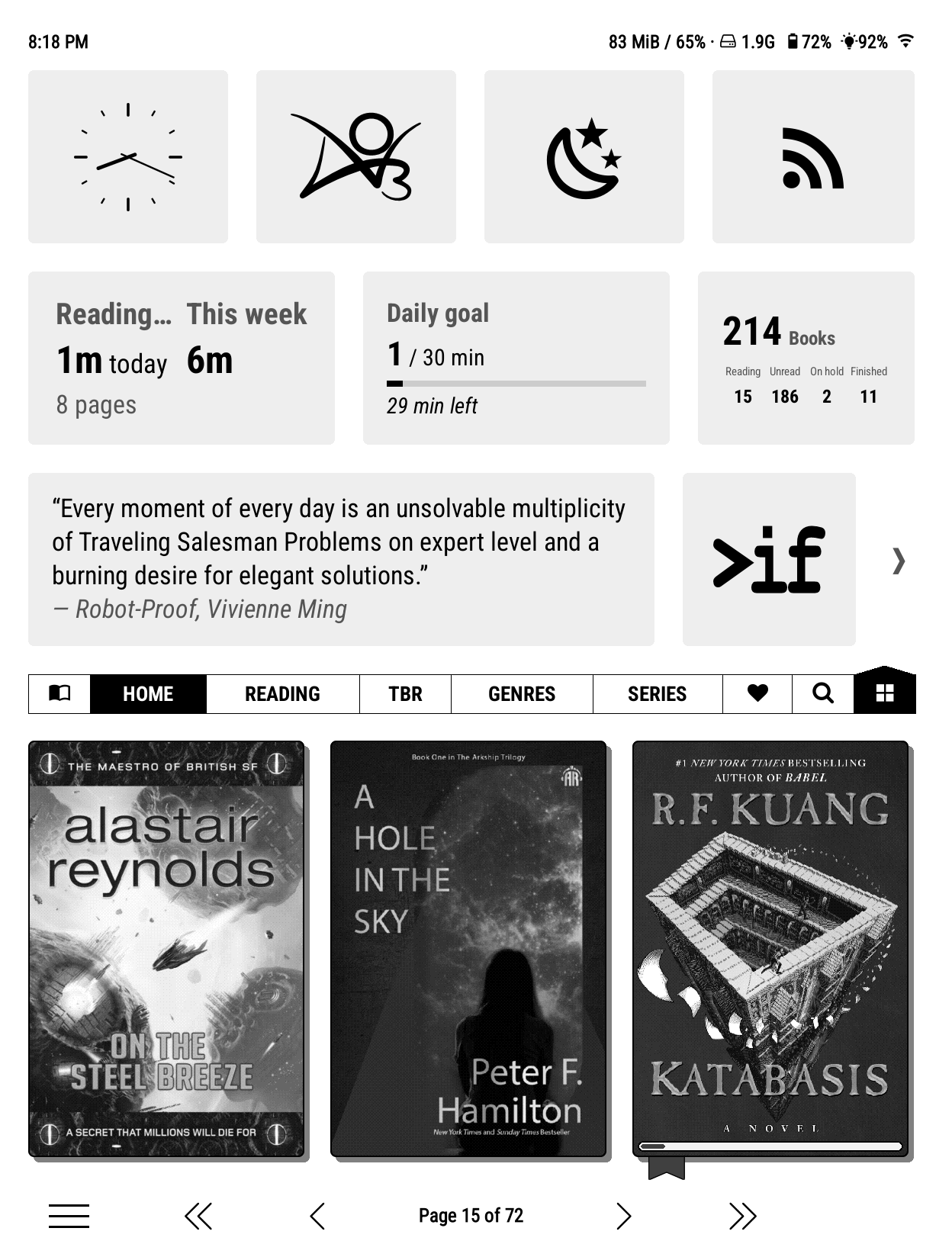
The home screen can show a grid of micro-modules -- small live panels like a clock, a quote from your highlights, your reading goal, the weather, or a launcher button. They're the same kinds of panels you can add to the start menu.
Micro-modules can appear in three independent places, each its own on/off checkbox under Bookshelf settings -> Micro modules:
- In hero area -- a grid chip at the right of the chip bar swaps the book preview at the top of the shelf for the grid (tap the chip to toggle between the two).
- Full-screen button -- a grid button sits in the footer opposite the start menu; tapping it opens the modules full-screen as a dashboard, with the status line across the top. Close it with the X, a tap on empty space, or Back. The usual KOReader gestures (top-edge menu, edge swipes for brightness, corner actions) still work over it.
- In start menu -- module cards appear in the start menu launcher alongside your other items.
You can run any combination. The hero and full-screen views keep separate module lists, so you can show different modules in each -- the full-screen list starts as a copy of your hero modules and then the two diverge as you edit them. Turning all three off disables micro-modules entirely (a quick way to rule them out when troubleshooting).
In either grid:
- Long-press a module to move it, make it wider or narrower (
-/+), add another from the picker (+), or remove it. In the hero grid you can also send a module to one of four pages; the full-screen view shows everything at once, so it has no pages. - Swipe left/right on the hero grid, or tap the in-grid arrows, to flip between pages.
- Long-press the grid chip to reset the hero grid to its defaults, or to remove micro-modules from the hero area.
- On physical-button (D-pad) devices, move the cursor across the grid with the arrow keys, open a module with the centre key, and long-press to edit it.
The grid packs square modules (clocks, launcher icons) tightly and lets text modules fill the rest of the row. Set the number of columns and rows under menu -> Edit shelf size. Hero micro-modules have their own entry under menu -> Settings -> Text size so you can scale the grid independently of the book hero.
Each cover on the grid is either a book or a stack of books (for series, authors, etc.).
- Tap a book to preview it in the hero card.
- Tap the hero card cover to actually open the book.
- Long-press a book to open the book menu (see below).
- Long-press a stack to pin it to the chip bar as its own shelf.
- Swipe up to collapse the hero and show more books at once.
- Swipe down on the hero to restore it; swipe down on the shelf area to refresh the library after adding new books over USB or Calibre.
Every shelf shows a line of text under each cover -- the title by default. One setting drives it everywhere: menu -> Settings -> Cover display -> Show text below covers picks Title, Author, Series, or None (covers then use the full row). Its text size is Cover labels under Settings -> Text size. Books without covers already show their title and author on the placeholder itself, so those skip the extra label.
The full gesture reference is in Gestures cheatsheet below; physical-key devices have their own reference in Keyboard and D-pad.
Any shelf can be a text list instead of covers. Long-press the shelf's chip and pick List under Show as, or hold the page number in the footer to flip the shelf you are looking at. Every shelf shows Covers until you change it; the third option, Auto, switches that shelf to a list whenever it is expanded or drilled into a folder or stack, and back to covers on the two rows under the hero. The same dialog sets how many rows (1 to 12) and columns (1 to 3) the list uses, and pinching the shelf fits one more or one fewer row.
Search results keep their own view -- covers unless you say otherwise. Long-press the Search results pill (or hold the page number) while viewing results to pick Covers, List or Auto for them.
Rows are built from the same editable lines as the hero card: up to six per row, each with its own template, font, size, weight, slant, case and alignment, edited under menu > Settings > List view. Tokens work in every line, so a row can carry a progress bar (%bar, or %bar{rel} to make its length reflect how long the book is), file size, dates, or anything else from the Token cheatsheet. As rows get shorter, lines drop from the bottom up, so the title and author are the last to go.
Series, authors and folders draw as a fan of their members' covers; OPDS subcatalogues become full-width buttons. The list's text size lives under Settings > Text size.
Anything that stands for several books -- a series, an author, a folder, a collection -- is drawn as a group tile, and you choose how those look. menu -> Settings -> Cover display -> Default folder style sets it for the whole library:
- Divider card -- a cardboard tab with the group's name on it. The default.
- Ribbon -- the first book's cover with the name on a band across the bottom.
- Book stack -- a small pile of the covers inside.
- Collage -- a grid of several covers from the group.
- Text -- the name alone, no artwork.
- None -- the first book's cover, unadorned.
Individual chips can differ. Long-press a chip -> Folder style gives that one shelf its own look, and the list leads with Default setting to put it back to following the library. The picker stays open while you try styles and the shelf redraws behind it, so you can compare them rather than guessing. (OPDS catalogue chips have no such row -- their category tiles are always text; see OPDS catalogues.)
You can also give a specific folder or stack a picture of your own -- see Custom images for folders and stacks.
If a KOReader folder shortcut, the "go to parent folder" or "go home" gesture, or any plugin points the file browser at a folder while Bookshelf is open, Bookshelf follows into that folder rather than leaving you on the previous shelf. The folder is added to the breadcrumb trail, so a back-swipe returns you to where you were. Opening an actual book still goes straight to the reader as usual.
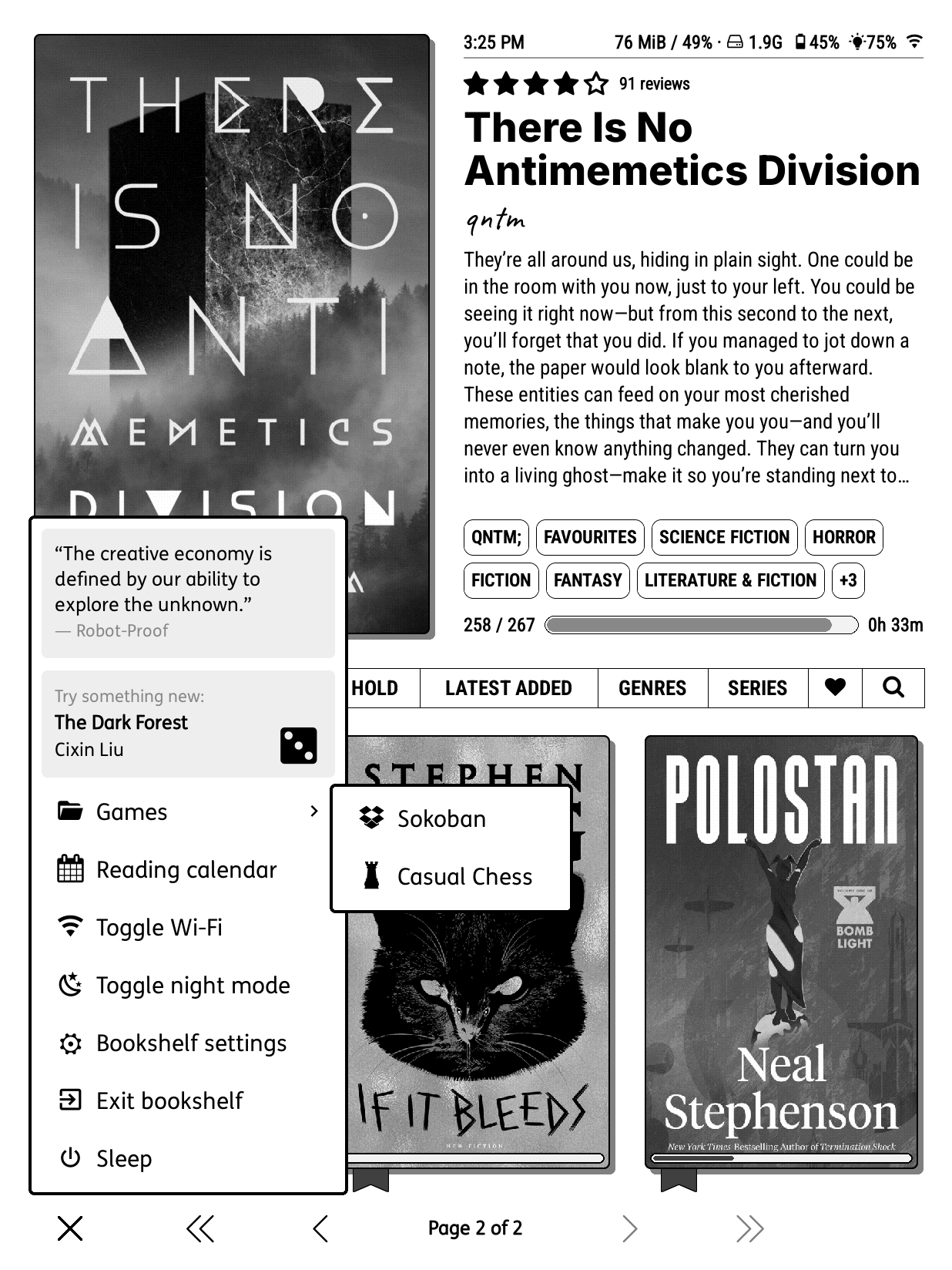
Tap the menu button in the bottom corner of the shelf, in line with the page arrows, to open a popup launcher you build yourself. Think of it as a Start menu for your home screen.
Each item can be:
- A KOReader action -- history, the reading calendar, Wi-Fi, night mode, sleep, frontlight, and anything else from KOReader's action list.
- A menu action -- capture any item from KOReader's own menus and replay it with one tap. Browse to the item, tap Add as shortcut, and it becomes a menu entry; toggle items (like Wi-Fi) show their current on/off state.
- Another plugin -- launch any installed plugin that has a menu entry (games included).
- A Bookshelf action -- the full Bookshelf menu (settings, the book detail editor, collections, and the rest), or exit Bookshelf.
- A folder -- group items together; it flies out to the side when you tap it.
- A micro-module -- a small live panel (see below).
Building and editing it. Long-press any item for rename, change icon, move up / down, move into / out of a folder, show in (home screen, reader, or both), delete, and add new menu item. Adding walks you through the categories above; the icon picker is a built-in glyph grid (no extra plugins needed). Folders open downward from the row you tapped, overlapping the menu so they read as connected.
Position. Under Bookshelf settings -> Start menu you can put the button on the left, the right, or turn it off, and set a Minimum start menu width if the popup feels cramped. It works with touch and with physical-button (D-pad) devices.
While reading. Turn on menu -> Settings -> Start menu -> Show launcher button while reading to keep a small launcher button in the reader's bottom corner. Tapping it opens the same start menu over your book, so you can jump to a shelf, a collection, or another plugin and tap straight back in. If you use full-screen micro-modules, the grid button appears in the reader too -- Launcher buttons in the same settings section chooses which of the two buttons show. Launcher button position and size… opens a live canvas for placing them: pick the side, the screen edge they sit against, how far along it, and how big -- so they can hide in whichever corner your books' margins leave free. The start menu and module view open from wherever the buttons actually are. By default each menu item shows both on the home screen and while reading; use show in (above) to limit one to the reader or the home screen -- handy for keeping the reading menu short.
By gesture (no button needed). Prefer not to show a button? KOReader's Gesture manager (wrench -> Taps and gestures -> Gesture manager) lists Bookshelf's assignable actions, including Bookshelf: open start menu, Bookshelf: open micro-modules, and Bookshelf: go to home screen (drop whatever you're doing and land on your home chip). Bind any of them to a gesture -- a corner tap, a swipe, a multiswipe -- and it works in the reader (or the library) whether or not the launcher buttons are shown. Because a bound gesture is a deliberate request, the start-menu and micro-module actions work even when those features are set to Off.
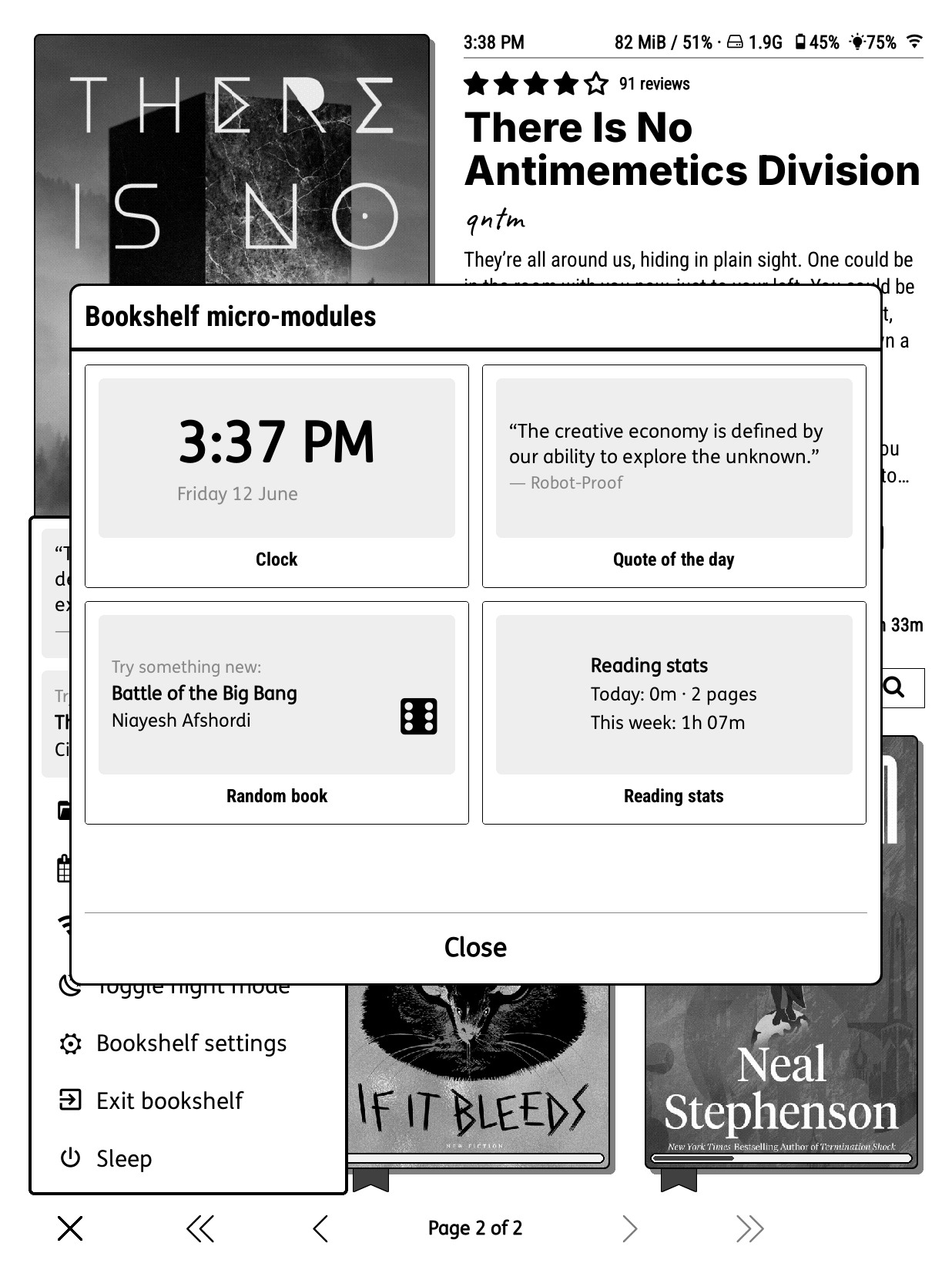
Micro-modules are small live panels. Add them to the start menu through Add new menu item -> Bookshelf micro-module…, or to the home-screen grid. The ones that ship with Bookshelf:
- Clock -- digital (12- or 24-hour) or analogue.
- Quote of the day -- a highlight drawn from your own books, refreshed daily or on every open. Tapping it can roll a new quote, open that book's bookmark list, or open the book at the highlight.
- Reading goal -- progress towards a daily reading target.
- Reading stats -- time and pages read today and this week (needs the
statisticsplugin). - Reading streak -- your current and best reading streak, in days and weeks (needs the
statisticsplugin). - Random book -- rolls an unread book from the current shelf (or your whole library) into the hero card; tap the dice for another.
- Shelf count -- how many books are on the current shelf.
- Countdown -- "N days until " for a date you pick; counts up ("N days since…") once the date has passed. Add it more than once for several dates, each with its own label.
- Weather, On this day, Trivia, Daily fun (jokes, facts and riddles) -- live content from the internet.
- Action -- a launcher card that runs a plugin, a KOReader action, or a Bookshelf action, with your own icon and an optional label.
Each module can carry its own settings (reached via Module settings… when you long-press it). Modules that need the internet show their data source in the picker rather than fetching while you browse. Modules are a small self-contained format: if you write a little Lua you can add your own by dropping a file into the plugin's micromodules/ folder, or into koreader/settings/bookshelf/micromodules/ to have it survive plugin updates. A bad one is skipped rather than breaking the menu. See micromodules/README.md for the contract.
Long-press any cover on the shelf or in the hero card -- or tap a book's +N tags pill -- to open the book detail popup, a tabbed window with everything about the book. The header shows a cover thumbnail, the title and author, and (when the book has bookmarks or highlights) a N bookmarks › link in the top-right corner; tap it to open KOReader's bookmark browser for that book and jump into it. Along the bottom sit Close, two zoom buttons (magnifier icons) for text size, and Open.
There are five tabs:
- Description -- the book's blurb. When a Hardcover description is cached, a chip bar switches between the embedded and Hardcover text.
- Reviews -- spoiler-free Hardcover reviews for a linked book, cached so they reopen offline once fetched (see Hardcover enrichment). Only shown for linked books.
- Tags -- navigation pills grouped into Author, Series, Collections, Genres, and Folder. Tap any pill to drill into that shelf; each section has an Edit… button for changing membership (this is where you add or remove the book from collections, edit genres, and so on).
- Edit -- the book's actions:
| Button | What it does |
|---|---|
| Unopened / Reading / On hold / Finished | Reading status. Tap to change. Unopened clears progress and drops the book from Recent without touching highlights or bookmarks. |
| Favourite | Toggle the book in and out of Favourites. |
| Your rating | Set a 1-to-5 star rating, or clear it. |
| Show info | KOReader's built-in book info dialog. |
| Refresh metadata | Re-read the cover and metadata from the file (useful after editing metadata externally). |
| Move… | Move the file to another folder on the device, via a folder picker. Reading progress, bookmarks, highlights, custom covers, and Hardcover links all follow the book. (Disabled while the book is open in the reader.) |
| Remove from history | Drop the book from Recent without changing anything else on disk. |
| Reset book data… | A wider purge with checkboxes for progress, bookmarks, highlights, notes, custom cover, and custom metadata. |
| Delete | Permanently remove the file from disk (with a confirmation). |
| Link… / Edit… (Hardcover) | Shown only when hardcoverapp.koplugin is enabled. Link the book to a Hardcover edition, or edit an existing link. See Hardcover enrichment. |
If another plugin adds its own entries to KOReader's file long-press menu (for example "Open Incognito", or an AI assistant's "About this book"), those appear in the Edit tab too, so you can use them straight from Bookshelf.
- Cover (last tab) -- pick the book's cover from a paginated grid of candidates: covers already stored for the book, an image from your device (Choose from device), or an online search (Google Books, Open Library, and Hardcover for a linked book). Each candidate shows its source and resolution. Tap one to set it as the cover -- the shelf updates and the chosen image is saved as KOReader's standard custom cover, so its file browser shows it too. The book's own embedded cover appears in the grid as well, so you can revert by tapping it; a cover you'd set yourself is preserved.
Text size. The footer's zoom buttons resize the current tab's text, and each tab remembers its own size -- so you can enlarge a long Description or the Reviews without also inflating the Edit tab's buttons or the Tags pills. To resize the tab labels themselves (handy if Description/Reviews/Tags/Edit wrap onto a second row on a small screen), use menu -> Settings -> Text size -> Modal tabs. (With Reviews present that's up to five tabs -- Description, Reviews, Tags, Edit, Cover -- so this helps most on a small screen.)
Long-pressing a series, author, genre, collection, format, rating, or folder stack instead opens a small group menu: Pin to chip bar (the fastest way to turn a stack you've drilled into into a permanent shelf), Set … image… / Clear … image (see Custom images), Select N to start a bulk selection of the group's books, and -- for real folders -- Move folder… and Rename folder…, which relocate or rename the folder on disk with every book's progress, bookmarks, and covers following along.
With a bulk selection active (from a group menu's Select N, or Select in a book's Edit tab), tapping covers adds or removes them, and the selection bar offers batch actions including Move to folder… for moving several books at once. The bulk menu also has Select all in this shelf, which takes every book the current shelf holds across all its pages -- the way to select a chip built from filters, which has no folder or stack tile to long-press. There's an assignable gesture for it too (Bookshelf: select all books in this shelf).
Collections are named lists of books, and Bookshelf uses KOReader's built-in collection system, so anything you collect in Bookshelf shows up in KOReader's collection menu (and vice versa). Two collections come ready:
- Favourites -- the built-in starred shelf. Always present; can't be renamed or deleted.
- To Be Read -- a reading pile for things you haven't started yet.
Open menu -> Settings -> Library & search -> Manage collections… to add new collections, rename or delete existing ones, and pin any collection to your chip bar as a dedicated shelf.
To put a book into a collection, open its popup (long-press the cover), go to the Tags tab and tap Edit… in the Collections section. Tick the collections you want, then Save. The Collections pills update immediately to reflect what's changed.
Bookshelf can browse online book catalogues (OPDS) as ordinary shelves -- Project Gutenberg, Standard Ebooks, Internet Archive, and any other catalogue you point it at -- so you can find and download books without leaving your home screen.
Setting up. Add a chip (long-press any chip -> + Add new chip) and pick OPDS catalog… as its source. The picker lists the standard public catalogues out of the box, and it's also where you manage the list: Add catalog… sits in the footer, and a long-press on any catalogue offers Edit and Delete. A catalogue is just a name and a URL, plus an optional username and password for ones that need a login. If you also use KOReader's own OPDS plugin the two share one catalogue list, so anything added in either place appears in both -- but Bookshelf works fine with that plugin disabled.
Browsing. A catalogue renders like any other shelf. Its categories appear as folder tiles -- tap to drill in, back-swipe to come back out -- and some catalogues offer extra filters (language, category) as tiles at the start of the shelf. Category tiles always use the plain text style, whatever folder style the rest of your shelves are set to: they're places to go rather than piles of books you own, and a catalogue's own artwork rides along on them where it sends any.
Covers download in the background as you browse, a few at a time, and appear as they land; until one arrives its book shows a placeholder with the title and author. Nothing is fetched for pages you never look at.
Previewing and downloading. Tap a book to preview it in the hero card -- the description comes straight from the catalogue, and the cover is fetched in the background and appears in the hero and on the shelf as it lands. Tap the same cover again (or the hero) for the download view: available formats are grouped under Recommended and Alternatives, with the best format for KOReader listed first, and Read now opens the book as soon as it arrives. Downloads are saved into your library folder -- by default wherever KOReader's own download folder points, or your home folder if that isn't set. Each catalogue chip can file its downloads somewhere of its own instead: long-press the chip to edit it and use Saves to, so (say) Gutenberg classics and your own server's books land in different folders. The folder has to sit inside your home folder, otherwise the books would never appear on your shelves. The catalogue's description stays with the book after download, so the hero and book menu keep showing it.
Big catalogues, and finding the end. Large catalogues load as you go: the page indicator reads "page N of M+", where the + means nobody knows yet how far it goes, and paging forward pulls the next batch. Catalogues are not reliable about their own size -- most don't say, and at least one advertises a round number it never actually serves -- so the count is what's loaded rather than a promise.
To find the real end, tap the last-page chevron. It walks the whole category, counting as it goes, and lands you on the last page with books on it. It can run for a while on a big category, so it tells you where it's up to and a tap stops it -- and stopping keeps everything already loaded, landing you on the last page of that.
Offline, and coming back. Everything a catalogue has shown you is kept on the device, so a catalogue you've browsed opens straight away and keeps working with no connection. By default it only goes back to the server when you ask it to, with a swipe down -- so paging deep into a category is work you keep. If you'd rather a catalogue went stale on its own, long-press its chip and use Catalog settings -> Refresh to pick an age (five minutes through a week, or every time you open it). The same dialog has Saves to for where that catalogue's downloads land.
Where you were is remembered: restart KOReader inside a drilled category and you come back to it, on the page you left, provided it's still cached. If it isn't, you land on the catalogue's front page rather than on an empty shelf -- getting there would mean a download you didn't ask for.
Catalogues that only lend DRM-protected books (library loans) can't be used -- KOReader has no DRM support -- so lending-only categories show "No downloadable titles" rather than books that wouldn't open.
If you also use hardcoverapp.koplugin, Bookshelf can link books to Hardcover and cache a small amount of Hardcover metadata for display. Everything Hardcover follows that plugin's state: it all appears only while the plugin is installed and enabled, so it stays out of the way if you don't use Hardcover. Disable or remove the plugin and the Hardcover enrichment menu (in the bookshelf menu, above Settings) disappears and linked books revert to their own ratings, covers, metadata and descriptions. Nothing is lost -- the cached data stays on disk and comes back if you re-enable the plugin.
Linking a book. Open a book's popup (long-press its cover) and go to the Edit tab; with the plugin enabled, a Hardcover row sits below File & metadata. Link… (or Edit… once linked) opens the link menu:
- Auto link -- links without searching, using identifiers embedded in the EPUB (an ISBN, or a Hardcover id/edition baked into the file). The most specific identifier wins (a Hardcover edition, then ISBN, then a Hardcover book/slug). If the file carries no usable identifier, Auto link falls back to a best-guess search by title and author.
- Manual link… -- searches Hardcover by title and author and lets you pick the right book.
- Select edition… -- once linked, choose a specific edition (e.g. to get the right cover or page count).
- Use Hardcover image / Use Hardcover description -- per-book toggles (shown once linked) that override the book's own cover or description with Hardcover's. See below for how these are set automatically.
- Clear link -- remove the Hardcover link.
When a book is linked, its popup gains a Reviews tab (and the hero rating row's "N reviews" opens the popup straight to it). Reviews are filtered to spoiler-free ones, and cached, so they reopen offline once fetched.
Linking the whole library at once. Hardcover enrichment -> Auto-link all books links every unlinked book in one pass, fetching each match's details (description, cover, rating) as it goes. You pick how to match:
- Exact match -- uses an embedded ISBN or Hardcover id. Fast, and only links books that carry one.
- Best guess -- searches by title and author and picks the most confident match. Slower, but catches books with no embedded id.
It contacts Hardcover at about one book per second with cancellable progress, and shows a report at the end listing what was linked, what wasn't matched, and what had no identifier to try.
Choosing covers and descriptions. Each linked book has its own Use Hardcover image and Use Hardcover description toggles. When you link a book, Bookshelf sets sensible defaults once: it adopts the Hardcover description if the book has none of its own, and the Hardcover cover if the book has no embedded cover or its cover is lower resolution than Hardcover's. After that the per-book toggle is yours -- it's never changed again by a later refresh. Turning Use Hardcover image on saves the Hardcover cover into the book's sidecar (.sdr) folder as a custom cover, so KOReader's own file browser shows it too; turning it off restores whatever was there before -- a cover you'd set yourself is preserved, never overwritten.
Ratings and metadata. Two more options sit in the Hardcover enrichment menu:
- Show Hardcover ratings in hero -- the hero rating row shows the cached public Hardcover rating instead of KOReader's local one (and turns the rating row on).
- Use Hardcover metadata -- for linked books, shows Hardcover's title, author, series and genres in place of the book's own (a clean switch, no merging). This feeds sorting, search and series grouping for those books; non-linked books are untouched. Hardcover genres used caps how many of a book's genres become tag pills and genre stacks. Covers and descriptions stay under their per-book toggles. The metadata is always cached, so this only decides whether it's used.
Managing the cache. Hardcover enrichment -> Manage Hardcover data holds Refresh ratings only, Clear cache (keeps links), and Remove all Hardcover data (unlinks everything and restores any covers Bookshelf installed).
Bookshelf does not rewrite EPUB files. Descriptions, ratings and the other cached metadata live in Bookshelf's own cache; a chosen Hardcover cover is stored as KOReader's standard custom cover in the book's .sdr folder. Network calls only happen from explicit actions (linking, refreshing ratings, fetching reviews); normal shelf rendering reads only the local cache.
Open menu -> Edit shelf size… for a live overlay that resizes the grid without leaving the home screen. Two controls:
- Bookshelf size -- how much room the shelves get relative to the hero card.
- Book size -- how large the covers render, which also sets how many fit per row.
The layout auto-fits your screen and orientation, so the same settings adapt between portrait and landscape. Changes preview in real time behind the overlay; Accept keeps them, Cancel reverts.
On e-ink, Bookshelf can play a brief page-wipe animation on transitions so they read as motion rather than an abrupt refresh. Two independent settings under menu -> Settings -> Behavior control them:
- Page turn animation -- shelf page turns (the new page sweeps in from the side) and chip-bar paging (the chip row wipes across as you move between pages).
- Start menu animation -- the start menu reveals upward as it opens and wipes back down as it closes. It repaints a taller area than the page wipe and can look choppy on some panels, particularly while reading, so it's kept separate: keep one and turn the other off if you like.
Each is set to Off, Fast, Medium, or Slow on its own -- slower is smoother but takes a little longer on older panels. The effect is e-ink only: on LCD/OLED screens the refreshes complete instantly, so nothing is shown and the setting has no visible effect there.
A separate Cover opening effect toggle (under Settings -> Cover display) briefly flexes a book's cover open as it launches. It's purely cosmetic and on by default; turn it off for an instant, plain open.
Leaving a book drops you back to Bookshelf straight away, without waiting for the book to close. The actual close happens at the next quiet moment -- when you open another book, after about half a minute of inactivity, or when you leave Bookshelf -- so browsing never has to wait for it. Until then, going straight back into the same book is instant too.
This works however you leave a book: the reader's top-menu File browser button, a File browser gesture, or the quick menu.
It's on by default. Turn it off under menu -> Settings -> Advanced -> Performance tweaks -> Instant book close to close books fully before Bookshelf appears, as before. (Leaving a book you read in a different orientation to the shelf always closes fully, so the shelf returns to its own orientation.)
Each cover can show small badges and bars at the corners. Configure them under menu -> Settings -> Cover display:
- Show reading bookmarks -- a bookmark mark on books you're partway through.
- Show completed book badge -- a check-mark pill at the bottom-left of finished books.
- Show progress bars -- a thin progress bar above the bottom edge for in-progress books.
- Show page count -- a page-count pill in the bottom-right ("123 p"). (For EPUBs it works once you've opened the book at least once.)
- Show series # -- a "#3" badge on covers in a series. Tri-state: Always, Within series folder (so mixed shelves stay clean), or Never.
The colours of these elements are set separately under Settings -> Colors (see below).
The same Cover display menu also has True cover aspect ratio. Off by default, Bookshelf fits every cover to a uniform book rectangle; turn this on to show each cover at its real shape instead. Covers keep the same width but vary in height -- on the shelf they sit along the bottom shelf line, in the hero area they align to the top -- so wide or square covers stop being cropped or stretched.
Open menu -> Settings -> Colors to recolour the cover chrome. Bookshelf keeps independent day-mode and night-mode palettes -- the top row of the menu shows which one you're editing ("Editing day-mode colours" / "Editing night-mode colours") and tapping it flips night mode so you can set each theme. Anything you leave unset uses a sensible default for that mode.
Each colour is chosen as a "% black on screen" value (so it reads the same way in both modes), and long-pressing a row resets just that colour. The pickers:
- Progress bar / Progress bar track -- the filled and unfilled parts of the cover progress bar.
- Bookmark colour / Finished bookmark colour -- the in-progress bookmark glyph and the finished-book check.
- Favourite star colour -- the star on favourited covers.
- Badge foreground / Badge background -- the text and fill of the "#N" series and "123 p" page-count pills.
- Border colour -- one shared colour for cover frames, badge borders, the bookmark/star halos, the cardboard edge on folder and stack cards, and placeholder (no-image) covers.
- Folder overlay background -- the cardboard fill behind folder and stack cards.
- Folder text colour -- the label text on those cards (the card outline follows Border colour).
- Reset to default colours -- restore the whole palette for the current mode.
On colour e-ink panels (Kaleido), a separate Color panel dithering toggle under Advanced -> Performance tweaks keeps covers at full saturation when the shelf redraws; it's on by default, and the row only appears on colour devices.
Bookshelf can replace the default folder cover (cardboard card with the first book peeking above) and the stack covers (Authors / Series / Genres / Collections) with your own images. Three ways to set one:
- Long-press the card -> Set folder image… / Set author image… / etc. -> pick an image file. The image renders as that folder's or stack's cover with the cardboard tab + label staying on top so the group identity is still visible.
- Drop
cover.jpg,cover.png,folder.jpg, orfolder.pnginto a folder and Bookshelf picks it up automatically. The hidden dot-file variants (.cover.jpg,.cover.png,.folder.jpg,.folder.png) work too, for keeping the image out of the visible file listing; a visible file wins if both are present. The image follows the folder when you move it. - Drop named images into an image library for authors, series, genres, and collections. The default location is
<your-library>/.bookshelf-images/with subfoldersauthors/,series/,genres/, andcollections/. Name each file after the exact stack name (e.g.authors/Asimov, Isaac.jpg) or use a slugified form as a fallback. The slug lowercases the name and turns runs of punctuation / whitespace into single dashes, preserving the original order -- soAsimov, Isaacmatchesasimov-isaac.jpg, andIsaac Asimovmatchesisaac-asimov.jpg. Extensions tried in order:jpg,jpeg,png,gif,bmp,webp,tiff.
Pick a different image-library location under menu -> Settings -> Library & search -> Image library.
Long-press an image-set folder or stack and tap Clear … image to revert to the cardboard default.
For libraries managed by Calibre. Turn on menu > Settings > Advanced > BETA: Read calibre metadata.calibre and Bookshelf reads the metadata.calibre file Calibre writes into the library folder, alongside each book's embedded metadata.
What it adds:
- Calibre's title, authors, series, tags, language and description win over the values embedded in the book file, so edits made in Calibre show up without reconverting books
- Calibre's author sort ("Le Guin, Ursula K.") orders author shelves, including hand-edited sort values
- A custom column of the Series type gives its books a second series shelf alongside the primary one
- Any custom column you create in Calibre can be shown in a token line via
%calibre{name}, using the column's lookup name: a column#moodrenders with%calibre{mood}(the#is optional). Text, fixed-value lists, numbers, dates, yes/no and multi-value columns all work; the one exception is long-text ("Comments"-type) columns, which are too big for a one-line token. This works anywhere tokens do -- hero card sections, list view lines, and conditionals like[if:calibre{mood}="cosy"] - Three standard Calibre fields are exposed the same way:
%calibre{pubdate}(publication year),%calibre{publisher}and%calibre{rating}. Date columns -- standard or custom -- show as the year
Two things worth knowing:
- KOReader's own wireless Calibre connection rewrites
metadata.calibreafter a sync and permanently drops author sort and custom columns from it. Bookshelf works around this automatically: whenever it reads a Calibre-written file it saves those fields into a smallcalibre.bookshelf.jsonbeside it, and merges them back after KOReader's rewrite. No setup needed -- but the library must have been written by Calibre itself (USB sync, or a Calibre-managed folder) at least once, since a wireless-only library never has those fields on disk to save. - A
metadata.calibreover 8 MB is read with a slimmer parser that skips custom columns, to protect low-memory devices.
By default Bookshelf shows author names however each book stores them, so the same person can appear two ways (e.g. Richard Osman and Osman, Richard). Under menu -> Settings -> Library & search -> Author name formatting you can pick:
- Auto -- leave names as stored (the original behaviour; first form found wins).
- First Last -- always Forename Surname.
- Last, First -- always Surname, Forename.
Whichever you choose, variant spellings of the same author are merged into one entry on the Authors shelf, and the alpha-jump / surname sort uses the surname -- including names with particles like de Maupassant, which sort under M.
Open menu -> Settings -> Edit book detail view to toggle each of the book's sections on or off; tap a section's row to open its line editor. The status line (the strip of device and reading info at the very top) is configured the same way from its own Status line entry just above, and the hero card's overall text size lives under Settings -> Text size -> Hero card.
The Tags section is an interactive pill strip rather than a line of text, so instead of the line editor its row opens a small submenu: turn the line on or off, choose which pill categories to show (Author, Series, Collections, Genres, Folder), and set the Font size and Alignment. Turning off Author and Series, for instance, leaves a line of just the real tags. The Rating section is interactive too and is a simple on/off toggle.
The line editor lets you change the text and styling of one section. You'll see these controls:
| Button | What it does |
|---|---|
| Bold | Toggle bold weight. |
| Size | A nudge dialog (-5 / -1 / +1 / +5) over the font size, range 8 to 48 pixels. |
| Font | Pick a font family. Shows previews when Bookends is installed. |
| Aa / AA | Toggle uppercase (hidden on the Description section). |
| L / C / R | Cycle alignment (left, centre, right). |
| Bar style | (Progress only) Cycle the inline progress bar's visual style. |
| + Bar / - Bar | (Progress only) Add or remove the %bar placeholder. |
| Bar height | (Progress only) Nudge the inline bar's height as a percentage. |
| Tokens… | Pick from a categorised list of placeholders (see below). |
| Icons… | Insert icon glyphs from the built-in icon library (a searchable, categorised glyph grid). |
| Default | Reset this section's text and styling to its defaults. |
| Cancel | Revert and close. |
| Save | Persist and close. |
Edits update the hero card behind the editor in real time.
Any text in a hero section can include tokens -- placeholders that get replaced with live data. For example, %title becomes the book title; %book_pct becomes the percentage read.
You can wrap things in [if:...]...[/if] to show them only when the relevant data exists. For instance, [if:series]%series_name #%series_num[/if] only renders when the book is in a series.
The full token list is in the Token cheatsheet below.
Bookshelf ships three open-licensed fonts (see fonts/CREDITS.md):
- Roboto Condensed (Apache 2.0) -- the default Bookshelf UI font on new installs.
- Inter ExtraBold (OFL) -- default hero title.
- Caveat (OFL) -- default hero author.
Set the interface font under Bookshelf settings -> Bookshelf UI font (defaults to Follow KOReader UI font for existing users). The fonts are also copied into your font folder so they're selectable in the hero card's font picker after a restart. Existing users can adopt the new detail look via Reset book detail area to defaults.
Open menu -> Updates to keep Bookshelf current. Once any check has found a newer release, the menu entry itself reads Update available so you don't have to open it to find out.
- Check for updates -- the installed version is shown in brackets. Tap to check GitHub for a newer release, read its notes, and choose Update and restart.
- View changelog -- browse this and past releases' notes, newest first. Notes are cached, so anything fetched once stays readable offline; Refresh pulls the latest.
- Notify on wake when update available -- opt-in. Once an hour after a Wi-Fi-connected wake, Bookshelf checks the GitHub releases page and posts a quiet notification if a new version is out. Off by default; nothing is ever fetched without your permission.
- Developer updates (advanced) -- type a development branch name (e.g.
feat/foo) to install the tip of that branch. Use Reset to latest stable release to clear the dev branch and pull the latest published release.
The whole download, unpack, and restart sequence runs over Wi-Fi only and needs no extra plugins.
After adding new books over USB, Calibre, Syncthing, or KOReader's network downloads:
- Automatically -- Bookshelf watches your library folder in the background and picks up newly added books on its own, with no interaction needed.
- Tap a chip -- it also checks for filesystem changes on chip taps.
- Swipe down on the shelf area for an immediate, full refresh; a brief "Refreshing library" notice appears.
Everything beyond this point is the full feature reference. Expand any section you need.
Gestures cheatsheet
| Gesture | Where | What it does |
|---|---|---|
| Tap | Shelf cover (normal mode) | Preview the book in the hero card |
| Tap | Shelf cover (expanded mode) | Open the book directly |
| Tap | Hero card cover | Open the previewed book |
| Tap | OPDS catalogue cover (already previewed) | Open the download view |
| Tap | OPDS folder tile | Drill into the category |
| Tap | Hero card description | Open the full description in a scrollable viewer |
| Tap | Hero card star | Set / clear the book's rating |
| Tap | Chip | Switch shelf |
| Tap | Search icon | Open the library search |
| Tap | "Page N of M" footer | Open the go-to dialog: jump by page number, jump to the first item starting with a letter, or search the library |
| Tap | First / prev / next / last chevrons | Page navigation |
| Long-press | Chip | Open the chip editor |
| Long-press | Shelf book cover | Open the per-book menu |
| Long-press | Shelf stack cover (series, author, etc.) | Pin the stack to the chip bar |
| Long-press | Prev / next chevron | Skip 10 pages back / forward (clamped to first / last) |
| Long-press | Hero card | Open the per-book menu for the previewed book |
| Swipe west (<-) | Hero card | Cycle preview to the next book in the active chip |
| Swipe west (<-) | Anywhere else | Next page; on the last page, drills out or switches chip |
| Swipe east (->) | Hero card | Cycle preview to the previous book |
| Swipe east (->) | Anywhere else | Previous page / drill back out / previous chip |
| Swipe north (up) | Anywhere | Collapse hero to a thin status strip; expand the grid |
| Swipe south (down) | Hero | Restore the full hero from expanded mode |
| Swipe south (down) | Shelf area | Refresh the library walk |
| Back (physical key) | Drilled into a stack | Pop one drill level back out to the parent shelf |
The pagination row uses wide tap zones across the middle 75% of the screen. The outer 12.5% on each side is left free so KOReader's bottom-corner gestures (gestures.koplugin profiles for brightness, night mode, etc.) still register.
Keyboard and D-pad (non-touch devices)
Everything on the shelf is reachable with physical keys.
| Key | What it does |
|---|---|
| Arrow keys | Move the cursor. Focus moves between the chip bar, the hero card, the shelf grid and the footer as you run out of room in each. |
| Press (centre) | Act on whatever has focus: open the focused book, switch to the focused chip, press the focused footer button. |
| ScreenKB + Press | The context menu -- the equivalent of a long-press. See below. |
| Shift + Press | Same, for external and desktop keyboards. |
| Sym + AA | Same, for other key layouts. |
| Page forward / back | Page the shelf, wherever the cursor is. |
| Back | Pop one level back out of a drilled-into folder or stack. |
The context-menu chord is the important one. It is how a non-touch device reaches anything a touch device gets by long-pressing:
- On the hero card or a shelf book, it opens the book menu -- description, tags, reviews, rating, reading status, and the rest.
- On a chip, it opens the chip editor.
- On a stack (series, author, etc.), it opens the pin / add / remove menu.
The chords are KOReader's own (they match FocusManager's hold gestures), so they are the same ones the rest of KOReader uses. The Menu key is deliberately left alone -- it belongs to KOReader's own menu on devices that have one.
Within the hero card the cover is a single focus target: the rating stars, description and tag pills alongside it are not separately focusable, so use the context-menu chord to reach them.
Back in the reader. Pressing Back after opening a book is KOReader's setting, not Bookshelf's: it defaults to walking your position history inside the book, which is empty in a freshly opened one, so it falls through to "Exit KOReader?". If you would rather Back returned you to the shelf, set menu -> Navigation -> Back in reader -> Go to file browser. Bookshelf picks that up and shows the shelf, the same as the Home action does.
Chip sources, filters, and sorts
Each chip points at one of:
- Home (folders) -- your library as a folder tree.
- Home (flat) -- every book in one list, no folders.
- Recent -- books you've opened, newest-read first.
- Latest added -- new files on disk, newest-added first (scan depth set under Settings -> Advanced -> Performance tweaks -> "Latest" walk depth).
- Favourites
- Series, Authors, Genres, Collections, Formats, Ratings, Languages -- a stack of all the values; drill into one to see its books.
- Specific series / author / genre / collection / format / rating / language / folder / reading status -- a shelf scoped to a single chosen value.
- Folder (flattened) -- a single folder shown as every book beneath it in one list, no sub-folder cards (vs. the plain folder source, which keeps the sub-folder tree).
- OPDS catalog -- an online catalogue browsed as a shelf (see OPDS catalogues). The feed's own order is authoritative, so these chips have no sort priority, and the local filters don't apply -- some catalogues offer their own filters as tiles instead.
Each chip can narrow its shelf with any combination of filters, set from Filters… in the chip editor:
- Reading status -- Unread, Reading, On hold, Finished.
- Genre, Language, Format, Collection -- pick any number of values.
- Rating -- one to five stars, or Unrated.
- Folder -- include and/or exclude folders (an exclude wins over an include, and both apply to sub-folders).
Picks within one filter match any of them, so two chosen genres show books in either. Picks across different filters must all match, so adding a 5-star rating then limits those to 5-star books only. Each choice shows how many books currently match given the other selected filters. All filters are off by default (everything visible).
Up to three levels per chip. Available sort keys:
- Title, Filename
- Author surname, Author (given name)
- Series name, Series index, Series + index (series name then number, in one pick)
- Last opened (most-recent-first by default)
- Date added (most-recent-first by default)
- Percent read (most progress first by default)
- Rating (highest first by default; unrated last)
- Unread/Reading/Finished or Reading/Unread/Finished (status orderings)
- File size
- Page count
- Book count (for stacks)
Defaults adjust to the source (e.g. Recent defaults to Last opened; Latest added defaults to Date added). The first-level sort decides the order of stacks for grouped sources; subsequent levels order books within each stack.
Hero card line editor
The book detail card has eight editable sections: Status, Rating, Title, Author, Metadata, Description, Tags (interactive), and Progress. The Tags section shows tappable pills rather than a text template, so it has no line editor; toggle it on or off like the others.
Open menu -> Edit book detail view to toggle each section on or off. Tap a section's row (when its toggle is on) to open the line editor.
Edits live-update the hero behind the editor on every keystroke; only the right column of the card is rebuilt, so the cover stays untouched.
| Button | What it does |
|---|---|
| Bold | Toggle bold weight |
| Size | -5 / -1 / +1 / +5 nudge over the font size (range 8-48 px) |
| Font | Font family picker |
| Aa / AA | Case toggle (hidden on Description) |
| L / C / R | Alignment cycle (left / centre / right) |
| Bar style | (Progress only) Cycle inline progress-bar styles |
| + Bar / - Bar | (Progress only) Insert or remove the %bar token in the template |
| Bar height | (Progress only) Nudge the inline bar's height (% of text height) |
| Tokens… | Categorised token catalogue with live preview |
| Icons… | Insert icon glyphs from the built-in icon library (searchable glyph grid) |
| Default | Reset this section's template and styling to defaults |
| Cancel | Revert and close |
| Save | Persist and close |
Several editor surfaces use the Bookends plugin when it's installed. Everything degrades gracefully when it isn't:
| Surface | With Bookends | Without |
|---|---|---|
| Token picker | Modal with chips, search, live preview | Plain Menu over the token catalogue |
| Font picker | Each family rendered in its own typeface, weight variants deduped | Plain Menu over the system font list |
| Progress-bar styles | 7 styles (bordered, solid, rounded, metro, wavy, radial, radial_hollow) |
2 styles (bordered, solid) |
The icon picker is built in and needs no extra plugins.
Token cheatsheet
Tokens are placeholders prefixed with %. Conditional logic uses [if:cond]…[/if] (with optional [else]).
| Token | Example |
|---|---|
%title |
The Great Gatsby |
%author |
F. Scott Fitzgerald (first author) |
%author_2 / %author_3 |
second / third author (empty if absent) |
%authors |
Neil Gaiman, Terry Pratchett (all authors) |
%author_count |
2 (number of authors) |
%authors_short |
first author, or A and B, or A, B, et al. for three or more |
%series / %series_name |
Dune |
%series_num |
1 |
%rating |
★★★☆☆ (empty when unrated) |
%rating_number |
3 (1-5, empty when unrated) |
%hardcover_rating |
4.5 (cached Hardcover rating, empty when unavailable) |
%hardcover_stars |
Cached Hardcover rating as star glyphs |
%status |
reading (unread / reading / on_hold / finished) |
%status_label |
Reading (the status as a readable label) |
%favourite |
Favourite icon (empty when not a favourite) |
%size |
2.2 MB (file size) |
%added |
Date the file was added to the library |
%opened |
Date the book was last opened |
%calibre{name} |
Any Calibre column by lookup name -- custom columns included: a column #mood renders with %calibre{mood}. Also %calibre{pubdate} (publication year) and %calibre{publisher}. Needs the calibre metadata beta; dates show as the year; long-text columns excluded. |
%filename |
The_Great_Gatsby |
%format |
EPUB |
%lang |
en |
%description |
Book blurb (HTML stripped, entities decoded) |
%quote |
A random highlight from this book, in quotation marks (a fresh one each time you select the book; empty if the book has no highlights). Handy in the Description section in place of the blurb. |
%quote_source |
The book and author for %quote |
| Token | Example |
|---|---|
%page_num / %page_count |
42 / 218 |
%pages_left |
176 |
%book_pct / %book_pct_left |
19% / 81% |
%bar |
Inline progress-bar widget (Progress section only) |
%bar{rel} |
Same bar, but its length reflects how long the book is |
%spacer |
Elastic gap that pushes content left/right. Reading%spacer47% renders Reading on the left and 47% on the right. |
| Token | Example |
|---|---|
%book_time_left |
3h 45m |
%book_read_time |
2h 30m |
%book_pages_read |
142 |
%days_reading_book |
7 |
%pages_per_day |
12 |
%speed |
42 (pages per hour) |
Statistics tokens auto-hide when the plugin is absent or the book has no recorded reading time.
| Token | Example |
|---|---|
%books_read |
13 (books in your whole library marked Finished) |
%books_started |
Books with any reading time recorded by the statistics plugin |
These are library-wide rather than per-book, so they suit the hero status line and micro-modules.
| Token | Example |
|---|---|
%time / %time_24h |
14:35 |
%time_12h |
2:35 pm |
%date / %date_long / %date_numeric |
3 May / 3 May 2026 / 03/05/2026 |
%weekday / %weekday_short |
Monday / Mon |
%datetime{%H:%M} |
Custom os.date format |
| Token | Example |
|---|---|
%batt / %batt_icon |
73% / charge-aware glyph |
%wifi_icon |
Wi-Fi icon (connected / disconnected) |
%light / %light_pct / %light_icon |
18 / 75% / lightbulb glyph |
%warmth |
Frontlight warmth (natural-light only) |
%nightmode |
Moon glyph when night mode is on, sun otherwise |
%mem / %ram |
System memory (%) / KOReader RSS (MiB) |
%sysused |
System memory used (MiB) |
%disk |
Free space on the books partition (GB) |
[if:book_time_left]%book_time_left LEFT[else]Open to start reading[/if]
[if:lang!=en]Lang: %lang\n[/if]%description
[if:batt<20]LOW BATTERY %batt[/if]
[if:not series]Standalone[/if]
[if:connected]%wifi_icon[/if]
%time_12h[if:full_width]   ·   %date[/if]
Comparisons: = != < > <= >=. Boolean: and, or, not. Numeric tokens compare numerically; string tokens compare by string equality. The connected condition is true only while actually online, so [if:connected]%wifi_icon[/if] shows the Wi-Fi glyph just when connected. The full_width condition is true only in the wide status line of the micro-module and full-screen views (not the narrow cover-view status), so you can surface extra content -- a date, say -- only where there's room for it.
Settings file (advanced)
Bookshelf stores its settings in a dedicated file alongside KOReader's other plugin data, separate from settings.reader.lua:
| Platform | Path |
|---|---|
| Linux / dev | ~/.config/koreader/settings/bookshelf.lua |
| Kindle | /mnt/us/koreader/settings/bookshelf.lua |
| Kobo | /mnt/onboard/.adds/koreader/settings/bookshelf.lua |
| Android | <koreader-dir>/settings/bookshelf.lua |
Existing v1 settings migrate automatically on first launch -- legacy keys are read from settings.reader.lua, copied across with the bookshelf_ prefix stripped, and removed from the global file.
| Key | Shape |
|---|---|
tabs |
Ordered list of chip records (id, label, icon, source, filter, sort_priority, enabled). |
hero_regions |
Per-section overrides (sparse). One entry per section (status / rating / title / author / metadata / description / tags / progress) with any subset of template, font_face, font_size, bold, uppercase, alignment, disabled, bar_style, bar_height. The interactive tags section also takes per-category toggles (show_author / show_series / show_collections / show_genres / show_folder) plus font_size and alignment. |
font_scale |
Global zoom for hero text (50-200%). |
chip_font_scale |
Chip bar font size (50-300%). |
chip_flex_widths |
Boolean. When true, longer-labelled chips get more horizontal space than icon-only ones. |
active_chip / active_page / drill_path |
Persisted navigation state, restored on KOReader restart. |
progress_bar_enabled / progress_bookmark_enabled / progress_badge_enabled / progress_page_count_enabled |
Cover indicator toggles. |
show_series_num |
"always" / "in_series" / "never". |
progress_fill / progress_track / bookmark_color / complete_bookmark_color / favorite_star_color / badge_fg / badge_bg / border_color / folder_overlay_bg / folder_overlay_fg |
Cover-chrome colours (% black). Each also has a _night variant for the night-mode palette; unset keys fall back to per-mode defaults. |
author_format |
"auto" / "first_last" / "last_first" -- author name display. |
bookshelf_ui_font |
Chosen Bookshelf interface font (a resolvable font face). Absent = follow KOReader's UI font. |
cover_cache_mb |
Memory budget (MB) for the scaled-cover cache (default 24). The legacy cover_cache_size count key is discarded on first load. |
hardcover_links / hardcover_enrichment / hardcover_ratings / hardcover_reviews |
Optional Hardcover link and cached description/cover/rating/review metadata used by the Hardcover enrichment menu. |
hardcover_hero_rating |
Show cached Hardcover ratings in the hero rating row instead of KOReader's local rating. |
hardcover_use_metadata |
Use Hardcover's title/author/series/genres for linked books in place of their own. |
hardcover_max_genres |
How many of a linked book's Hardcover genres to use (when hardcover_use_metadata is on). |
calibre_metadata |
BETA. Read metadata from metadata.calibre if present. |
search_view_mode |
How search results display: absent = covers, "list", or "auto". Set by long-pressing the Search results pill. |
latest_walk_depth |
How deep the Latest source scans your library. |
show_close_msg |
Show the centred "Closing book…" toast when exiting a book. |
hot_park |
Instant book close: leave the book open in the background and finish closing it at the next quiet moment. Default on. |
open_cover_effect |
Play the cover-opening flex when launching a book. Default on. |
shelf_page_animation / start_menu_animation |
Wipe-animation speed (off / fast / medium / slow) for shelf/chip paging and for the start menu, set independently. E-ink only. |
true_cover_aspect |
Render covers at their real shape instead of a uniform rectangle. Default off. |
dev_branch / last_install_source / check_updates |
Updater state. |
start_menu_items |
The start menu tree: an ordered list of entries (actions, plugin launchers, folders with children, and micro-modules). |
start_menu_position |
"left" / "right" / "off" -- where the start-menu button sits in the footer. |
start_menu_seeded / start_menu_next_id |
One-shot seed flag for the default menu, and the counter behind generated entry ids. |
micromodule_<key>_* |
Per-micro-module settings (e.g. micromodule_clock_format, micromodule_random_unread_source). Each module owns its own keys. |
migrated |
One-shot flag; presence indicates v1 -> v2 migration has run. |
Known limitations
%barstyling lives in the Progress section. Inserting%barin another section still renders the widget, but uses the bordered default style and 100% height since the Bar style / Bar height buttons only appear in the Progress section's editor.- Italic is reachable only via the font picker (by selecting an italic family). The line editor has no italic toggle because
TextBoxWidgetdoesn't synthesise italic from upright fonts. - Inline format tags
[b],[i],[u]in templates are stripped before display. Use the per-section Bold button instead. - Page count for EPUBs requires opening the book at least once. The count comes from KOReader's pagemap or reading statistics, both of which are populated only after the first paginate.
AGPL-3.0 -- see LICENSE
