Repository navigation
Using GZreader
How you drive GZreader on each device: the quick panel (the same on all of them), then keys, the 5-way and touch. The Nooks: Nook 1st Edition, Nook Simple Touch.
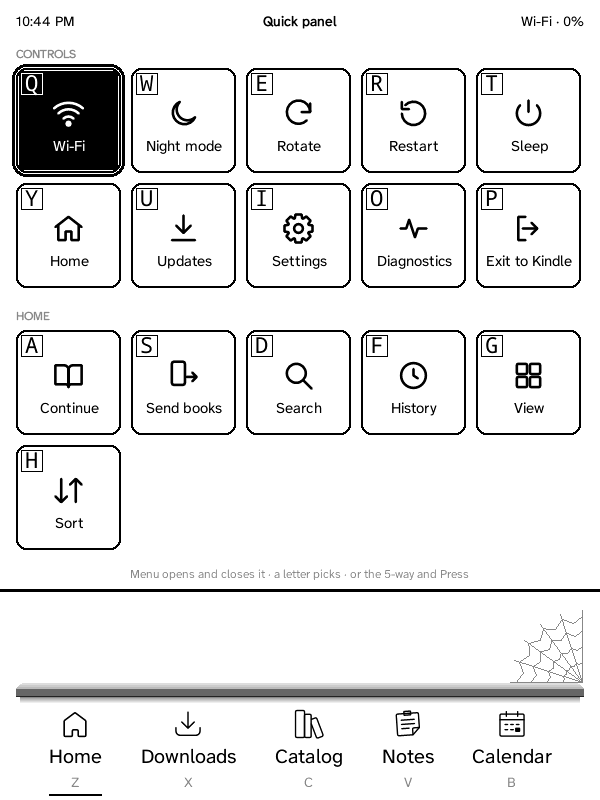
One panel of square tiles, on every Kindle and Nook: Menu opens it (on a touch Kindle, swipe down from the top). Each tile has a letter for the keyboard; the 5-way moves between them too. A highlighted tile shows white on black when it's on (Wi‑Fi, night mode, a bookmark on this page).
- Controls: Wi‑Fi (on the Kindle 2 and DX: Sync, with a computer), Night mode, Rotate, Restart, Sleep, Home, Updates, Settings, Diagnostics (while diagnostic logging is on, Settings → General) and Exit to Kindle (Exit to Nook).
- Home: Manage book (the highlighted book), Continue, Send books, Search, History, View, Sort and Music; Audiobook while one plays, and Downloads (N) while something downloads.
- This book (while reading): Sync with Grimmory, Contents, Bookmark, Bookmarks, Go to page, Search book, Font (the list of fonts), Layout (size, margins, spacing: KOReader's bottom panel), Fit pictures, Read aloud and Music.
On a touch Kindle with a frontlight the panel also has a light slider (tap or drag it; − and + step), and holding a book at Home or in Downloads opens Manage book.
The Kindle 2 and DX have a number row, so 1–9 switch the tabs there too.
| Where | Key | Does |
|---|---|---|
| Home / lists | Z, X, C, V, B | Switch the bottom tabs, counted from the left: Z Home, X Downloads, C Grimmory, V Notes, B Calendar (also Alt + Q, W, E, R, T…: Alt + the top row is how the Kindle Keyboard types 1–9). Shown under each tab. |
| Home | Q, W…; A, S, D… | Q the book you're reading, W, E, R… the books in the strip, A, S, D… the strip's tabs (shown in squares). |
| Any list or menu | Q, W, E, … | Pick the entry with that letter (shown next to it), in lists, the ZenOS settings and KOReader's menus. |
| KOReader's menus | Alt + Q, W, E, … | Switch the menu's tabs. |
| Home / lists | Menu | The quick panel (Controls and Home tiles; see The quick panel). Each tile has a letter. Menu or Back closes it. |
| Home / Downloads, book highlighted | Menu → Q | Manage book: Open, Delete from this Kindle (asks first; Grimmory keeps it), then ZenOS's book menu (without its Edit submenu: Delete is already there). |
| Reading | Menu | The quick panel with This book: sync, contents, bookmark, bookmarks, go to page, search, font, layout, fit pictures, read aloud, music. |
| Reading | AA | Fonts and layout. |
| Reading | Shift + Sym | Read aloud / stop. |
| Reading | Back | Return from a followed link or TOC jump; otherwise go to Home. |
| Settings, audiobook player, tab views | Home | Home (the default tab). The audiobook keeps playing. |
| Anywhere | Volume buttons | Speaker volume for audiobooks and read aloud (a note shows the level). |
| Note editor | Menu | To the formatting toolbar and back; the cursor stays where it is. |
No keyboard and no touch screen: the 5-way, its centre button (Press), Menu, Back, Home, the keyboard key and the page keys on both sides.
- Tabs: Down from the bottom of Home reaches the tab bar; Left and Right choose a tab, Press opens it.
- Menu: the quick panel at Home and in a book (see The quick panel above); in Notes and Calendar their options (new note, filter, refresh; today, Agenda / Day / Week / Month, refresh, settings).
- Notes: the 5-way moves between the sticky notes, Press opens one; in a note ▲ ▼ choose a checklist item or attachment and Press ticks or opens it; Menu: edit, pin. The editor shows the on-screen keyboard (the 5-way types on it); Menu goes to the toolbar (lists, checklists, headings, italic, bold, tags, Save, and who can see the note) and back.
- Calendar: the page keys go back and forth; the 5-way picks an event.
- The 8-bit screen has inverted grey levels, which KOReader's fast drawing code can't handle (like the Kindle 3's 4-bit one): GZreader draws into an ordinary buffer and copies it to the screen, about a sixth less processor time per key press in testing, and night mode costs nothing.
The Kindle Touch (4th generation) and the Paperwhite 3 (7th generation) run the same GZreader with ZenOS's touch interface:
- Tabs at the bottom: Home, Downloads, Grimmory, Notes, Calendar.
- Swipe down from the top for the quick panel (above), with a light slider on Kindles with a frontlight. A tap below it closes it.
- Hold a book at Home or in Downloads for Manage book (Open, Delete from this Kindle, then the book's menu).
- Notes: New note, Filter and More are buttons under the title; a note opens with a tap, checklist items tick with a tap, and Edit, Pin, More and Close are buttons at the bottom. The editor shows the on-screen keyboard; its toolbar (lists, checklists, headings, italic, bold, tags) and Save are above the text, and the visibility (Private, Signed-in users, Public) is a button in the title.
- Calendar: ◀, Today, ▶ and More under the title (or swipe left and right); tap an event for its details, a day in Week or Month to open it.
- The setup page: tap Done on the Kindle when you're done (instead of Back).
-
On the Kindle's own home screen (firmware 5), GZreader shows as a
"GZreader" book with its logo (
documents/GZreader.sh); tapping it starts GZreader. It replaces ZenOS's "ZenOS" one from earlier versions. - Reading: tap the right side for the next page, the left side for the previous one, the top for the menu (contents, bookmarks, search, fonts…); swipe up for the page browser.
- The first-time tour: after the setup guide, a short tour opens the quick panel and shows how to open and close it, Settings and the Home tiles (on the first book, if it didn't run at Home: This book's tiles). It closes the panel when it ends. On the first book, a tip then shows the swipe up for the page browser. Both come again after Settings → About → Setup Guide.
- Audio: the Kindle Touch plays audiobooks; the player has buttons for chapters, ±30 s, play / pause, sleep timer, volume, the description and close (Settings → Reader → Test audiobook playback finds what works on its firmware). It also reads aloud with the Kindle's voice: in a book, swipe down from the top and tap Listen in the quick panel (again to stop); the first time, a short test finds the Kindle's voice. The Paperwhite has no speaker or headphone jack, so neither is offered there.
- Everything is sized for the screen (the Paperwhite's 1072 × 1448 at 300 dpi): Home's text is the same size as on a Kindle 3. The Kindle's own time zone is used (the time zone setting is for the Kindles without one).