Repository navigation
English
BleAirDock was previously called Kopfhörer-Akku. Version 1.7.0 introduces the approved logo and new name; existing settings, device assignments and update URLs remain compatible.
Current version: 1.8.0
Compact context menu: Audio output, Show/hide widget, Settings, More actions and Exit. Settings → Controls groups audio mapping, shortcuts, volume and startup. Optional wheel control changes the assigned headphone by 2% per step over its tray icon or widget entry without switching outputs. Optional full-screen hiding restores the widget afterwards and preserves manual hiding. Both options start disabled. Full documentation remains included.
Restart is available in the tray and widget menus. About BleAirDock and update checks are in Settings. Both Windows Bluetooth connection sources are checked during the normal scan; the tray and widget share one display state. Compact headphone and music-note icons are clearer. The configured polling interval is retained.
-
Standard and Tiny widgets: two clickable icons, adjustable size, layout, fonts, colors and transparency. Tiny shows device names and status on hover; optional screen-edge snapping. Hide / show widget is available in the menu, with tray access retained while hidden.
-
Per-headphone warnings with individual thresholds and pulse colors. Pulse warning: 1–90%, period 1–10 seconds, intensity 10–100%, or steady glow. The 30-second test uses the actual tray icon. Pause warnings for 30, 60 or 120 minutes. No extra Bluetooth queries.
-
Three customizable shortcuts: toggle, activate headphone 1, activate headphone 2. Combine Ctrl, Alt, Shift and Win with A–Z. Initially disabled; unavailable combinations are reported.
-
Per-headphone volume memory is optional: set the initial target, then the app remembers the volume when leaving a device and restores it during one-click audio selection. Mute and microphone settings stay unchanged.
-
Import PNG/ICO device images under Names & display → Choose icon. Five SVG and PNG examples are included in docs/symbols. SVG is editable source; PNG/ICO is imported. Tiny can show just the image. Tray images use higher contrast at small sizes; widget images retain their original colors.
-
Status messages distinguish not connected, unknown connection, Windows provides no battery level, and query failed. Cached values are never presented as a confirmed current measurement.
Home · German instructions · Troubleshooting in German
BleAirDock is a free, open-source Windows app by Aldikiller. It displays battery levels for up to two Bluetooth headphones in the system tray, a desktop widget, or both.
Click a headphone icon, name or percentage in the desktop widget to select its audio output. A green check marks the active output, even without device icons. Dragging moves the widget without changing audio; double-click opens settings only. Selection also works with position locked. The widget shares the tray mappings and Audio quick selection setting.
These are actual English interface screenshots with example devices. Full English guide.
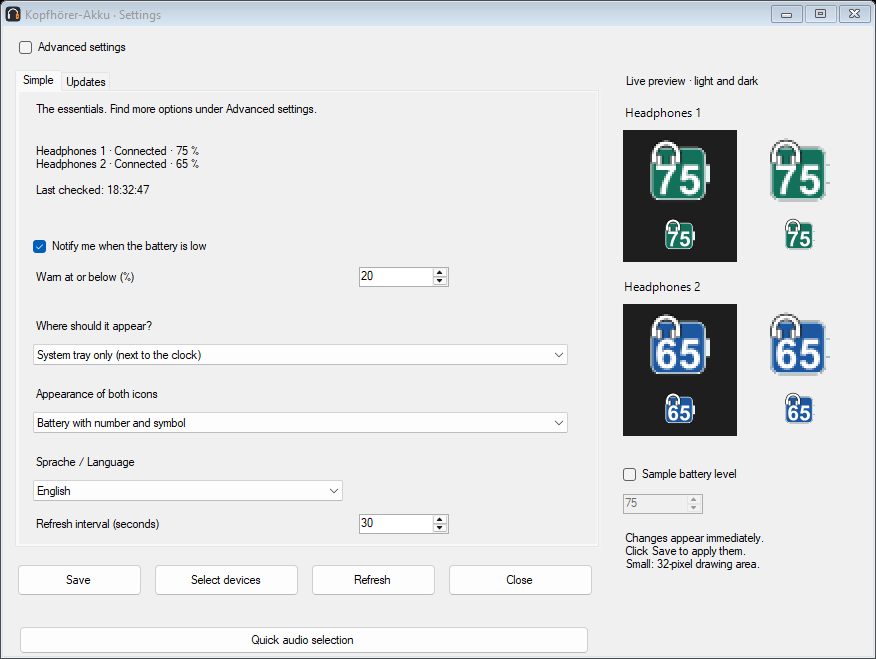
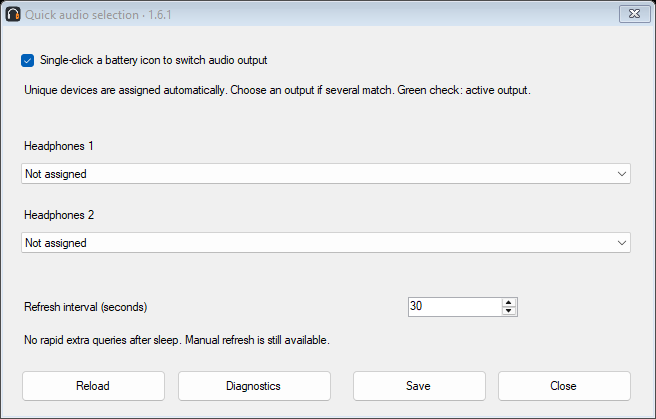
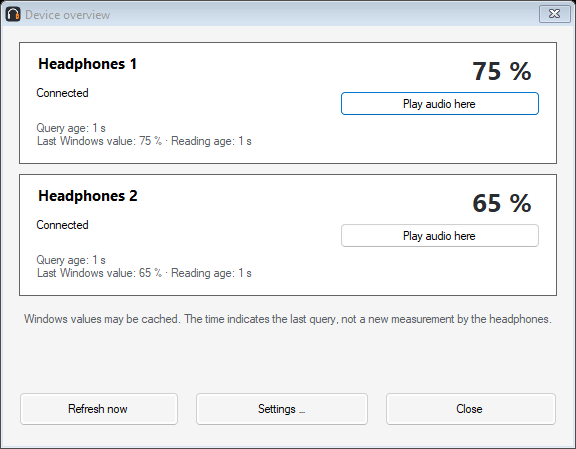
- Open the latest release and download the installer or portable ZIP.
- Install the app, or fully extract the ZIP into its own folder and run the app.
- Turn on your headphones and connect them to Windows.
- Select up to two devices in the app and click Übernehmen (Apply). If there are duplicate entries, choose the entry showing a battery level.
Requires Windows 10 build 19041 or later, or Windows 11, x64, with .NET Framework 4.8. Downloads are currently unsigned and Windows may display a warning. The installer selects startup with Windows by default; you can change this under Settings → Controls.
Double-click a tray icon to open Einstellungen. In the simple view choose Sprache / Language → English, then click Speichern (Save). In advanced settings the language menu is under Allgemein (General). The interface changes immediately and remembers your choice. German is the default. English is available from version 1.2.0.
Click a tray battery icon to switch Windows audio to that headphone. A green circle with a white check marks the active output. Unique device matches are assigned automatically. Otherwise open Settings → Controls → Quick audio selection, select each output once and save. Manual assignments are preserved. Disabling quick selection restores single-click overview.
Double-click opens settings; right-click gives access to the overview and mapping. Microphone and the separate communications device are unchanged. Apps with a fixed output may keep their own choice.
Battery checks default to 30 seconds, adjustable from 30 to 300 seconds, without rapid retries or routine progress banners. Update checks remain manual or optional at startup. Windows may cache battery values; query time does not confirm a fresh measurement by the headphone.
Hover over a tray icon to see the device name, battery level and query age. Double-click opens settings; right-click opens the menu. If an icon is hidden, look in the Windows tray overflow under ^.
Settings open in a simple view. Select Advanced settings for the detailed controls below. Switching views preserves unsaved changes.
Settings let you change device labels, colors, symbols, fonts, battery width, height, corner radius and outline thickness. Choose a battery with a number, or a number with a symbol. The live preview shows changes before you save. Windows controls the outer size of system-tray icons.
For the widget, open Anzeige & Widget before switching language, or the corresponding display/widget section in English. Select tray, widget or both. Scroll down for size, position, opacity, fonts, frame and layout options.
For a clear background, set background opacity and frame thickness to zero. Overall opacity also affects text and symbols. Drag the widget with the left mouse button to move it; double-click opens settings and right-click opens its menu.
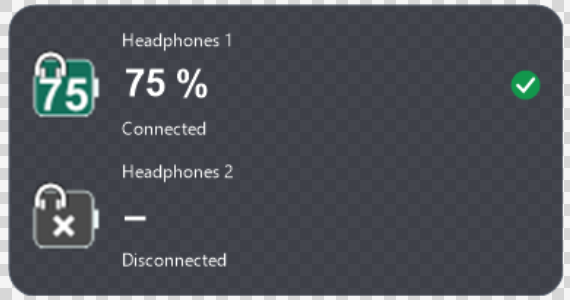
The app can only display values supplied by Windows and the device driver. Some headphones do not expose a compatible battery level. Values may be rounded or delayed. Tested models are JBL Live 770NC and JLab Rewind 2; other models are not yet confirmed.
Your chosen color means connected; red means connected with at most 20% battery. Gray with × means disconnected. Yellow means the connection is uncertain and the displayed number may be cached. A question mark or dash means data is missing.
Low-battery warnings require a confirmed connection and a battery value. Use the notification test in general settings. Windows Do Not Disturb may suppress notifications.
If a device is missing, reconnect it in Windows, check both selected device entries and wait for the next polling interval. The app uses the configured polling interval after standby, without rapid extra checks. If values remain missing, reconnect the device and use Refresh now.
The optional GitHub update check is off by default. It opens the download page and never installs updates automatically. GitHub receives your IP address and app version during a check; device names and battery levels are not sent. No ads or telemetry. Settings stay on your computer.
Uninstall the installed version through Windows Settings → Apps. Settings remain in %LOCALAPPDATA%\KopfhoererAkku. For the portable version, disable startup with Windows, exit the app and delete its folder.
Report an issue with the headphone model, Windows and app versions, expected behavior and steps to reproduce. Please remove personal device IDs, Bluetooth addresses and private information from screenshots and logs. Reports of working models are welcome too.
Source code · Privacy · MIT license
Provided without warranty to the extent permitted by law.