Repository navigation
Board Tour
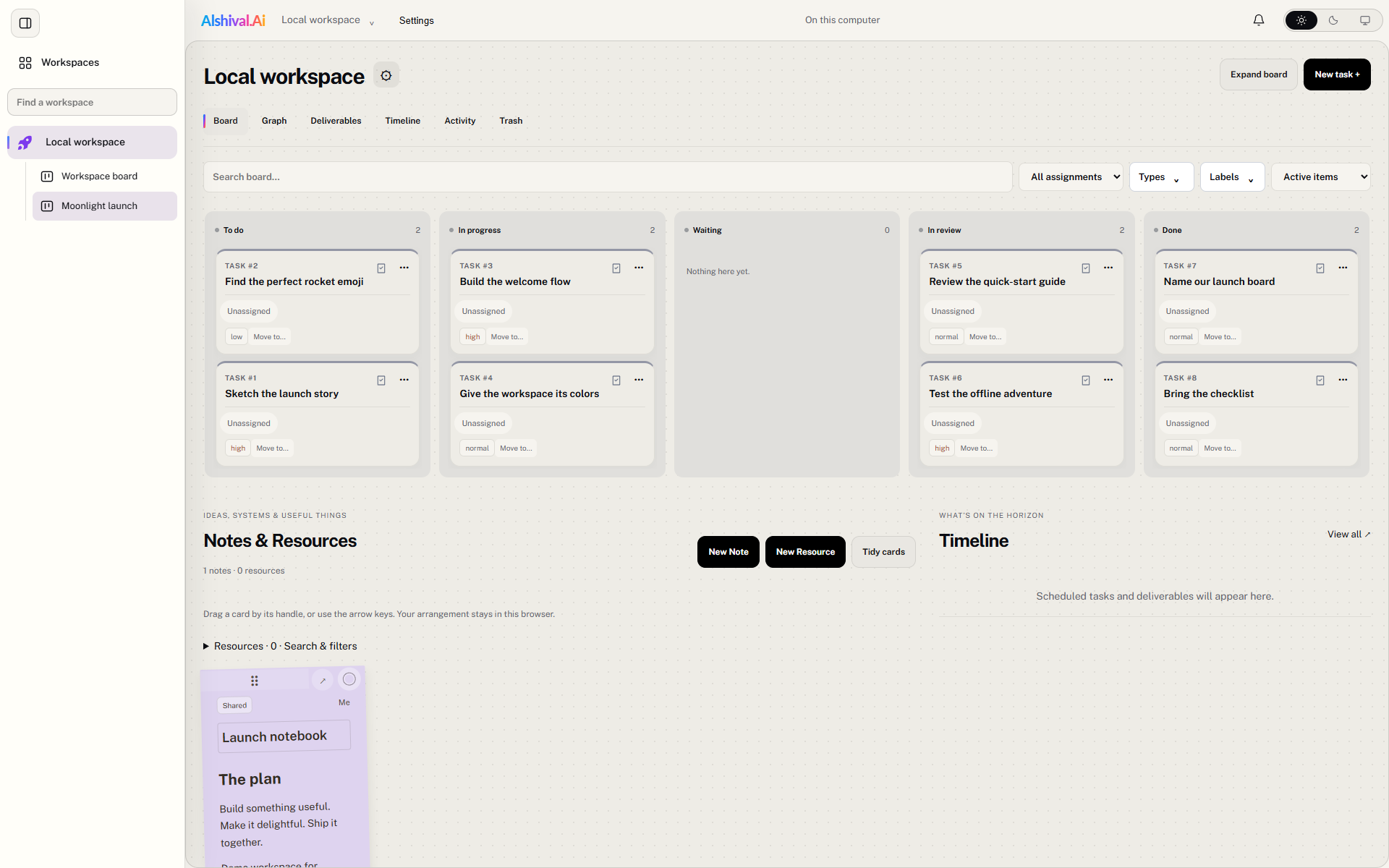
Let's give a small project a place to land. This tour works with the shared board UI in the desktop app and browser/server preview. The screenshots use a fictional Moonlight launch project.
Open workspace settings using the gear beside the workspace name. Choose an icon from the bundled library and give it a color. Our demo uses a violet rocket. Your navigation now has an easy-to-spot home for the project.
In connected workspaces, personal icon choices can stay on your device. Sharing an icon with the team uses Sync to workspace and requires workspace management permission.
Select a board in the sidebar and choose New task +. Start small:
- Sketch the launch story.
- Build the welcome flow.
- Review the quick-start guide.
- Find the perfect rocket emoji. Someone has to.
Add a description, choose a priority, and use the status that matches the work. Set a due date when it helps; every task doesn't need a countdown.
Click a task title to open its details. Keep the goal in the description, choose its type and labels, and add acceptance criteria so “done” means something concrete. Connected workspaces use the members and permissions available to your account.
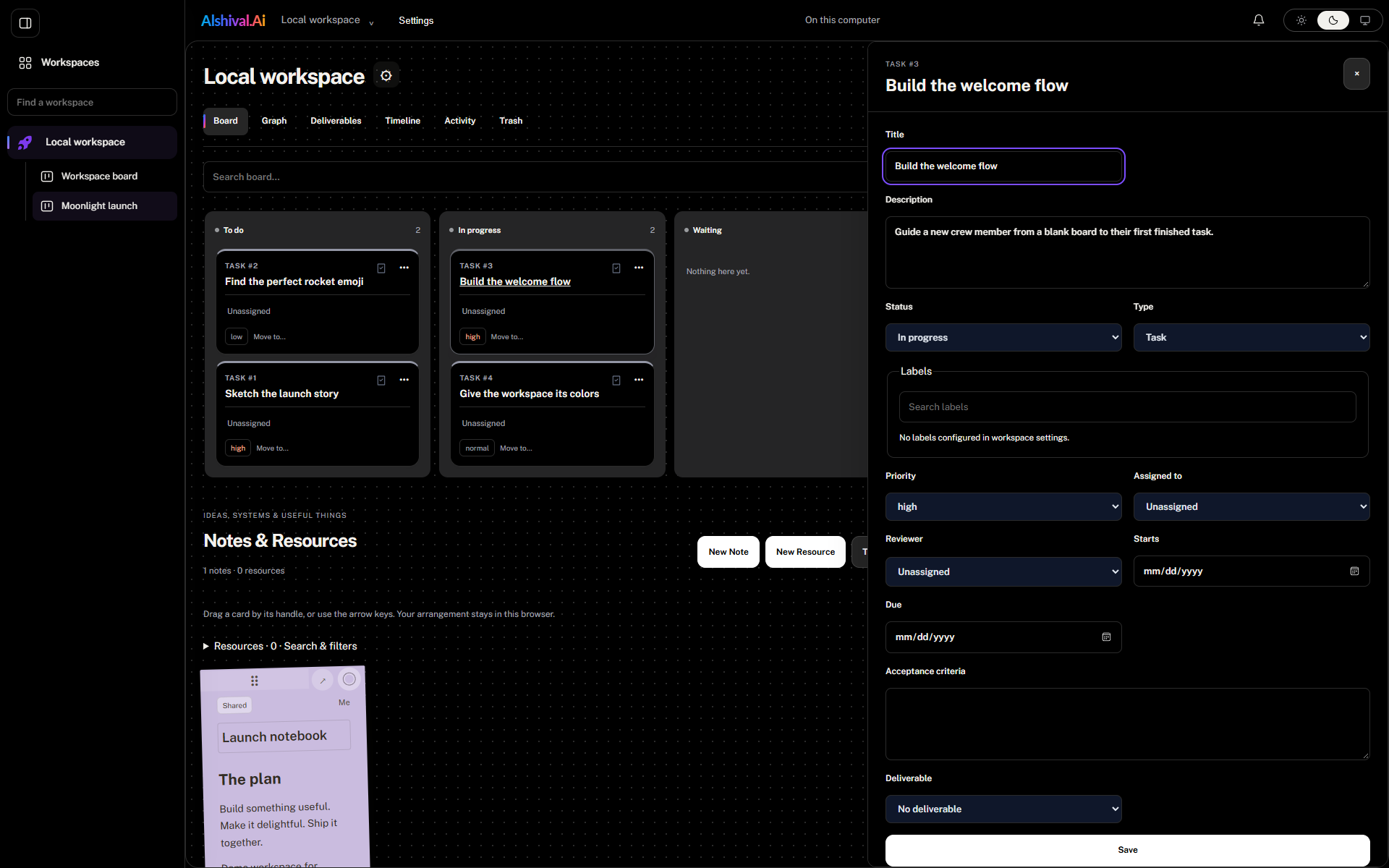
Use Move to… on a card or change its status in the details panel as work progresses. In review gives the work a useful pause before Done.
Use New Note for decisions, rough ideas, and the project notebook. Use New Resource for systems or services related to the work. Resources can also bring logs and monitoring into the workspace.
Search the board or filter by type, label, and assignment when it gets busy. Try the Graph, Timeline, and Activity views to explore relationships, scheduled work, and changes.
Connect a compatible MCP client, then try:
“Show me what's in progress on Moonlight launch. Suggest the smallest next step for each task.”
Start with read access if you only want summaries. Grant write access when you want the assistant to create or update work. The example is a prompt to try; it isn't a claim that the app has a built-in chat assistant.
Connect the portal to collaborate in shared workspaces. Local boards stay local until you explicitly publish them. Export a backup from Settings before a big move, and keep a copy somewhere safe.
Published from the versioned Alshival documentation source. Edit the source rather than this generated page.