Releases: Ari-Joon/KAM-Capture-Tool
Release list
KAM Capture Tool 1.7.1 - STOP, unmistakable

STOP, unmistakable.
The one button that keeps nothing now looks like it. STOP ends a recording without saving it, and it sat beside Save looking just like the buttons that keep things — easy to press expecting a file. On the recording bar it is now STOP, in capitals, bold, outlined in red, with red hover and press states, next to the gold Save.
The same STOP for screenshots. On the selection bar, Cancel — which also ends everything and keeps nothing — is now the same STOP in the same red, whether you are taking a screenshot or choosing an area to record. The hint along the top says Esc STOP.
Checked. The layout check now renders the recording bar's buttons in their real styles, since the bar itself hides from every screenshot on purpose.
Install: download KamCapture.exe below and run it. It asks where to install — per-user, never as administrator — or runs where it stands. The .NET runtime is inside it, so there is nothing to install first. Recording, video or audio, also needs ffmpeg: winget install Gyan.FFmpeg
Updating: 1.2.x and later offer this by itself.
It is not code signed, so SmartScreen warns the first time: More info, then Run anyway. Get-FileHash KamCapture.exe should match:
4DDFEE567A82ECAA1D21C069F8FE5A5DE6F8C14F5A354F6234D5E9C2A80C959C KamCapture.exe
Full Changelog: v1.7.0...v1.7.1
KAM Capture Tool 1.7.0 - system audio from every output, full screen at once
System audio from every output, full screen at once, and an installer that cannot be fooled.
System audio is recorded from every output. The first real lecture recorded with audio-only came back wrong: of fifteen takes, eight held stretches of digital silence — every sample exactly zero — from the moment the microphone was muted. System audio had been taken from one output, whichever Windows called the default when the take began, and a laptop has several: its speakers, its headphone jack, a monitor's HDMI audio. A call playing through another, or headphones plugged in part way, left nothing to record. It now records every output at once, picks up outputs that appear during a take within two seconds, and reopens any that stop. Choosing one output is still there.
Measured. --mixtest plays a quiet tone from a separate program through each output and records it through the real recorder while each microphone is switched on, off and on: every output heard at 0.020, unmoved by any microphone. Listening to the default alone, as before, the same tone on the speakers came through at 0.0014 — 7% of its level.
You can see it working. The recording bar has a meter for system audio and one for the microphone, so a source that hears nothing shows it before an hour has gone by. Every take ends with a line in the log saying what each source heard and from which devices. The microphone list says which device Default means right now — on a laptop with a headset jack, it may not be the microphone you talk into.
Also fixed in the audio. A device whose sound needs resampling could be dropped from the mix for good on an ordinary short read; it no longer can. A surround output, like a monitor's eight-channel HDMI, is folded to stereo instead of refused.
Full screen takes the screen, at once. Whole-screen captures were committed before the overlay was listening, so the overlay sat waiting for a click it did not need, and Esc cancelled a capture that was already finished. That has been true of Ctrl+Shift+F since the first version. Full screen now takes the screen straight away with no overlay at all. Ctrl+Shift+F now means the display under the pointer, as Full screen does on the home window and in the tray, and Settings uses the same words.
Retake is tested end to end. The lifecycle test now presses the annotator's real Retake button on a full-screen capture — which is how the bug above was found.
The installer cannot be fooled. A development build, run with an option it did not know, went on to a normal start, offered to install itself, and put its small launcher over the real program — after which the desktop icon did nothing. Unknown options now stop the program at once, and only the complete single-file program can install itself. The install test checks both.
Install: download KamCapture.exe below and run it. It asks where to install — per-user, never as administrator — or runs where it stands. The .NET runtime is inside it, so there is nothing to install first. Recording, video or audio, also needs ffmpeg: winget install Gyan.FFmpeg
Updating: 1.2.x and later offer this by itself.
It is not code signed, so SmartScreen warns the first time: More info, then Run anyway. Get-FileHash KamCapture.exe should match:
2E8D53780532F50D65C0260007691A6789A93E4E625CF6FC8083851C8E69F9CB KamCapture.exe
Full Changelog: v1.6.1...v1.7.0
KAM Capture Tool 1.6.1 - Stop means stop
Stop means stop.
Two ways to keep a take, and two not to. In 1.6.0, Discard and Retake read as the same thing. The recording bar now reads Pause · Retake · Save · Save as… · Stop:
- Save and Save as… finish and keep the take.
- Retake throws the take away and starts again straight away, as before.
- Stop ends everything without saving and brings the home window back to the front, on what was being recorded.
Save is the old Stop. The button that used to be labelled Stop saved the recording; it is now Save, beside Save as, so that Stop could mean stop. The home window's button while recording, the tray menu and the shortcut hint said "stop" but saved, and now say save.
Still nothing lost to a mis-click. A take thrown away by Stop or Retake goes to the Recycle Bin, not away for good. --retaketest still drives the real controller through a retake and a stop and checks both takes land there.
Install: download KamCapture.exe below and run it. It asks where to install — per-user, never as administrator — or runs where it stands. The .NET runtime is inside it, so there is nothing to install first. Recording, video or audio, also needs ffmpeg: winget install Gyan.FFmpeg
Updating: 1.2.x and later offer this by itself.
It is not code signed, so SmartScreen warns the first time: More info, then Run anyway. Get-FileHash KamCapture.exe should match:
023107CBF0C25224FDE8D7BFBA8473069CAB5EE6D1C8B04B41F9648B3CC0E051 KamCapture.exe
Full Changelog: v1.6.0...v1.6.1
KAM Capture Tool 1.6.0 - Retake and Discard, into the Recycle Bin
Retake and Discard, for recordings and screenshots.
A bad take no longer becomes a file. The recording bar has Retake, which throws the take away and starts again straight away — same sources, same region or window, the bar where you left it, and take 2 beside the time so you know it happened — and Discard, which stops and throws the take away. The annotator has Retake (Ctrl+R) for a screenshot: the capture is thrown away and taken again the same way it was taken, region, window or full screen.
The Recycle Bin, instead of "are you sure". A confirmation on every retake would slow down the one thing retakes are for. So neither button asks; a thrown-away take goes to the Recycle Bin rather than away for good, and a mistaken click costs nothing. The annotator asks only when something has been drawn on the capture, because that is work rather than a file.
Retaking a named screenshot keeps its name. Anything already saved from a retaken screenshot goes to the Recycle Bin with it, and Save as steps back one, so the retake of slide 4 is offered slide 4 again rather than slide 5.
Checked end to end. --retaketest drives the real recording controller: start an audio take, retake it, discard the second, then check the folder is empty and both takes are in the Recycle Bin — and remove them from it, so the test leaves nothing behind. Run once with Discard deleting outright, it failed: expected both takes in the Recycle Bin, found 0. The annotator's Retake opens the selection overlay across the screen, which the headless checks avoid, so it has no automated test.
Install: download KamCapture.exe below and run it. It asks where to install — per-user, never as administrator — or runs where it stands. The .NET runtime is inside it, so there is nothing to install first. Recording, video or audio, also needs ffmpeg: winget install Gyan.FFmpeg
Updating: 1.2.x and later offer this by itself.
It is not code signed, so SmartScreen warns the first time: More info, then Run anyway. Get-FileHash KamCapture.exe should match:
6B664C9DAE97F871D8FB74583B8A6AB19A1773A859A2D268BA52D999A1D88B39 KamCapture.exe
Full Changelog: v1.5.0...v1.6.0
KAM Capture Tool 1.5.0 - Save as, with the next name filled in
Save as, for screenshots, videos and audio.
Name it as you save it. A folder of KAM-2026-09-24-10-15-22.png files is a folder you rename later, one at a time. Save as is now on the selection bar and in the annotator's toolbar for a screenshot — F12 in both — and beside Stop on the recording bar for video and audio. PNG, JPEG or BMP for a screenshot; a recording keeps the format it was recorded in.
The next name is already filled in. Each kind opens where its last Save as went, and when the last name ended in a number the suggestion is the next one: after Lecture 5 slide 3 comes Lecture 5 slide 4, padding kept (slide 09, slide 10), stepping past any name already taken so accepting it never overwrites. Naming a deck of slides is then mostly pressing Enter. The tool's own timestamp names are not counted on — their last number is the seconds.
A recording is never lost to a dialog. It is written under its automatic name while it runs, and Save as moves the finished file. Cancel the dialog and it stays where it is. The recording bar closes before the dialog opens, so it cannot sit on top of it.
Why F12 and not Ctrl+Shift+S. Ctrl+Shift+S is the region shortcut, and Windows hands a registered shortcut to its owner before any window sees it. F12 is what Office uses.
Checked. --selftest, which runs in CI, now checks the suggested names; it was run once with the padding deliberately broken, to watch it fail. --audiotest moves a finished recording to a chosen name and back. The dialogs themselves are Windows' own and were not driven by a test.
Install: download KamCapture.exe below and run it. It asks where to install — per-user, never as administrator — or runs where it stands. The .NET runtime is inside it, so there is nothing to install first. Recording, video or audio, also needs ffmpeg: winget install Gyan.FFmpeg
Updating: 1.2.x and later offer this by itself.
It is not code signed, so SmartScreen warns the first time: More info, then Run anyway. Get-FileHash KamCapture.exe should match:
72E3263EBDB64CF7C637C575D56BF08F7C547B1FF8F9612A320B96FE025CD4A3 KamCapture.exe
Full Changelog: v1.4.0...v1.5.0
KAM Capture Tool 1.4.0 - sound on its own, a folder for each kind, nothing cut off
Sound on its own, a folder for each kind, and nothing cut off.
Audio, as a third thing beside Screenshot and Video. System audio, the microphone, or both, into one file — MP3 by default, M4A or WAV in Settings. It is the same in-process mixer the video uses, so either source can be switched on or off from the recording bar in the middle of a take, and the track carries on without a gap. System audio can come from a particular output, which matters when a call is playing through a headset. The case it was built for: screenshot every slide of a lecture, record the call's sound, and put the two together in an editor — sharp slides, and no hour of 4K video to store or upload. An hour is 86 MB as MP3, 58 MB as M4A.
Pause leaves the paused stretch out. It used to freeze the picture and keep recording the sound. Now both stop and pick up together: an eight-second take paused for two comes out as 181 frames, 6.03 s of video beside 6.01 s of audio. As sound alone, the same take comes out at 6.09 s, as MP3 or M4A.
A simpler home window. Screenshot, Video, Audio across the top; underneath, only the options that apply; then one button that says exactly what it will do. The separate recording setup window is gone — its choices live here and are remembered. Full screen starts straight away. Open Screenshots, Open Video and Open Audio each go to their own folder, instead of one button guessing from whatever you did last, and audio has a folder of its own: Music\KAM Capture Tool\Audio.
One progress indicator for updates. The download shows on the gold button, with its percentage, and clicking it cancels. The bar that also appeared across the top said the same thing and was being cut off.
Nothing cut off. A new check, --layoutcheck, lays out every window offscreen at its real size and its smallest, in the states that stretch it, and fails if anything is drawn outside its space. Its first run found three real problems: the installer's Browse button pushed 15 px off the edge, six Settings controls cut at the minimum width, and the annotator's last four tools hidden at its minimum height. All fixed, and it now runs in CI. Long device names end in an ellipsis rather than being cut through a letter.
Smaller fixes. Two screenshots taken in the same second no longer overwrite each other. A screenshot taken without the annotator no longer pulls the home window in front of a call. M4A is now AAC at 128 kbps, so it really is the smaller one. A OneDrive recordings folder you chose and confirmed is now honoured by the recorder too.
Install: download KamCapture.exe below and run it. It asks where to install — per-user, never as administrator — or runs where it stands. The .NET runtime is inside it, so there is nothing to install first. Recording, video or audio, also needs ffmpeg: winget install Gyan.FFmpeg
Updating: 1.2.x and later offer this by itself.
It is not code signed, so SmartScreen warns the first time: More info, then Run anyway. Get-FileHash KamCapture.exe should match:
8D617770BFF411E04C5884C43F24DE8D32976639CBD9FAF3F2FF390F4DFA30D9 KamCapture.exe
Full Changelog: v1.3.1...v1.4.0
KAM Capture Tool 1.3.1 - the interface moves, within a budget
The interface moves now, within a budget.
A motion vocabulary, not decoration. Four durations and one easing, applied everywhere rather than hand-animated per control. Press is 90ms of opacity and a 2% scale down; release is 120ms back to rest; hover and state changes are a 140ms fade. Hover fades an overlay in rather than swapping a colour, which is the difference between a transition and a flicker. Toggling the microphone or the system audio on the recording bar now animates, which is where this started.
It costs nothing, and that is a design constraint rather than a hope. Only Opacity and RenderTransform are ever animated. Both compose on the render thread. Animating Width, Height or Margin would force a layout pass every frame, which is where a smooth interface turns into a janky one — so nothing here animates layout, and the rule is written into Theme.xaml and the contributing notes. Recording measured the same before and after: 150 frames in 5 seconds, across three runs each.
A bug caught while building it. Putting the checked look entirely into Trigger.EnterActions means a control created already checked never transitions, so the storyboard never runs and it renders in the wrong state. Every checkbox in Settings and the selected tool in the annotator were affected. The trigger now sets the resting value and the storyboard covers only the transition. Checked against the previous renders.
Clean build. The three nullable warnings in the colour wheel were real ordering — handlers wired before the fields they capture existed, harmless only because a handler cannot fire during construction. Fixed at the cause.
Install: download KamCapture.exe below and run it. It asks where to install — per-user, never as administrator — or runs where it stands. The .NET runtime is inside it, so there is nothing to install first. Recording also needs ffmpeg: winget install Gyan.FFmpeg
Updating: 1.2.x and later offer this by itself.
It is not code signed, so SmartScreen warns the first time: More info, then Run anyway. Get-FileHash KamCapture.exe should match:
BBA28DEF7B86AE8DDD0A89C87E29F1994DF7629A312829A1DBCAAB50B19FF7E6 KamCapture.exe
Full Changelog: v1.3.0...v1.3.1
KAM Capture Tool 1.3.0 - the move tool moves the screenshot
The tool with the four-way arrow on it now moves the screenshot, which is what its icon has always promised.
The move tool moves the image. It panned the view instead, and moving the screenshot meant clicking it once to select it and then dragging — a two-step nobody finds. Drag with the move tool, on M, and the screenshot moves around the board. Panning the view stays on space-drag and middle-drag, where it belongs.
Open folder follows what you did last. After a recording it opened Screenshots. It now opens Recordings after a video and Screenshots after a capture.
Captures can be named. Save asks what to call it, with the automatic name already filled in and selected, so Enter still saves in one keystroke. A name that is already taken becomes -2, -3, and the prompt says so before you commit rather than replacing a capture quietly. The prompt can be turned off in Settings, under Capture.
Text starts black. Each tool now remembers its own colour: black is what reads on a screenshot of a light interface, while a drawn mark still needs to stand out, so the pencil and the shapes stay red. Switching tools no longer drags one tool's colour onto the next.
Hovering the colour swatch offers the ten obvious colours. Clicking it still opens the full wheel. The common case now costs no clicks and the complete one is no further away than it was.
Install: download KamCapture.exe below and run it. It asks where to install — per-user, never as administrator — or runs where it stands. The .NET runtime is inside it, so there is nothing to install first. Recording also needs ffmpeg: winget install Gyan.FFmpeg
Updating: 1.2.x offers this by itself. From 1.1.x, run the download; it offers to replace the copy that is running.
It is not code signed, so SmartScreen warns the first time: More info, then Run anyway. The SHA-256 is published beside it in SHA256SUMS.txt, and Get-FileHash KamCapture.exe should match it:
8974C2FAA456C6A5E08E96AA459742640CF64ABF637CBC70EB5D9F57D67BDDBD KamCapture.exe
Full Changelog: v1.2.1...v1.3.0
KAM Capture Tool 1.2.1 - checks for updates once, when it starts
KAM Capture Tool now checks for a new version once, when it starts, and not again until the next start.
Quieter on the network. 1.2.0 checked a few seconds after starting and then every six hours. A program that sits in the tray all day should not be going back to the network all day, so the timer is gone: it checks once per start. It often starts with Windows, before the network is up, so a check that finds no connection waits for one and asks then, once. The update button still checks whenever you click it.
This is also the first release the updater delivers. A copy running 1.2.0 offers it in the gold update button and the bar, and Update now installs it.
Tested, not assumed: the whole update runs end to end again on this build. Its one start-up check finds the newer version, a download with the wrong checksum is refused with nothing changed, and a good one ends with the new version running where the old one was.
Install: download KamCapture.exe below and run it. It asks where to install — per-user, never as administrator — or runs where it stands. The .NET runtime is inside it, so there is nothing to install first. Recording also needs ffmpeg: winget install Gyan.FFmpeg
Updating: 1.2.0 offers this by itself. From 1.1.x, run the download; it offers to replace the copy that is running.
It is not code signed, so SmartScreen warns the first time: More info, then Run anyway. The SHA-256 is published beside it in SHA256SUMS.txt, and Get-FileHash KamCapture.exe should match it:
F7A7F1180CBEC3AF8E43BB7B97CEE1B6F0B240231F39111256FF7A7E771A44EB KamCapture.exe
Full Changelog: v1.2.0...v1.2.1
KAM Capture Tool 1.2.0 - updates itself
KAM Capture Tool now tells you when there is a new version, and installs it when you say so.
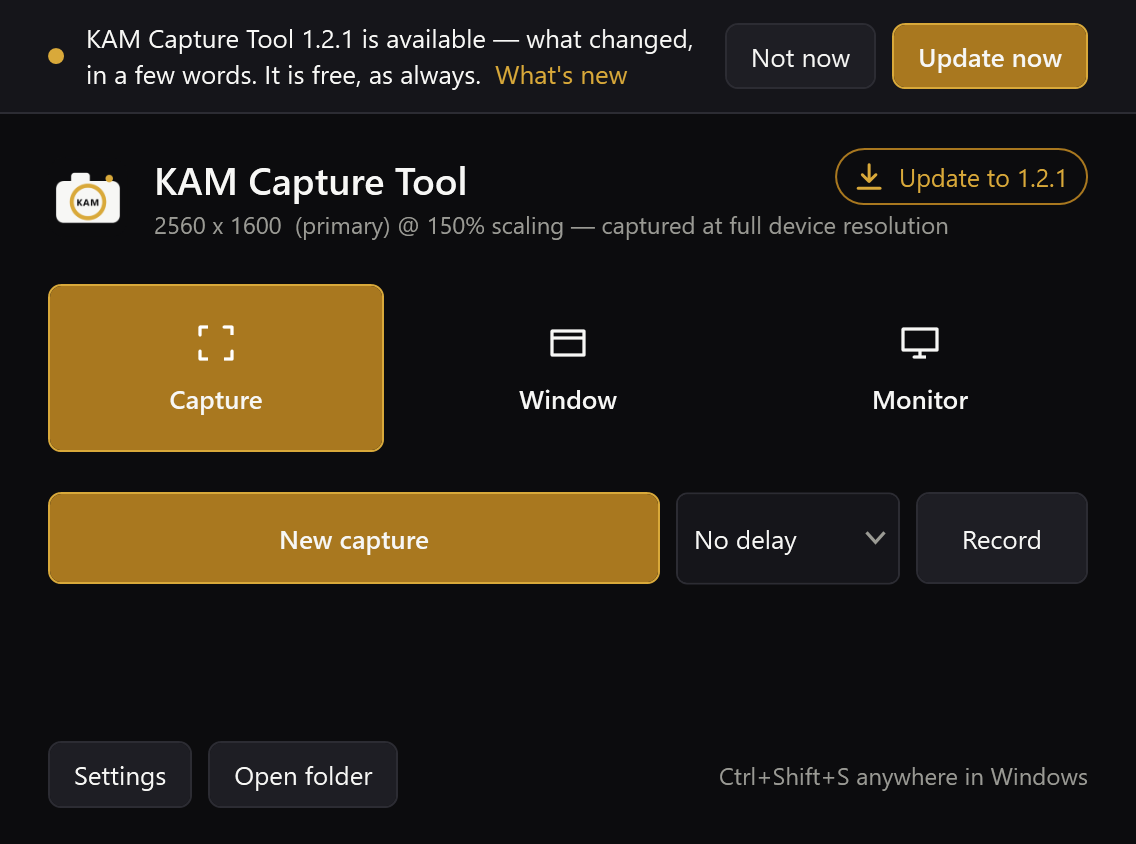
It updates itself. The circular arrow at the top right of the home window checks GitHub for a newer release, and it checks by itself as well — a few seconds after starting, then every six hours. When there is one, the arrow becomes a gold Update to x.y.z button and a bar says what changed, with What's new, Not now and Update now. If the window is closed, a tray notice says it once. Update now downloads the new version, checks it against the SHA-256 GitHub publishes for it, closes the running copy and opens the new one in its place — same folder, same shortcuts, same startup choice. Not now leaves that version alone until a newer one lands.
Opening a newer download while it runs now works. Before, the download handed itself to the copy already running and quit, so all that happened was the old window appearing. Now it offers the update, and closes the running copy only once you agree. That is also how you get this version: open the 1.2.0 download while 1.1.x is running and it takes over.
Two smaller fixes. Closing the home window with the X closed it for good, and opening it again from the tray then failed with an error; it now hides, as a tray app should. And if swapping in a new version ever fails part-way, the old program is put back rather than leaving the install folder empty.
Tested, not assumed. scripts/test-update.ps1 runs the whole update between two builds in a sandbox: a download with the wrong checksum is refused with nothing changed, and a good one ends with the new version running where the old one was. The checks guarding the fixes were each run against the old behaviour first, to watch them fail, and the install and update checks now run in CI. A copy of this build asked the real GitHub and read this release correctly.
Not yet tried for real: an update from one published release to the next. This is the first version with the updater, so the first real one is whatever comes after it.
The update check is one request to GitHub's releases API. It carries the tool's version and nothing about you or your captures, and it can be switched off in Settings.
Install: download KamCapture.exe below and run it. It asks where to install — per-user, never as administrator — or runs where it stands. The .NET runtime is inside it, so there is nothing to install first. Recording also needs ffmpeg: winget install Gyan.FFmpeg
It is not code signed, so SmartScreen warns the first time: More info, then Run anyway. The SHA-256 is published beside it in SHA256SUMS.txt, and Get-FileHash KamCapture.exe should match it:
8AD70399F13CF64B91F2D86E45801EBB2FD10018D4B6254F6FD857ED14786B8F KamCapture.exe
Full Changelog: v1.1.2...v1.2.0