Repository navigation
The Rose panel
The Rose panel is a small toolbar that RoseMCP puts inside a running UWP or WinUI 3 app. Use it to point at an element for an agent to work on, and to measure and magnify what the app draws. It is part of Debugging and XAML.
It appears the first time any XAML tool runs against a debug session, such as rose_xaml_tree, or
the inspector opening its XAML tab. It stays for the rest of the session. It lives in the app rather
than in a window of ours, so it works whether or not a tray is running (see
Architecture).

- The app stays usable. Only the panel itself takes clicks; everything else reaches the app as usual. There is no keyboard shortcut to collide with the app's own.
- It sits in the app's diagnostics layer, above the app's content, so nothing is added to the app's visual tree.
- It stays out of the way. The toolbar dims while nothing is happening and the pointer is elsewhere, and comes back to full strength when the pointer reaches it or while Select, Rulers or Magnify is on. A selection's outline fades the same way.
From left to right:
| Button | What it does |
|---|---|
| Grip | Drag to move the panel. It stays inside the window. |
| Rose mark | Not a button: it shows that the toolbar is RoseMCP's rather than part of the app. |
| Idle | Stops capturing clicks, so the app gets them again. The selection stays. |
| Select element | Your next click in the app picks the element under it instead of reaching the app. |
| Rulers | Shows the selected element's size, margin and padding, and measures from it to whatever the pointer is over. |
Just my XAML { }
|
Picks the element your markup declares rather than a control template's internals, so clicking a button selects the button and not a TextBlock inside it. On by default. |
| Deselect | Clears the selected element and its outline. |
| Magnify | Opens the zoom row: scale the app, or a pixel lens. |
| Hide | Collapses the panel to its grip. Tap the grip to bring it back. |
The active mode is highlighted. Idle, Select and Rulers are the three modes; Just my XAML and Magnify are toggles.
Press Select element and move over the app. The element under the pointer is outlined, with a
badge giving its type and x:Name, and the window takes a faint tint so you can see clicks are being
captured. Click to pick. That click goes to the panel, not the app.
The pick keeps a solid outline and badge after select mode ends, so the selected element is the same
element to you and to the agent until something clears it. Then tell the agent to look at the
element I selected. It reads your pick with rose_xaml_selection, which also returns every element
stacked under the click, so the agent can move to the container you meant without asking you to click
again. The handle and address it gets back feed straight into rose_xaml_properties and
rose_xaml_apply.
It works the other way too. When an agent selects an element with rose_xaml_select_element, the
panel outlines it, so you can see what the agent is looking at. The inspector's
Pick from app arms this same mode, and the inspector, the panel and the agent all share one
selection.
The framework's own hit test decides what a click lands on, so an invisible panel stretched across the window cannot swallow every click. If the selected element leaves the tree, for example after a navigation or when a list recycles its containers, the selection is cleared and the agent is told why.

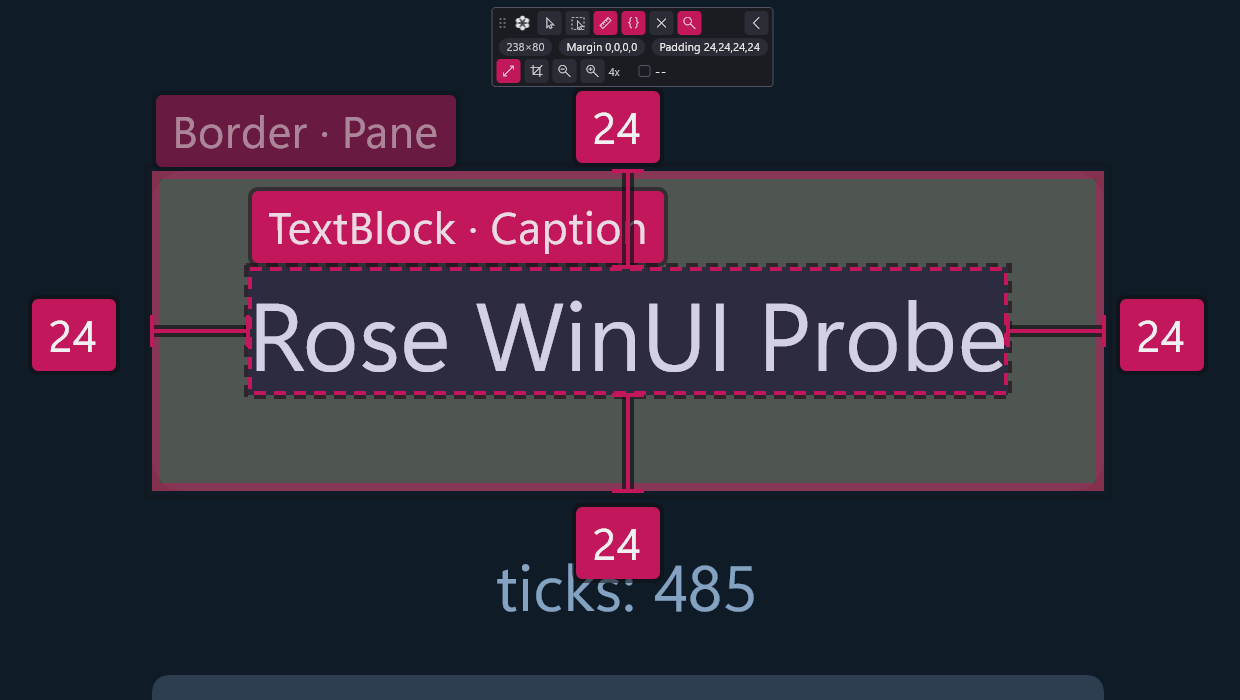
Rulers keeps the selected element as the anchor and adds a readout row under the buttons with its size, margin and padding. All four sides are always spelled out, and an element type with no padding property says so rather than showing zero. Move over another element and the distances between the two are drawn as dimension lines, each with its number. Click to anchor on a different element.
Numbers sit on their dimension lines where they fit. A gap too narrow for its number puts the number past the end of the line. Numbers that would overlap are pushed sideways and connected back to their line, so each number can still be traced to the edges it measures.
Magnify opens a second row: Scale, Pixel lens, Zoom out, Zoom in, the zoom factor (4x to start), and the colour of the pixel under the pointer as a swatch and a hex value.

Pixel lens is a magnifier that follows the pointer and leaves the app alone. Every pixel is copied as a block, with no smoothing, so anti-aliasing, a one-pixel misalignment or a colour that is nearly right looks exactly as it is. The hex readout is the pixel at the centre of the lens.
Scale enlarges the app itself instead. Text and vector shapes are redrawn at the new size rather than stretched, so they stay sharp, and outlines and rulers scale along with the app. The zoom follows the pointer: whatever you are over stays under the pointer as the factor changes. Scale only affects what is drawn; the app's layout does not change, and turning Magnify off puts it back as it was.

Hide folds the panel down to its grip, which you can still drag. Tap the grip to open it again.
- UWP and WinUI 3 only, because the panel is drawn by the XAML diagnostics provider for those frameworks. WPF apps get no panel.
- One window. A WinUI 3 app can have several windows, and the panel covers the one the diagnostics session was set up in. An element in another window can still be selected by an agent, but it is reported as being elsewhere rather than outlined in the wrong place.
- Not while the app is stopped. The panel runs on the app's UI thread, so while the debugger holds the app at a breakpoint the panel cannot respond.
- It stays until the app exits. Detaching the debugger leaves the panel in place. Hide it if it is in the way.