Repository navigation
Microsoft Fabric Open Mirroring
This guide explains the third export option for Business Central data: using the bc2adls extension with Microsoft Fabric's Open Mirroring mode for automated CDC (Change Data Capture) processing.
- Overview
- What is Open Mirroring Mode?
- Key Features
- Prerequisites
- When to Use Open Mirroring Mode
- Setup Overview
- Comparison with Other Options
- Resources
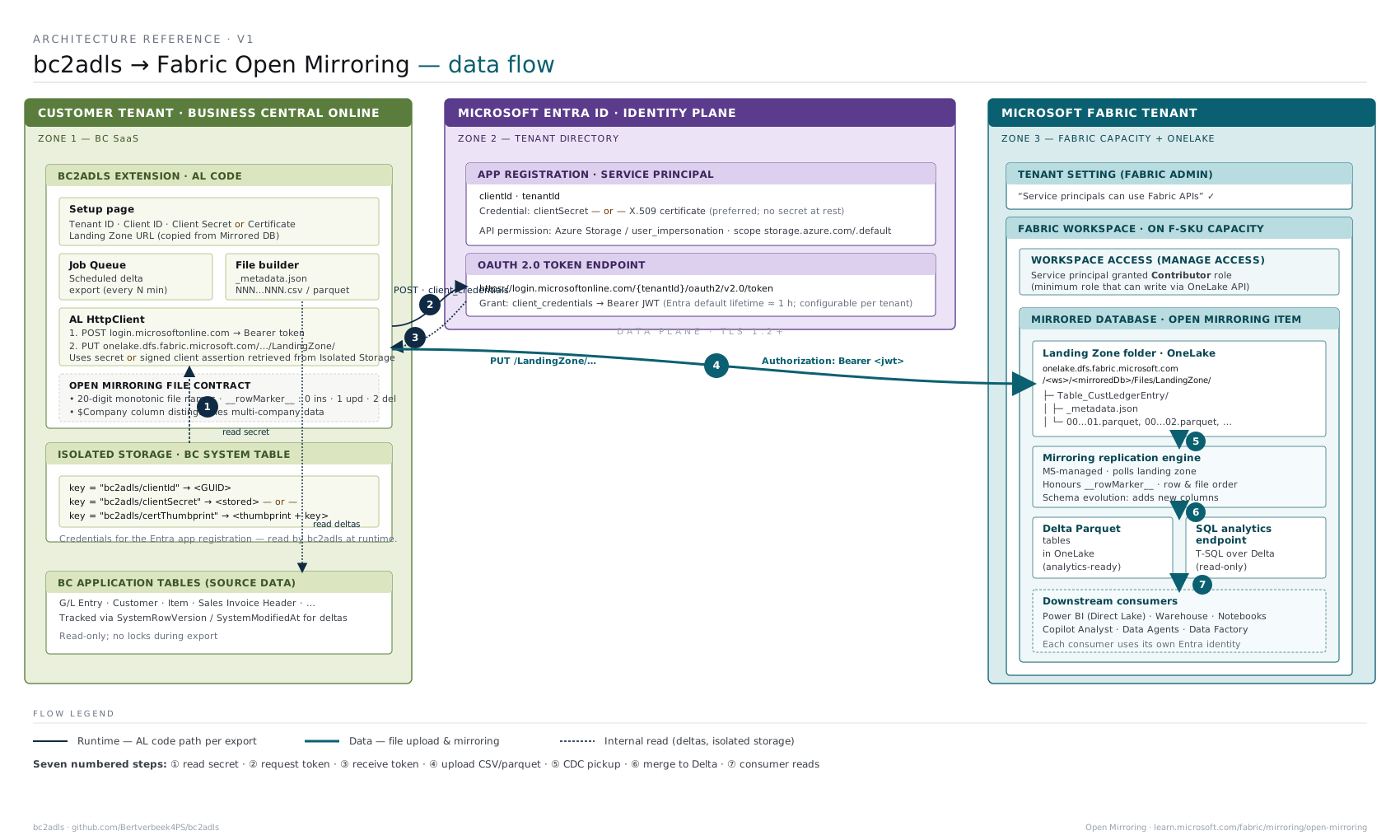
Open Mirroring mode uses the bc2adls Business Central extension to export data to the landing zone of a Microsoft Fabric Mirrored Database (Open Mirroring) item. Fabric then handles the CDC processing automatically instead of requiring notebook scripts.
Open Mirroring mode in bc2adls is a simplified approach where:
- Business Central extension (bc2adls) exports incremental data changes to the landing zone of a Fabric Mirrored Database
- Microsoft Fabric automatically processes these delta files using its native CDC capabilities
- No manual notebook execution required - Fabric handles consolidation automatically
- Same granular export selection as the notebook option (table-level and field-level selection)
- Automated data refresh without running Python notebooks
How it differs from Fabric Notebooks option:
| Aspect | Fabric Notebooks | Open Mirroring Mode |
|---|---|---|
| BC Extension | ✅ Required | ✅ Required |
| Fabric destination | Lakehouse | Mirrored Database landing zone |
| Delta Files | ✅ Created | ✅ Created |
| Consolidation | 📓 Manual notebook execution | ⚡ Automatic by Fabric |
| Field Selection | ✅ Granular | ✅ Granular |
| Maintenance | Run notebooks on schedule | Minimal - automatic |
How it works:
- Create a Mirrored Database (Open Mirroring) item in a Fabric workspace
- Copy its landing zone URL from Replication Status
- Install and configure the bc2adls extension in Business Central
- Set Storage Type to "Open Mirroring" and enter the landing zone URL
- BC exports incremental changes to the landing zone
- Fabric automatically detects and processes the changes using CDC
✅ No Manual Notebook Execution - Fabric handles CDC processing automatically
✅ Same bc2adls Extension - All the field-level control and features
✅ Automatic Consolidation - Changes processed without scheduling notebooks
✅ Granular Field Selection - Choose exactly which fields to export
✅ Incremental Updates - Only changed data is transferred
✅ Deletion Tracking - Optional tracking of deleted records
✅ Simplified Operations - Less maintenance than notebook scheduling
✅ Native Fabric Integration - Leverages Fabric's built-in CDC capabilities
- Same bc2adls configuration capabilities as the Fabric Notebooks option
- A Mirrored Database landing zone instead of a Lakehouse and notebooks
- Same export capabilities (tables, fields, scheduling)
- Automatic data processing instead of manual notebook runs
- Reduced operational overhead for data teams
Before using Open Mirroring mode, ensure you have:
- ✅ Microsoft Fabric capacity that supports Open Mirroring
- ✅ Mirrored Database (Open Mirroring) item in a Fabric workspace
- ✅ Dynamics 365 Business Central (Online or On-Premises)
- ✅ Azure Active Directory with App Registration permissions
- ✅ Fabric workspace with Admin or Member role
- ✅ Business Central admin access to install extension
- ✅ bc2adls extension from the repository
- Organizations using Microsoft Fabric already
- Teams wanting automatic CDC processing without notebook maintenance
- Scenarios requiring field-level control (unlike native Fabric mirroring)
- Environments where scheduled notebook execution is inconvenient
- Cases needing granular table and field selection
- You need CDM format → Use Azure Data Lake option
- You need custom transformation logic in notebooks → Use Fabric Notebooks option
- You want full control over processing → Use Fabric Notebooks option
- You have Azure Synapse infrastructure → Use Azure Data Lake option
The authentication, workspace access, and extension installation steps are shared with the Microsoft Fabric Setup guide. The Fabric destination is different: Open Mirroring uses a Mirrored Database landing zone, not a Lakehouse or Fabric notebooks.
-
Follow Steps 1, 2, 5, and 6 from the Microsoft Fabric Setup Guide:
- Create the service principal
- Add its API permissions
- Add it to the Fabric workspace
- Install the Business Central extension
Skip Step 3 (Create a Fabric Lakehouse) and Step 4 (Import Fabric Notebooks). Both apply only to the Fabric Notebooks option.
-
In the Fabric workspace, create a Mirrored Database (Open Mirroring) item.
-
Open the mirrored database's Replication Status page and copy its landing zone URL.
-
In the Business Central Setup Page, configure:
- Storage Type: Select "Open Mirroring" (not "Microsoft Fabric")
- Landing Zone: Paste the URL copied from the mirrored database's Replication Status page
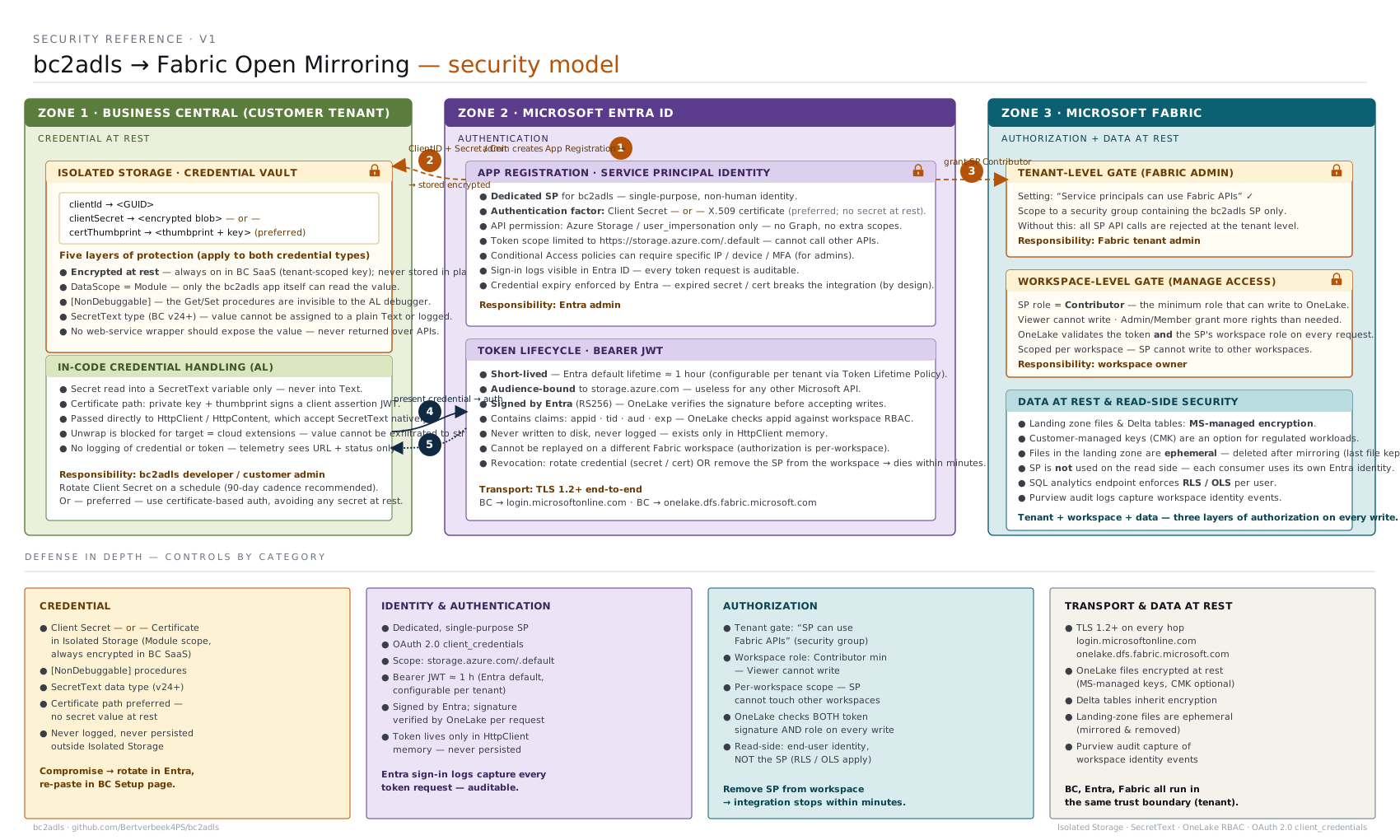
- Tenant ID, Client ID, Client Secret: From your App Registration
- All other settings (Max Payload Size, etc.) work the same
-
Add Tables and Fields - Same as other options
-
Export Schema - Click "Schema export" action
-
Run Export - Click "Export" action or schedule with Job Queue
-
Fabric Handles the Rest - No notebook import, execution, or scheduling is needed
Microsoft Fabric with Notebooks:
Storage Type: Microsoft Fabric
→ Requires manual notebook execution for consolidation
Open Mirroring Mode:
Storage Type: Open Mirroring
→ Fabric automatically processes delta files with CDC
For the shared authentication and installation instructions, use Steps 1, 2, 5, and 6 of the Microsoft Fabric Setup Guide. Do not follow its Lakehouse or notebook steps. Create a Mirrored Database item and use the landing zone URL shown under Replication Status.
- Microsoft Fabric Setup - Detailed setup guide (use with Open Mirroring storage type)
- Configuration Reference - All setup page options explained
- Execution Guide - Running exports and monitoring
- Scheduling Exports - Automate with Job Queue
- FAQs - Common questions and troubleshooting
✅ Automatic CDC Processing - Fabric handles consolidation automatically
✅ Granular Field Selection - Same control as notebook option
✅ Incremental Exports - Only changed data transferred
✅ Deletion Tracking - Track deleted records
✅ Multi-Company Support - Export from multiple companies
✅ Scheduled Exports - Use Job Queue for automation
- Need to implement custom business logic during consolidation → Use Fabric Notebooks
- Require CDM format for Power BI or other tools → Use Azure Data Lake
- Want full control over transformation process → Use Fabric Notebooks
- Need complex multi-step transformations → Use Azure Data Lake with Synapse
- Review Microsoft Fabric Setup Guide prerequisites
- Create Service Principal with Fabric API permissions
- Create a Mirrored Database (Open Mirroring) item in the Fabric workspace
- Copy the landing zone URL from Replication Status
- Install bc2adls extension in Business Central
- Configure BC setup with Storage Type = "Open Mirroring"
- Add tables and select fields to export
- Export schema
- Run initial export
- Monitor in BC - Fabric handles consolidation automatically
- Connect Power BI to consume data
- Schedule recurring exports with Job Queue
- Complete Steps 1, 2, 5, and 6 in the Microsoft Fabric Setup Guide.
- Skip Step 3 (Create a Fabric Lakehouse) and Step 4 (Import Fabric Notebooks). These steps apply only to the Fabric Notebooks option.
- Create a Mirrored Database (Open Mirroring) item in the Fabric workspace.
- Open Replication Status for that item and copy its landing zone URL.
- In Business Central, set Storage Type to "Open Mirroring", enter the landing zone URL, and configure authentication.
- Optionally schedule bc2adls exports with Job Queue. Fabric processes the exported changes automatically; no notebook schedule is required.
With Fabric Notebooks option:
- Export from BC → Delta files created
- Schedule and run notebook → Consolidates to tables
- Connect Power BI → Consume data
With Open Mirroring mode:
- Export from BC → Delta files created
- Fabric automatically consolidates → Mirrored tables ready
- Connect Power BI → Consume data
Result: One less operational step to manage!
Since this uses the bc2adls extension:
- 🐛 Report issues on GitHub
- 💬 Join community discussions
- 📖 Check FAQs and Configuration Reference
- ✅ Review Execution Guide for export operations
For Fabric Open Mirroring and CDC processing:
- ✅ Contact Microsoft Fabric support
- ✅ Check Fabric Community forums
- ✅ Review Fabric documentation
- ✅ Monitor Fabric service health
Problem: Data not appearing in the mirrored database
- ✅ Verify export ran successfully in BC
- ✅ Verify the Landing Zone value matches the URL under the mirrored database's Replication Status
- ✅ Confirm Fabric CDC is processing (check Fabric monitoring)
- ✅ Review Service Principal permissions
Problem: Want to add custom transformations
- ✅ Consider switching to Fabric Notebooks option for full control
- ✅ Open Mirroring mode focuses on automated CDC without custom logic
Problem: Performance issues
- ✅ Check Configuration Reference for performance settings
- ✅ Review Max Payload Size setting
- ✅ Consider field selection optimization
Still unsure which option to choose? Use this decision tree:
Do you need custom transformation logic during consolidation?
├─ YES → Use Fabric Notebooks or Azure Data Lake
└─ NO → Continue

Do you need CDM format?
├─ YES → Use Azure Data Lake Setup
└─ NO → Continue

Do you want to avoid managing notebook execution?
├─ YES → ✅ Use Open Mirroring Mode
└─ NO → Use Fabric Notebooks for full control

Already using Azure Synapse?
├─ YES → Consider Azure Data Lake Setup
└─ NO → Continue

Want automated CDC with field-level control?
├─ YES → ✅ Use Open Mirroring Mode
└─ NO → Review requirements again
Open Mirroring mode provides the best of both worlds:
- ✅ Same bc2adls extension capabilities (field selection, deletion tracking, scheduling)
- ✅ Automatic CDC processing by Microsoft Fabric (no notebook management)
- ✅ Reduced operational overhead compared to manual notebook execution
- ✅ Shared authentication and extension setup with a Mirrored Database landing zone instead of a Lakehouse and notebooks
Perfect for: Teams wanting automated data consolidation without managing notebook execution, while maintaining granular control over exported fields.
Consider alternatives if: You need custom transformation logic (use Fabric Notebooks) or CDM format (use Azure Data Lake).
Next: Execution Guide | Azure Data Lake Setup | Microsoft Fabric Setup | Back to Home