Marketplace
The Marketplace is the centralized, server-wide trading hub in MarketBlocks. Unlike block-bound player shops (SingleOfferShop), the Marketplace operates as an economy hub accessible from anywhere, with optional physical world integration.
Players can access the Marketplace through three methods:
-
Keybind (
O): PressO(default, rebindable under Options -> Controls -> Key Binds in the MarketBlocks category) to open the Marketplace instantly from anywhere. -
Chat Command: Type
/marketblocks marketplace(or the shorthand/mb marketplace). -
Linked World Blocks: Right-click decorative market stalls, NPC counters, barrels, or custom blocks linked by server administrators.
[!NOTE] Blocks linked to the Marketplace are protected from being broken by non-operator players. If an operator breaks a linked block, it is automatically unlinked.
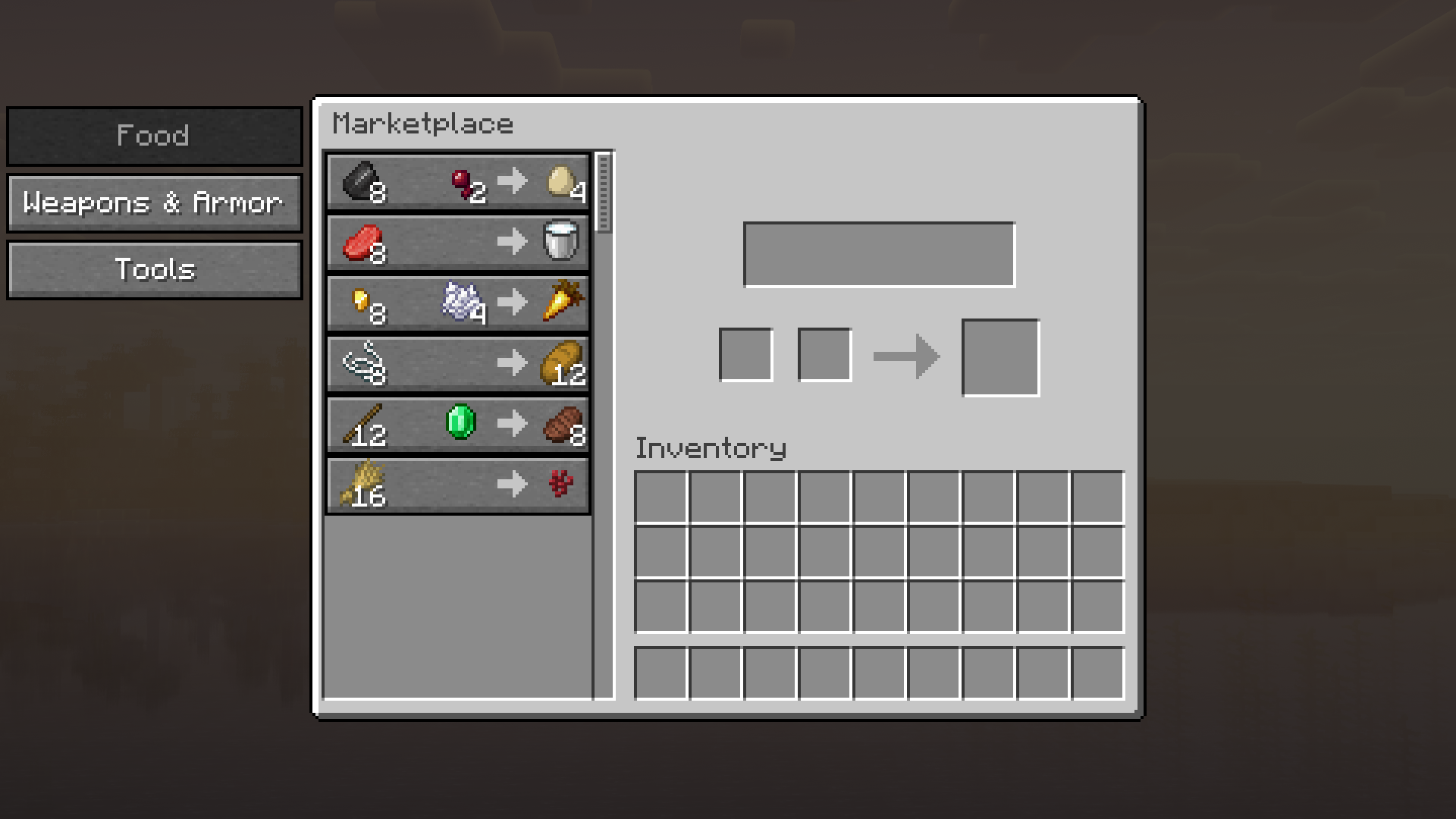
The Marketplace interface is organized into five operational areas:
- Navigation: Listed vertically along the left sidebar outside the main window.
- Switch Pages: Click any category button to load its offers.
- Pagination: If a server has more than 9 categories, navigation arrows appear at the top/bottom of the sidebar to flip between page groups.
- Scrollable Roster: Displays up to 9 trade offers simultaneously with a villager-style scrollbar.
- Selecting a Trade: Left-click any trade offer card in the list to load it into the central trade preview.
-
One-Click Auto-Fill: Click the central Offer Preview button (displaying payment items
$\rightarrow$ arrow$\rightarrow$ result item). - Inventory Transfer: Automatically transfers matching payment items from your inventory into the payment slots.
- Manual Input: You can also drag-and-drop items from your inventory directly into the two payment slots.
When valid payment items are placed in the payment slots, the offered item appears in the Result Slot:
- Regular Left-Click (1 Unit): Takes 1 unit onto your cursor, consuming 1 set of payment items.
- Shift + Left-Click (Bulk Buy): Instantly purchases as many units as your inventory capacity, wallet, and remaining stock/daily limits allow directly into your inventory.
- Out of Stock: Displays a red badge with a real-time countdown timer until the next stock replenishment.
- Daily Limit Reached: The trade arrow is disabled with a lockout tooltip once your daily purchase quota is exhausted.
- Active Promotional Sale: Displays discounted currency costs accompanied by a green sale indicator.
Operators (OP level 2) can manage categories, trade offers, dynamic pricing, and timed sales directly inside the game without editing text files.
- Enable global edit mode via chat command:
/mb admin editmode true - Open the Marketplace (
/mb marketplaceor keybindO). - Click the Gear icon button in the top-right corner to toggle between customer view and editor view on the fly.
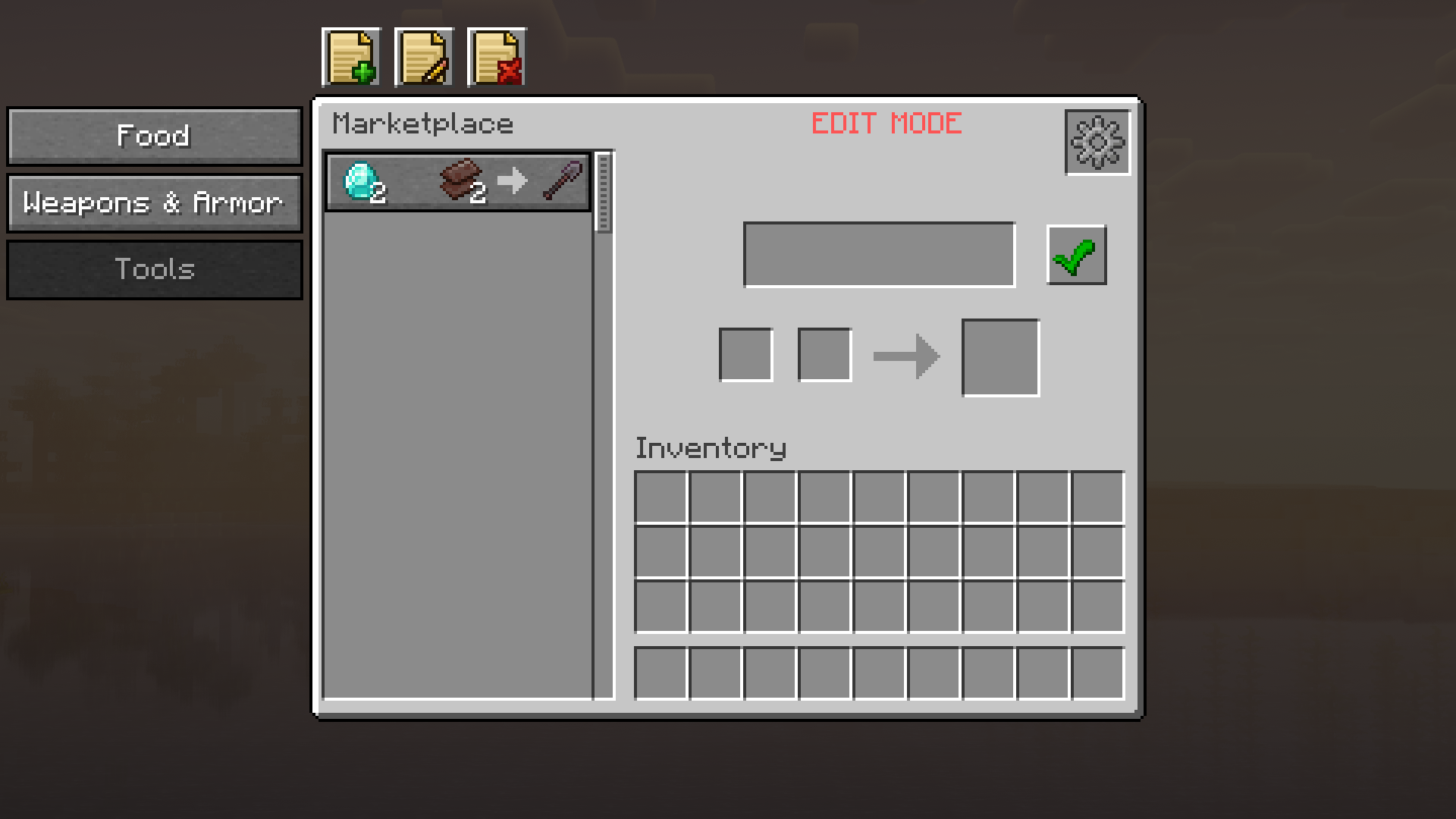
When Edit Mode is active, page control icons appear above the interface:
-
Add Page (
+): Opens a modal to enter a new category name. - Rename Page (Pencil): Renames the active category page.
- Delete Page (Trash): Deletes the active category page and all its offers.
- Place payment items (up to 2 types) into the payment slots.
- Place the item to sell into the result slot.
- Click the Add Offer (
+) button next to the preview.The mod records the items as a template and safely returns your physical items back into your inventory.
- Use the Up / Down arrow buttons beside an offer to rearrange its position in the list.
- Click the Delete Offer (Trash) button to remove the selected offer.
When an offer is selected in Edit Mode, two configuration buttons appear on the right side of the window:
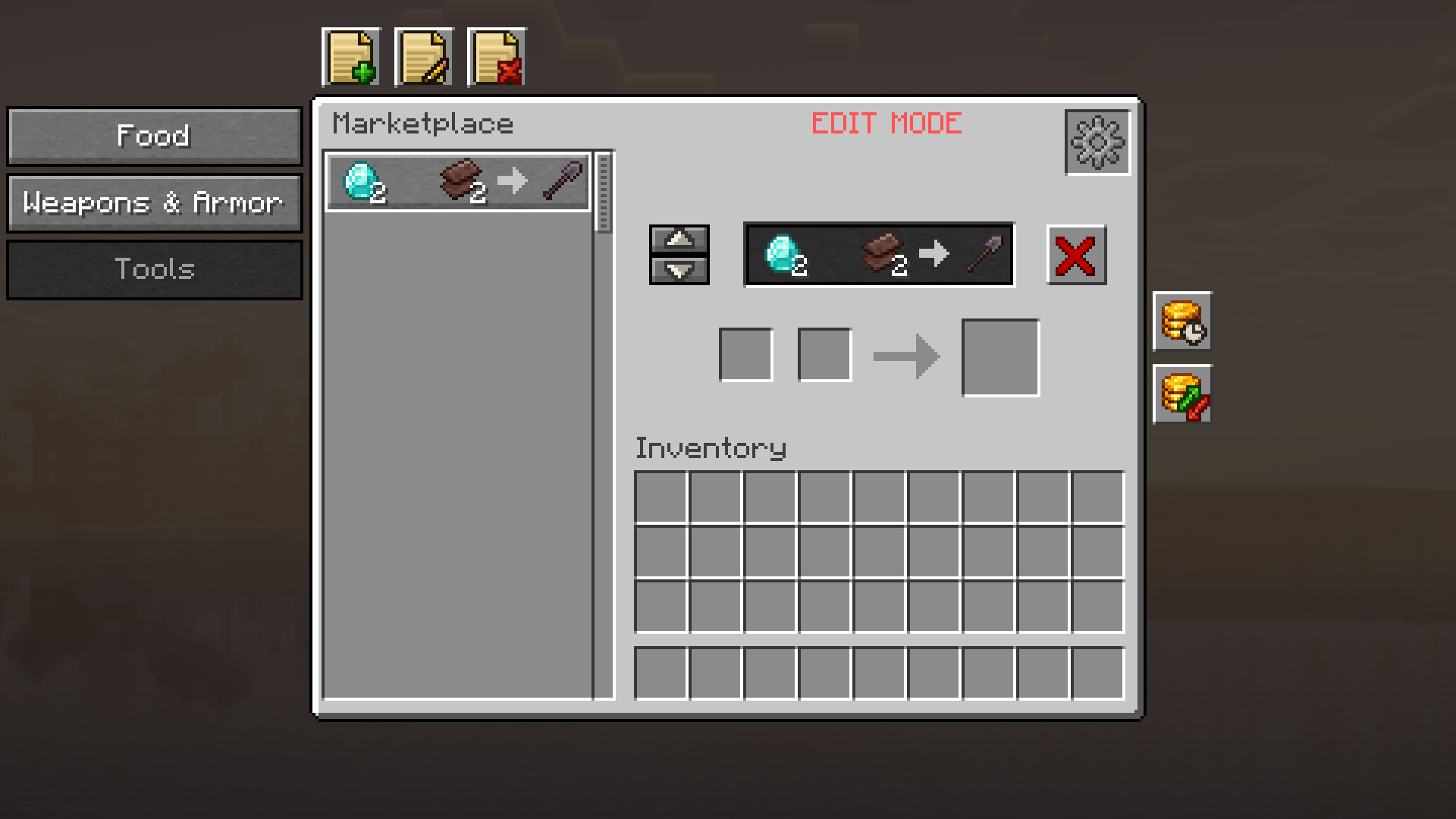
| Modal | Icon | Configurable Economics |
|---|---|---|
| Limits Editor | 🕒 Clock | • Daily Limit: Max purchases per player per real-world day (blank = unlimited) • Stock Limit: Max pool stock available (blank = unlimited) • Restock Interval: Seconds between replenishments |
| Pricing Editor | 📈 Chart | • Dynamic Pricing Toggle: Enable or disable demand-based price scaling • Base Multiplier: Starting baseline price factor • Min / Max Multipliers: Price floor and ceiling bounds • Volatility: Price sensitivity to demand ( slow, normal, fast) |
For comprehensive formula breakdowns and advanced configurations, see the dedicated sub-guides:
To create immersive RPG market hubs where players must visit physical blocks to access the Marketplace:
- Aim at any world block (e.g. a decorative market counter, barrel, or sign).
- Run the link command:
Example:
/mb admin marketplace link [name] [tp_pos]/mb admin marketplace link "Spawn Grand Bazaar" - Any player who right-clicks that block will open the Marketplace.
-
Unlinking: Aim at the block and run
/mb admin marketplace unlink, or unlink by name:/mb admin marketplace unlink "Spawn Grand Bazaar".
Administrators can apply timed price adjustments to any Marketplace offer:
/mb admin sale marketplace set <offer> <percent> <duration_minutes>
Important
The <percent> argument modifies the price:
-
Negative values apply a discount (e.g.
-20= 20% off). -
Positive values apply a surcharge (e.g.
+20= 20% price increase).
Example:
/mb admin sale marketplace set "Diamond Pickaxe" -20 60
(Applies a 20% discount on the Diamond Pickaxe for 60 minutes. Tab-completion lists all active offers with their prices and pages).
To cancel an active sale early:
/mb admin sale marketplace remove <offer>