Repository navigation
GUI OnScreen
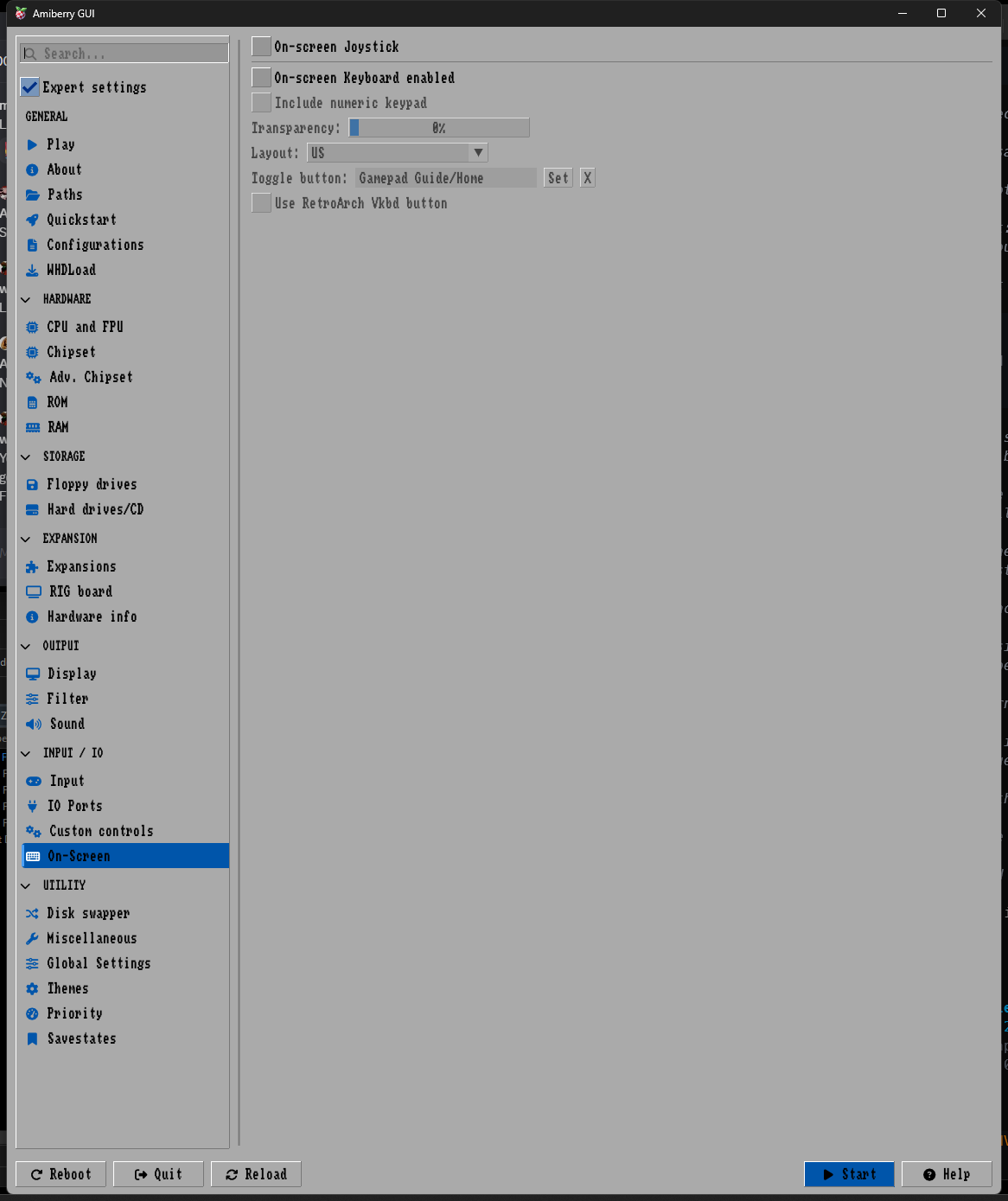
Configures touch and overlay controls: an on-screen joystick for touchscreen control and an Amiga keyboard overlay that can be toggled during emulation.
- Shows a virtual D-pad and fire buttons overlay on the emulation screen for touchscreen control
- Enables the Amiga-style on-screen keyboard overlay during emulation
- All keyboard options below are disabled when unchecked
- Adds the Amiga numeric keypad to the overlay; key sizes scale down to accommodate the full layout
- Sets the opacity of the on-screen keyboard overlay from 0% to 100%
- Selects the keyboard layout
- Choices: US, UK, DE, FR
- Displays the button or key currently assigned to show or hide the on-screen keyboard
- Click Set to open a capture dialog and press any keyboard key or gamepad button/D-pad direction
- Click X to clear the assigned toggle button
- Disabled when Use RetroArch Vkbd button is enabled
- Uses the RetroArch-configured virtual keyboard button mapping instead of the custom toggle button above
- When checked, the custom toggle button field is disabled
The default on-screen joystick and keyboard behavior can be configured in the Global Settings panel. These defaults are saved in amiberry.conf.