Repository navigation
Navigating the Viewer
A tour of the four views and the things that aren't obvious at first glance.
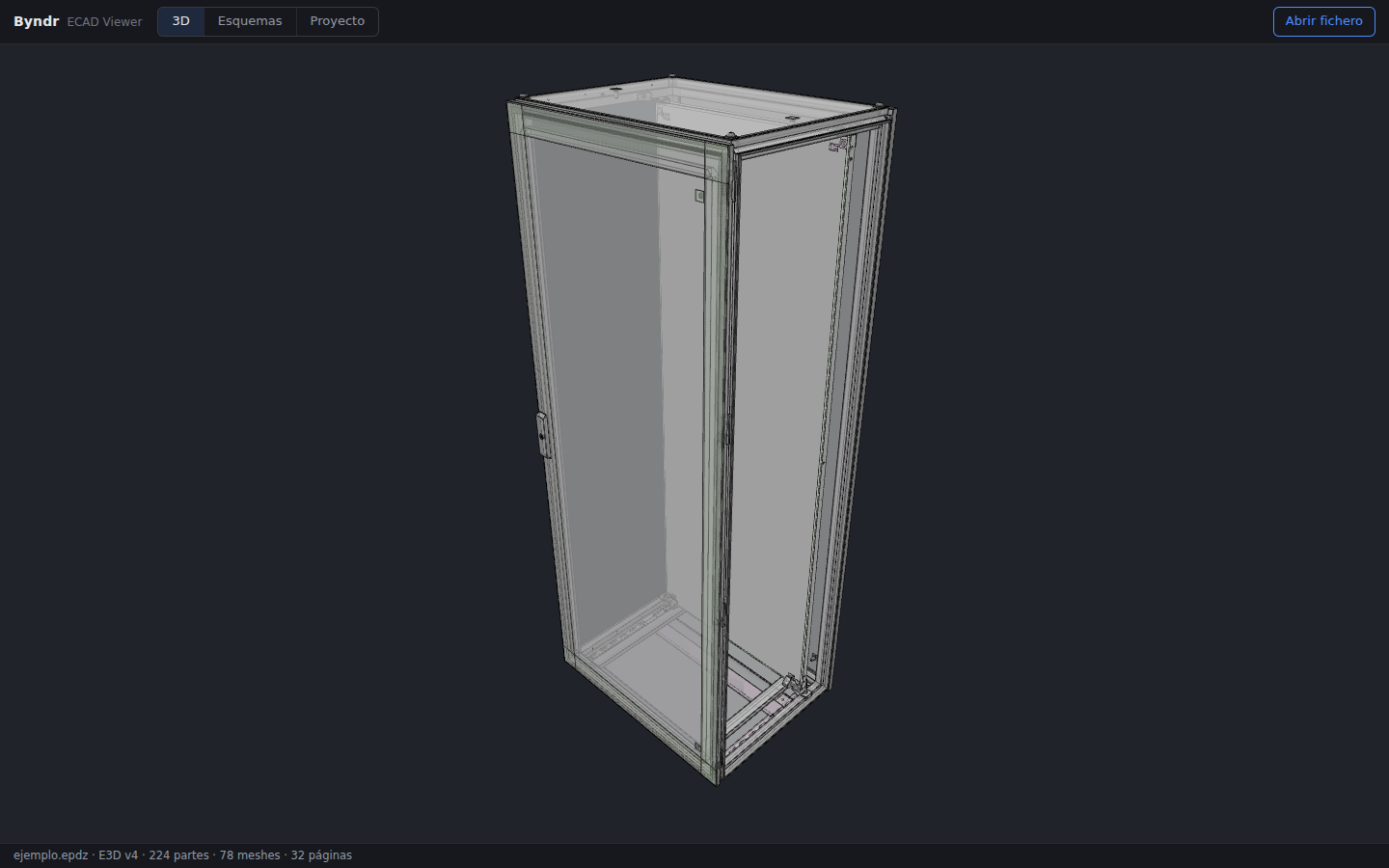
- Orbit / zoom / pan — drag to orbit, scroll (or pinch) to zoom, right-drag (or two-finger drag) to pan.
- Model selector (top-left) — a project can contain several installation spaces; switch between them here.
- Camera presets (bottom-left) — ISO / Front / Side / Top, plus Fit model to reframe everything.
-
Pick a part — click any object. A card appears with its label and EPLAN
typeId/objectId, and these actions:- View in schematics — jump to where that device appears in the 2D pages (enabled only when there's a match).
- Isolate — hide everything except the selected part.
- Hide / Show — toggle just that part.
- Frame part — zoom the camera onto it.
- Parts panel (right) — the full breakdown of the model. Filter by name, click a row to select, and use the eye icon to hide/show individual parts. The footer shows how many parts are currently visible.
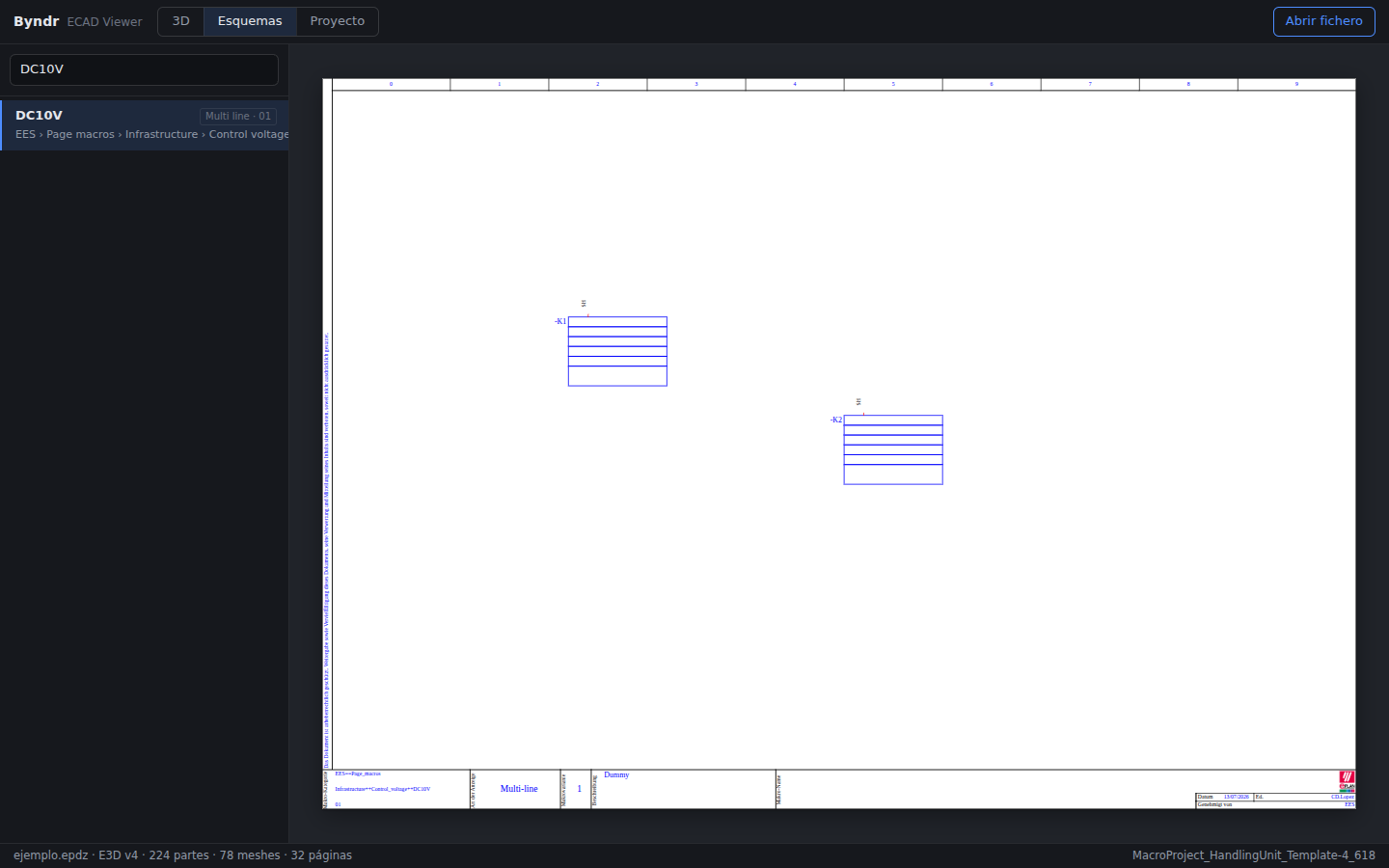
- Pan & zoom — drag to pan, scroll/pinch to zoom, double-click / double-tap to refit the page.
-
Pages / Devices panel (right) — switch between the page tree and the
device index.
- Pages — the hierarchical page tree (structured by function/location) or a flat list; filter with the search box; page through with the footer pager.
- Devices — search any device and jump to (and cycle through) its occurrences across pages.
- Cross-references — symbols and cross-references in the drawing are live links. Click one to jump to the related occurrence; the target is framed and briefly highlighted.
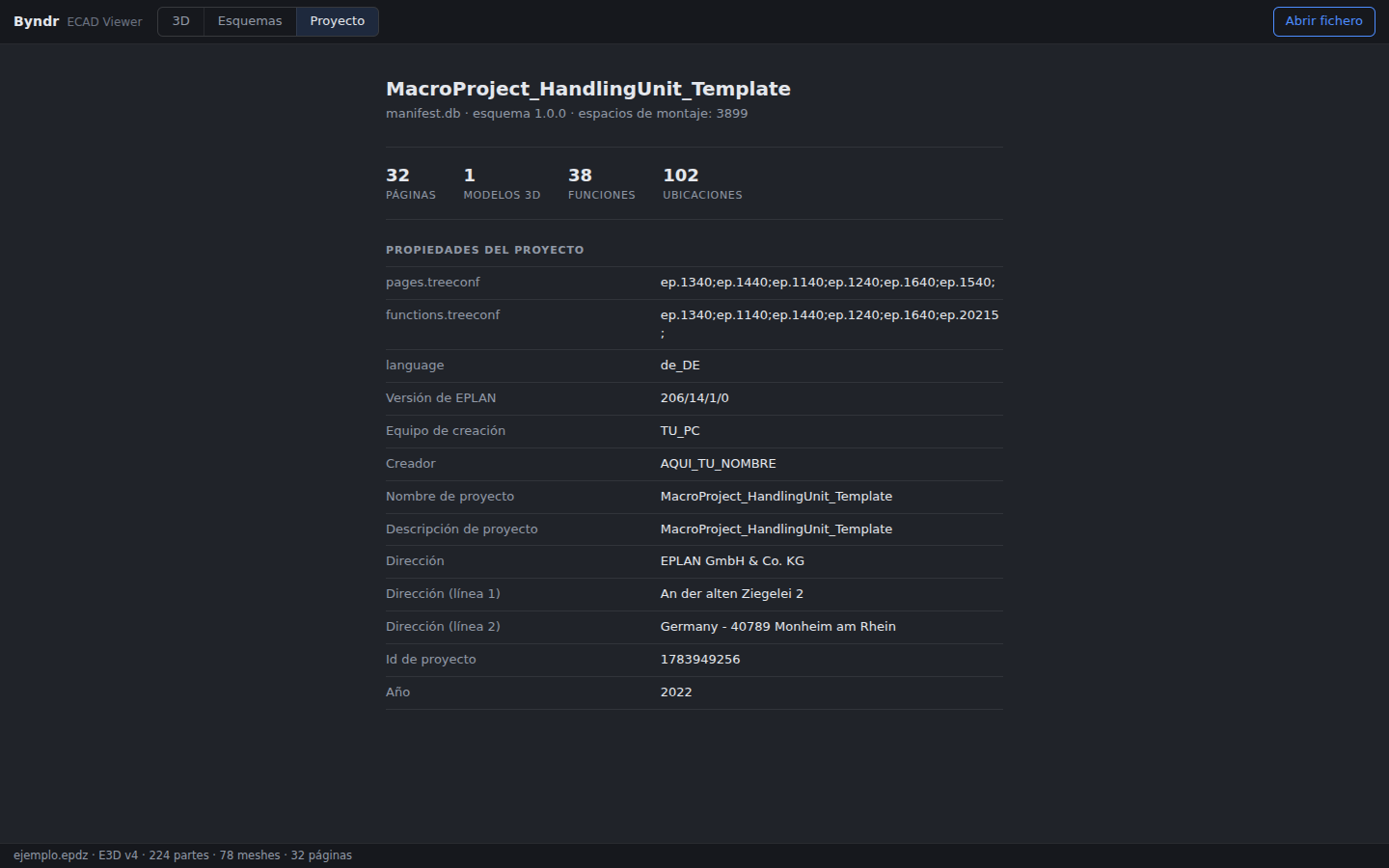
Reads the archive's manifest.db to show the real project: page count, 3D
models, functions, locations, project properties (creator, company, EPLAN
version…) and the mapping from installation spaces to 3D models. This view is
available only when the .epdz ships a manifest.db.
Open with the ⚙ gear at the bottom of the left rail:
- Language — the UI ships in English, Español, Português, Deutsch, Italiano, 日本語, 한국어 and 简体中文.
- Display → Keep screen awake — prevents the screen from dimming or sleeping while you review a project (handy on a laptop during a long walkthrough or on a shop-floor tablet). Uses the browser's Screen Wake Lock; the toggle only appears where the browser supports it.
- Theme — light / dark (follows your system by default).
- Sample files — load the bundled demo project or 3D part.
- The status bar (bottom) shows the open file, E3D version, part/mesh counts
and, in 3D, the
typeId/objectIdof the current selection. - The app remembers your open tabs between sessions and can restore them.
- Works offline once installed as a PWA — see Installing Covaga ECAD Viewer.