iFrame variables guide
As per Pat's request, users can use iFrames to communicate with simulations. We use "messages" to broadcast information between the iFrame website and eduSIM.
iFrame gamepieces now come with these four settings:
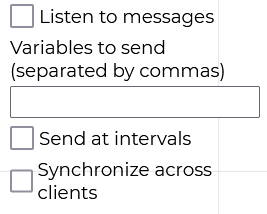
"Listen to messages" is a checkbox that should be enabled when you want to listen to messages from an iFrame and store the message data in the session.
"Variables to send" is a text input that allows you to define what variables to send as a message to the iFrame once it loads. You can send multiple variables by using commas (for example, "valueone,valuetwo" to send both valueone and valuetwo.)
"Send at intervals" is a checkbox that should be enabled when you want to send messages periodically instead of only once upon the iFrame loading.
"Synchronize across clients" should be checked if you want the variables to stay equal across all current game players. Otherwise, iFrame variables are stored independently on each player's browser.
To send variables from your iFrame website to be listened to by the simulation, use this piece of JavaScript:
window.parent.postMessage({
    value: 123,
    name: "valueone"
}, '*');
...where name is the name the variable is stored under (in sessionStorage, prefixed by "iframe_") and value is the variable value. This can be called multiple times.
You can also increment a variable value instead of setting it, by adding an extra value to the message data:
window.parent.postMessage({
    value: 123,
    name: "valueone",
    increment: true
}, '*');
To receive variables from a simulation on your iFrame website, use this piece of JavaScript:
window.addEventListener('message', event => {
    alert(event.data);
});
...where event.data is an object containing the variables programmed by the simulation to send. As an example, setting an iFrame's variable input to "valueone,valuetwo" might give you an object that looks like this: { "valueone": 123, "valuetwo": 456 }
It would also be advisable to check if the event.origin value contains https://edusim.ca to make sure no unwanted messages are parsed.