
Quest 3: OOT - v1.3
The Legend of Zelda: Ocarina of Time, fully playable in VR, standalone on Meta Quest 3. No PC, no cable, no streaming: it runs on the headset itself.
- You are Link, in first person, at full scale.
- Real motion controls: swing to swing the sword, raise your hand to block, pull the slingshot and bow with both hands (a marker shows where the shot will land), grab and throw Deku Nuts and bombs.
- 3D items: pick items from a little 3D ring around your hand; letters, Cuccos and trading items appear as real objects in your hand.
- Comfortable: smooth or snap turning, whole-view fades between areas, and a settings menu you use inside the headset.
- Runs at the Quest's full 72 fps, even in Hyrule Field.
You need your own copy of the game (a ROM file). No game assets are included.
Install (4 steps)
1. Get ready (one time)
- Turn on Developer Mode: create a free account at developers.meta.com, then in the Meta Horizon phone app go to Devices > Headset settings > Developer mode and switch it on. Restart the Quest.
- Install SideQuest (Advanced Installer) on your computer: sidequestvr.com.
- Connect the Quest to your computer with a USB cable, put it on, and choose Allow when it asks about USB debugging.
2. Install the game
- Download Quest3-OOT-v1.3.apk at the bottom of this page.
- In SideQuest, click Install APK (top right) and pick that file.
3. Copy your ROM to the Quest
- In SideQuest, click the folder icon (top bar), open the Download folder, and drag your Ocarina of Time ROM into it. Any file name works.
4. Play
- In the headset: App Library > Unknown Sources > Quest 3: OOT.
- When it asks, check "allow access to edit files on device", then go back to the game.
- The first launch shows loading dots for 1 to 2 minutes. It isn't frozen: it finds your ROM by itself and builds the game from it. This only happens once. (If it can't find a ROM, a setup screen in the headset tells you what to do.)
That's it.
Bonuses (optional, after the game works)
Both come from one free download, Djipi's 3DS Experience.
Download it: click here (655 MB), or on the GameBanana page scroll to Files at the bottom and click Manual Download under djipi_s_3ds_experience_tot_fix.zip:
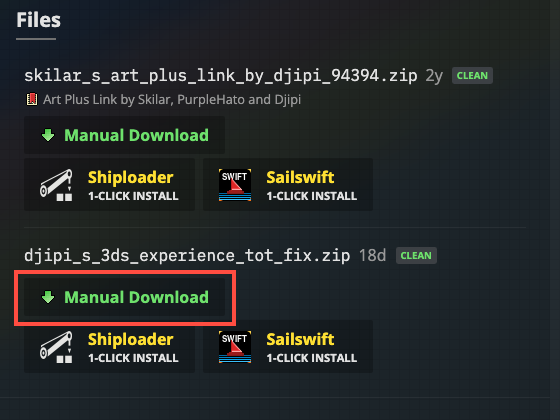
Unzip it. You get 37 files.
Bonus 1: 3D rooms. Some rooms (Link's house, the Market, the shops) are flat pictures in the original game, so in VR they show as green backdrops. In SideQuest's file manager, open SOHVR > mods and drag in these four files: 26 Background 3DS, 27 Background Textures, 32 Background Full 3D (OPTIONAL) and 33 Background Full 3D Textures (OPTIONAL). Launch the game. Done. Link's house is the easiest place to check.
Bonus 2: HD textures (the 3DS look). Drag all 37 files into SOHVR > mods (this includes Bonus 1) and launch the game. After about 30 seconds of play it starts compressing the pack for the Quest (about 3 minutes, progress in VR Settings > Performance > Texture Pack). When it says so, restart the game once.
Recommended: Enhancements > Graphics > Increase Actor Draw Distance: 5x.
What's new in v1.3
- Finds your ROM anywhere on the Quest, whatever it's called, and shows a setup screen in the headset if there isn't one.
- No more closing on relaunch (the game used to close itself when you reopened it right after quitting).
- Better default buttons: Y = pause, left grip = Z-target, right grip = shield, left stick click = L.
- Mod Menu shows your installed packs again, and texture compression starts gently after launch.
- New boot screen: a "ported by" signature between the libultraship and Nintendo 64 logos.
- Plus everything from v1.2.1: 16 Ship of Harkinian fixes, smoother default rendering, new name and icon.
Full guide, controls and troubleshooting: README.
Fan project, not affiliated with Nintendo. Built on Ship of Harkinian and Ship of Harkinian VR by ShinyWindow.