Guidance for Android testing
We use two different king of unit testing on the Android side:
- Unit tests that evaluate the back end logic of the code (can be run without the Android environment, on a Java VM)
- Instrumented unit tests evaluating the front end logic of the code (need an Android environment (phone or emulator to be run)
All tests are automatically running on pull request or push to the repository. Please refer to the Continuous Integration Milestone for more details about testing within the Pathfinder project. The Android Documentation will provide you with the basics you need of you are new to testing on Android.
Currently, the tested classes are:
- Instrumented testing : DriverLogin.java with DriverLoginTest.java
- Unit testing : BusLine.java with BusLineTest.java
Instrumented tests are currently based on the Espresso library. Feel free to add more tests as the project grows, and keep in mind that your changes mind have an impact on the current implemented tests.
To run the Android tests, we recommend downloading and installing the compatible versions of the following programs for your machine of Android Studio providing you and IDE as well as Android Device Manager (AMD) to run emulators for Window, Mac and Linux.
Our Continuous Integration uses a Nexus 6 API29 device when it comes to the Instrumented testing. We recommend you using the same configuration when you run your tests locally to replicate the CI conditions.
Unit tests and instrumented tests have their own separated repositories in Android Studio.
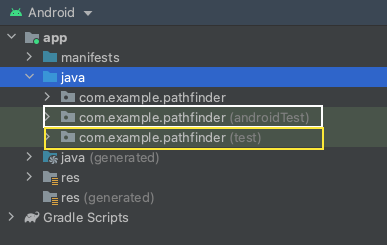
The repository framed in white contains all instrumented tests. It is recognisable thanks to the mention "(androidTest)" whereas the unit tests are contained in the repository in yellow with the mention "(test)". When creating a new test, you will be asked to choose in which repository you want to add that test. Your choice is based only on the type of test you created: Unit test (no need for the Android Environment) in the yellow repository and Instrumented tests (need for the Android Environment) in the white repository.
Open the folder of your choice, based on what type of test you want to run. If tests are of type Instrumented Testing, ensure you have at least an emulator in your AVD or have an Android device connected to Android Studio.
Right click on the class you want to run the tests for and press "Run ..."
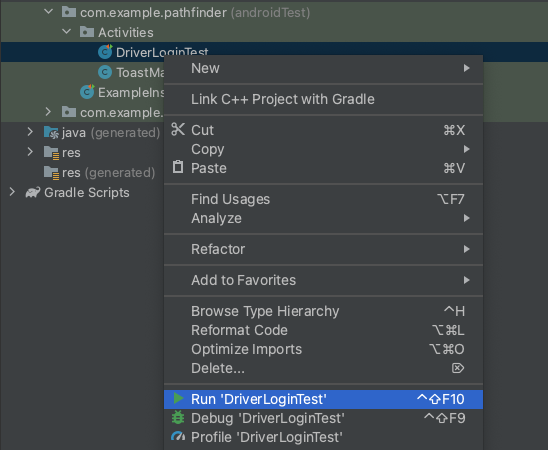
The results of the tests are visible the run tab at the bottom of you IDE

)