Repository navigation
Aliases
Radio protocols identify talkgroups, radios and other entities with numbers. An alias gives one or more of these identifiers a name, color and icon. More importantly, aliases control what sdrtrunk does with the matching calls:
- Listen: whether the call audio is played, and its priority.
- Record: whether the call audio is recorded.
- Stream: which streaming services the call audio is sent to.
- Actions: beep, play an audio clip or run a script when the alias is active.
You'll find aliases in the Aliases tab of the Playlist Editor.
Aliases are organized into alias lists. Each channel configuration selects one alias list, and the channel uses the aliases in that list for its calls and events. Usually you create one alias list per radio system and select it in every channel configuration for that system (for example, each site of a trunked system).
When aliases don't seem to work, check first that the channel's Alias List matches the alias list that holds your aliases.
This view lists the aliases in an alias list and edits the selected alias.

- Alias List: the alias list to show.
- New Alias List / Rename Alias List / Delete Alias List: manage alias lists.
- Search: filters by alias name or group.
- Table columns: Alias, Group, Color, Icon, Listen (shows the priority, or Default), Record, Stream, IDs (number of identifiers) and Error (configuration problems).
- New: creates an alias.
- Clone: copies the selected alias. Useful as a template.
- Move To: moves the selected alias(es) to another alias list.
- Delete: deletes the selected alias(es). Use Shift or Ctrl with the mouse to select several.
- Alias: the alias name.
- Group: an optional group label, useful for searching and sorting.
- Listen: plays this alias's call audio when on. Turn it off to mute the alias.
- Priority: playback priority, from 1 (highest) to 99. When several calls are active, higher-priority calls play first and can interrupt lower-priority calls. Aliases without a priority use the default (lowest) priority.
- Record: records this alias's call audio.
- Color: the color used to show the alias name.
- Icon: an icon shown next to the alias. See Icon Manager.
- Save / Reset: save or discard your changes.
Click Add Identifier, choose the protocol and identifier type, then enter the value. An alias can have any number of identifiers. Select an identifier to edit it, or click Delete Identifier to remove it.
- Talkgroup and Talkgroup Range: a talkgroup or a range of talkgroups. Usually the To identifier of a call.
- Radio ID and Radio ID Range: one radio or a range of radios. Usually the From identifier of a call.
-
Fully Qualified Radio / Fully Qualified Talkgroup (P25): a radio or talkgroup from another P25 system, written
as
WACN.SYSTEM.ID. Use these for roaming users that appear through an ISSI connection, so they aren't confused with local identifiers that have the same number. - User Status / Unit Status: numeric status values sent by radios. The meaning of each value is set by the system operator. For example, if status 1 means Need Assistance, create an alias with a User Status of 1 and a Beep action.
- Tone Sequence (P25 Phase 2 and DMR AMBE audio): a sequence of tones, such as two-tone paging, Knox tones or DTMF digits. Each tone has a minimum duration in 20 ms units, and a tone must last at least that long to match. The alias matches when the tones appear in the call in that order. For example, a tone-out of 875 Hz followed by 1250 Hz can trigger an action, as can a user dialing 555-1212.
- LoJack Function and ID: LoJack functions and identifiers from the LJ1200 decoder.
- Site: a site identifier.
- Protocol-specific identifiers: Digital Coded Squelch (DCS) codes, ESN, Fleetsync, LTR-Net UID, MDC-1200, MPT-1327, Passport MIN, and NXDN Type-D radio IDs, talkgroups and ranges.
Choose the streams that receive this alias's call audio. Select a stream in the Available list and click > to move it to Selected. Click < to remove it. Create streams in the Streaming tab.
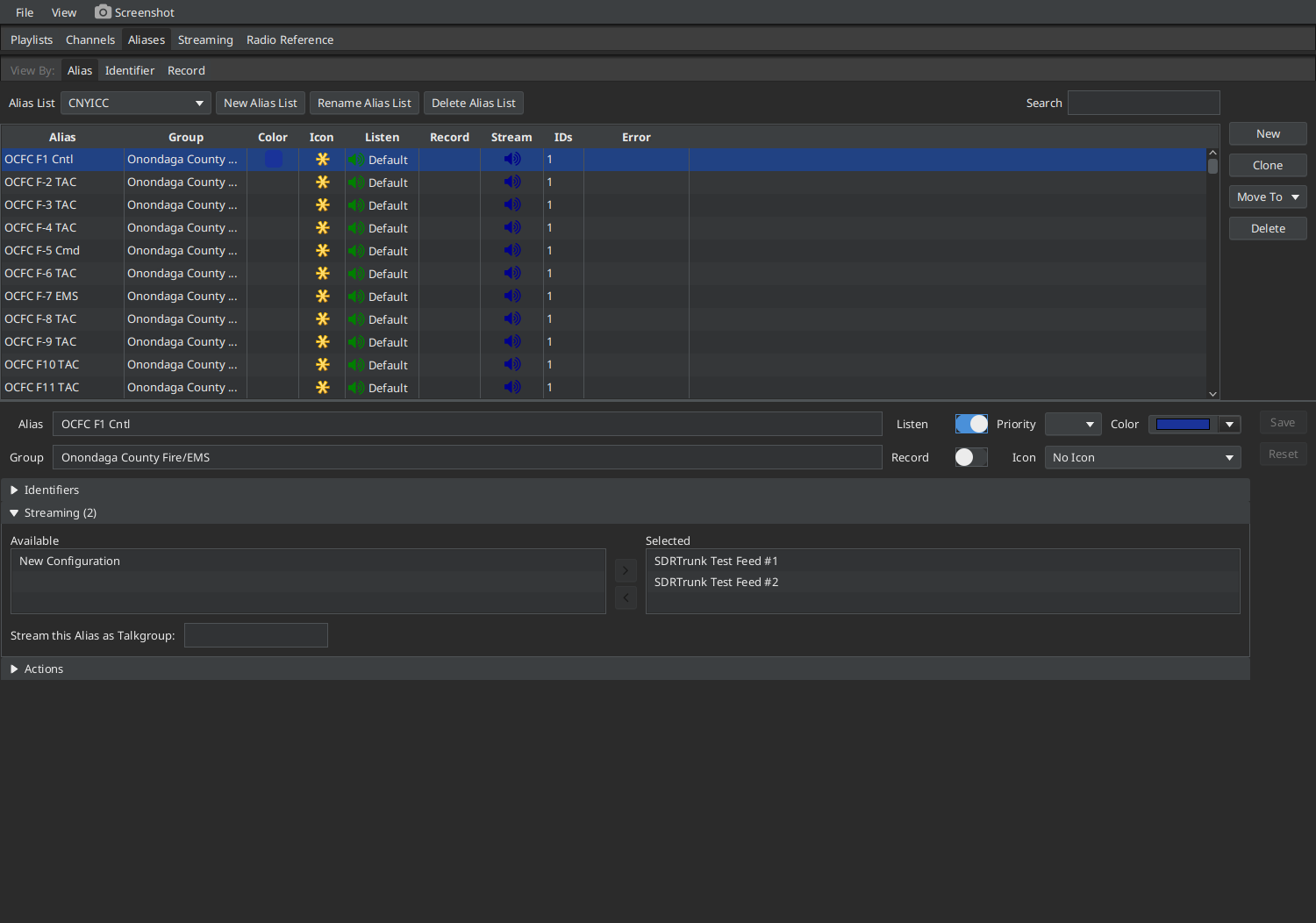
- Stream this Alias as Talkgroup: replaces the talkgroup value with this number when the call is streamed. Use it to keep calls apart when several conventional channels use the same talkgroup value (for example, talkgroup 1). See How To: Broadcastify Calls - Talkgroup Collisions.
Actions run when the alias is active in a call or decoded event. Click Add Action and choose a type:
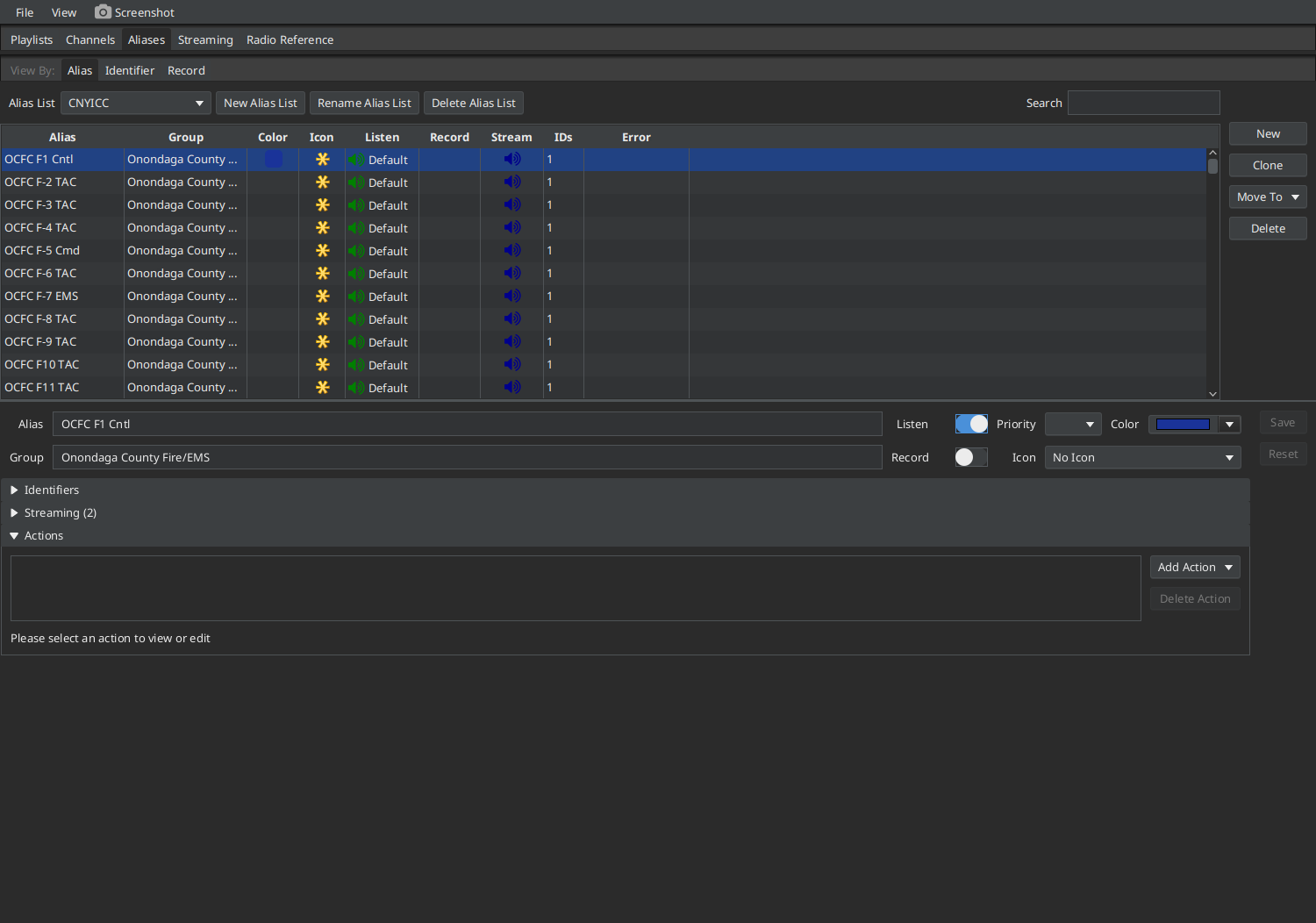
- Beep: beeps the computer.
- Audio Clip: plays an audio file.
- Script: runs a script or program. You decide what it does.
Each action has an interval:
- Once: runs once, and not again until sdrtrunk restarts.
- Once, Reset After Delay: runs once, then can run again after the delay.
- Until Dismissed: repeats until you click OK in the dialog that appears.
Click Test to try the action.
This view lists the identifiers of one type (for example, talkgroups) in an alias list, and shows which alias each belongs to. Use it to find duplicate or missing identifiers.

- Alias List: the alias list to show.
- Identifier Type: the type of identifier to list.
- View Alias: opens the selected identifier's alias in the View By: Alias editor.
A quick way to turn recording on or off for many aliases.

- Alias List: the alias list to show.
- Search: filters both lists by alias name or group.
- Don't Record Audio and Record Audio: select alias(es) and use the arrow buttons to move them between the lists. >> and << move everything. Use Shift or Ctrl with the mouse to select several aliases.