Repository navigation
Radio Reference
The Radio Reference tab of the Playlist Editor connects sdrtrunk to the RadioReference.com database of radio systems. You can import trunked systems, sites, talkgroups and agency channels directly into your playlist.
A Radio Reference premium subscription is required.
With a premium subscription and a saved location, sdrtrunk also builds an offline cache of nearby Radio Reference data. It uses the cache to show candidate systems on the spectral display and tower sites on the map.
Click Login in the upper-right corner of the Radio Reference tab.

- User Name and Password: your RadioReference.com account.
- Show: shows or hides the password.
- Store Login Credentials: saves your user name and password so that sdrtrunk logs in automatically at startup. Warning: the credentials are stored unencrypted in your local user profile.
- Test Connection: checks the login and premium subscription. A green check mark means success.
- OK / Cancel: log in, or close the dialog without changes.
Once you're logged in, your User Name and subscription Expires date appear at the top of the tab.

- My Location: your saved location, used to sort nearby systems by distance. You can set it on the Map.
- Country, State and County: search filters. Changing one updates the choices in the next. Your last selections are restored the next time you open the editor.
- Result tabs: County Trunked Systems, State Trunked Systems, County Agencies, State Agencies and National Agencies. The number in each tab shows how many results it has.
In a trunked systems tab, choose a System. Supported protocols have a green check mark. Unsupported protocols have a red circle-slash.

The Protocol and Voice fields describe the selected system. Below them are the System View and Talkgroup View tabs.
The system view lists the system's sites and creates channel configurations for them.
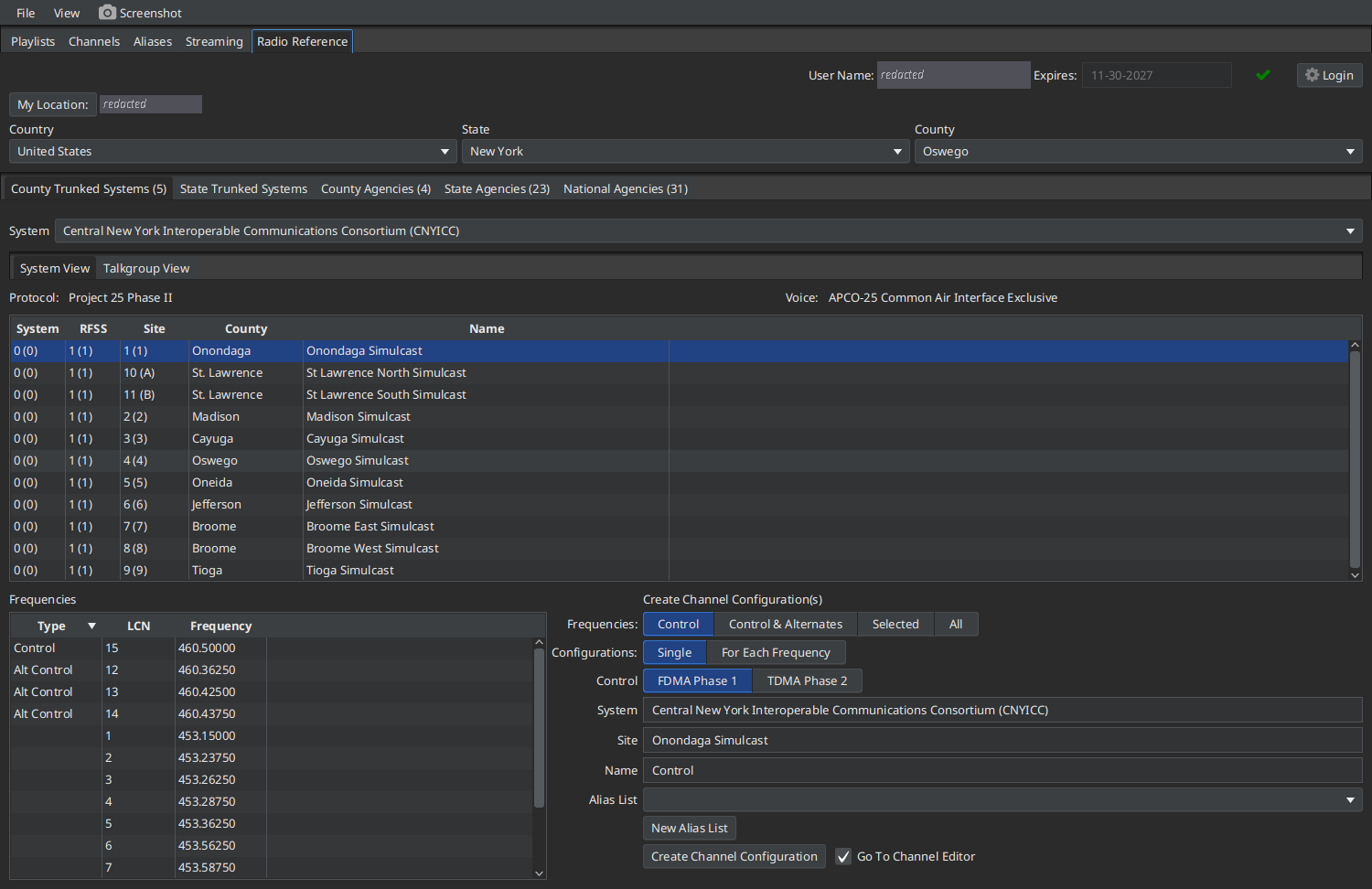
- Sites table: System, RFSS, Site, County and Name. Select a site to see its frequencies.
- Frequencies table: the site's frequencies, with Type (Control, Alt Control or traffic) and LCN.
Create Channel Configuration(s) (sdrtrunk fills in suggested values for the selected site):
-
Frequencies:
- Control: the control channel only.
- Control & Alternates: the control channel and the alternate control channels. sdrtrunk rotates through them to find the active control channel.
- Selected: the frequencies you selected in the table (Shift/Ctrl-click to select several).
- All: every frequency.
- Configurations: Single creates one channel configuration with all of the selected frequencies. For Each Frequency creates one configuration per frequency.
- Control (P25): FDMA Phase 1 or TDMA Phase 2 control channel.
- System, Site, Name: labels for the new channel configuration.
- Alias List: the alias list for the channel. New Alias List creates one. Use the same alias list that you import talkgroups into.
- Create Channel Configuration: creates the configuration in the Channels tab.
- Go To Channel Editor: when checked, opens the new channel in the Channels tab after creating it.
The talkgroup view lists the system's talkgroups and creates aliases for them.

- Import To Alias List: the alias list that receives new aliases. It should be the alias list that your channel configuration uses. New Alias List creates one.
- Set Encrypted Talkgroups To Muted: imports encrypted talkgroups with Listen turned off.
- Import All Talkgroups: creates aliases for every talkgroup that doesn't already have one in the alias list.
- Search and Category: filter the talkgroup table.
- Talkgroup table: Talkgroup, Description, and Alias (your alias for that talkgroup, if any).
Select a talkgroup to see its Radio Reference Talkgroup Details (Talkgroup, Alpha Tag, Description, Mode):

- If the talkgroup has no alias, Create Talkgroup Alias appears. Edit the alias Name and Group, then click Create Talkgroup Alias.
- If the talkgroup already has an alias, View/Edit Alias opens it in the Aliases tab.
The County, State and National Agencies tabs list conventional (non-trunked) channels used by agencies.

- Select an agency in the list at the top.
- Narrow the channel list with Category and Sub-Category. The table shows each channel's Description, Frequency and Mode.
- Select a channel. Radio Reference Details shows its Alpha Tag, Tone (CTCSS/DCS), Mode and Frequency.
- Under Create Channel Configuration, review the System (defaults to the category), Site (defaults to the sub-category), Name (defaults to the alpha tag) and Decoder (chosen from the channel's mode).
- Check View Channel Editor After Create to open the new channel, then click Create.
Step-by-step guides: