Repository navigation
Streaming
sdrtrunk can send decoded call audio to online services and to your own streaming servers. Streaming works per alias: you create a streaming configuration, then select the aliases whose calls should be sent to it.
Streaming is set up in the Streaming tab of the Playlist Editor, and monitored in the main window's Streaming Status Panel.
| Type | Kind | Notes |
|---|---|---|
| Broadcastify Call | Call upload | Uploads each call to Broadcastify Calls. Needs an API key and system ID. |
| Broadcastify Feed | Live audio stream | Streams to your Broadcastify feed. Log in to Radio Reference first so your feeds appear in the New menu. |
| Rdio Scanner | Call upload | Uploads calls to an Rdio Scanner server. |
| Thinline Radio | Call upload | Uploads completed calls to a Thinline Radio server. |
| OpenMHz | Call upload | Uploads calls to OpenMHz or your own trunk-server. |
| Icecast 2 (v2.4+) | Live audio stream | Icecast HTTP streaming. |
| Icecast (v2.3) | Live audio stream | Older Icecast TCP protocol. |
| Shoutcast v1.x / v2.x | Live audio stream | Shoutcast servers. |
Call upload services receive each call as a separate recording, with its talkgroup, radio and timestamp. Live audio streams play calls one after another as a continuous audio stream.

The table lists your streaming configurations, with Enabled, Name, Format, Stream Status and Last Error.
- New: creates a configuration. Choose the service type from the menu.
- Delete: deletes the selected configuration.
- Refresh: refreshes the stream status.
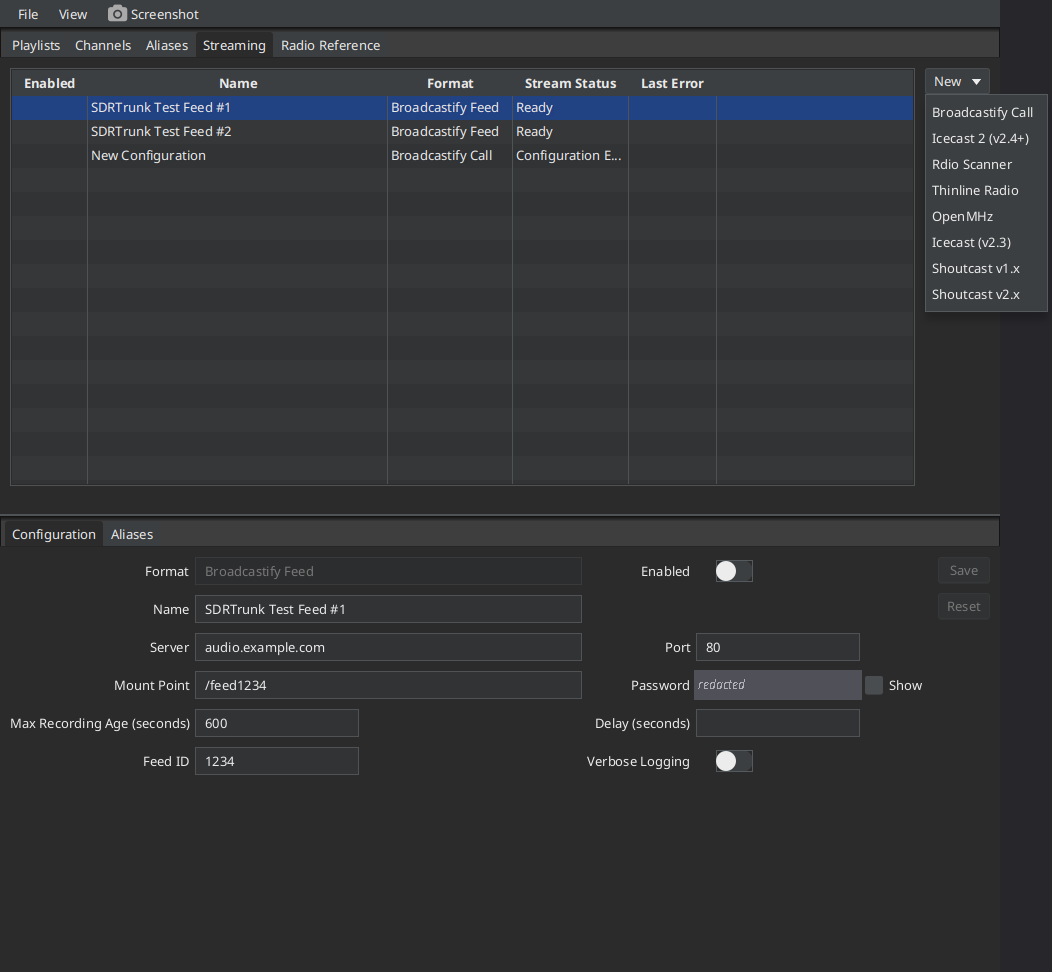
The Configuration tab below the table edits the selected stream. The fields depend on the service:
- Format: the service type (read-only).
- Enabled: turns the stream on. An enabled stream connects when sdrtrunk starts and stays connected.
- Name: a unique name for the stream. It appears in the alias editor's streaming lists.
- Server / Host / URL, Port, Mount Point: where to connect (live audio streams and self-hosted services).
- User Name / Password: credentials for live audio streams. Show reveals the password.
- API Key and System ID (or System Short Name for OpenMHz): your account details for call-upload services.
- Feed ID: your Broadcastify feed ID.
- Max Recording Age (seconds): calls waiting in the queue longer than this are dropped ("aged off"). This keeps a busy stream current instead of falling further behind.
- Delay (seconds): an optional delay before calls are streamed.
- Inline Metadata, Description, Genre, URL: stream metadata for Icecast/Shoutcast.
- Send Periodic Keep-Alive and Ping Interval (Broadcastify Calls): periodically tell the service that your uploader is online.
- Test Connection (where available): checks your settings with the service.
- Verbose Logging: writes extra detail to the application log for troubleshooting.
- Save / Reset: save or discard your changes.
Keep your credentials private. API keys, passwords and feed details are stored in your playlist file. Don't post your playlist file or screenshots of these fields publicly.
The Aliases tab below the table shows which aliases are sent to the selected stream.

- Search: filters both lists by alias list, group or alias name.
- Available: aliases not sent to this stream.
- Selected: aliases sent to this stream.
- Use the arrow buttons to move selected aliases between the lists. >> and << move everything. Use Shift or Ctrl with the mouse to select several.
You can also choose streams for one alias in its own Streaming section.
- How To: Set Up an Audio Stream (Icecast/Shoutcast)
- How To: Set Up Broadcastify Calls
- How To: Set Up a Broadcastify Feed
- How To: Set Up Rdio Scanner Streaming
- How To: Set Up Thinline Radio Streaming
- How To: Set Up OpenMHz Streaming
- How To: Assign Aliases to an Audio Stream
- How To: Broadcastify Calls - Manage Talkgroup Collisions Across Conventional Channels
- For duplicate calls and patch groups, see User Preferences - Call Management.