Basics: Editing the metamodel
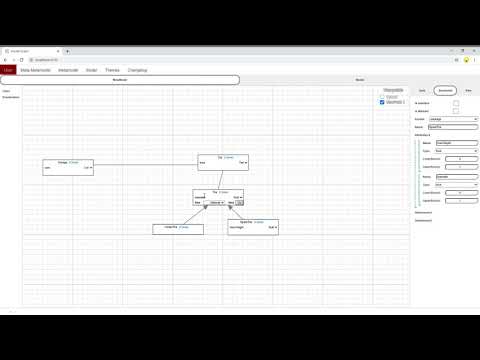
By default you start with either with an empty meta-model or with your last openend meta-model.
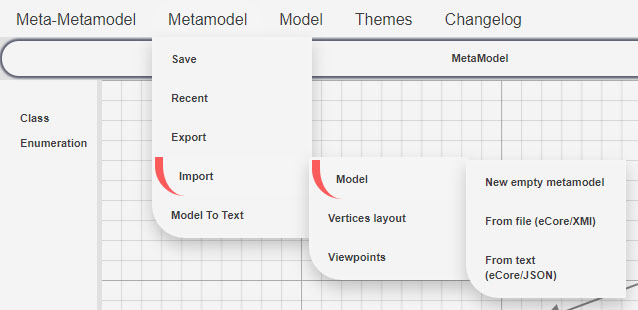
You can import one or create an empty meta-model through the topbar (Metamodel -> Import -> Model -> ...)
On the left sidebar you can create a classifier (class or enumeration) by clicking their label.
You will see the result in the graph at coordinates {x: 0, y:0}
Once a classifier is made hover on it to display a row with some commands, then choose a feature to add using the context-menu or confirm the pre-selected one using the "go" button.

This is a pre-requirement to many operations.
Hover on a classifier inside the graph to display a button with ... and click it, or right click the heading of the classifier.
This will open a context-menu that allows to edit the classifier.
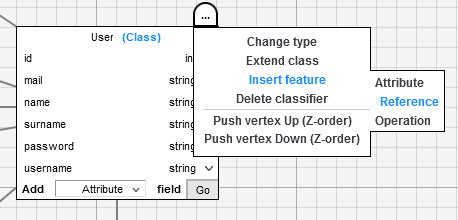
First you need to open the context-menu of the classifier
Then go to Insert feature and choose the kind of sub-element you want to insert as a feature.
It can be accessed by right-clicking the feature graphical notation inside the graph or through the related button labeled with ... that appear while hovering on the feature.
Example by right-clicking
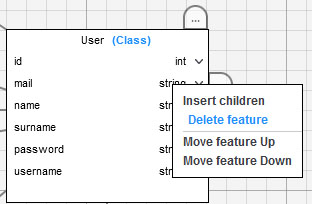
Example by ... button
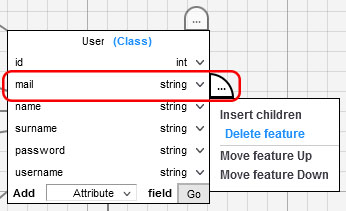
While opening it through right-clicking, the item referred by the menù is always to foremost in DOM order.
If there is a vertex, semantically bound to a classifier, containing some DOM nodes semantically bound to an operation owned by the classifier, containing DOM nodes semantically bound to a parameter, by right-clicking something inside that parameter the context-menù will refer to the parameter, since it is the foremost logical element found.
If the rightclick is on the return value of the operation, which is not a parameter but part of the operation, the context-menù will refer to the operation.
If the rightclick is on the class heading, which is not semantically bound to any feature, the context-menù will refer to the whole classifier.
Firefox has a bug with svg that might cause to render the menu incorrectly while clicking on the ... button, so while using firefox is strongly advised to right-click instead since this method is not affected by that bug.
Through the context-menu of a feature
This option is not yet present in context-menù, but there is a dropdown menù where you can choose the new type.
Warning: if the class have M1-instances the values of that attribute on those instances might change to conform to the new type.
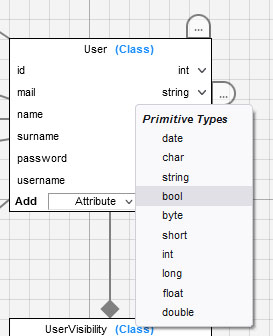
For references is the same, but the options are filled with classes defined by the user instead of being static like the primitive type.
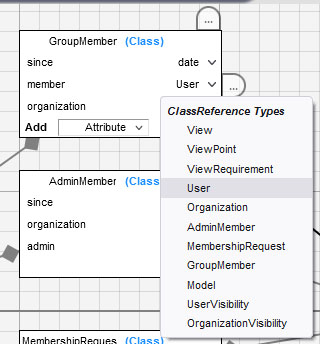
Warning: if the class have M1-instances with references linked, the M1-links that are now invalid will be deleted.
Mind that changing the reference type to a super-class of the current reference type will never cause invalid M1-links due to inheritance, so it will never delete links.
When a reference holds a value that is pointing to some targets, an edge on the graph is generated.
M2-References always have exactly 1 edge pointing to a class, M1-References can have 0-N edges pointing to 0-N objects.
To change a value pointed by the reference (or his type if we are in M1), you can do the following:
-
Select the edge you want to change with a single click and release.
-
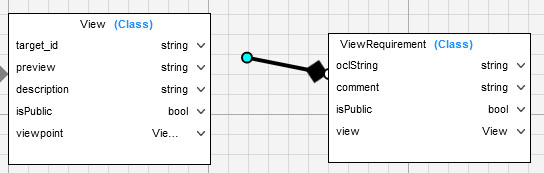
Single-click (or hold) on the dot appearing on the end extremity of the edge as highlighted by the image (if you take the source side it won't do anything)
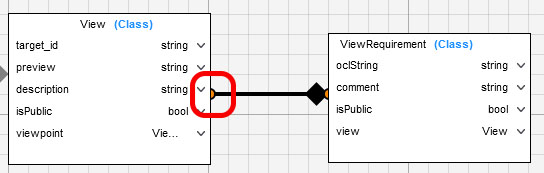
-
Single-click (or hold) on the new reference target (a M2-class or a valid object)
If the target is valid, a green outline will appear, if the target is invalid the outline will be red.
In M2 any class is a valid target, in M1 a target is valid if it is instance of the reference type defined in M2 or instance of one of his subclasses.
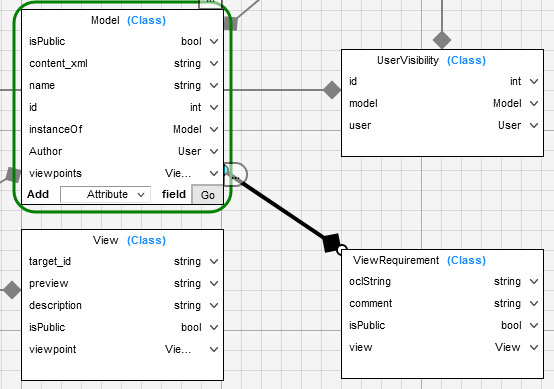
Exactly like changing a reference target in m1
- Select the edge you want to change with a single click and release.
- Press your DEL or CANC key