Basics: Editing the model
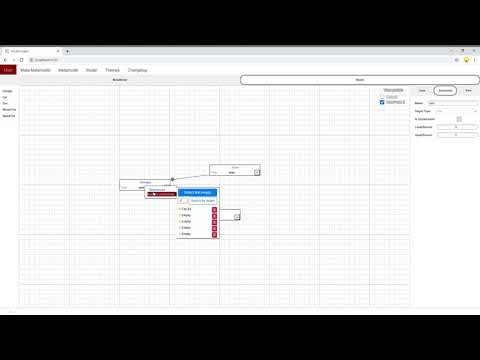
By default jodel starts with the metamodel graph selected.
Right below the topbar there are 2 tabs that allows to switch from meta-modelling editor context to the modelling editor.

The brighter circled tab is the one selected.
In jodel you cannot start a model without having a meta-model defined and conformity is mandatorily and automatically ensured.
Similarly to how a meta-model is made, navigate to the topbar and select (Model -> Import -> Model -> ...) Creating objects is also the same as creating a classifier in M2
To force conformity, you cannot change attribute names or other properties inherited from the meta-model.
You can only change attribute or reference values (while observing the constraints defined by M2) and create new instances of the classes already defined by M2.
On the left sidebar you can create an instance of a M2-defined class by clicking their label.
You will see the result in the graph at coordinates {x: 0, y:0}
Objects have a input next to the type description, you can write the value as text but be warned that any input entered is validated to adapt at the attribute's type.
Example 1: If an attribute is typed as int, and the user inputs the string "15days", jodel will try to extract a number from that string resulting in 15 as the final value, regardless of the fact it was "15 days" or "15 years".
Example 2: If an attribute is typed as byte and the user attempts to write the value "-500", that is a value that cannot fit in a single byte, so the value is converted to nearest acceptable value, and the final value will be -128
A yellow warning message will be displayed every time an invalid user input is automatically fixed.
If the attribute have multiple values, they can be inserted in JSON array notation.
IF an attribute is typed as string and have upperbound = 2, and the user tries to input the values ['first', 'second', 'third'] the resulting values will be ['first', 'second'] with 'third' being dropped as it would exceed the upperbound.
Be warned that attributes with upperbound = 1 do not require JSON notation (nor quotes if is typed as string), and any input is treated as a single value, eventually auto-fixed with the rules previously described.
To manage the values of a reference open the context-menù and go to References
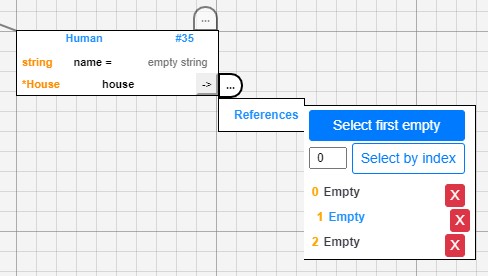
Since in the meta-model we put an upperbound of 3 to the relationship "house", but none is set yet, the menù will display 3 empty placeholders.
You can initialize a relationship in the following ways:
- By clicking on one of the 3 slots currently labeled as
Empty. - By clicking on the button
Select first empty(same as clicking the firstEmpty-labeled slot). - By optionally entering an index in the input just above the slots on the left, and clicking
Select by index. - By clicking the button with at the right margin of the reference, this will behave like the
Select first emptyoption of the context-menù
Once a relationship is started you can confirm the target like you set up an extend in m2
A reference pending for a target can be undone by pressing ESC or by clicking again on the arrow button at the right margin of the reference.
Since the number of the available relationship slots is related to the upperbound, it is impossible to exceed it.
If a reference have -1 as upperbound (unlimited) and all displayed slots are filled, the Select first empty option will create a new empty slot and use it to host the value of the new reference.
Either by dragging the edge you
change an extend relationship in m2 or like you set the values of a m1-relationship from scratch but selecting a non-empty slot with method 1. or 3.
Like you delete an extend relationship or by using the red "X" button next to the relationship slot in the context-menu.