Repository navigation
Tile complication and shortcuts
The quicker you can start talking, the more often SayOVA is worth it. There are four ways to start a conversation without opening the app first.
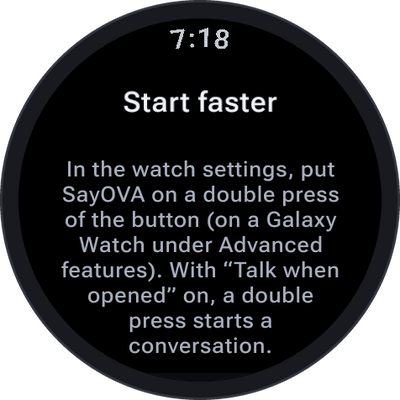
Most watches let you choose an app for a double press of the side button.
- In the watch's settings, choose SayOVA for the double press. On a Galaxy Watch it is under Advanced features → Double press; on other watches under Gestures or Buttons, where the watch offers it. During SayOVA's introduction, Set up the button opens the right page.
- In SayOVA, turn on Settings → Talk when opened.
Now a double press goes straight into a conversation — press, and talk.
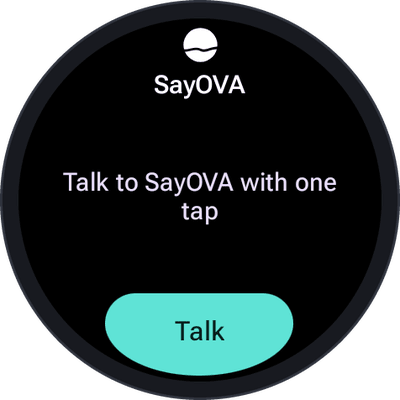
Swipe left from the watch face to the tiles. To add SayOVA's: swipe to the end, tap + Add tile (or hold a tile and choose Add), and pick SayOVA. The tile shows your last conversation's title and a Talk button that starts a new conversation.
Add SayOVA to your watch face: hold the watch face, tap Customise (or the pencil), choose a complication slot and pick SayOVA. A tap on it starts a conversation.
SayOVA fits every kind of slot:
| Slot | Shows |
|---|---|
| Small round slot (short text) | Talk with SayOVA's icon |
| Wide slot (long text) | Talk to SayOVA with the orb |
| Ring or arc (ranged value, goal) | This month's cost against your budget, with Talk |
| Segments (Wear OS 4+) | Spent in teal against what is left |
| Icon or photo slot | SayOVA's icon or orb |
Without a budget the ring stays empty and simply works as a button.
Of course you can also open SayOVA from the app list and tap Talk — or the orb. With Talk when opened on, opening the app is enough.
A running conversation shows as an ongoing activity: an icon on the watch face and an entry at the top of the app list. Tap it to get back to the conversation, for example after the screen went off.