Repository navigation
Releases: DjjC13/RCConfigurator
Release list
1.0.0

RCConfigurator 1.0, the first full release. It shows the right-click menu Windows builds for anything you click, and lets you change it.
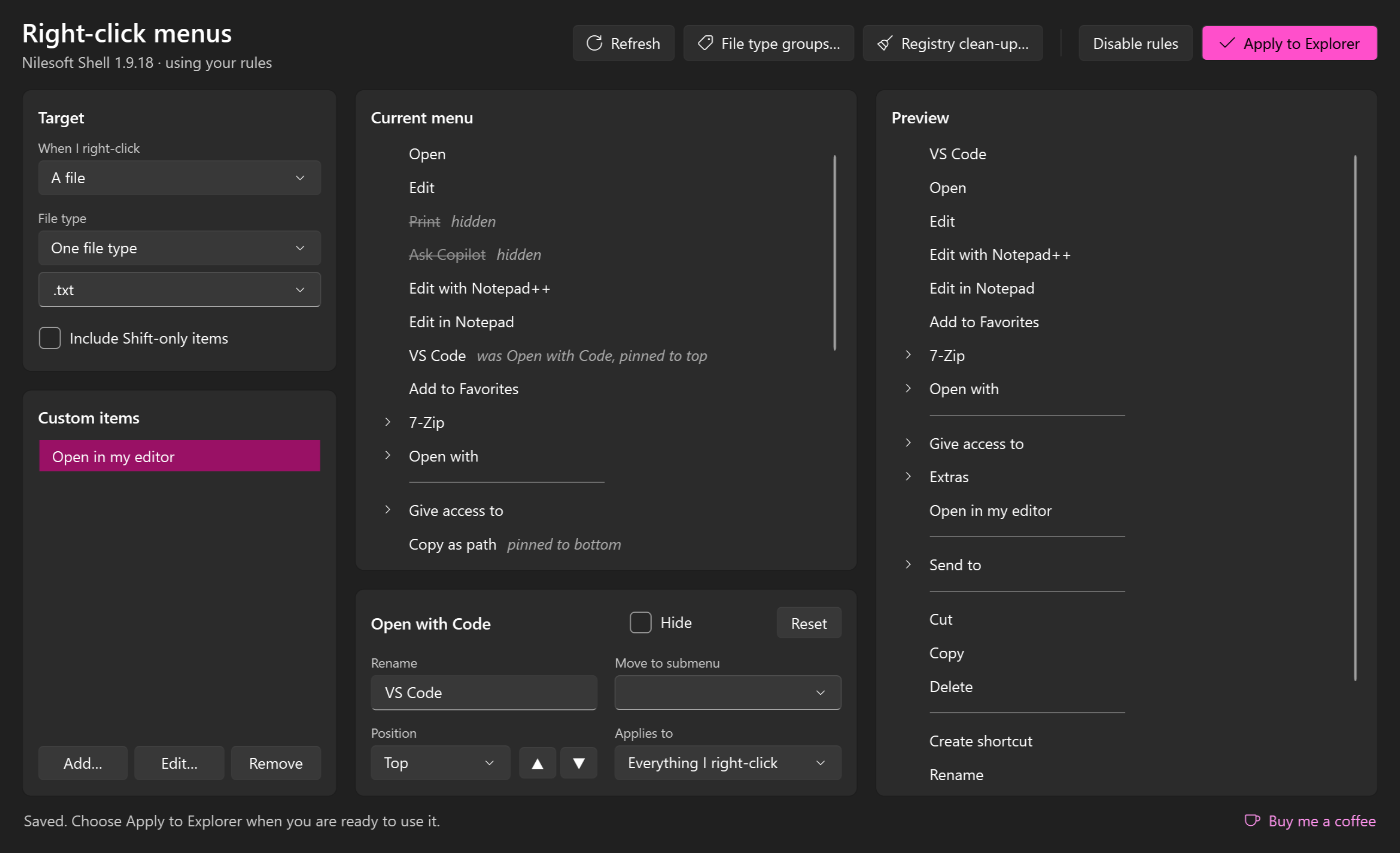
What it does
- Reads the real menu for a file, several files, a folder, a drive, or the empty space in a folder or on the desktop, including submenus and Shift-only items.
- Hides, renames, reorders and regroups items, and adds your own.
- Edits by context: one file type, a group of similar types such as Images or Code, every file type at once, one kind of target, only when several things are selected, or everything.
- Previews the result beside the menu Windows builds.
- Applies with one click and looks after Nilesoft Shell, the engine that makes the changes inside Explorer: it installs it, registers it and keeps it up to date. RCConfigurator itself never needs to run as administrator.
New since beta 4
Registry clean-up. Hiding an item only stops it being shown. When a program has been uninstalled but left its menu entries and file types behind, they can now be removed from the registry for good.
- Registry clean-up… lists each missing program with what it left: file types, menu items, menu extensions, and the links from file extensions that still point at them.
- An entry is listed only when it names a full path on a connected drive and no file is there. Entries of programs that are still installed are never offered.
- Everything removed is saved first as ordinary
.regfiles in%LOCALAPPDATA%\RCConfigurator\backups. Restore last backup puts the most recent clean-up back. - Windows asks for administrator permission only when the entries apply to the whole PC.
- A notice at start-up. The check runs each time the app opens. If it finds anything, a notice across the top of the window offers to review it, ignore those programs, or dismiss it for now.
A tidier window. The editor is laid out as panels: Target, Custom items, Current menu and Preview, with the commands in one row across the top. Some labels changed: Disable rules was "Stop using my rules", and File type groups… was "My groups of file types…".
Support. A Buy me a coffee link sits in the bottom corner of the window, for anyone who would like to support the project.
See the user guide for details.
Downloads
| File | For |
|---|---|
RCConfigurator-1.0.0-win-x64.zip |
Most PCs |
RCConfigurator-1.0.0-win-arm64.zip |
Windows on ARM, such as Snapdragon laptops |
Unzip and run RCConfigurator.exe. You do not need to install .NET.
What has and has not been tested
- Used on one Windows 11 PC on ARM: reading menus, editing, applying through Nilesoft Shell, groups and the every-type view, and a real registry clean-up with its backups.
- Both builds in this release were started and opened the editor, a group view and the clean-up window.
- The clean-up's removal, backup and restore are covered by automated tests that work on a scratch registry key. Restore last backup has not been used on entries that apply to the whole PC outside those tests; the backup files can also be imported by double-clicking them.
- Not yet checked against a live Nilesoft Shell: a rule scoped to a group of file types. It is written with the same file-type test that single-type rules use, joined with "or". If your menus stop changing after you apply a group rule, undo that change and please open an issue.
- The x64 build has only been run under emulation.
- The builds are not code-signed, so Windows SmartScreen may warn the first time you run one.
0.1.0 beta 4
The fourth beta of RCConfigurator, an editor for the Windows right-click menu.
New in this beta
Edit similar file types together. A PC has hundreds of file types, each with its own menu. You no longer have to work through them one at a time.
- Groups. Under A file, the File type list now offers groups such as Images, Videos, Audio, Text files, Documents, Archives, Code, Fonts and 3D models. Picking one shows a single combined menu for all of its types. Items that are not on every type say how many they are on, and a change you make applies to the whole group.
- Every file type. One more entry reads the menu of every file type on the PC and lists each different item once, most common first. An item a program has added to hundreds of types can be hidden or renamed in one step.
- Your own groups. My groups of file types… lets you name a group and list its types.
- Group scopes everywhere. When you look at a single type, the groups it belongs to are offered as scopes, and items you add yourself can be shown for a group.
Where the groups come from
Windows' own labels are used first. For types Windows does not label, RCConfigurator downloads two public lists and matches against them on your PC: mime-db for media types and GitHub Linguist's language list for code. The lists are downloaded whole and kept for 30 days, so nothing about your own files is sent anywhere. Start the app with --offline to skip the downloads.
On the test PC, Windows labels 228 of 955 file types and the lists place another 197. The rest belong to no group; they can still be edited singly, through Every file type, or in a group of your own.
See the user guide for details.
Downloads
| File | For |
|---|---|
RCConfigurator-0.1.0-beta.4-win-x64.zip |
Most PCs |
RCConfigurator-0.1.0-beta.4-win-arm64.zip |
Windows on ARM, such as Snapdragon laptops |
Unzip and run RCConfigurator.exe. You do not need to install .NET.
What has and has not been tested
- Tested on Windows 11 on ARM: groups and the every-type view load and show combined menus; the lists download, are kept and are used; the app starts with
--offline. - Not yet checked against a live Nilesoft Shell: a rule scoped to a group. It is written with the same file-type test that single-type rules use, joined with "or". If your menus stop changing after you apply a group rule, undo that change and please open an issue.
- The dialog for your own groups has not been clicked through by hand.
- The x64 build has only been run under emulation.
- The builds are not code-signed, so Windows SmartScreen may warn the first time you run one.
0.1.0 beta 3
The third beta of RCConfigurator, an editor for the Windows right-click menu.
New in this beta
You no longer need to run anything as administrator. Earlier betas left you to restart Explorer yourself after applying, and Nilesoft Shell's own tool for that insists on administrator rights. RCConfigurator now does it.
- Apply to Explorer restarts Explorer for you. Nilesoft Shell only reads its rules when Explorer starts. The taskbar blinks for a second or two and open folder windows close.
- One button sets everything up. The start-up check now also confirms that Nilesoft Shell is registered with Windows and loaded in Explorer. Set these up for me installs it, switches Windows 11 to the classic menu, registers the engine and restarts Explorer, as needed. Windows asks for permission only for the install and the registration.
- Nilesoft Shell is kept up to date. When the editor opens it checks for a newer version through
wingetand installs it. - Nothing extra starts with Windows. Once registered, Explorer loads the engine at every sign-in by itself, and the start-up check verifies that registration each time.
See the user guide for details.
Downloads
| File | For |
|---|---|
RCConfigurator-0.1.0-beta.3-win-x64.zip |
Most PCs |
RCConfigurator-0.1.0-beta.3-win-arm64.zip |
Windows on ARM, such as Snapdragon laptops |
Unzip and run RCConfigurator.exe. You do not need to install .NET.
What has and has not been tested
- Tested on Windows 11 on ARM with Nilesoft Shell 1.9.18: rules applied through the engine take effect, the Explorer restart, and the detection of an installed, registered and loaded engine.
- Not exercised: the set-up button's install and registration steps, and the automatic update, because the test PC already had the current engine installed and registered.
- The x64 build has only been run under emulation.
- The builds are not code-signed, so Windows SmartScreen may warn the first time you run one.
0.1.0 beta 2
The second beta of RCConfigurator, an editor for the Windows right-click menu.
New in this beta
RCConfigurator now checks two things when it starts, and opens the editor only once both are in place:
- Nilesoft Shell is installed. An Install… button runs
winget install Nilesoft.Shellfor you. If the Windows package manager is not available, it opens the download page instead. - Windows 11 is set to show the classic right-click menu. A Switch to it button changes that setting for your account. It takes effect when Explorer next restarts, which installing Nilesoft Shell does, as does signing out and back in. Windows 10 already uses the classic menu.
The user guide explains both steps and how to undo them.
Downloads
| File | For |
|---|---|
RCConfigurator-0.1.0-beta.2-win-x64.zip |
Most PCs |
RCConfigurator-0.1.0-beta.2-win-arm64.zip |
Windows on ARM, such as Snapdragon laptops |
Unzip and run RCConfigurator.exe. You do not need to install .NET.
Known limitations
- Applying rules has not been tested against a live Nilesoft Shell install. The editor, the preview and the config it writes are tested. Whether the engine reads that config exactly as intended is not. Please open an issue with what you see.
- The two set-up buttons have been checked for appearing when they should, but have not been pressed in testing.
- It was developed and tested on Windows 11 on ARM. The x64 build has only been run under emulation.
- The builds are not code-signed, so Windows SmartScreen may warn the first time you run one.
- There is no installer and no automatic update.
0.1.0 beta 1
The first beta of RCConfigurator, an editor for the Windows right-click menu.
What it does
- Shows the real menu Windows builds for a file (by type), several files, a folder, several folders, a drive, empty space in a folder, or the desktop.
- Lets you hide, rename, reorder and regroup items, and add your own items that run a program.
- Lets each change apply to one file type, one kind of target, only a multiple selection, or everything.
- Previews the result, and writes your rules as a config for Nilesoft Shell, which applies them inside Explorer.
Downloads
| File | For |
|---|---|
RCConfigurator-0.1.0-beta.1-win-x64.zip |
Most PCs |
RCConfigurator-0.1.0-beta.1-win-arm64.zip |
Windows on ARM, such as Snapdragon laptops |
Unzip and run RCConfigurator.exe. You do not need to install .NET. To make your changes take effect in Explorer, install the engine with winget install Nilesoft.Shell, then choose Apply to Explorer.
See the user guide for details.
Known limitations
- Applying rules has not been tested against a live Nilesoft Shell install. The editor, the preview and the config it writes are tested. Whether the engine reads that config exactly as intended is not. Please open an issue with what you see.
- It was developed and tested on Windows 11 on ARM. The x64 build has only been run under emulation.
- The builds are not code-signed, so Windows SmartScreen may warn the first time you run one.
- There is no installer and no automatic update.