Repository navigation
Calendar
Inboxora has first-class calendars: local writable calendars you own, read-only calendars imported from other services, and a generated calendar for contact dates. Month, week, work-week and agenda views share the same selected date and the same visibility filters.
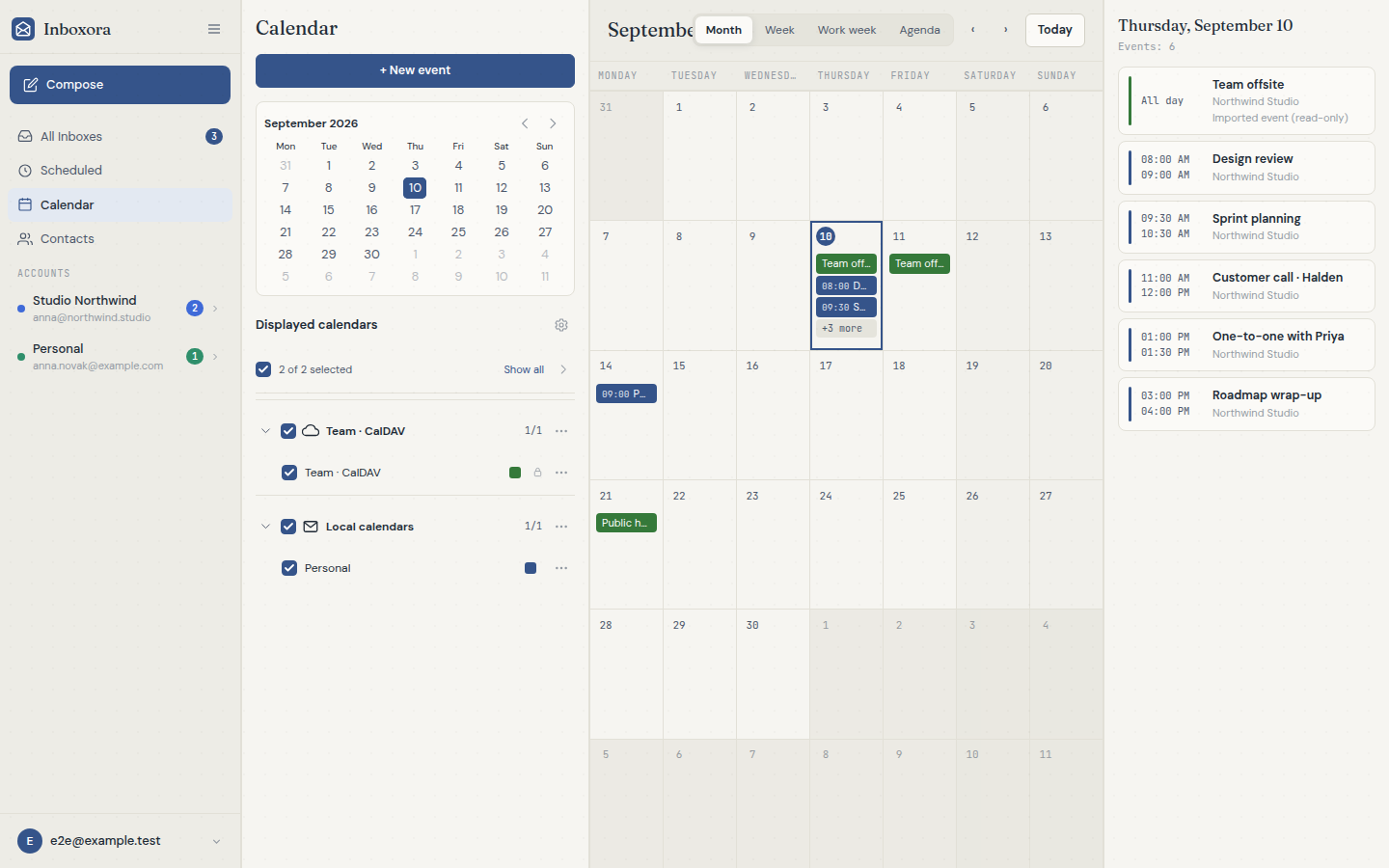
- Month — a fixed 42-day grid that includes adjacent months, with up to three events per day plus a +N more chip.
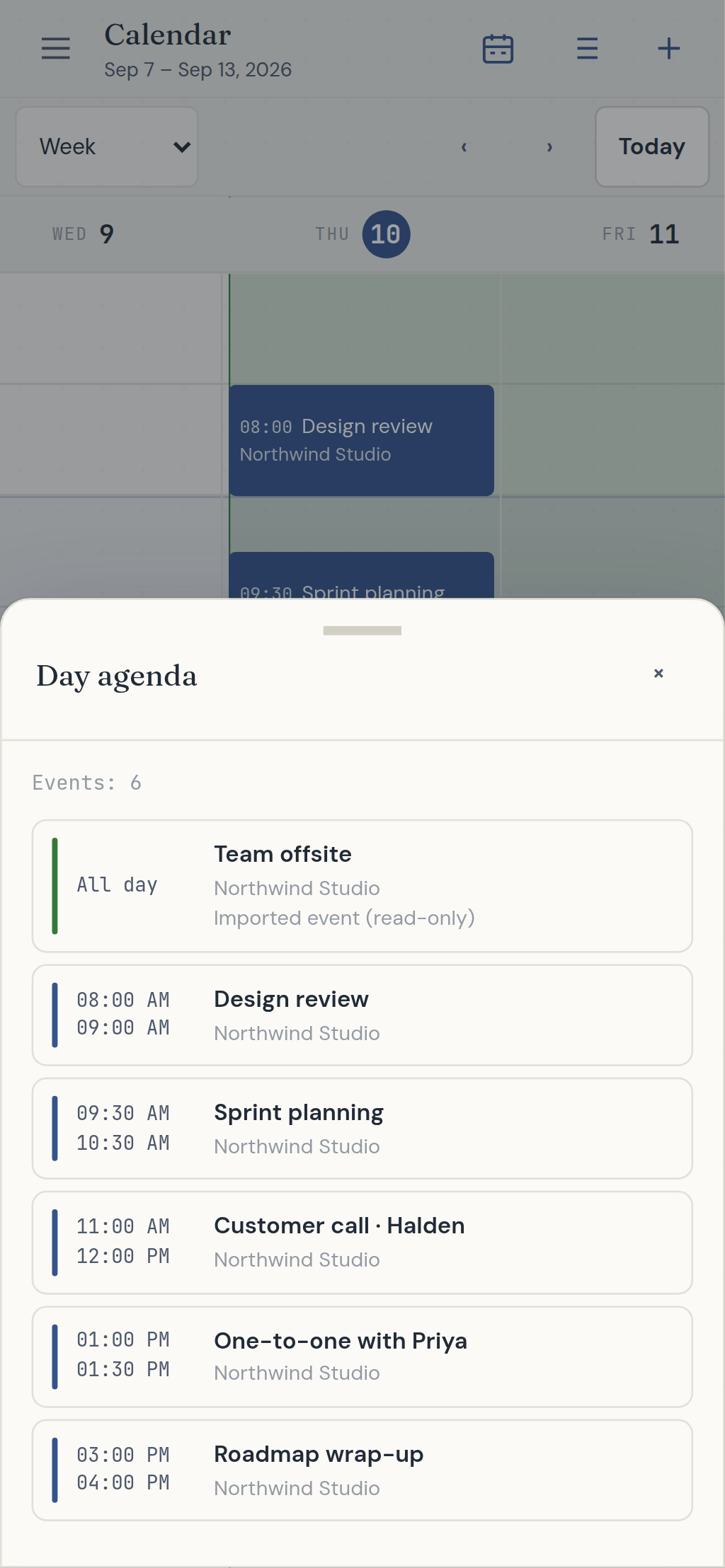
- Week and work week — a time grid with a working-hours band, a "now" line and side-by-side layout for overlapping events. Work week shows only your working days. All-day and multi-day events are stretched to fill every day they cover instead of being squeezed into a chip above the grid, and a multi-day event joins across the day columns.
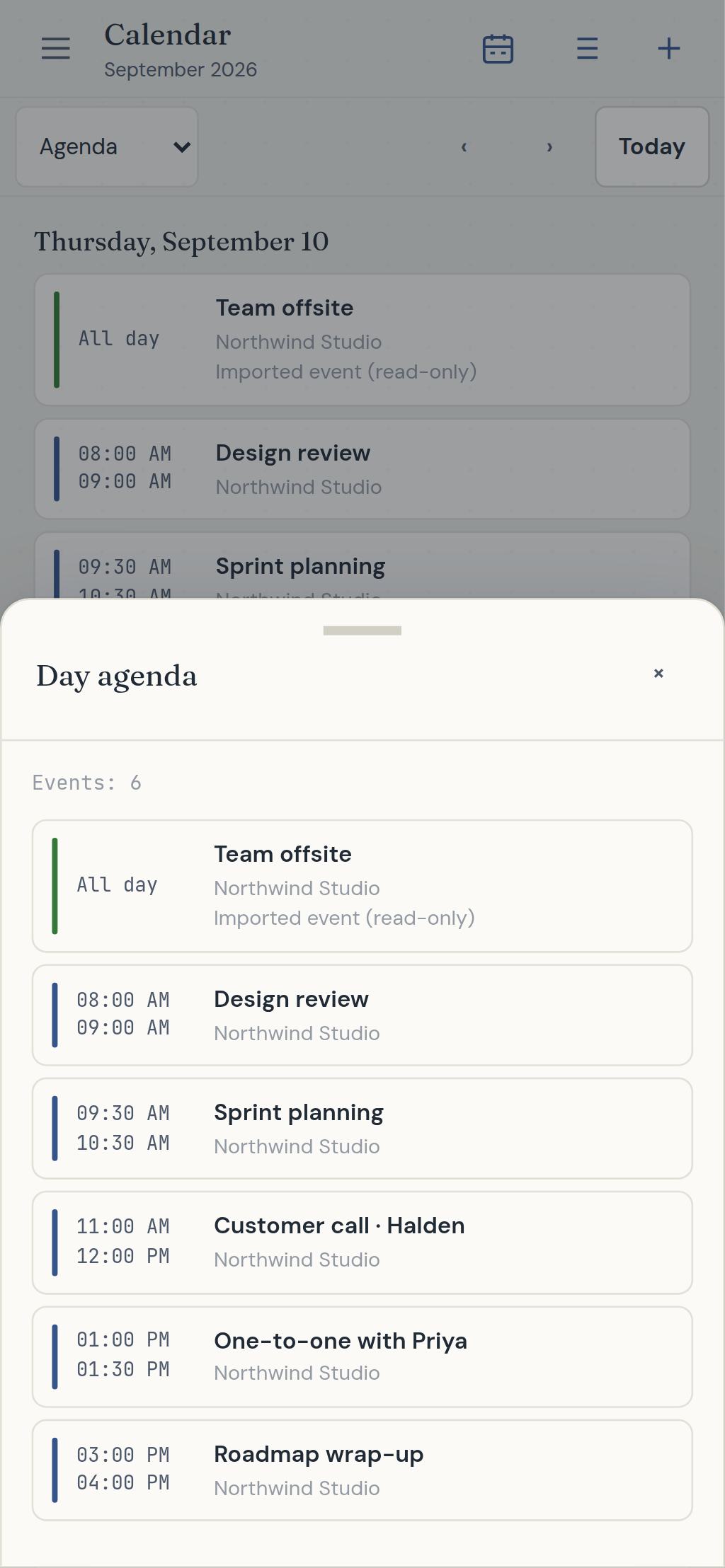
- Agenda — the active month grouped by day, all-day events first.
- On a phone the week grid is wider than the screen, so it opens centred on today rather than on the first day of the week; when today is not in view (a stored week, or a work week that excludes a weekend), it opens on the selected day instead. Pan sideways to reach the rest of the week. Selecting a day inside the visible week never moves the grid sideways.
- The day agenda panel sits beside the grid on wide screens and opens as a sheet on smaller ones. It lists every event for the selected day, respecting calendar visibility.
- The mini-month in the sidebar changes the active date; the grid follows in every view.
- First day of the week, working days and working hours come from Settings → Appearance → Calendar.
- The view you used last is remembered per device.
- Selecting an event opens a preview first; editing is one action away. Imported events open a read-only preview.
| Week on a phone | Agenda on a phone |
|---|---|
 |
 |
Local calendars are writable: create, rename, recolour and delete them from the calendar panel. Deleting a calendar asks you to confirm its name. Events in a local calendar can be created, edited and deleted, and are published to DAV clients through CalDAV.
- Recurrence (
RRULE,RDATE) is expanded on the server from the original start time, and exceptions (EXDATE,RECURRENCE-ID, cancelled occurrences) are respected. - Occurrences are projected in their own time zone, so imported events show at the correct local time.
- If a series cannot be fully expanded, the view tells you the series is incomplete instead of silently showing a partial month.
-
Recurring events are expanded ahead of time into concrete occurrences, so viewing a date
range is an indexed lookup rather than work done while you wait. The expansion runs in the
background: any change to an event — saving it here, a CalDAV write, an import, or an external
sync — marks that series for rebuild, and the worker re-expands it within a few seconds. An
event that has not been rebuilt yet is still expanded on the fly, so the calendar is never
missing an event because the background work has not caught up; it is only briefly slower.
Occurrences are materialised from three months back to eighteen months ahead, the range
ordinary navigation stays inside. See
CALENDAR_OCCURRENCE_*in.env.exampleto change that range or how often the queue is drained. -
Expanded occurrences are also cached per event for the month you are looking at. That cache
covers the window between a change and the background rebuild, and any event outside the
materialised range, so those views do not repeat the same expansion. It is keyed by the event's
version, so an edit invalidates its entry immediately. A series whose expansion fails is cached
briefly (30 seconds) and then retried. See
CALENDAR_PROJECTION_*in.env.examplefor the sizing knobs. - If you navigate outside the materialised range (more than eighteen months ahead, or further back than three months), events still appear correctly — they are expanded as you browse, which is slower for series that started long ago.
-
Creating a recurring event is done in the event dialog: choose Repeat (daily, weekly,
monthly or yearly), how often it repeats, and when it ends — never, on a date, or after a
number of occurrences. A weekly series can repeat on several days. The rule is stored as a
standard
RRULE, so other calendar applications and DAV devices understand it. A series you edited outside Inboxora that uses a rule the editor cannot represent (for example second Monday of the month) is shown as a custom rule and left untouched unless you press Replace the rule. - Editing a recurring event asks which part of the series to change: the occurrence you opened, or the whole series. Choosing the whole series opens its own start, end and rule, and saving applies to every occurrence; choosing one occurrence records an exception and leaves the rule, the other occurrences and the series' own dates untouched.
- Deleting one of these events asks what you mean, because there are three different answers: only this occurrence, this and every following occurrence, or the whole series. Ending a series this way shortens its rule, so the result is understood by other calendar apps too. Cancelling from the series' first occurrence removes the event entirely rather than leaving a series with nothing in it. One caveat: for a meeting you organised, cancelling only part of the series changes your copy without emailing the attendees — only deleting the whole event sends a cancellation.
- All-day events use dates without times, and multi-day events span every day from their start up to, but not including, their end date. In the week and work-week grids they are drawn as full-height bands that fill each covered day; a multi-day event keeps its block continuous across the days it spans.
Event descriptions are edited as rich text and rendered in the preview through the same sanitised, script-free pipeline that renders message bodies. Plain-text descriptions written by other clients become readable paragraphs with clickable links. The description is also stored as a plain-text fallback with an HTML alternative, so other calendar clients display it correctly.
- Invitations are sent as a separate email with an
invitation.icsattachment from an account you choose explicitly; the account must have SMTP configured and enabled. - Updating an invitation increments its sequence number, so recipients see the change rather than a duplicate.
- Removing an attendee, or changing the sending account, sends a cancellation to the affected attendees only. Deleting an event that had invitations cancels them first.
- Sending is idempotent: retrying a failed delivery does not create a second event, and a genuinely undelivered invitation is resent.
- The event dialog shows the delivery status and offers Retry save while delivery is pending. A default sending account and owned alias can be selected under Settings → General → Calendars.
Messages that contain a calendar invitation show a compact invitation card in the reader. It deliberately carries only the date, the target calendar and the action — the message itself already shows the title above and the body below, and the card sits between them:
- Add to calendar copies the event into a local calendar of your choice. It does not send an RSVP to the organizer.
- An invitation you have already added says so, and offers Remove from calendar instead of adding it a second time.
- Adding the same invitation again updates the existing event instead of duplicating it, and an older version of an invitation never overwrites a newer one.
- A cancelled invitation never offers to add the event. If you had added it, the card offers to remove that copy; if you had not, it simply explains the cancellation.
- Removing an automatically imported event is limited to the copy the message created, and is refused once you have taken the event over by inviting attendees yourself. A cancellation older than the copy on file is ignored, so a late retraction cannot delete a newer update.
- Events added from mail keep a link back to the original message, even when it lives in another account or folder.
- Calendar visibility switches are personal: hiding a calendar never deletes data or disconnects a source.
- The list/rail width is shared with Mail and Contacts, while the day agenda keeps its own width; both are remembered.
- The active view and the panel widths are stored per device.
Contact dates is a generated, read-only calendar. Birthdays and anniversaries stored on your contacts appear as all-day yearly events, including dates stored without a year, which repeat in every matching year. Its name and colour can be changed per user, and it can be hidden like any other calendar. See Contacts and DAV.
Calendars that come from another server — CalDAV (writable back to that server once enabled), ICS/webcal (read-only by nature) or a connected provider — see External calendars — are read-only until you enable write-back for that calendar. With write-back off, an imported event opens in a preview without editing controls; with it on, an edit is sent to the source first and the local copy changes only after the source confirms. An ICS/webcal feed stays read-only whatever you select, because it has no write channel.
Add a subscription by URL, or add a country's public holidays as a ready-made Thunderbird ICS feed, from Settings → General → Calendars. The same sources can be synced, rescheduled and removed from the calendar panel under Manage sources.
Any selection of calendars you own can be published as an anonymous read-only .ics feed with a
secret link. The link can be rotated or revoked at any time, and it supports conditional
requests so calendar clients refresh efficiently. Anyone with the link can read the calendar, so
treat it like a password.
The same calendars are available over CalDAV, which is how DAVx5, Thunderbird and iOS/Android calendars sync them. Clients sign in with a DAV application password, never your login password — see Contacts and DAV.
General → Calendars distinguishes local disconnection from supported provider-side deletion. Remote deletion requires capability/ownership checks, existing write permissions, exact-name confirmation and acknowledgement that remote content is removed. Primary/shared or unverified collections stay protected; uncertain outcomes expose Check operation rather than repeat DELETE. A collection missing from a complete provider discovery may be restored by newer complete discovery, without undoing a confirmed deletion or changing its prior disabled preference.