Repository navigation
Email and threading
Inboxora's central feature is real email threading: a message and its replies are one conversation, no matter which folder or account each copy lives in. This page explains how that works in practice and what the rest of the mail side offers.
- Multiple IMAP/SMTP accounts can be added, edited, reordered, disabled and reconnected.
Mail has one transport: IMAP/SMTP, for every provider. The Google and Microsoft API connections described in Connecting Google and Microsoft accounts serve contacts and calendars; they do not send or receive mail, and connecting one does not change how a mailbox is reached. Gmail keeps working with an app password, and Microsoft mail needs the API connection for the mailbox sign-in — a different use of the same authorization — rather than for the messages themselves. There is therefore no second mail transport to choose between, and nothing that could silently fall back to another one.
- Each account has a colour, a sender name, optional aliases (send-as addresses with their own Reply-To and signature) and an HTML signature.
- Folder roles (Sent, Drafts, Trash, Spam, Archive) are detected from IMAP special-use flags or set by hand per account.
- An account can be excluded from the unified inbox without being disabled. The unified inbox, unified search and unread totals follow that setting.
- Unread counts are kept per folder, per account and in total, and drive the browser tab title and the app badge.
Threading runs on the server, in three layers:
| Layer | Meaning |
|---|---|
| Conversation | The thread you see as one row. |
| Logical message | One real message, identified primarily by its RFC Message-ID. |
| Physical copy | The stored copy of a logical message in one folder of one account. |
A message is matched to a conversation in this order:
- a strong provider thread identifier,
- the
In-Reply-To/Referenceschain, - otherwise it starts a new conversation.
Unresolved references are re-checked later, so a reply that arrives before its parent still joins the right thread.
Conversation Engine writes for one user/account are serialized across live ingest, retry and rebuild to reduce
avoidable PostgreSQL serialization/deadlock contention while preserving concurrency between different accounts.
The complete physical raw headers remain in messages.conversation_raw_headers; the redundant
logical_messages.raw_headers copy is no longer populated.
Provider mapping differs by service:
-
Gmail —
X-GM-THRIDis treated as a strong thread identifier. -
Outlook / Microsoft 365 —
Thread-Indexis decoded to its conversation root and used as a non-strong identifier. - Generic IMAP — server thread identifiers are kept as metadata and never decide grouping on their own.
Two rules matter when you read your mail:
- Your account is the identity boundary. The same message delivered to two of your accounts forms two conversations; the unified inbox shows two rows.
- Copies in several folders are one message. A reply you filed in Archive and kept in the inbox is one logical message with two physical copies.
When automatic grouping gets it wrong, you can override it: merge conversations, split one message (optionally with its replies) into its own conversation, move a message to another conversation, or lock a conversation so it is never regrouped. Threading diagnostics show why a message was grouped as it was, and an administrator can run a dry-run rebuild per account.
Group messages into conversations turns a conversation into a single list row showing the subject, the participant count and the newest message. Tapping the row's count expands the individual messages inline; each child row can be selected on its own. Selecting a parent row opens the newest message.
Conversation reader changes the reading pane so the whole conversation is shown rather than one message:
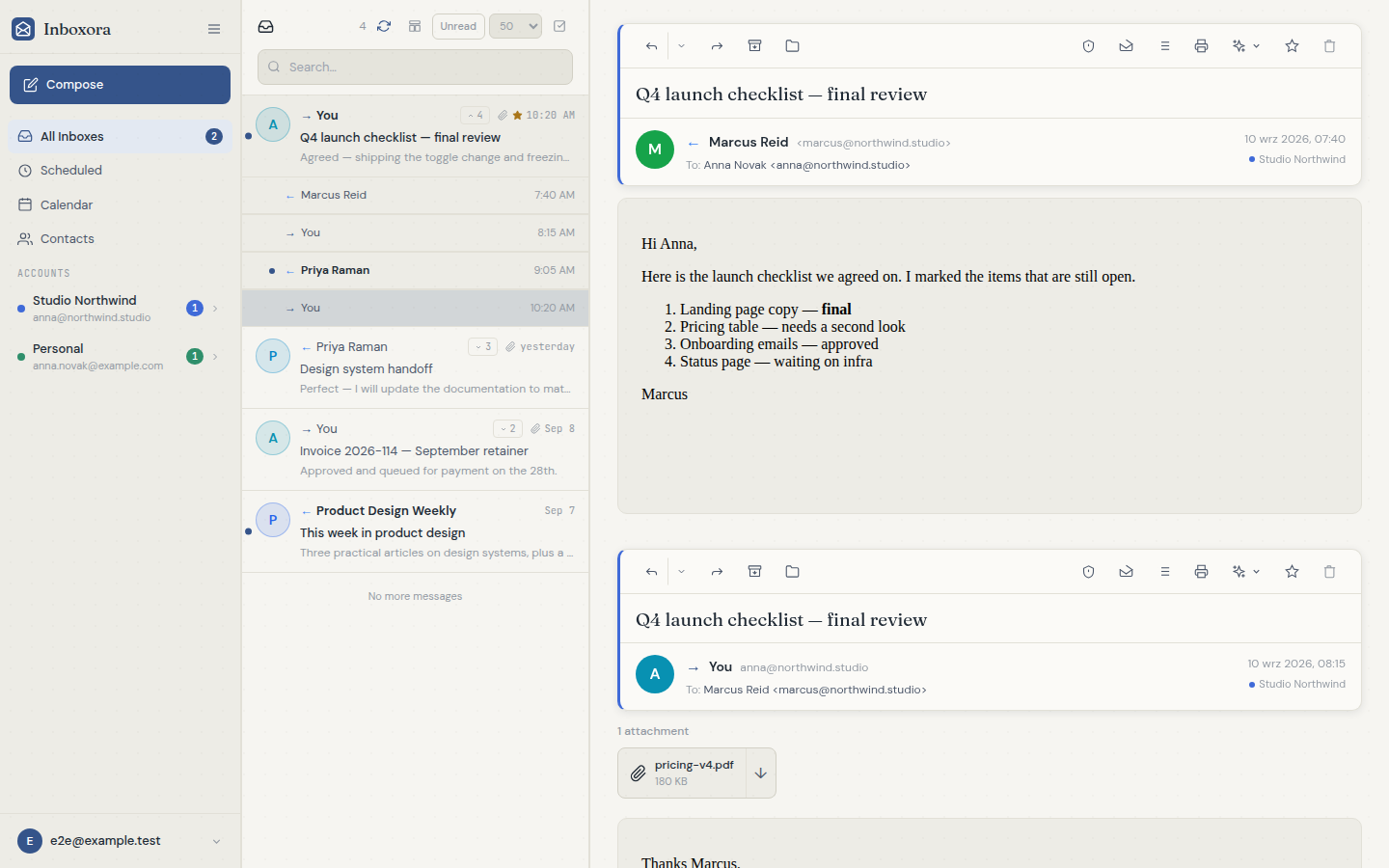
- The newest message is expanded and the pane scrolls to it, as long as you have not started scrolling yourself.
- Collapsed messages show sender, time and a snippet; expanding one loads its body lazily.
- Quoted reply history is folded behind Show quoted text, and collapses again when you hide it.
- Actions such as star, read, archive, move and delete apply to the selected physical copy, with a scope choice where it matters: this copy, all copies of the message, copies on this account, or the whole conversation.
- Opening a conversation marks only the copy you opened as read.
- The message details view also tells you which copy is being shown (
Copy used: <folder> (<account>)).
The list and reader preferences are independent: you can have a flat list with a conversation reader, or a threaded list that opens single messages.
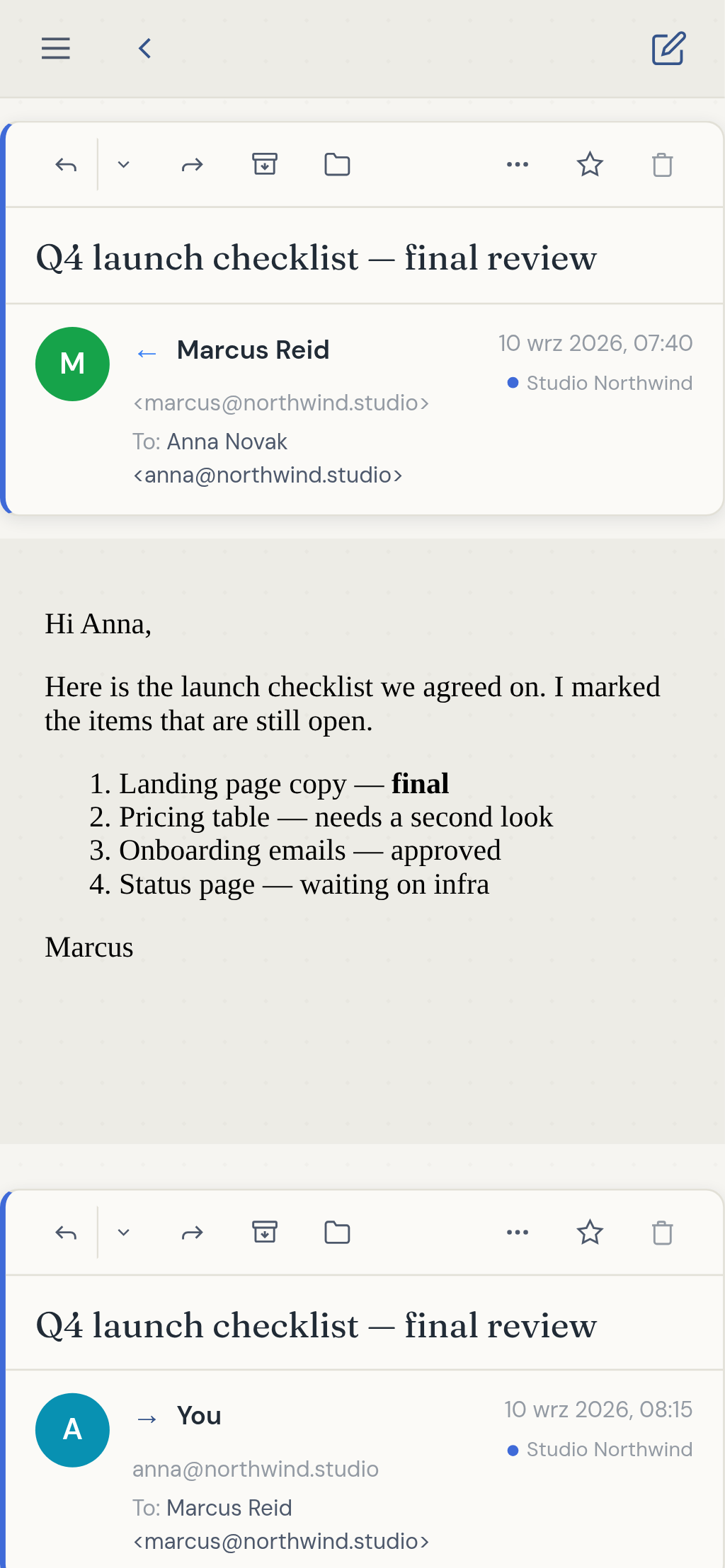
| Conversation reader with the thread history expanded | The same conversation on a phone |
|---|---|
|
 |
Both views read the conversations the server has built. New mail is grouped as it arrives, but mail that was already stored before the conversation engine existed — the usual case after a migration from MailFlow — has no conversation yet and would appear as single messages.
Settings → Appearance → Layout → Rebuild conversations re-runs grouping over the messages already in the database:
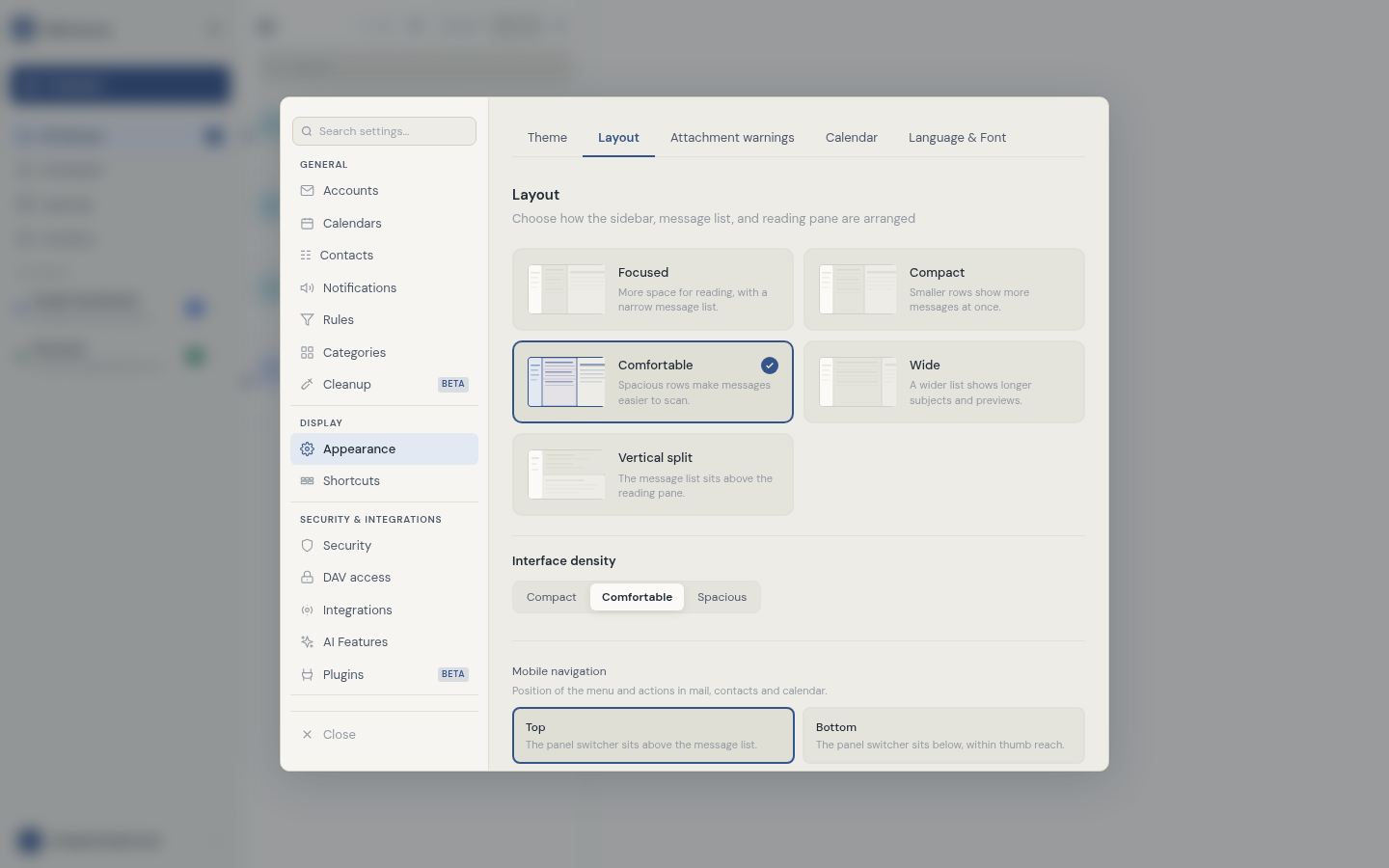
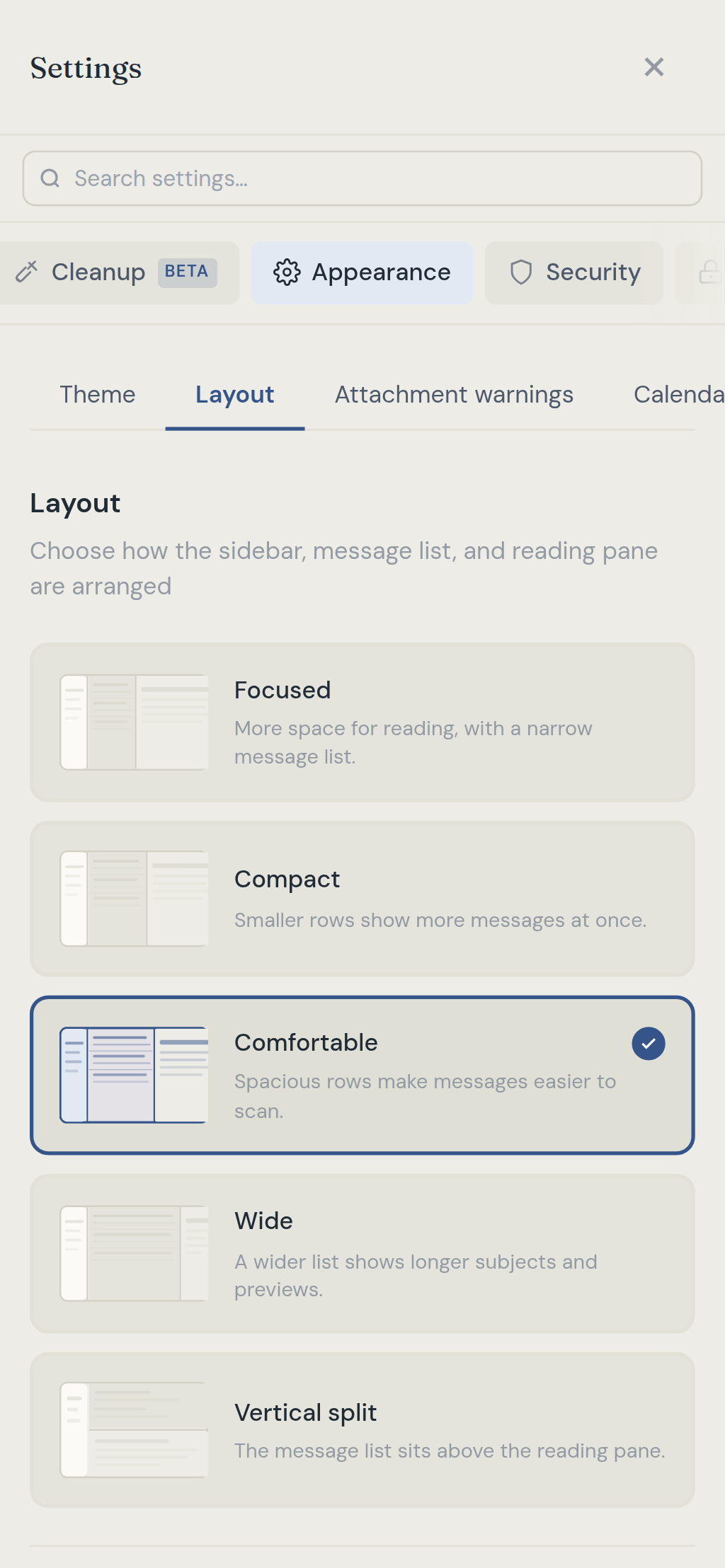
| Threading and rebuild settings | On a phone |
|---|---|
|
 |
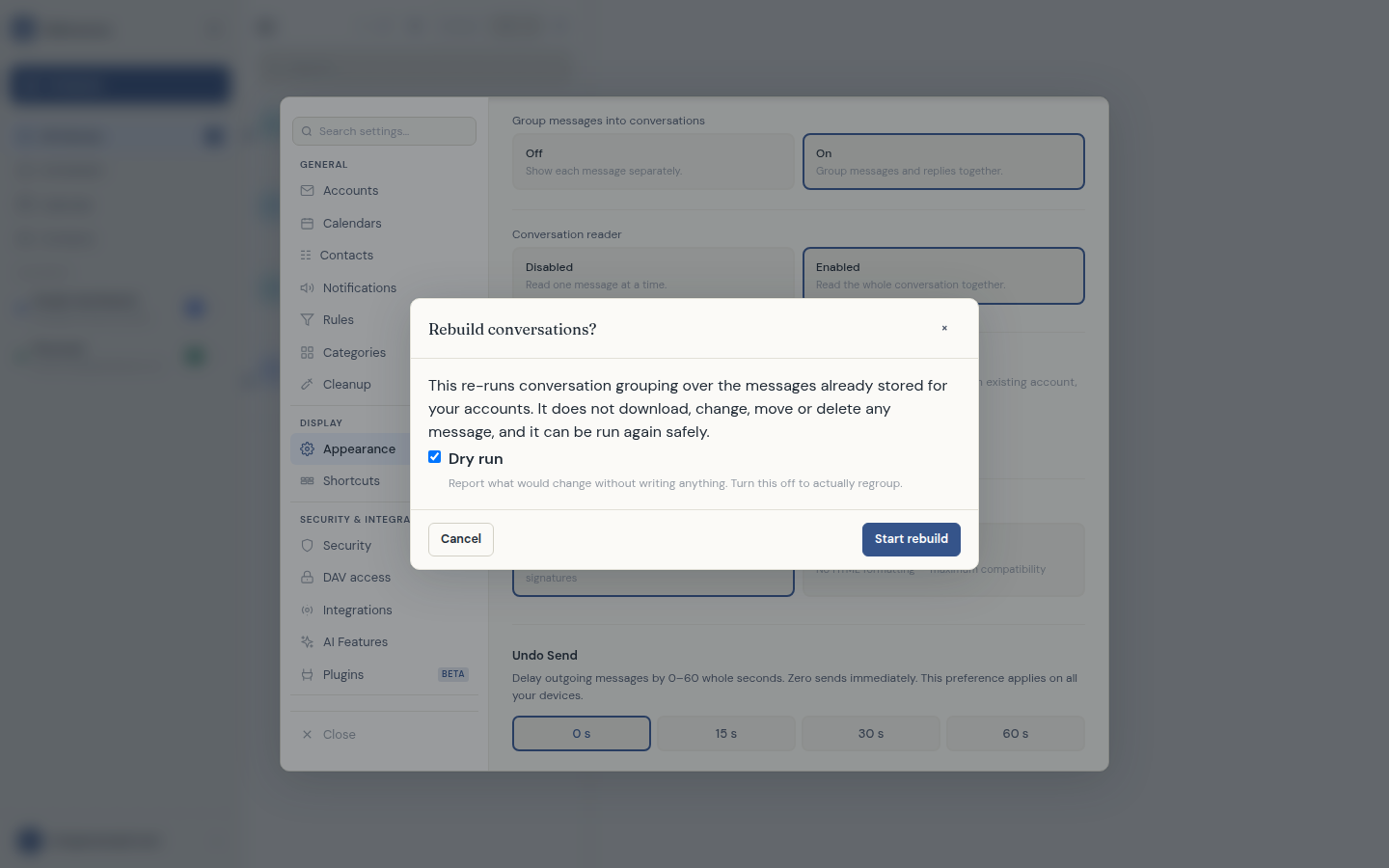
- The confirmation dialog starts with Dry run ticked, so the first run reports how many messages would change and writes nothing.
| The confirmation, with the safe default already ticked | On a phone |
|---|---|
 |
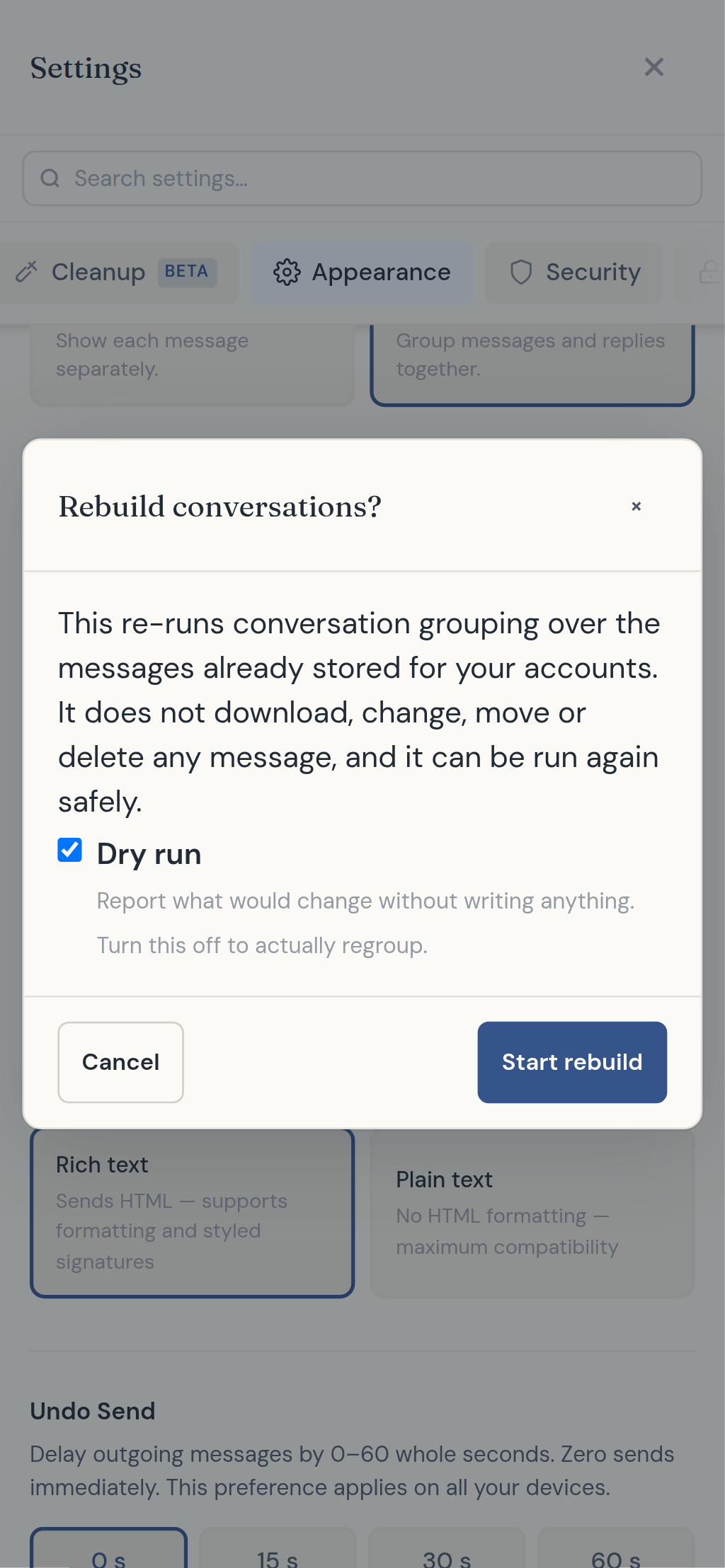 |
- Clear the tick and run it again to regroup for real. It never downloads, modifies, moves or deletes a message, and it can be repeated.
- It only touches the accounts of the signed-in user, so on a shared instance each person rebuilds their own mail.
- Setting Dry run aside, the rebuild is limited to two starts per minute; the dialog explains the limit if you reach it.
A rebuild is a convenience, not a prerequisite: mail syncs and reads normally without it. If a conversation still looks wrong afterwards, check its threading diagnostics, or use the manual merge, split and lock actions. See Migrating from MailFlow for the migration walkthrough and the scripted alternative.
- HTML is rendered in a sandboxed frame without scripts, and it is sanitised both when it is stored and when it is displayed.
- A message is not repainted to suit the theme. The reading surface always follows the appearance you chose, and only the individual colours that would become unreadable are adjusted: text that is too dark for a dark surface is lifted to a readable light colour, and content inside a card the message painted itself (a white newsletter panel, for example) gets a dark text colour so your theme's light text cannot land on it. Hue and saturation are kept, so a muted grey footer stays muted and a heading stays the most prominent line.
- A message that paints its own light design therefore keeps those panels, because that is what its author intended, while everything around them stays on your theme.
- Remote images are blocked by default, including tracking pixels. Load them for one message, allow the sender's address, allow the whole domain, or manage the global allow-list under Settings → Privacy.
- Attachments download individually or together as a ZIP; inline images referenced by
cid:render inside the body. - A headers viewer shows the raw message headers, and in-message find searches the current message.
- Links open in a new tab and are limited to
https:andmailto:.
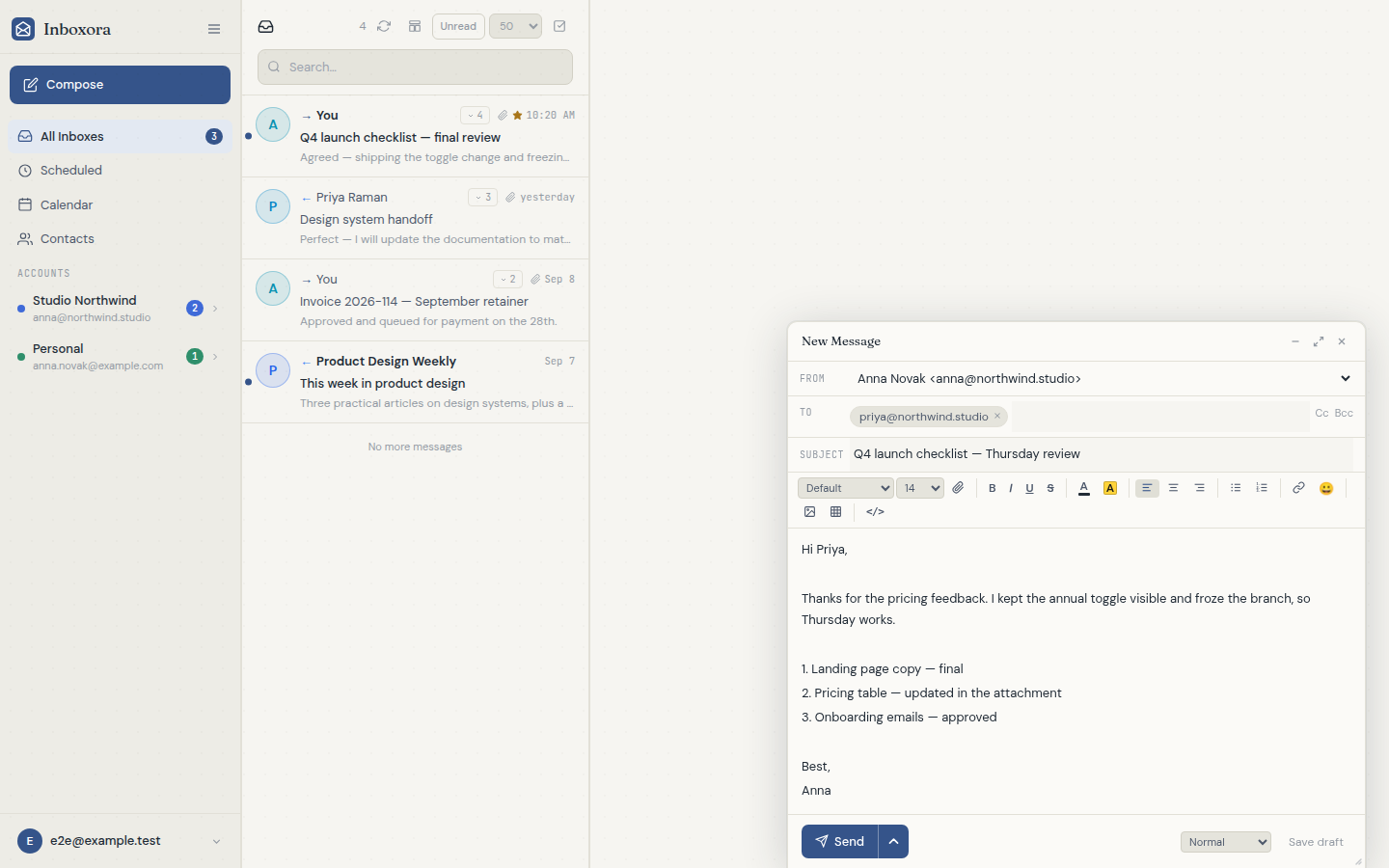
- New messages, Reply, Reply All and Forward, with the default reply behaviour
configurable. Replies set the correct
In-Reply-ToandReferencesheaders so other clients thread them too. - Rich text or plain text, per your compose preference. Rich text supports formatting, lists, links, tables and images.
- To, Cc and Bcc with per-address copy, plus header-injection validation.
- Attachments and inline images. The composer warns when the body mentions an attachment but none is attached,
and asks for confirmation when the subject is empty. It asks the server what the sending account's transport
accepts and refuses a file that is already over that limit, before reading or uploading it; the server repeats
every check and remains authoritative. The limits belong to the transport — a Microsoft Graph account carries a
file up to 150 MB through a resumable upload session, Gmail bounds the encoded raw message at 25 MB, and an SMTP
account is bounded by
MAIL_MAX_MESSAGE_BYTES(25 MiB by default) — and a refusal names the dimension, the real byte count and the limit, so removing the file it names and sending again is the whole recovery. Passing those checks means the transport accepted the message, not that the recipient's server will. - Drafts autosave to the account's IMAP Drafts folder. Attachments are not stored in drafts, and the interface says so.
- Sending is idempotent: a retry after a lost response returns the first result instead of sending twice. If the message was delivered but the copy could not be saved to the Sent folder, Inboxora says Sent, but not saved to your Sent folder rather than reporting a failure that would invite a duplicate.
- Schedule send, Undo Send and mail merge use a durable server queue; see below for timing and recovery limits.
The arrow next to Send opens Schedule send and Send mail merge. Undo Send is a server-saved delay (0/15/30/60 seconds), not recall after provider submission. Scheduling uses the browser’s time zone and rejects past instants and ambiguous/nonexistent daylight-saving times. The server must be running for delivery; the client may be closed.
Scheduled shares the inbox’s list, reading pane, sanitized preview and attachments. Selecting a row does not pause it. Edit pauses it atomically, including through autosaves, closing the editor or passing the old deadline. Only Send or Schedule send resumes it. Cancel works before worker submission and removes the queued content immediately. Once a provider may have accepted mail, an unclear result is Uncertain and is not retried silently. Check Sent before a deliberate retry; Dismiss purges the queue payload but does not recall the mail. Confirmed partial deliveries retain only rejected recipients.
Mail merge sends one separate copy to each unique address across To/Cc/Bcc; every copy has only that recipient in To and empty Cc/Bcc. Sender, content, signature and attachment bytes are frozen consistently. It does not perform template personalization. At most 100 active queue entries per user and 100 attachments per queued message are allowed, within the usual provider byte limits. Small idempotency receipts remain after sent/cancelled payload cleanup.
Sent status remains visible for the current visit after acknowledgement and disappears on a later visit. Background polling or offscreen rows do not acknowledge it. This queue behavior does not delete the provider’s Sent messages. Sender and default CC/BCC preferences are explained in Configuration.
- Folders — create, rename, delete, empty, hide and reorder per account, with unread counts.
- Actions — star, read/unread, archive, delete, move, mark as spam or not spam, in bulk where a selection exists. Delete and archive show an undo window before the change is committed.
-
Snooze — 3 hours, tomorrow morning, next week or a custom time. The message is parked in a
Snoozedfolder and returns to its original folder, unread, when the time is up. - Rules — per-user and ordered, with conditions on sender, recipient, subject, body, an arbitrary header, attachments and read state, and actions such as mark read, star, archive, move, trash and forward. Rules run on incoming mail and can be applied to the existing inbox.
- Block list — exact addresses that go straight to Trash as they arrive.
- Spam — handled manually: Mark as Spam moves a message to the junk folder, Mark as Not Spam moves it back. There is no automatic classifier.
-
Unsubscribe — when a message advertises
List-Unsubscribe, the reader offers one-click unsubscribe and can move the message to Trash. - Categories — optional inbox tabs (Primary, Newsletters, Promotions, Automated, Social) computed from message headers. Off by default, enabled per account.
- GTD / Triage — an optional plugin adding Todo, Watch, Delegated, Someday and Reference states with an undo for the last classification.
Search runs over a PostgreSQL full-text index and covers every account in the unified inbox. Supported operators include:
| Operator | Example |
|---|---|
from: / to:
|
from:anna@example.test |
subject: |
subject:invoice |
has:attachment |
has:attachment report |
is:unread / is:read / is:starred
|
is:unread |
after: / before:
|
after:2026-01-01 |
in:<folder> |
in:Archive |
- negation and quoted values |
-"newsletter" |
- Each account keeps a persistent IMAP connection in IDLE, so new mail and flag changes arrive
without polling. On mail servers with connection limits, the operator can cap always-on
connections with
IMAP_MAX_PERSISTENT_PER_HOST. - A WebSocket streams new messages, flag changes, folder updates, sync completion and errors to the open app, reconnecting on its own.
- Web Push notifies installed apps and phones about new inbox mail; it requires the VAPID keys described in Installation. Messages silenced by a rule do not notify.
- The notification sound is configurable, and you can upload your own.
- Command palette for jumping to accounts, composing, opening settings and switching theme.
- Keyboard shortcuts for navigation, actions and composing, all rebindable.
- Optional AI assistant for summarising a message, drafting or improving replies, and user-defined AI actions.
- Optional Todoist integration for turning a message into a task.
- A redacted diagnostics report you can attach to a bug report.