Repository navigation
Configuration
Everything user-facing is configured inside Inboxora, from the gear icon in the sidebar or the user menu. Preferences belong to your account and follow you between browsers, except where noted.
Settings → Accounts manages the mail accounts Inboxora synchronises.
| Setting | What it does |
|---|---|
| Provider preset | Fills IMAP/SMTP defaults for Gmail, Yahoo, iCloud or a custom server. |
| IMAP / SMTP host, port, TLS |
none, STARTTLS or SSL per protocol. |
| Username / password | Usually the full address; for Gmail and others, an app password. |
| Sender name, colour | Used in the sidebar and on outgoing mail. |
| Aliases | Additional send-as addresses with their own Reply-To and signature. |
| Signature | Sanitised HTML per account, overridable per alias. |
| Unified inbox | Include or exclude this account from All Inboxes, unified search and totals. |
| Folder mappings | Sent, Drafts, Trash, Spam and Archive folders, auto-detected from IMAP flags. |
| Sync actions | Sync folders now, reconnect, re-index for search, toggle inbox categorisation. |
Microsoft 365 accounts use OAuth2 and need an administrator to register an Azure application under Settings → Integrations → Email providers, where both providers are configured side by side rather than in two competing places.
Google has two methods and neither is forced. An administrator can register a Google Cloud OAuth client to enable the API-based integrations — connecting a Google account to pull its contacts and calendars read-only — and a Google mailbox can equally be used with an app password over IMAP/SMTP. Connecting the API does not migrate mail and does not ask for Gmail permissions, and not configuring it leaves the app-password path fully available. The card states the recommendation rather than a requirement.
Microsoft is the other way round: Outlook.com and Microsoft 365 no longer accept a mailbox password, so those accounts need an authorized connection (browser flow or device code). Mail can then run over OAuth2 IMAP/SMTP or, after an in-place migration, over Microsoft Graph — with calendars and contacts on the same connection — and the card says so.
The ceiling that applies to a send is the transport's, computed as
min(installation ceiling, provider ceiling, operation ceiling). The provider's own numbers live in one place in
the code (backend/src/services/providers/mailCapabilities.ts), so they cannot drift between the adapter that hits
them and the guard that reports them:
| Transport | One attachment | Whole message | Notes |
|---|---|---|---|
| SMTP | fallback ceiling | fallback ceiling (MAIL_MAX_MESSAGE_BYTES) |
No universal SMTP limit exists, so the installation's fallback is what applies. |
| Microsoft Graph | 150 MB through a resumable upload session | 150 MB | Above 3 MB a file stops travelling inline and becomes an upload session (a choice of method, not a ceiling), with resume, chunk alignment, expiry and cancel. |
| Gmail API | the raw-message ceiling | 25 MB raw RFC-822 | Gmail bounds the message it is handed, so the encoded size is what is measured, not the sum of the files. |
Two environment values adjust the installation's side of that minimum:
-
MAIL_MAX_MESSAGE_BYTES— the fallback composed-message ceiling, used only for a transport that declares no ceiling of its own (SMTP). It defaults to 25 MiB. It never shrinks a provider that declares a larger limit, so it does not cap a Graph account at 25 MB. -
MAIL_MAX_ATTACHMENT_BYTES— the hard installation ceiling, applied to one attachment and to their total on every transport whatever a provider would accept. It defaults to Graph's own 150 MB, so leaving it unset does not cap Graph; set it lower to bound the installation as a whole (for example to match a reverse proxy's body limit).
A refusal names the dimension it hit — ATTACHMENT_TOO_LARGE (one file), ATTACHMENTS_TOO_LARGE (their total),
INLINE_IMAGES_TOO_LARGE (the images the composer turns data: URIs into), MESSAGE_TOO_LARGE (the composed
RFC-822 message on SMTP), PROVIDER_MESSAGE_TOO_LARGE (Gmail's raw message), PROVIDER_UPLOAD_TOO_LARGE (a Graph
upload-session file) or REQUEST_TOO_LARGE (the HTTP body) — and carries actualBytes, limitBytes, the
dimension and the transport, so a client never has to read English prose. Provider-measured refusals are decided
before anything is dispatched, so they cannot be mistaken for an unknown outcome.
The composer asks the server for the sending account's limits (GET /api/mail/send-limits?accountId=…) and refuses
a file it already knows cannot be sent, before that file is read or uploaded; the server remains authoritative and
repeats every check.
Two switches govern the provider layer:
-
PROVIDER_SYNC_INTERVAL_MINUTES— how often already-pulled collections are refreshed (15 by default);0disables the schedule and leaves syncing to the user. -
PROVIDER_INTEGRATIONS_ENABLED—0stops this installation offering or starting any provider authorization and stops the sync paths too, so an installation that must not call a provider does not; unset means enabled. The per-provider and per-method switches in the card narrow a configured installation further. -
GRAPH_CALENDAR_DELTA_VERSION—v1.0(default) orbeta. Which contract the Microsoft calendar's change-tracking read uses. Microsoft documents the per-calendar event delta as a preview capability and the stable alternative returns repeating events in a shape that loses the series master, so neither is free;betamakes each changed event read back in full (one extra request each). Write paths always use the stable contract. -
PROVIDER_NATIVE_RULES— off unless set to1. Whether the user's inbox rules run on mail that a Gmail or Microsoft account synchronises. Opt-in because a rule can be global (account_idnull) and can delete mail: switching it on applies rules a native mailbox may never have run, so it is a deliberate operator decision rather than a consequence of upgrading. The block list is not gated — blocking a sender is an explicit instruction and always moves that sender's mail to the account's trash (or deletes it, when the account has no trash).
The same Entra application is also what the Microsoft Graph API integration uses. Its
authorization entry point is /oauth/provider/microsoft and it asks only for the scopes of the
purpose it was started with (mail_migration, calendar_enable or contacts_enable), so granting
calendars never grants the mailbox. It is deliberately separate from /oauth/microsoft, which is
the existing mailbox sign-in.
Step-by-step registration for both providers — the exact redirect URIs, environment variables, permissions and a troubleshooting table — is in Connecting Google and Microsoft accounts.
Push is an administrator-level setting, not a per-user one:
| Variable | Meaning |
|---|---|
APP_URL |
The public address Inboxora is reached on. The provider callback URLs are derived from it (/api/provider-webhooks/...); HTTPS is required outside localhost. |
PROVIDER_PUSH_ENABLED |
Off by default. With it off — or without a usable APP_URL — synchronisation is polling-only. |
GOOGLE_PUBSUB_TOPIC |
projects/{project}/topics/{name}, the topic Gmail's watch publishes to. |
GOOGLE_PUBSUB_VERIFICATION_TOKEN |
Shared secret (at least 16 characters) that authenticates a Pub/Sub push. |
PROVIDER_PUSH_RENEW_AHEAD_MINUTES |
How far before expiry subscriptions are renewed (default 30). |
PROVIDER_PUSH_SWEEP_MS |
How often the renewal sweep runs (default 10 minutes, jittered). |
PROVIDER_SYNC_HINT_DEBOUNCE_MS |
The window a burst of notifications is coalesced into one sync (default 2000 ms). |
PROVIDER_SYNC_HINT_POLL_MS |
How often queued sync hints are drained (default 15 s). |
Push is an accelerator, never a requirement: PROVIDER_SYNC_INTERVAL_MINUTES still refreshes every pulled
collection, a missed notification is recovered by the ordinary delta sync, and an account is never reported as
broken because a notification could not be delivered. Each connection is switched on from its card in the
provider settings, and GET /api/integrations/push-status reports what is registered, when it expires and
when it last delivered.
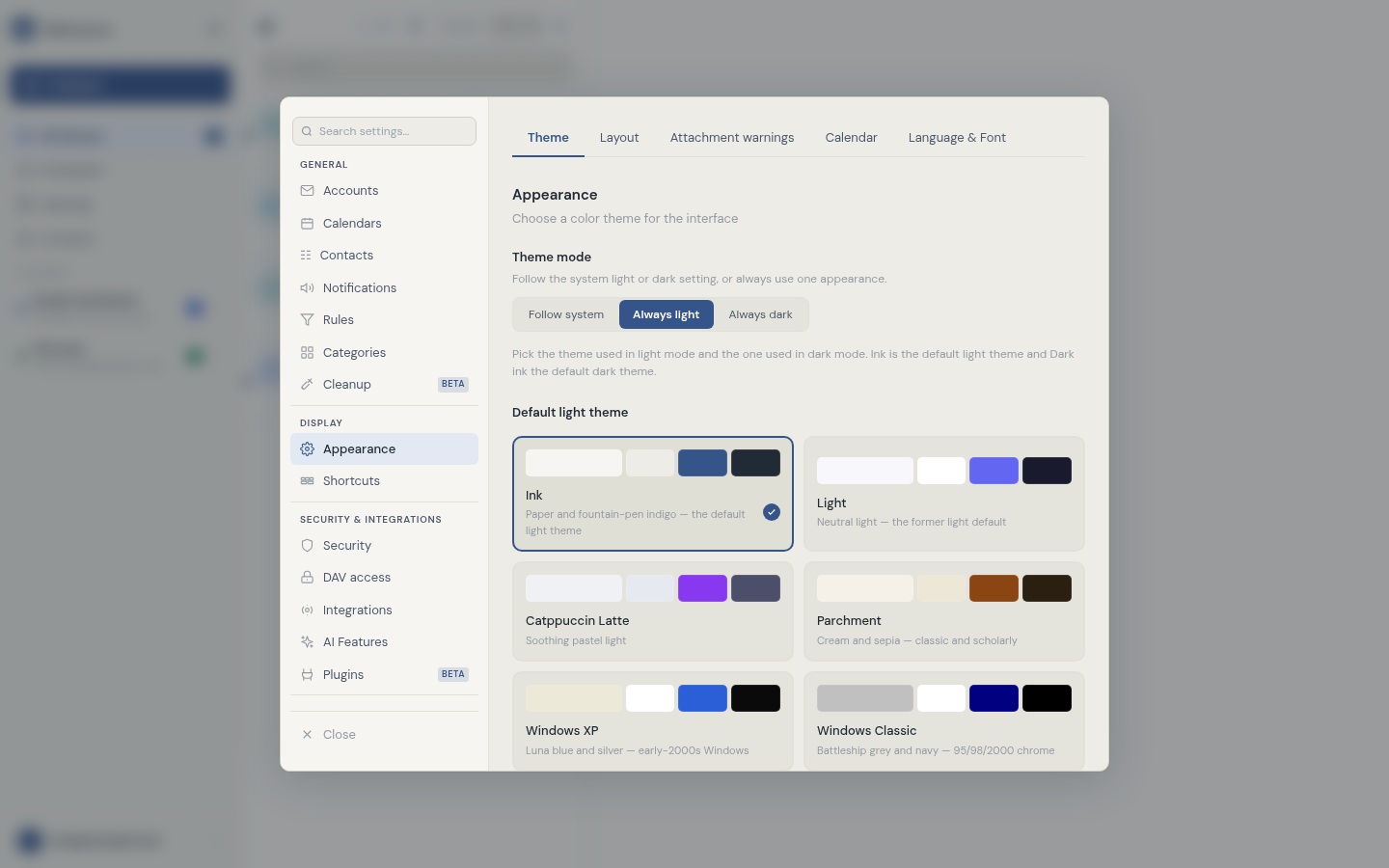
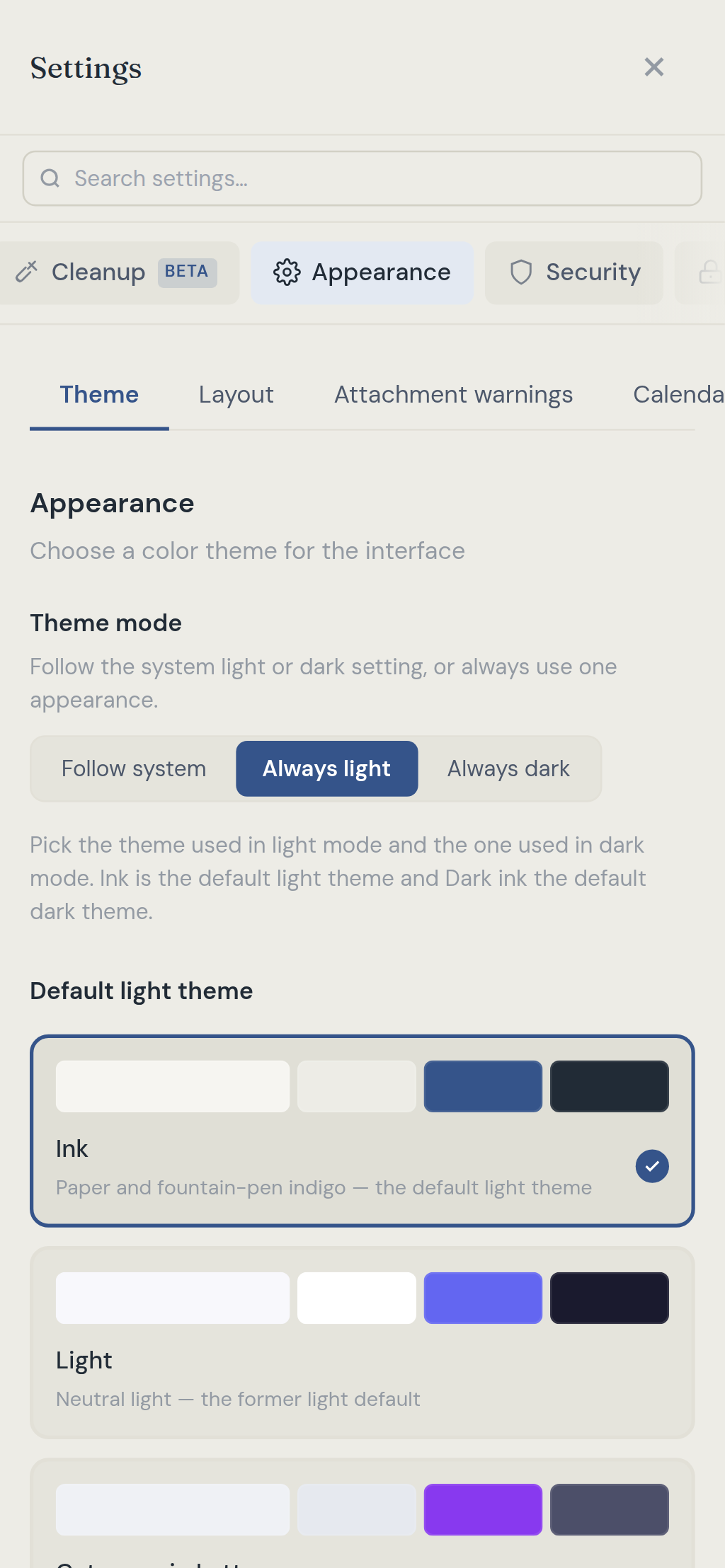
Settings → Appearance groups theme, layout and typography.
- Theme mode — Follow system switches automatically between your light and dark default as the operating system changes; Always light and Always dark pin one appearance regardless of the system.
- Default light theme and Default dark theme — choose the theme for each appearance separately from the roughly two dozen built-in themes. The light list and the dark list are picked independently, so a paper theme and a night theme can live side by side.
- Ink is the default light theme and Dark ink — its dark counterpart, dark paper with the same fountain-pen indigo accent — is the default dark theme. A fresh profile therefore follows the system and uses Ink in light mode and Dark ink in dark mode without any configuration.
- Currently active — the theme actually rendering right now, which depends on the mode and, under Follow system, on the operating system.
- Layout — focused, compact, comfortable, wide or vertical split; interface density; mobile navigation position (top or bottom).
- Fonts and language — multiple font pairings, a font-size scale from 80 % to 130 %, and nine interface languages: English, German, French, Spanish, Italian, Russian, Chinese (Simplified), Polish and Czech.
A theme chosen before separate defaults existed is kept: it becomes the default for its own appearance and selects Always light or Always dark, so an upgrade never changes the look.
| Appearance on desktop | Appearance on a phone |
|---|---|
 |
 |
Settings → Appearance → Layout also holds the reading and composing preferences:
- Group messages into conversations — the threaded list.
- Conversation reader — open whole conversations in the reading pane.
- Rebuild conversations — re-group the mail already in your mailbox, for accounts that were imported or migrated from elsewhere. It always asks for confirmation and starts in dry-run mode; see Email and threading.
- Rich text or plain-text composing, and whether the Reply button replies to the sender or to everyone.
- Message previews, quick actions on hover, mobile sender avatars, and paginated or infinite scrolling with a page size.
- Sync cadence for mail and for the folder structure.
- When a message is marked read: immediately, after a short delay, or manually.
Settings → Notifications controls:
- The notification sound — none, a built-in sound, or your own audio file.
- The unread count badge on the app icon.
- Web Push, which needs the VAPID keys from the server environment (Installation). On iOS the app must be added to the Home Screen first.
-
Instant notifications (Android app only). Inboxora ships ntfy as a
UnifiedPush server on the same domain. Enter
${APP_URL}(the origin, with no path) in the ntfy app. After installing the ntfy app on the phone and pointing it at that URL, the settings card shows Active with the provider (ntfy) and the push server. If no distributor app is installed it explains that one is needed and links to it; if notification permission is denied it links straight to the Android settings. Without a distributor, mail still syncs in the background.
See Notifications and background delivery for the transport, the data that does and does not pass through ntfy, the environment variables, and device revocation.
Mail that a rule marks as read never raises a sound, toast or push notification.
Settings → Privacy manages remote content:
- Block remote images globally (the default), or allow them for individual messages.
- Manage the allow-list of addresses and domains.
- Optional Gravatar avatars — off unless you enable them.
- Swipe actions (phone) — assign an action to a left or right swipe: star, archive, delete, mark read, reply, reply all or nothing.
- Shortcuts — every keyboard shortcut can be rebound, with conflict detection and a reset to defaults.
Settings → Calendar holds the calendar defaults:
- First day of the week (Monday or Sunday).
- Working days and working hours, used by the week and work-week views.
- The account used by default when sending calendar invitations.
The calendar panel itself remembers the last view you used, per device.
- Signatures are edited per account (and per alias) in Settings → Accounts.
- Profile — display name and avatar.
- Screen lock — an optional PIN (4–6 digits) with an automatic lock after 1, 5, 15 or 30 minutes.
Administrators see additional tabs, grouped as Account & Mail, Calendar, Display, Security & Integrations and Administration:
| Tab | Purpose |
|---|---|
| Accounts | Mail accounts for every user on the instance. |
| Notifications | Instance-level notification defaults. |
| Rules / Block list | User rules and blocked senders. |
| Categories | Enable categories, tune Social sources, re-categorise existing mail. |
| Cleanup (beta) | Per-account bulk-mail summary and bulk archive/trash. |
| Calendar | The calendar defaults described above. |
| Appearance | Theme, layout, language and fonts, plus instance-wide custom CSS. |
| Shortcuts | Default keyboard shortcuts. |
| Security | TOTP, screen lock, login protection, mail-server connection policy, MFA enforcement, login log. |
| DAV access | Application passwords for CardDAV and CalDAV clients. |
| Integrations | Microsoft 365 OAuth app, remote CardDAV account, Todoist. |
| AI Assistant / AI Actions | Optional OpenAI-compatible provider and prompt shortcuts. |
| Plugins (beta) | Plugin activation; the GTD/Triage plugin ships with Inboxora. |
| Users | Users, invitations and the system email account. |
| SSO | OIDC providers and password-login control. |
| About | Version, build identifiers, licence, diagnostics report. |
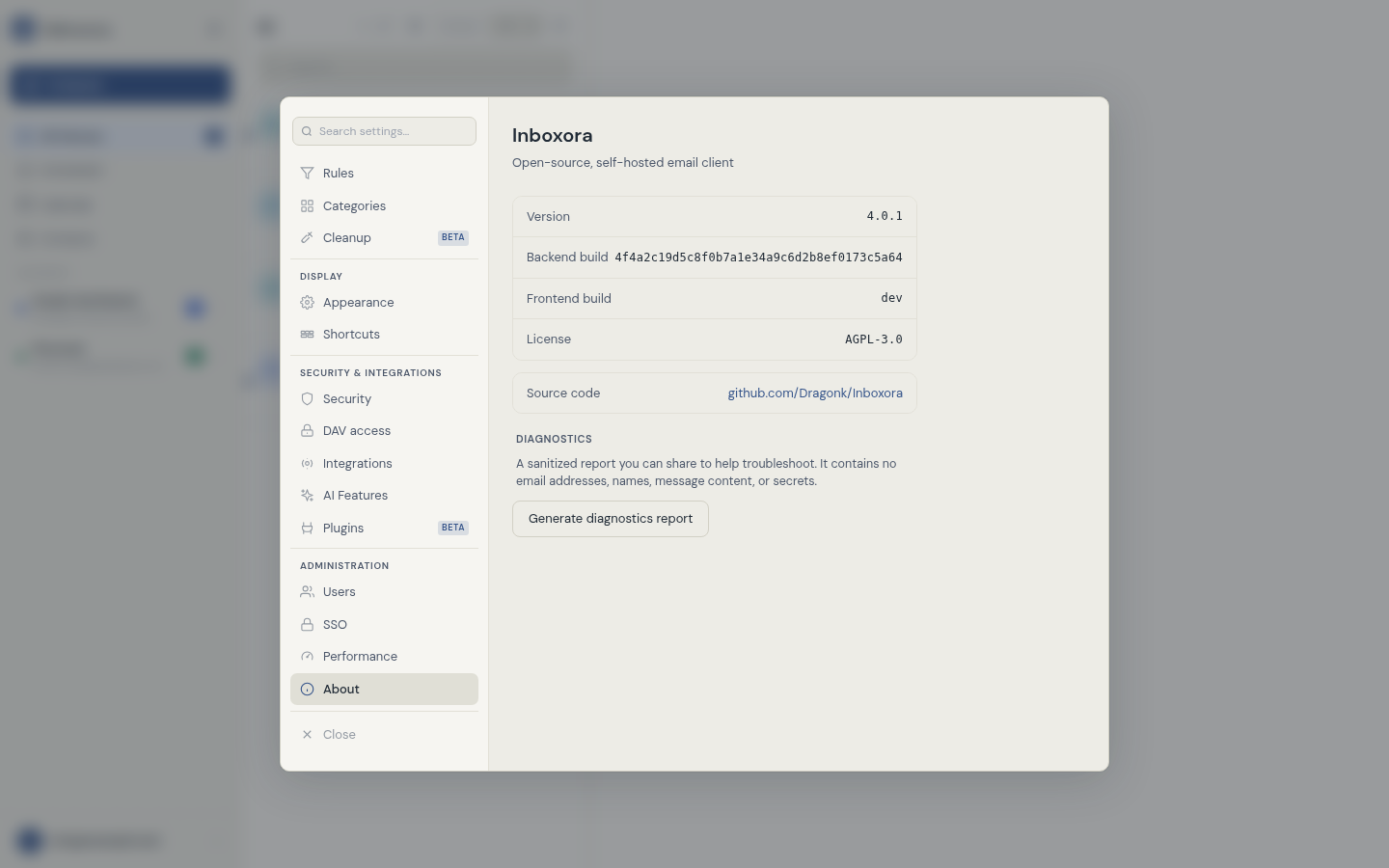
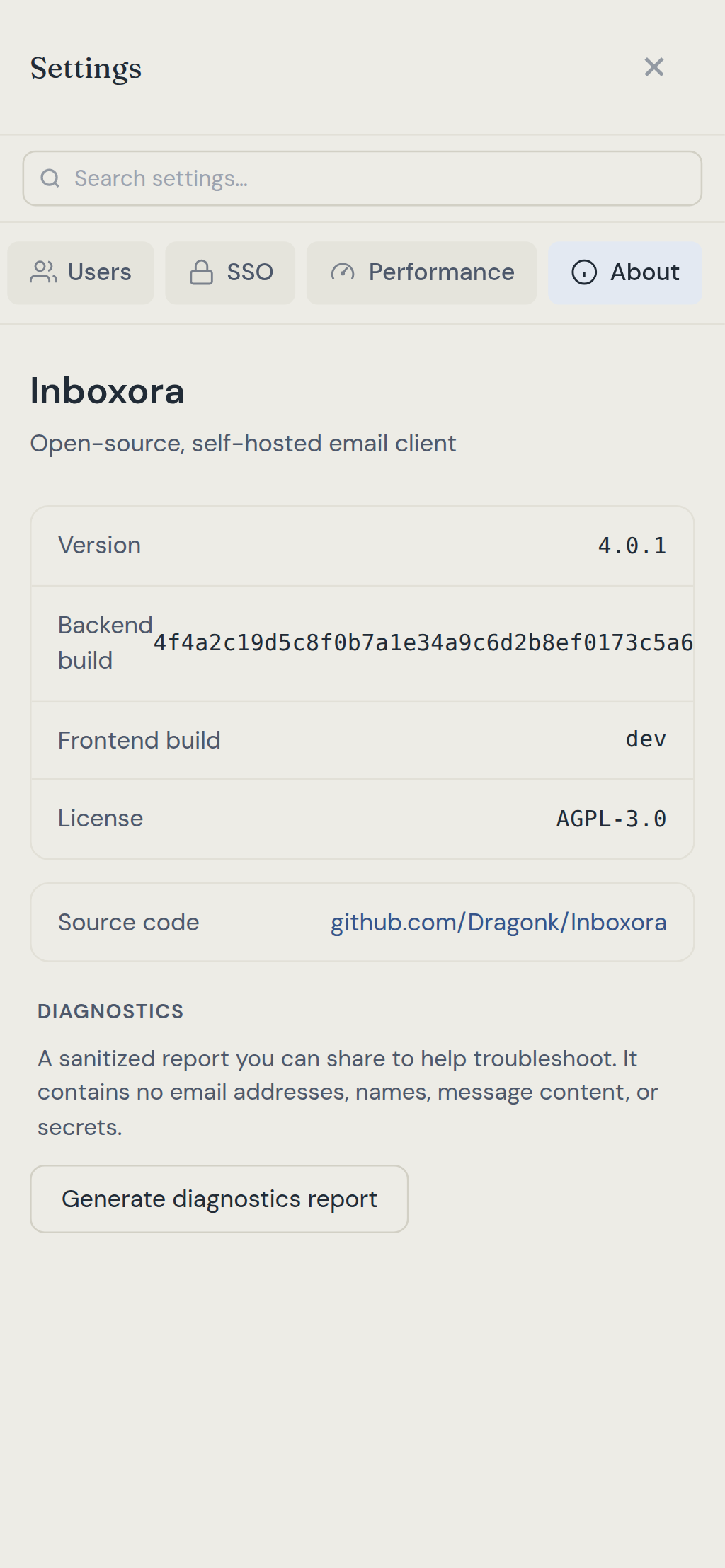
The About tab is where you find the running version and both build identifiers — include them when reporting a problem. The same panel generates the redacted diagnostics report described in Troubleshooting, and it is reachable on a phone like every other tab:
The Security tab controls what mail and calendar servers Inboxora may talk to: private and local addresses, insecure TLS and non-standard ports are each gated. Tighten these on an instance that must not be used to reach internal services.
Settings → Users → System email configures the SMTP account used for invitations, password resets and email one-time codes. Without it, invitation mail falls back to the first SMTP-enabled account owned by an administrator.
A few values exist only in the environment or in the database:
-
UPDATE_CHECK_DISABLEDturns off the server-side release check. -
IMAP_MAX_PERSISTENT_PER_HOSTcaps always-on IMAP connections per host. - The conversation engine's automated-series segmentation mode is not exposed in the interface.