Repository navigation
Getting started
This page takes you from a fresh installation to a working inbox with your contacts and calendar in place.
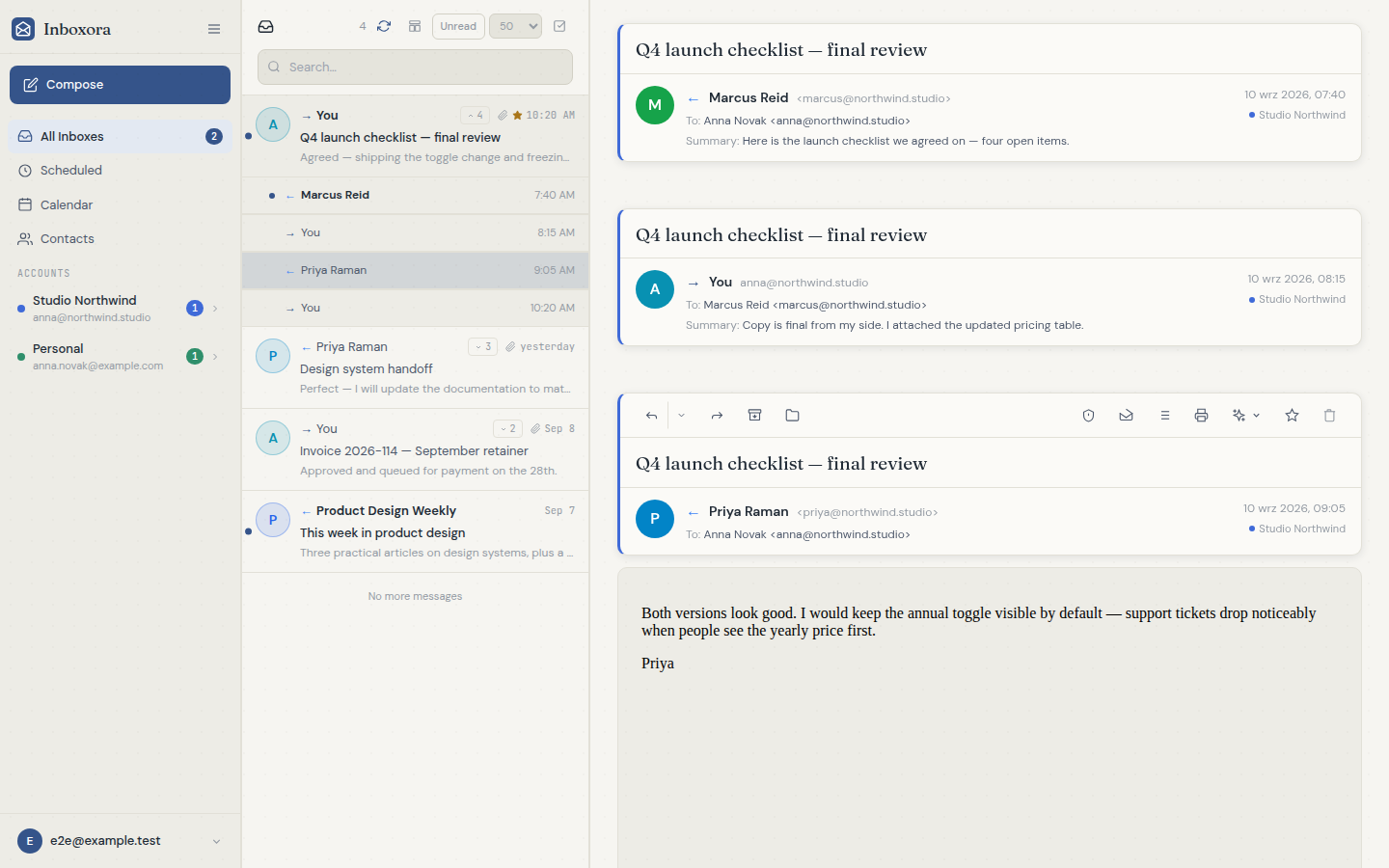
Open APP_URL. The first account created on a new instance becomes the administrator.
Depending on your server settings, later accounts either self-register or join through an
invitation from an administrator (Settings → Users).
Administrators can enable two-factor authentication, a screen-lock PIN and SSO under Settings → Security.
Settings → Accounts → Add account. Choose a preset (Gmail, Yahoo Mail, iCloud, Custom) or fill the IMAP and SMTP details by hand:
| Field | Notes |
|---|---|
| IMAP host / port | 993 (SSL) or 143 (STARTTLS) for most providers. |
| SMTP host / port | 465 (SSL) or 587 (STARTTLS) for most providers. |
| Username / password | Usually the full email address. |
| Sender name and colour | Shown in the sidebar and on outgoing mail. |
| Folder roles | Leave on auto-detect; the server reads IMAP special-use flags. |
Provider-specific notes:
- Gmail is connected with a Google app password, used as the IMAP and SMTP password.
- Microsoft 365, Outlook.com and Hotmail use OAuth2 only, because Microsoft disabled basic authentication. An administrator registers one Azure application under Settings → Integrations first; each user then connects through the authorization-code or device-code flow.
- Yahoo and iCloud also require provider-issued app passwords.
Add several accounts to use the unified inbox. Accounts can be disabled or excluded from the unified inbox without being deleted.
The left sidebar is the application, and it has three destinations:
- Mail — accounts, folders, the message list and the reading pane.
- Calendar — month, week, work-week and agenda views with a day agenda.
- Contacts — address books, the contact list and the contact editor.
Resize the list and reading panes by dragging the divider between them; Inboxora remembers the width. On a phone everything collapses into a single panel with a drawer (see Mobile navigation).
Two independent preferences control threading. Both are off by default, and you can enable either one on its own under Settings → Appearance → Layout:
- Group messages into conversations — the message list collapses a conversation into a single row that expands inline.
- Conversation reader — the reading pane shows the whole conversation instead of one message at a time.
See Email and threading for what each one does.
Contacts → New book creates a local address book. From the book menu you can:
- Import a Google CSV export from another service.
- Export the book as Google CSV, Outlook CSV or vCard 3.0.
Contacts that already live on a CardDAV server can be pulled in as a read-only book, and contacts you own are published to any DAV client that signs in with an application password. See Contacts and DAV.
Calendar → New event creates an event in your first local calendar. From the calendar sidebar you can create more calendars, choose their colour and control which are visible. Add CalDAV or ICS/webcal subscriptions under Manage sources — see External calendars.
Calendar defaults — first day of the week, working days and working hours — are in Settings → Calendar.
DAV clients never use your Inboxora login password. Instead:
- Open Settings → DAV access.
- Give the device a name (for example Pixel 7 · DAVx5) and create an application password.
- Copy it immediately — it is shown exactly once.
- In DAVx5 (or any CardDAV/CalDAV client) add an account with your Inboxora URL, your Inboxora username and that application password.
This works even when your account uses TOTP or SSO, and you can revoke a single device without touching the others. Full instructions, including the discovery URLs, are in Contacts and DAV.
- Notification sound and unread badge — Settings → Notifications.
- Web Push (installed app or phone) — Settings → Notifications, once your administrator has configured the VAPID keys. On iOS, add Inboxora to the Home Screen first.
- Remote images — blocked by default. Allow them for a single sender, a whole domain, or globally under Settings → Privacy.
- Email and threading — conversations, rules, snooze, search.
- Configuration — themes, fonts, language, layout, signatures.
- Calendar and Contacts and DAV.
- Troubleshooting if a sync or a send does not behave.