Role Constraints
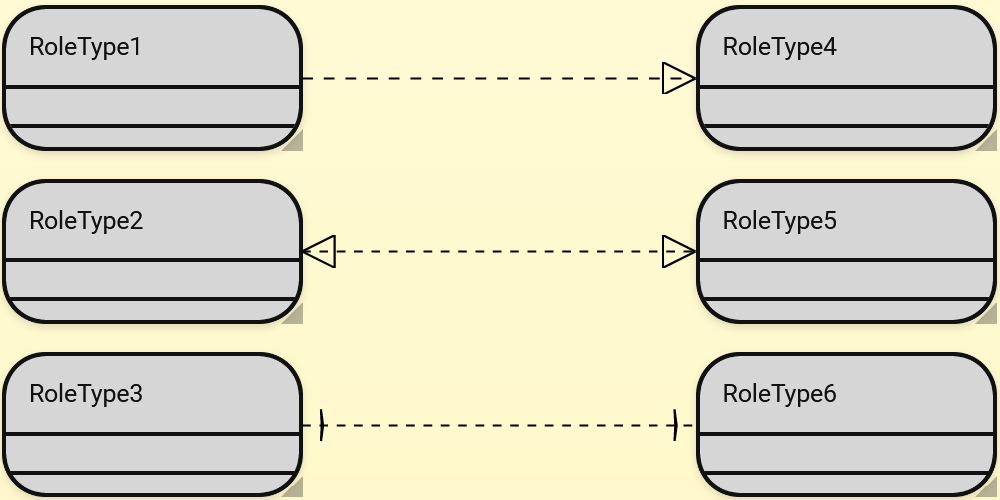
Local role constraints are a feature of CROM that allows to constrain the fulfillment of role types. They consist of two parts:
-
Riehle role constraints - Connections between role types or role groups that constrain the fulfillment.
They are connections with a implication, prohibition or equivalence semantic regarding the fulfillment of a role type.
In Framed.io they are represented as connections with dashed lines.
-
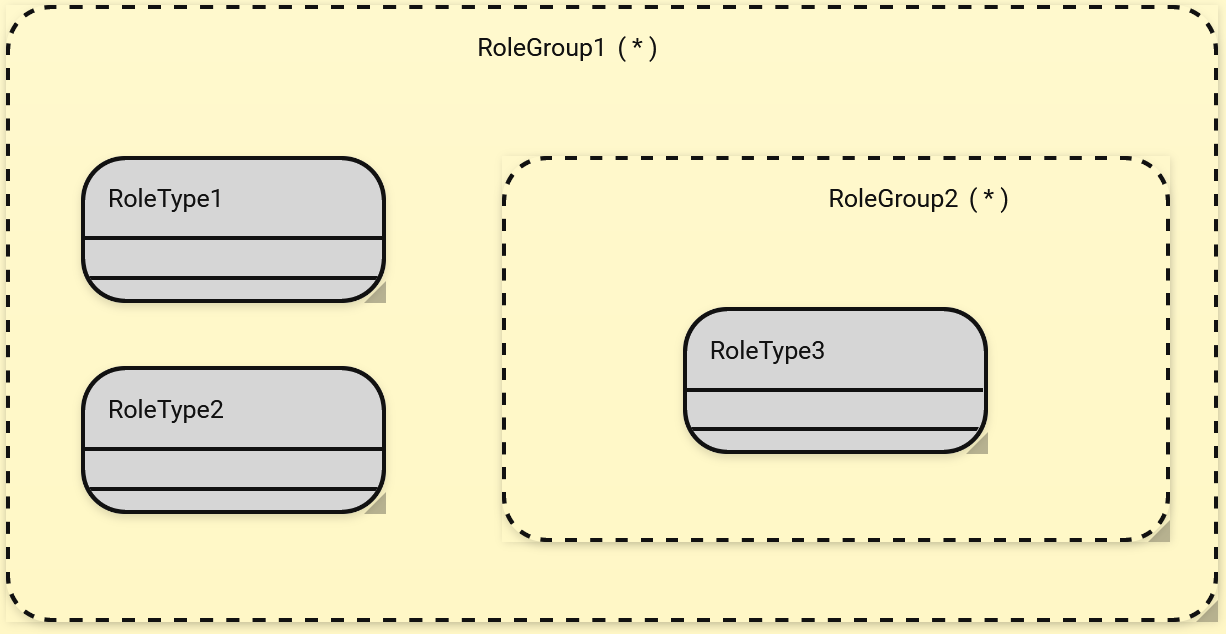
Role groups - Role groups are containers that group role groups and role types together for the purpose of applying constraints.
They do not have a semantic influence on other connections (e.g relations, aggregations, etc.).
They have a cardinality that constrains the number of nested role types that can be fulfilled.
In Framed.io they are represented as a container with dashed outer lines.
This section describes how to create and use role constraints and role groups in the editor.
Riehle role constraints can be created between all role types and role groups and other role types or role groups that are within the same compartment or scene.
- To create such a role constraint, the add button next to the shape of the source is used.
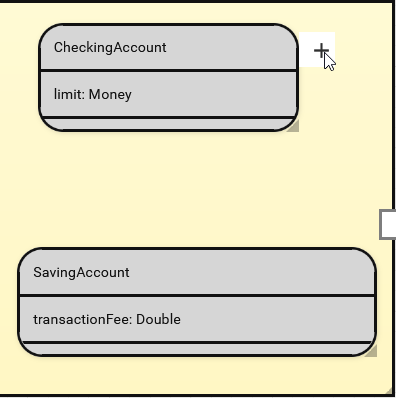
- After clicking the add button, the cursor will turn into a drawing line. Drag this line to the target shape.
- Upon release a selection wheel will show up to allow you to select the connection you want to draw.
The role constraints are only available as selection here if the source and target are either role types or role groups.
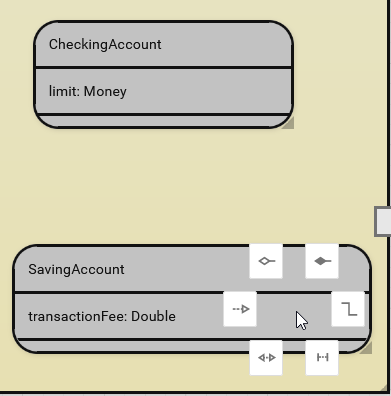
- Select the constraint you plan to use.
After clicking the button, the connection will be drawn.
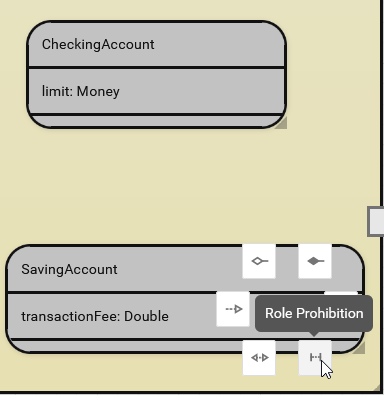
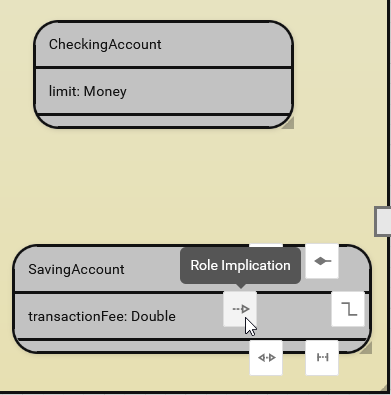
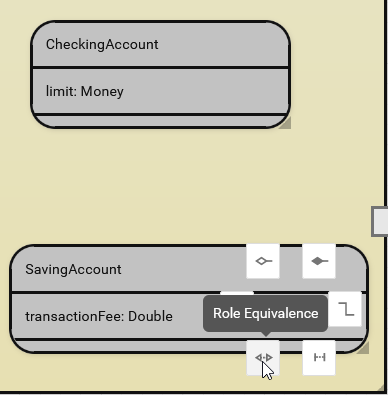
Role constraints can be deleted by right clicking on the connection in the editor and then clicking the delete button in the context menu.
Role groups can be create in all situations where role types can be created.
- Right click inside the shape the role group should be created in.
A context menu should pop up.
If a role group can created in the shape you selected, the
Create role groupmenu entry will be present.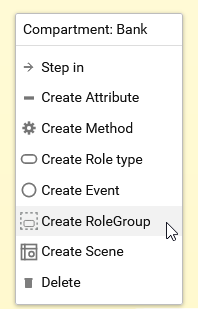
- Click on the
Create role groupentry. This should create the role group.
Other role groups and role types can be dragged inside a role group. If the dragged element had connection, a pop-up window will show asking how to handle these connections.
When right clicking in a unoccupied space in a role group, a context menu will show.
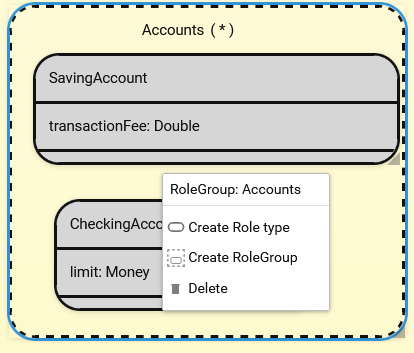
It allows for three operations:
- Create a role type in this role group.
- Create a nested role group in this role group.
- Delete the role group and all its child elements.
The name and cardinality of the role group can be edited by left clicking on the name or cardinality field at the top of the role group.
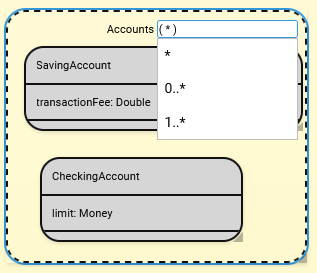
Other ways to change these is by using the editor sidebar.
This information is based on the code at git commit 6d34f4a008b3828138018164873340c51a77da2c (28-08-21).
Later changes to the code can alter code sections described below.
Role constraints are implemented in two parts.
There are the connections and Role Groups as container.
Framed.io uses the Model-View-Viewmodel architecture pattern (see Architecture Overview, Model and ViewModel).
The connection between the business model and the view-model is maintained by the Linkers.
In addition Linkers implement the editing constraints for their respective model elements.
Connections between the shapes, defined in the view model, are rendered using the JavaScript framework jsPlumb.
A jsPlumb instance can create connections between html elements in the html container they were created in.
The editor uses several instances of jsPlumb on different nesting levels to avoid shapes covering connections.
With this, the changes involved the following:
- Adding business model classes for the new elements. (RoleGroup, RoleImplication, RoleEquivalence, RoleProhibition)
- Adding linker classes that translate the business model elements to the view model. (RoleProhibitionLinker, RoleEquivalenceLinker, RoleImplicationLinker, RoleGroupLinker)
- Add view elements to represent the new elements. (Icons, TextShape)
- Adapt existing UI elements to allow the usage of the new elements. (CyclicChooser)
- Adapt container elements to allow for nested containers (ModelLinker).
- Adapt connection rendering process to allow for connections over nested elements.
In the following, I will highlight these changes, ordered by complexity and scope from highest to lowest:
One of the major challenges for adding RoleGroups was the missing ability to nest elements with a variable depth in the editor.
With RoleGroups acting as a "parenthesis" for expressing constraints, it has to be possible to nest RoleGroups within one another.
If this is not possible not all possible propositional formulas can be expressed.
Most editor functions were hard coded to only work with one level of nesting (the maximum in the original design).
Thus, changes to the drag and drop functionality for shapes and connections were required.
The original implementation did not allow to drag shapes into nested containers. When dragging a shape over a nested element, the highest possible target was selected. This was changed to always select the lowest (most specific) child element that was hovered over.
-
src/main/kotlin/io/framed/framework/linker/ModelLinker.kt: 58-77- Function to retrieve all child linkers to this linker. Used to check if a drop operation into a child element is possible. -
src/main/kotlin/io/framed/framework/linker/ModelLinker.kt: 84-92- Check if a drop operation is allowed with respect to the editing constraints implemented by the target linker for the source linkers type. -
src/main/kotlin/io/framed/framework/linker/ModelLinker.kt: 97-158- Perform the drop operation moving a linker from its current parent to the new parent specified by the drop operation. -
src/main/kotlin/io/framed/framework/render/html/HtmlRenderer.kt: 449-481; 435-443- Find the most specific view model drop target from the current mouse position. Similarly to connections this is the deepest nested html shape.
The original implementation used a single instance of JsPlumb per container that could only be used to connect elements on the same nesting level in the container. The changed version selects the lowest instance of JsPlumb where the container encompasses both target and source shape. For this the search algorithm and the shape selection needed to be adapted. As part of the notation, a "Port" is created when the target of a Fulfillment relation is inside a container and the source is not. This issue was also highly interconnected with the creation and usage of ports as specified in the next sub-section.
-
src/main/kotlin/io/framed/framework/render/html/HtmlRenderer.kt: 415-422- Retrieve the shape used as connection endpoints. -
src/main/kotlin/io/framed/framework/render/html/HtmlRelation.kt: 112-126- Draw a connection using the appropriate JsPlumb instance. -
src/main/kotlin/io/framed/framework/render/html/HtmlConnections.kt: 177-204; 153-167; 66; 127-142- Create and find JsPlumb instances used for drawing connections. To enable cross container connections, the highest common container of the target and source element has to be found. -
src/main/kotlin/io/framed/framework/render/html/HtmlConnections.kt: 284-328- Find the most specific drop target at the current mouse position. The most specific drop target is the most nested html element at the position.
Ports collided with the requirement for connections to be drawn over the borders of a container and the source outside the container.
This becomes necessary when, e.g a Relationship is drawn between a RoleType and a RoleType nested inside a RoleGroup that are in the same Compartment.
Here the Relationship is not concerned with the RoleGroups, thus the connection should be drawn over its borders.
In the original design a port was always created when a connection run over a containers border.
Additionally, all connections preferably connected to a port instead of the connected shape, if the port was present.
When creating connection inside a container this prioritization was avoided by using the JsPlumb instance associated with the target and source as a distinction.
This was no longer possible with the above mentioned changes to the way connections are drawn.
As the creation and management of ports is a larger issue that needs to be resolved, the following changes implement a workaround by setting a targeting indication in the Linker that is then passed through the view model to the renderer.
src/main/kotlin/io/framed/framework/linker/ConnectionLinker.kt: 72; 84-
src/main/kotlin/io/framed/linker/FulfillmentLinker.kt: 61; 64- Mirror port usage settings in the view model from the linker. src/main/kotlin/io/framed/framework/pictogram/Connection.kt: 22; 29src/main/kotlin/io/framed/framework/render/html/HtmlRelation.kt: 125-126src/main/kotlin/io/framed/framework/linker/ModelLinker.kt: 241-
src/main/kotlin/io/framed/framework/render/html/HtmlRenderer.kt: 415-422- Retrieve the shape used as connection endpoint with respect to theusePortparameter.
As part of my task, role constraints needed to be added as possible connections in the editor. This required adding model and linker elements. Additionally, the following improvements were made to display the new connection types.
src/main/kotlin/io/framed/linker/RoleEquivalenceLinker.ktsrc/main/kotlin/io/framed/model/RoleEquivalence.ktsrc/main/kotlin/io/framed/linker/RoleImplicationLinker.ktsrc/main/kotlin/io/framed/model/RoleImplication.ktsrc/main/kotlin/io/framed/linker/RoleProhibitionLinker.ktsrc/main/kotlin/io/framed/model/RoleProhibition.kt
-
src/main/kotlin/io/framed/framework/pictogram/ConnectionEnd.kt: 25; 35- Add attributes to expose JsPlumb parameters for visualizing the connection ends for role constraints.
The increased number of choices lead to overlaps and obstructions of labels in UI design of the CyclicChooser.
Thus, I redesigned the chooser to use icons and on-hover tooltips to reduce the amount of visual clutter and increase usability.
-
src/main/kotlin/io/framed/framework/view/CyclicChooser.kt: 113-116- Add dynamic scaling for the ellipsis used in theCyclicChooser. -
src/main/kotlin/io/framed/framework/view/TooltipIconView.kt- An icon view element that displays a tooltip text on hover. This is used in the improvedCyclicChooserto display more options without suffering from overlaps. -
src/main/kotlin/io/framed/linker/ConnectionManagerLinker.kt: 84- Use theTooltipIconViewwhen creating a newCyclicChooser.
My second task was to implement RoleGroups as container for RoleTypes and RoleGroups.
This required changes to TextViews to allow for representing the cardinality in parenthesis.
Additionally the usage of HTML flex views in BoxShapes was used to represent title and cardinality.
src/main/kotlin/io/framed/linker/RoleGroupLinker.ktsrc/main/kotlin/io/framed/model/RoleGroup.kt-
src/main/kotlin/io/framed/linker/RoleTypeLinker.kt: 275- EnableRoleTypecreation inRoleGroups.
RoleGroups have a cardinality, which should be displayed in parenthesis.
The parenthesis should appear when the field is not currently being edited, but not be part of the fields actual value.
Thus, TextShapes were adapted to add parenthesis around the text of a field for display purposes, but not store it as part of the text value.
-
src/main/kotlin/io/framed/framework/pictogram/TextShape.kt: 28; 32; 38-42- Text alignment settings and options to add delimiters on each side of the text input field. -
src/main/kotlin/io/framed/framework/view/Surround.kt- Enum encoding the different delimiters to be used. src/main/kotlin/io/framed/framework/view/InputView.kt-
src/main/kotlin/io/framed/framework/view/RawInputView.kt: 25-42- Add specified delimiter to the displayed string and strip it away when getting the value of the text field.
-
src/main/kotlin/io/framed/framework/pictogram/Style.kt: 15; 17- Settings for the HTML flex layout and overflow allowance. -
src/main/kotlin/io/framed/framework/render/html/HtmlBoxShape.kt: 113-115; 117-119- Add CSS classes to the HTML element when overflow or flex settings are set. -
src/main/kotlin/io/framed/framework/render/html/HtmlShape.kt: 63-66- Add css class for flex element if the flex setting is enabled in the parent. -
src/main/kotlin/io/framed/framework/render/html/HtmlTextShape.kt: 30-36- Add css options for text alignment settings.