
A Chrome extension for saving McGill myCourses lecture recordings as local MP4 files.


Chrome Web Store · Report an issue
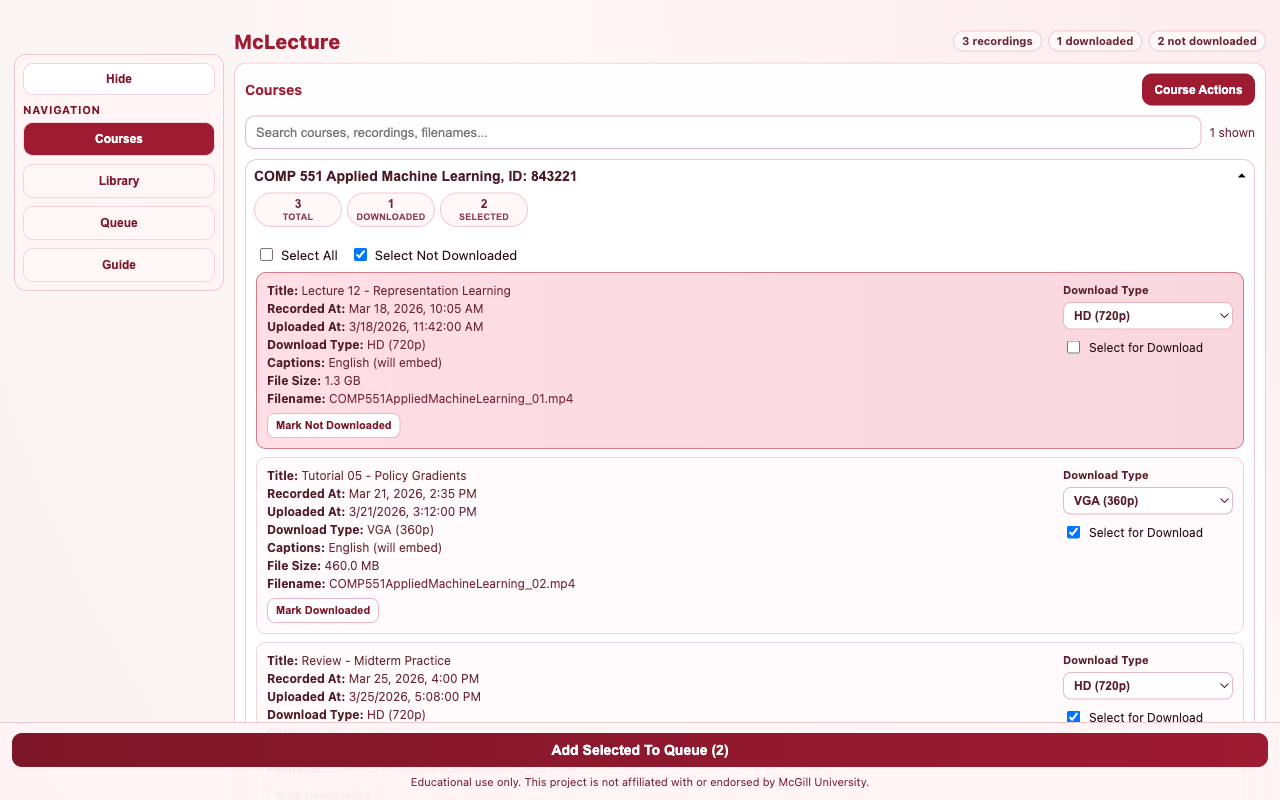
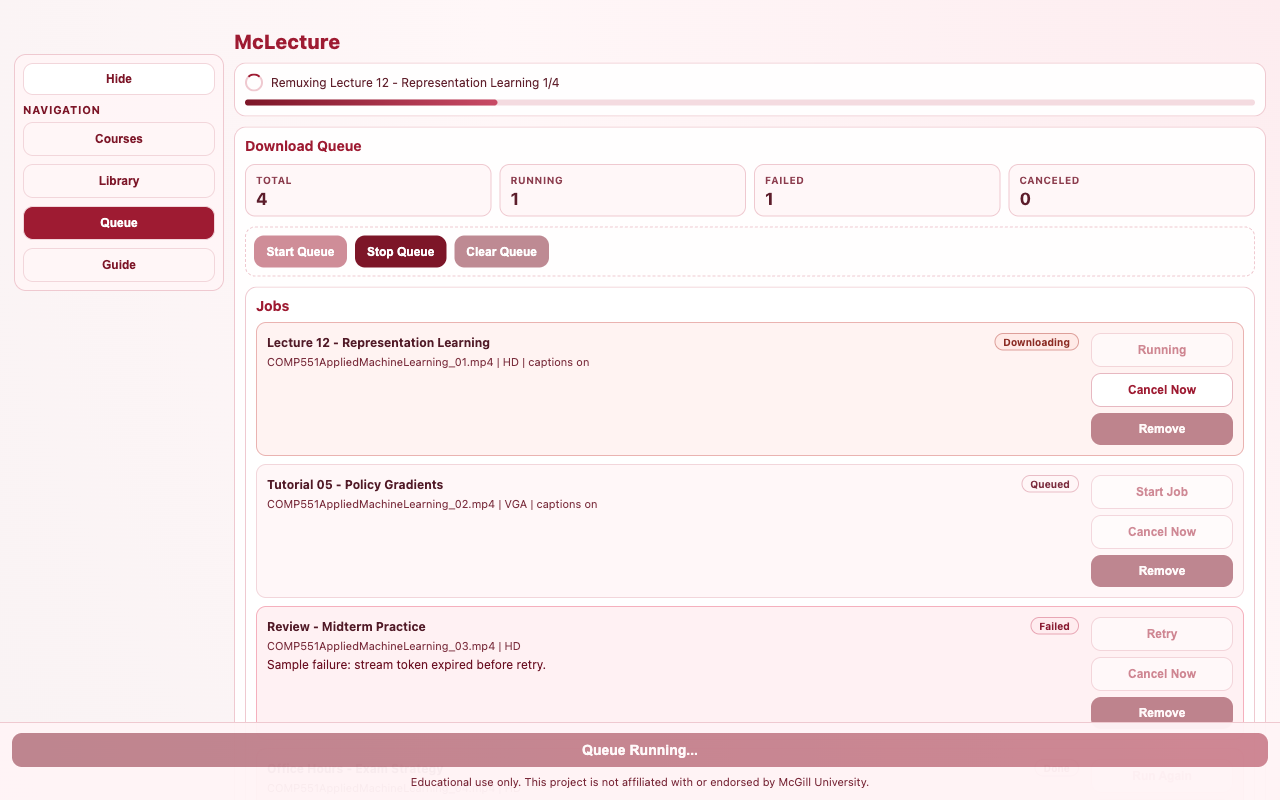
McLecture adds a lightweight overlay to McGill myCourses pages so students can discover available lecture recordings, choose formats, queue multiple downloads, and save recordings locally as .mp4 files.
The extension is built for a simple workflow: open myCourses, play a lecture once so the required Brightspace media session data is available, then use McLecture to select and download the recordings you need.
Caution
McLecture is an independent student project. It is not affiliated with, sponsored by, or endorsed by McGill University.
- Course-aware recording discovery from captured myCourses media session data.
- Multi-select download flow with per-recording quality choices.
- Queue view for running, pending, completed, failed, and canceled jobs.
- Local
.mp4remuxing with bundled FFmpeg assets. - Download markers so previously saved recordings are easier to identify.
- Guide and diagnostics view for troubleshooting captured auth/session state.
- Deterministic README screenshot automation with fake fixture data.
- TypeScript
- React
- Vite
- Chrome Extension Manifest V3
- Vitest
- ESLint and Prettier
- Playwright for screenshot automation
Install McLecture from the Chrome Web Store.
npm install
npm run build
Then load the generated extension:
- Open
chrome://extensions/. - Enable Developer mode.
- Select Load unpacked.
- Choose the generated
dist/folder.
- Open myCourses and sign in.
- Play at least one lecture recording so the media session data is available.
- Click the McLecture extension action to open the overlay.
- Expand a course, select recordings, choose download formats, and add them to the queue.
- Keep the tab open while downloads are running.
npm run dev
npm run build
npm run typecheck
npm run lint
npm test
Build artifacts are written to dist/.
Regenerate the README screenshots with:
npm run screenshotsThe screenshot workflow builds the extension in Vite screenshot mode, opens deterministic fixture states with Playwright, and writes:
screenshots/popup.pngscreenshots/downloading.pngscreenshots/help.png
The README displays the course and queue screenshots. The help screenshot is still generated for maintainers and release assets.
These screenshots use fake course names, fake recordings, fake queue state, and fake diagnostics. They do not use real myCourses sessions, cookies, recordings, tokens, or course data.
If GitHub appears to keep showing old images after regeneration, update the ?v= cache-busting value on the screenshot URLs in this README.
- McLecture stores required session and download state in local browser extension storage.
- It does not include remote analytics.
- It does not send your course data to a third-party service.
- Downloads are handled through the browser and local extension runtime.
If no courses or recordings appear:
- Open myCourses and play a lecture first.
- Click the extension action again after the lecture page has loaded.
- Check the Guide tab for captured-session diagnostics.
- Rebuild and reload the unpacked extension after local code changes.
Distributed under the ISC License. See LICENSE for details.