Repository navigation
Getting Started
Editorialist is desktop only — it won't appear or load on Obsidian mobile.
Install from the Obsidian Community Plugins directory:
- In Obsidian: Settings → Community plugins → Browse, search for Editorialist.
- Install, then enable it.
(To install a specific version manually, grab manifest.json, main.js, and styles.css from the latest release and place them in <your-vault>/.obsidian/plugins/editorialist/.)
If you also use Radial Timeline, Editorialist detects it automatically and scopes review tools to the active book. The regular review-batch workflow works without it; the active-book pending-edits review depends on Radial Timeline.
Editorialist registers these commands in the command palette:
| Command | What it does |
|---|---|
| Open review launcher | Opens the launcher modal to import a review batch or start a pending-edits review |
| Open revision plan | Opens the combined Revision Plan queue and schedule |
| Open review panel | Opens the Review Panel in the sidebar |
| Open editorialism panel | Opens the Editorialisms Panel in the sidebar |
| Open pending edits panel | Opens the Pending Edits panel in the sidebar |
| Review pending edits in active book | Starts the pending-edits review flow across the active Radial Timeline book |
| End current round | Removes remaining feedback from selected batches while preserving manuscript changes and recorded decisions |
| Anchor selection to editorialism directive | Links selected prose to a checklist item |
| Go to next unprocessed anchor | Opens the next unfinished passage anchor |
| Mark anchor processed and go to next | Records the current anchor and advances |
| Rescan review blocks for cleanup | Re-scans scene notes for review blocks that are ready to be cleaned up |
| Backup selection to cut file | Copies selected text to the scene's cut file without changing the manuscript |
| Find selection across scenes | Lists every paragraph in the active book containing the selected phrase, grouped by scene, each openable beside the current one |
| Insert author query | Inserts a hidden %%ai: …%% marker at the cursor so the next AI review answers it |
Editorialist ships no default hotkeys — assign your own under Settings → Hotkeys if you want them.
Editorialist handles four kinds of work, the same four the Review panel's How Editorialist works section describes:
- Imported review batch: notes from a human reader or AI editor, appended as a review block to the end of each targeted scene. Accept, reject, or rewrite each suggestion, then clean the block away.
- Editorialisms: a long-form checklist of directives pinned to the passages they concern, kept permanently as its own document in the Editorialist folder. Each scene shows the directives that apply there as you review.
- Pending edits: the notes in each scene's Pending Edits property, the revision notes you keep with Radial Timeline, worked scene by scene across the active book.
- Contributor directory: see which readers, editors, and AI models give the most useful feedback, under Settings → Contributors.
The Revision Plan schedules the first three together against your deadline and shows progress across the whole book.
A five-minute walkthrough of the core loop:
Run Open review launcher and click Copy formatting instructions. This copies the review batch format, the Editorialism file format, and (with Radial Timeline) your book's actual scene IDs to the clipboard.
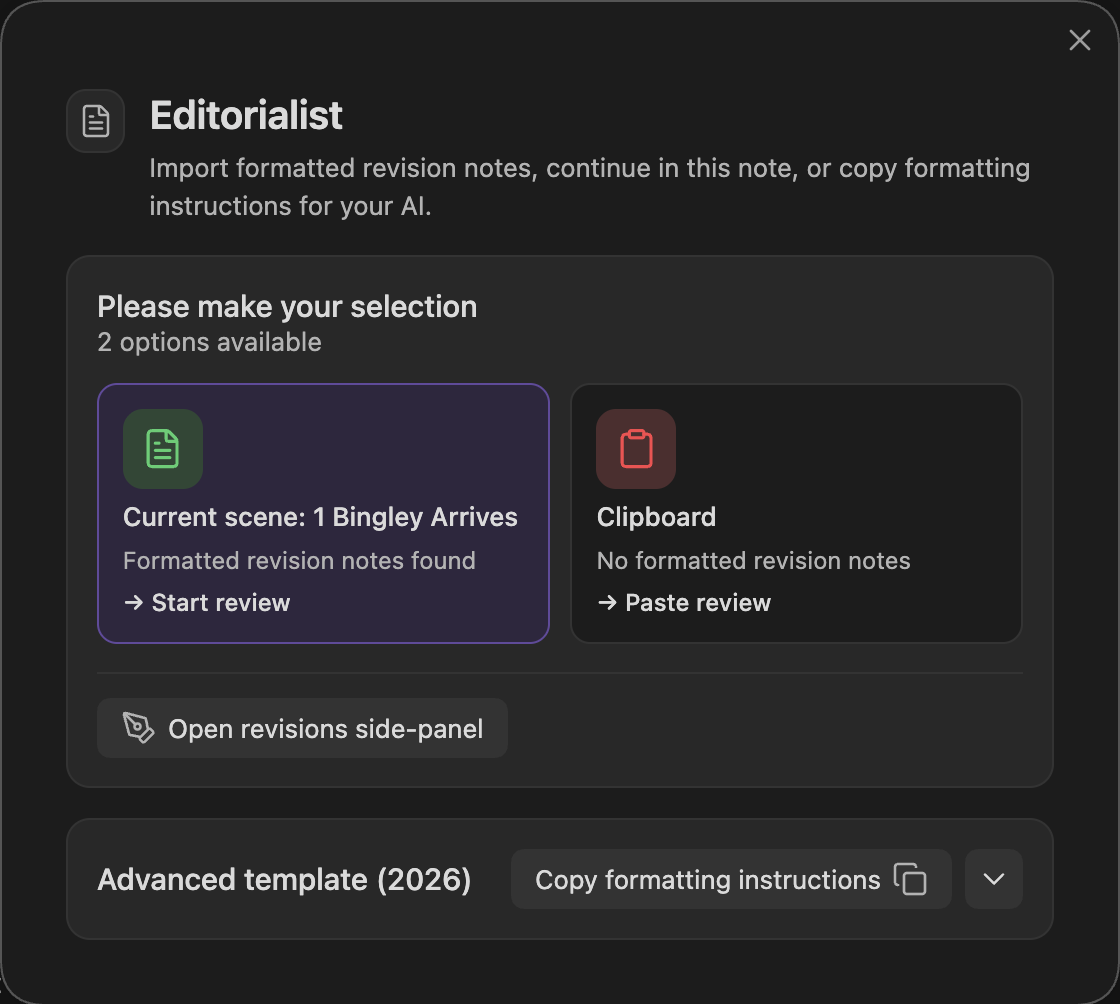
The formatting instructions are written for an AI — a human reviewer never works from them directly.
AI review: paste the instructions into your AI conversation along with the prose to review. The AI replies with a review batch.
Human feedback: your editor or beta reader works however they naturally work — margin notes on a printed page, comments in a document, an email. Collect their notes in whatever form they arrive (a photo of the handwritten page, the electronic doc) and hand them to an AI along with the formatting instructions. The AI shapes everything into a properly formatted batch for Editorialist, with your human reviewer credited as the contributor.
For a normal review sweep, you want a review batch. It contains scene-targeted suggestions. An Editorialism is different: it is a separate structural checklist for broad guidance that spans scenes or the whole manuscript.
Copy the reviewer's reply and run Open review launcher again. The launcher detects the review batch on your clipboard — the launcher imports directly when placement is clear, or opens a destination preview when entries need attention. Unplaced entries are flagged before you import the placed work. (If detection misses, paste manually; validation runs as you type.) Editorialist appends a review block to the bottom of each targeted scene note. Nothing has been applied to your prose yet.
The Review Panel opens a guided sweep: each suggestion is highlighted in the editor with a toolbar — apply it, reject it, rewrite it yourself, defer it for later, or back the text up to a cut file first. The sweep advances scene by scene through the batch.
When every suggestion is resolved, the sweep completes and the batch is recorded: per-scene polish state, contributor stats, and revision history all update. The review blocks stay in your scene notes until you clean them away with Clean N resolved batches… in the panel's … menu. The Core settings tab shows your progress across the whole book — see the Settings Reference.
Open the Revision plan to see progress across the whole book and schedule what remains. On an empty plan, Auto-plan all N open items spreads every open batch, directive, and pending edit across your working days up to your finish date. You can also add items by hand from Available work.
For one editor's larger handoff, import line-level work as batches and structural tasks as Editorialisms. Open … → Editorial deliveries, link those sources to the editor’s handoff, and enter its received date and return deadline. Choose Plan this delivery to preview a schedule for just that handoff, using your working capacity and preferred preset. The Revision Plan page explains triage, estimates, locks, and sessions.
| Path | What it is |
|---|---|
| Your scene notes | Review blocks are appended here on import, removed on cleanup |
| Each scene's Pending Edits property | Pending edits, shared with Radial Timeline |
Editorialist/<Book>/ |
Editorialism structural guidance documents, kept permanently |
<book-source-folder>/Cut/ |
Per-scene cut files (default location; configurable) |
Delivery records, revision plans, and plan progress live in Editorialist’s plugin data; they reference these source files without replacing them.