Repository navigation
Settings Reference
Editorialist's settings are organized into three tabs: Core, Contributors, and Configuration. Core is the dashboard; Configuration holds scope, tracking, cut-file, and maintenance controls.
Core · Editorial review — the dashboard for the active book's revision state.
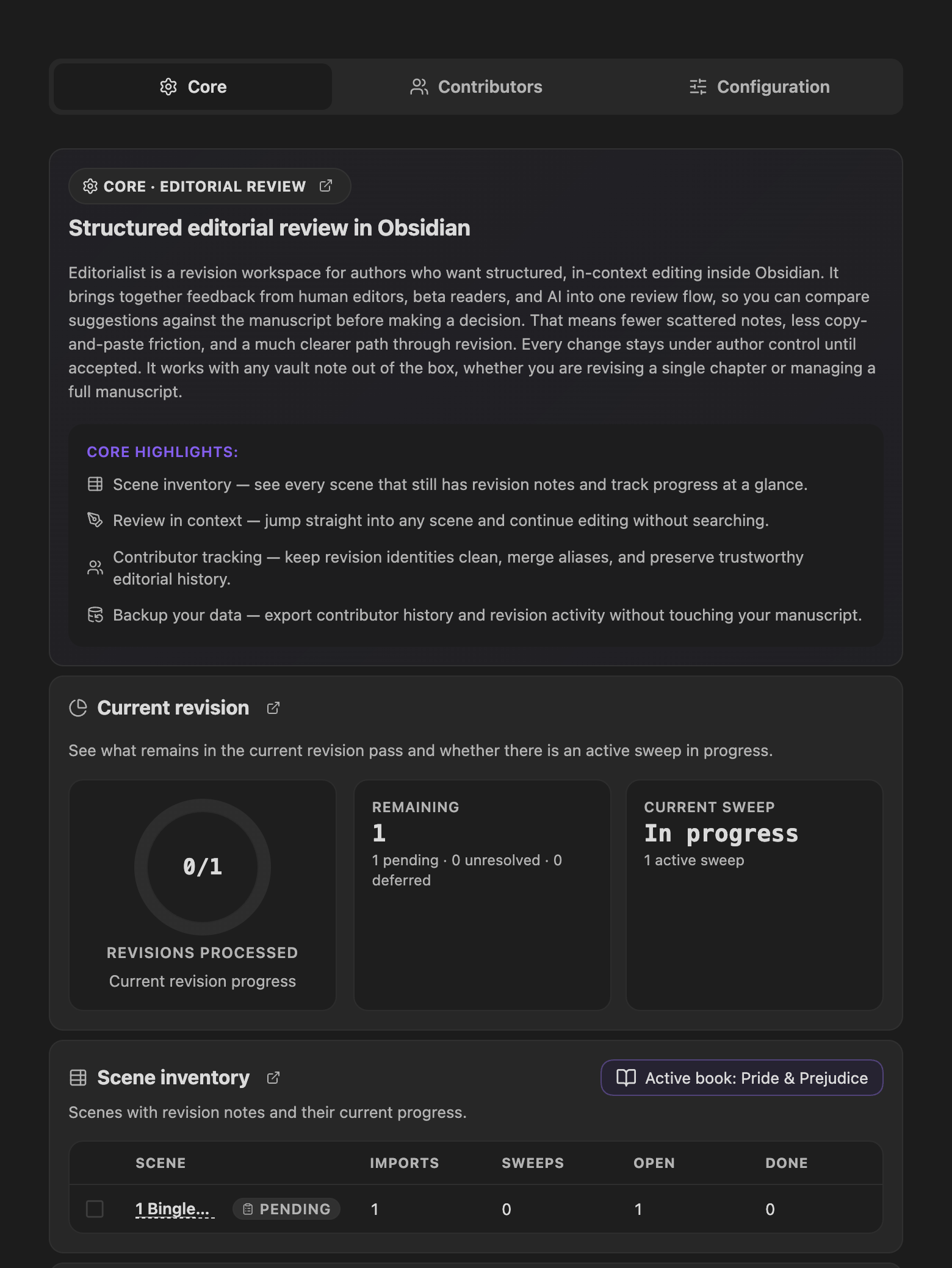
If the Radial Timeline plugin is not installed, a card explains what it adds and links to install it. With it installed, Editorialist scopes everything below to the active book.
A pie chart of the current revision's completion, with metrics: tracked scenes, and remaining / accepted / rejected / rewritten counts.
A table of tracked scenes or notes that have imported revision notes:
| Column | Meaning |
|---|---|
| Completion | Per-scene polish state, from Editorialist.revision / Editorialist.revision_updated frontmatter |
| Scene | Scene name; with Radial Timeline installed, Status glyphs (Todo / Working / Complete) and Stage glyphs (Zero / Author / House / Press) render from shared frontmatter |
| Imports | Review batches imported into the scene |
| Sweeps | Completed guided review sweeps |
| Open / Done | Suggestion counts |
Scenes with pending edits show a badge. When an active book or manuscript folder is set, a filter button narrows the table to that scope.
When Radial Timeline is installed and has an active book, this section summarizes free-form revision notes collected from scene frontmatter: scene count, item count, human notes, and inquiry count. The Start review button launches the pending-edits flow and is disabled when there is nothing to review.
Lifetime totals: total suggestions, accepted / rejected / rewritten actions, and completed sweeps.
Contributors · Directory — every reviewer who has ever contributed a batch, human or AI.
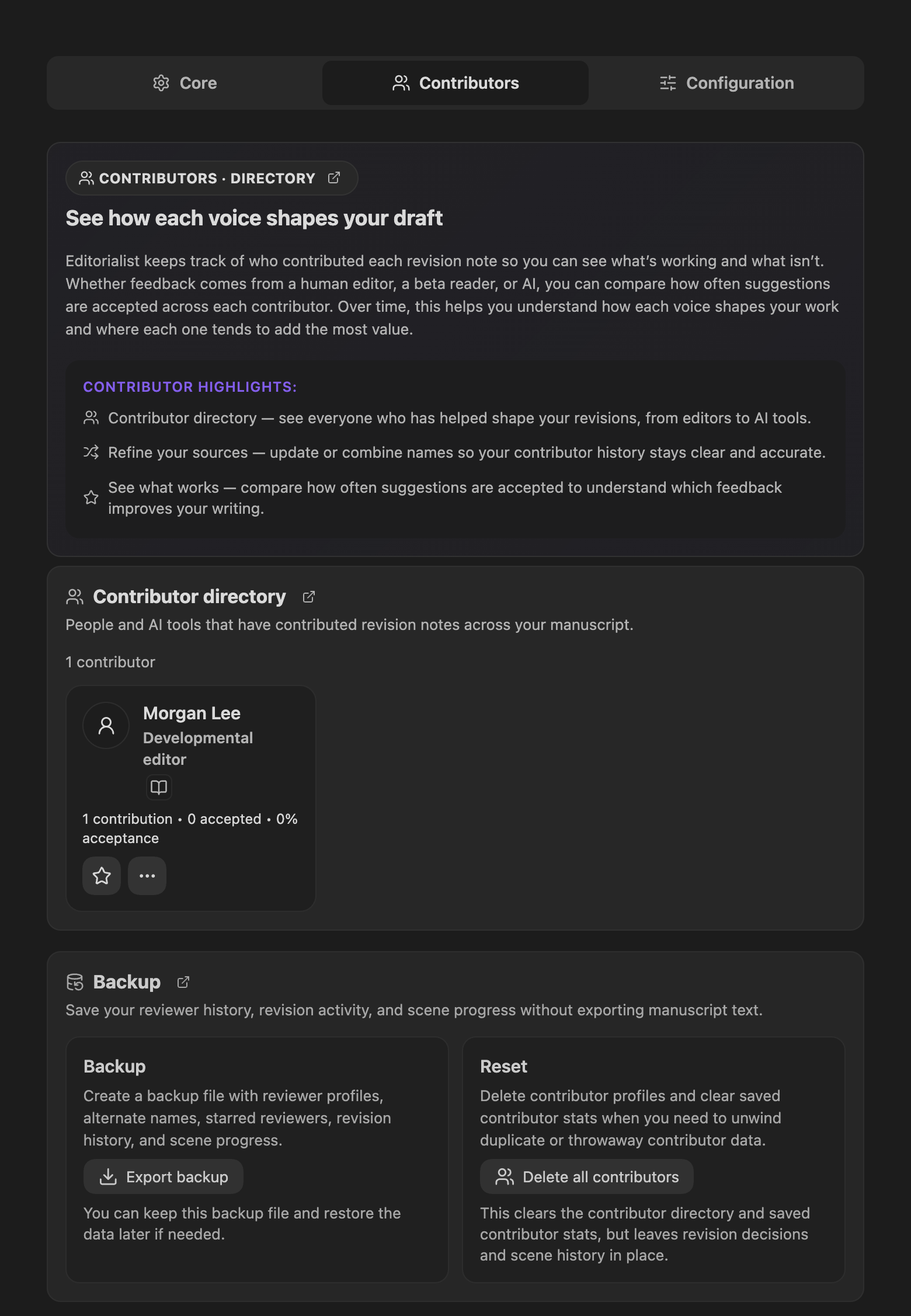
A card grid, one per contributor:
-
Identity — display name, avatar (or AI provider brand icon, derived from the
Provider:/Model:batch metadata), role icon, and strength icons. - Stats — total suggestions, accepted, rewritten, and acceptance percentage.
- Trusted badge — earned at ≥5 suggestions with ≥80% acceptance.
- Aliases — alternate names that have been merged into this contributor.
- Star — mark a contributor to enable the starred-only filter in the Review Panel.
-
Manage (…) — opens contributor actions:
- Edit — display label, how you use the contributor (Developmental editor, Line editor, Copy editor, Beta reader, Generalist, AI assistant), and optional strengths (Clarity, Tone, Pacing, Dialogue, Structure, Character, Worldbuilding, Tightening).
- Reassign — move all revision notes from this contributor into another contributor or a new contributor.
- Merge — move all revision notes from this contributor into another existing contributor.
- Export backup — writes a JSON file containing reviewer profiles, alternate names, starred reviewers, revision history, and scene progress.
- Delete all contributors — clears the contributor directory and saved contributor stats. Revision decisions and scene history stay in place.
Configuration · Scope & data — where review scope, tracking identity, cut-file location, and maintenance actions live.
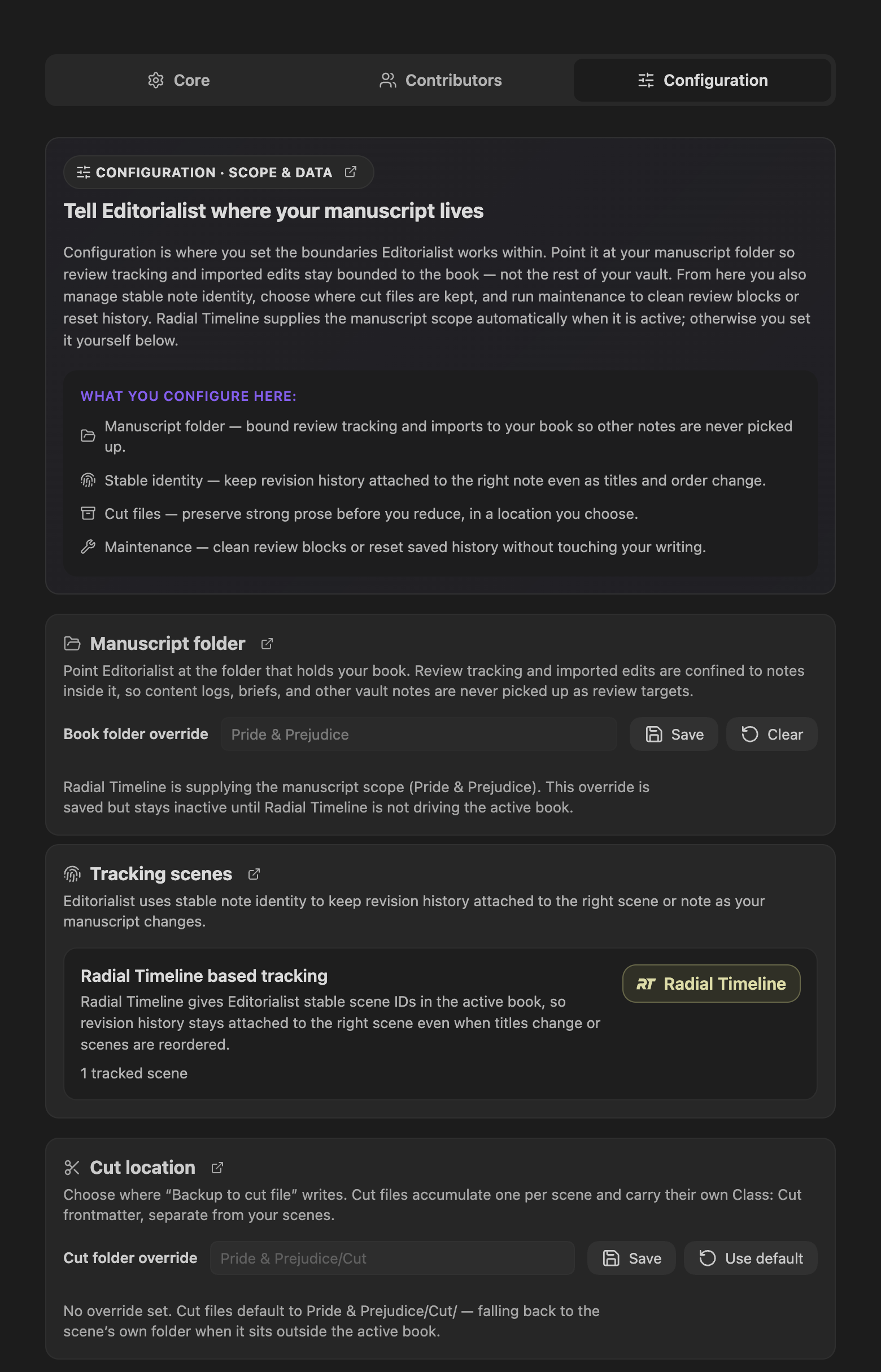
- Book folder override — points Editorialist at the folder that holds the manuscript. Review tracking and imports are confined to that folder.
- Save / Clear buttons apply or remove the override.
- If Radial Timeline supplies an active book source folder, that scope drives Editorialist and the override stays inactive until Radial Timeline is not driving the active book.
Shows which tracking mode is active and why:
| Mode | When |
|---|---|
| Radial Timeline based tracking | Radial Timeline is installed and an active book is set — scenes are tracked by Radial Timeline scene IDs |
| Using stable note IDs | Editorialist is using injected or existing frontmatter IDs for rename-safe tracking |
| Path-based tracking fallback | No stable IDs are available — notes are tracked by path |
When path-based tracking is active, Inject stable note IDs adds an editorial_id frontmatter field to tracked notes that do not already have one.
Three things, and only these keys:
| Key | When |
|---|---|
Editorialist.revision, Editorialist.revision_updated
|
A review sweep completes |
editorial_id |
You run Inject stable note IDs |
| The pending-edits field | You work an item in the Pending Edits queue |
Frontmatter is written through Obsidian's own properties API, which rewrites the whole YAML block rather than editing single lines. So a write can also drop YAML comments, change quote style, or reorder keys. This is how frontmatter is edited in Obsidian generally — the built-in Properties editor and other plugins that write frontmatter behave the same way — but it is worth knowing if you keep comments or a hand-ordered layout in your scene YAML.
Note body text is never reformatted. Importing a review block appends it and leaves the rest of the file, including trailing blank lines, exactly as it was; cleaning one removes the block and repairs only the join.
A cut file is a general-purpose archive, reachable wherever you are working:
-
Editor right-click — select any passage and choose Ed — backup selection to cut file. The
Backup selection to cut filecommand does the same from the palette. - Suggestion toolbar — Backup to cut file archives the suggestion's target passage; Shift + click opens the cut file instead.
- Side panel actions menu — … → Open cut file opens the active scene's cut file in the split below the panel.
Back a passage up before you accept a Cut if you want a copy kept. Accepting removes the passage from the manuscript immediately, and the only way back is the single-step, same-note Undo.
The archive is a per-scene cut file — one per scene, named after the scene and tagged with its own Class: Cut frontmatter. Each archived block stores source, scene, and backup timestamp, plus operation, suggestion ID, contributor, and reason when they are available. Cut files are separate from review status and acceptance decisions: backing a passage up never changes a suggestion's status.

-
Cut folder override — a path field. Leave empty to use the default:
<book-source-folder>/Cutwhen a book context exists, otherwise<scene-folder>/Cut. - Save / Use default buttons apply or clear the override.
- If a scene sits outside the active book folder, cut files fall back to that scene's own folder.
Bulk operations. Cleanup actions ask for confirmation before removing review blocks:
- Clean all scenes/notes — remove imported review blocks from tracked scenes or notes. Accepted manuscript edits and saved history stay in place.
- Clean completed scenes/notes — remove imported review blocks only from completed scenes or notes.
- Reset one batch — remove saved decisions and stats for one batch. Only that batch's decisions go: when a note holds review blocks from several imports, the other batches keep theirs. Review blocks still present in notes are discovered again.
- Reset all history — clear saved batch history and decision stats. Review blocks still present in notes are discovered again.
Cleanup removes review blocks that carry a recognizable closing fence, and only those. A block whose fence has gone missing — edited away by hand, mangled by a sync conflict, or indented into a list — has no knowable end, so Editorialist leaves it where it is rather than guessing how far it runs. It is counted and named in the notice instead:
1 unfenced review block was left in place — it has no closing fence, so remove it by hand.
That count reaches every cleanup route, including Clean all scenes, so a sweep never reports success over a note it has only partly cleared. Delete the block by hand and the note is clear.
- Importing a batch appends review blocks to scene notes; accepting suggestions is what changes manuscript prose.
- Cleaning review blocks removes imported blocks from notes but keeps accepted edits and saved history.
- Resetting saved history clears Editorialist's saved decisions and batch tracking, not review blocks still written into notes.