Home
Imagine Board displays and organizes images to inspire the imagination.
After instalation the docker will present itself empty. Connect Imagine Board to an image source for display.
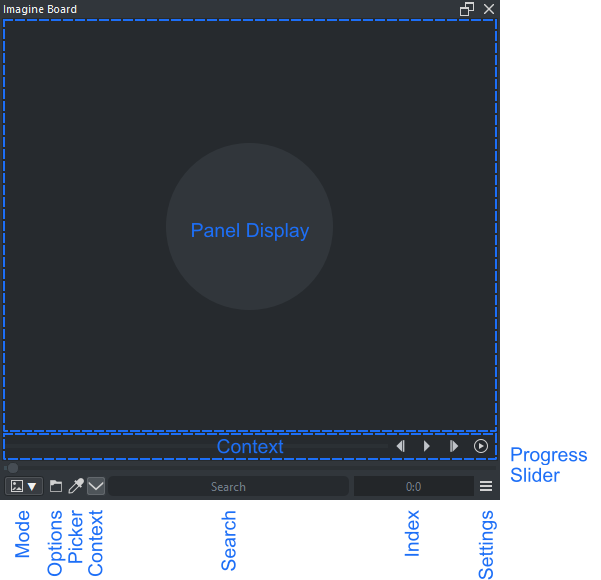
- Panel Display : Graphical interface
- Context : Context options
- Progress : Operation progress
- Slider : Horizontal slider for index ( Preview, Grid )
- Mode : Select mode to display
- Icons : Mode specific functions
- Search : Filter results using keywords, after the word "not" keywords are subtractive to the search. Auto complete uses the keywords on the Keyenter list ( Preview, Grid )
- Number : Numerical values for index
- Settings : Opens the settings dialog
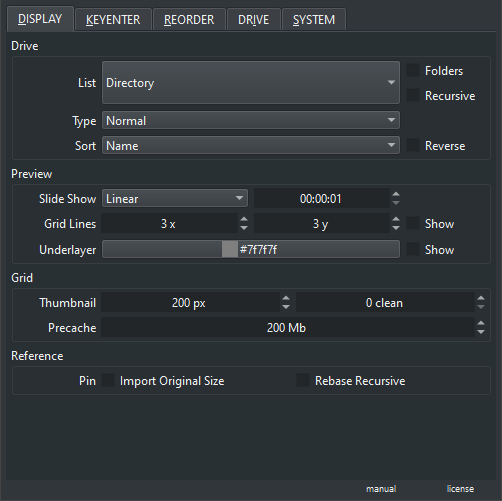
- Tab Display : Display options for each mode
- Tab Keyenter : Keyenter script
- Tab Reorder : Reorder script
- Tab Drive : View and Interact with the Drive
- Tab System : System options
- Manual : Link to the manual
- License : Link to the license
When using the Color Picker Imagine Board will send the color directly into Pigment.O for color managment and will be marked as Picker [P]. However if the plugin is not present on the system it sends the color information in SRGB color space into Krita and will be marked as Picker [SRGB]. The color picker adds the hex6 code to the clipboard automatically.
Native
- kra
- krz
- ora
- bundle
Gimp
- xcf
PS
- psd
- psb
- psdt
Static
- bmp
- bw
- cur
- hdr
- icns
- ico
- jpeg
- jpg
- jfif
- pbm
- pcx
- pdd
- pgm
- pic
- png
- ppm
- ras
- rgb
- rgba
- sgi
- tga
- tif
- tiff
- wbmp
- xbm
- xpm
Vector
- svg
- svgz
Animation
- ani
- gif
- webp
Compressed
- zip
- zip2 ( fail safe extension for when Reorder script fails to close the zip )