Repository navigation
Generative AI Full Course Lecture 6 Stack Depth Pose for Structural Control
Full tutorial link > https://www.youtube.com/watch?v=h4-F5Jx-HQo
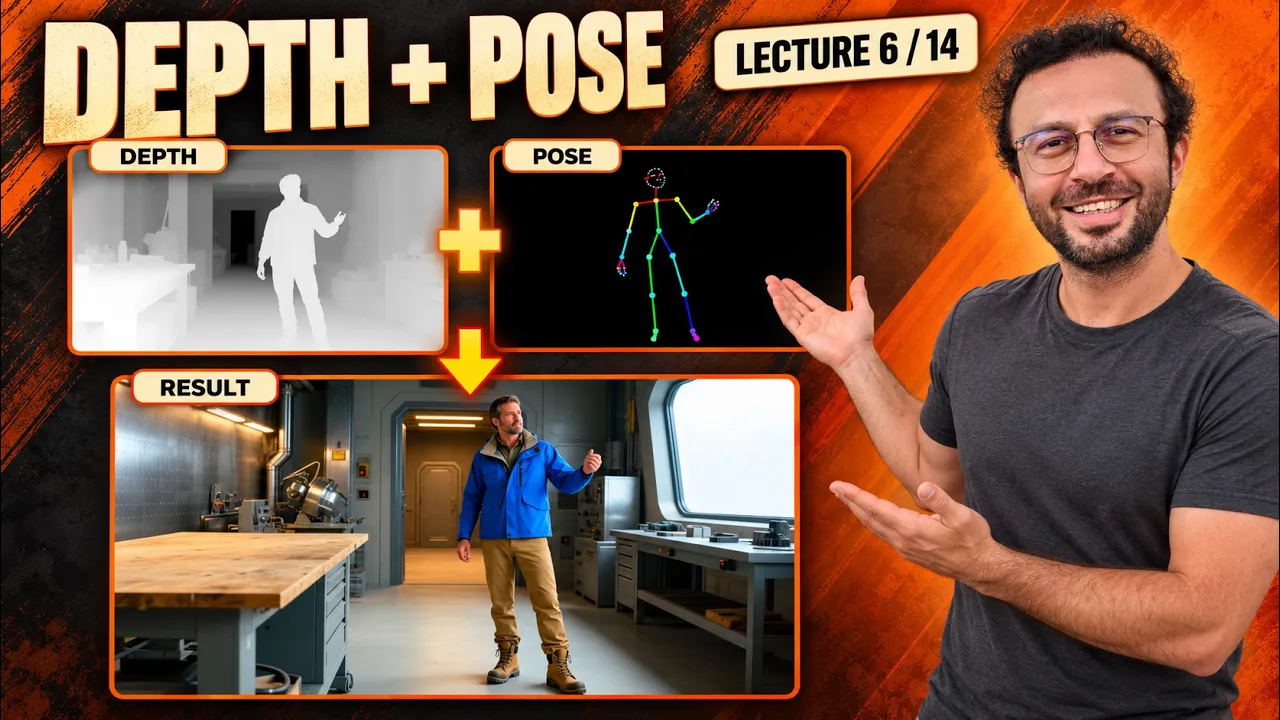











Run ComfyUI in Colab, then direct structure and composition with ControlNet, depth, edges, pose and masks.
🔗 Links:
Windows AI requirements guide: [ https://www.patreon.com/posts/111553210 ]
📦 Full course resource repository: [ https://github.com/FurkanGozukara/Generative-AI-Tools-And-Tecniques-2026-2027-Fall ]
📺 Full course playlist: [ https://www.youtube.com/playlist?list=PLUMEJUep1hiI ]
SECourses Discord: [ https://discord.com/invite/software-engineering-courses-secourses-772774097734074388 ]
🎯 Learn cloud setup, uploads, downloads and backups, then compare controls and place subjects independently.
🧩 Qwen-Image, InstantX Union, Depth Anything 3, Canny, AnyLine, SDPose and SAM3.1.
Use the chapters to revisit each operation and comparison.
⏱️ Chapters:
00:00:00 ComfyUI in Colab and structural control
00:00:58 Upload, rename and save the notebook
00:01:30 Notebook saving versus temporary runtime files
00:02:30 Select a GPU and connect the runtime
00:03:03 Notebook forms, code and cell controls
00:03:44 Install ComfyUI and inspect detected hardware
00:04:19 Match diffusion model, encoder and VAE
00:04:49 Download models and inspect automatic choices
00:06:05 System RAM and GPU memory are separate
00:06:20 Choose direct model links and destination folders
00:07:02 Run an optional download and inspect its file
00:07:26 Start ComfyUI and open the temporary URL
00:08:05 Open the matched starter workflow and prompt
00:08:32 Generate remotely and watch the live progress
00:09:05 Inspect and download the completed image
00:09:44 Save and export the editable workflow JSON
00:10:16 Upload a reference image to the runtime
00:10:59 Upload a video into the input folder
00:11:17 Refresh the loader and inspect video playback
00:11:39 Reopen a workflow and reconnect its inputs
00:11:57 Stop the server before exporting a folder
00:12:13 Choose output subfolders and include inputs
00:12:46 Create and download the complete result ZIP
00:13:18 Inspect ZIP outputs, graphs and the manifest
00:14:20 Restart ComfyUI on the same runtime
00:15:35 Understand reset, disconnect and file persistence
00:16:03 Select and verify a paid A100 allocation
00:16:46 Compare automatic model choices across runtimes
00:17:02 Terminate the session and verify it ends
00:17:40 Update the local environment and restart ComfyUI
00:18:51 From references and masks to structural control
00:19:24 Trace ControlNet through the conditioning path
00:19:41 Distinguish model patches, LoRAs and references
00:20:48 Match original Qwen with InstantX Union
00:21:05 Download matched model and control weights
00:21:44 Install Depth Anything 3 and refresh loaders
00:22:35 Fix seed, steps and sampling conditions
00:23:17 Inspect the source and align its working size
00:24:05 Connect Depth Anything 3 and inference
00:25:12 Render grayscale depth before connecting generation
00:25:54 Inspect spatial layers and save the map
00:26:40 Load the compatible Qwen model family
00:26:56 Write the prompt and conditioning branches
00:28:02 Connect the union loader and apply node
00:29:20 Connect the matching VAE and output path
00:30:20 Generate the baseline without structural control
00:31:07 Restore depth control with unchanged settings
00:31:33 Compare source, depth and both generated images
00:32:31 Understand the VAE input and diagnose failures
00:33:45 Compare control strengths 0.5, 0.8 and 1
00:35:05 Inspect geometry and prompt adherence separately
00:36:03 Separate control strength from start and end
00:36:47 Generate end 0.3 and end 0.65
00:37:51 Compare early release with full-schedule control
00:38:49 Choose edges, line detail, depth or pose
00:39:50 Install the auxiliary package and run AnyLine
00:41:22 Set up SDPose and choose joint drawing
00:43:37 Inspect all four maps at the same scale
00:43:57 Generate with each structural map type
00:46:12 Compare the results against their actual maps
00:47:13 Enlarge Canny and adjust its thresholds
00:48:24 Compare detailed and simplified edge maps
00:48:59 Inspect pose joints against the source photograph
00:49:57 Chain depth and pose conditioning correctly
00:50:56 Test both controls at full strength
00:51:40 Balance depth 0.5 with pose 0.6
00:52:23 Compare results and diagnose competing constraints
00:53:45 Prompt an explorer and robot in one scene
00:54:40 Inspect placement, attributes and editability
00:55:50 Generate separate subjects and inspect their quality
00:57:16 Extract masks and place the subjects independently
00:59:13 Match scale, perspective and contact points
01:01:14 Repair the visible contact-layer rectangle
01:01:29 Pad the soft mask with empty space
01:02:35 Match image and mask sizes before repositioning
01:03:56 Move the robot while keeping the explorer fixed
01:04:41 Repair the boot contact and inspect grounding
01:05:25 Compare single generation with editable composition
01:06:09 Export subjects, masks and the final graph
01:07:11 Reopen saved projects and use the learner files
Materials include the notebook, graphs, inputs, maps and results. Download model weights separately.
💬 Ask in the comments or Discord. Support SECourses on Patreon for more guides and resources.
#ComfyUI #ControlNet #GoogleColab
-
00:00:08 You can follow this course without owning a powerful graphics card. We will run a familiar
-
00:00:14 ComfyUI workflow in Google Colab, preserve its files, then use structural controls to direct
-
00:00:19 shape and composition. Colab provides a remote computer. Your browser shows its notebook and
-
00:00:29 the ComfyUI interface, while the model runs on the allocated GPU. Uploading an image sends it
-
00:00:35 to that remote machine. The course materials include this notebook and a practical guide.
-
00:00:46 Keep a local copy as a clean starting point for future runtimes. The guide explains the
-
00:00:51 setup order and which files need a backup. Open Google Colab and choose Upload notebook. Browse
-
00:01:01 to your local notebook file and open it. Colab imports the document; it has not yet installed
-
00:01:07 ComfyUI or downloaded the model weights. Give your copy a recognizable name. This copy belongs
-
00:01:19 to the selected Google account, so check the account before opening or saving notebooks,
-
00:01:24 especially when you switch between free and paid accounts. The document and the computer
-
00:01:31 have different lifetimes. Saving the notebook preserves its instructions and settings. Files
-
00:01:37 created under the runtime's content directory need their own backup before that machine disappears.
-
00:01:58 We will first use a free account with a T4, then show the paid account's A100 selection.
-
00:02:04 Availability can change, and the GPU you request still needs to be allocated. Google restricts
-
00:02:14 some external web interface use on free managed runtimes. A successful session does not guarantee
-
00:02:19 future access. If Colab stops it, keep your exported files and use a permitted runtime or
-
00:02:25 the local route. Open Runtime, then Change runtime type. Select the T4 GPU and save the choice. Leave
-
00:02:36 High RAM off for this first pass so the displayed resources describe the ordinary configuration.
-
00:02:42 Connect the runtime and wait for its connection state. A GPU name in a menu is a request; the
-
00:02:48 hardware report from the running machine is what confirms the device we received. These sections
-
00:03:03 contain code cells with convenient forms. The form controls are settings for that cell. Revealing the
-
00:03:09 code lets you inspect what will run without needing to rewrite the installation yourself.
-
00:03:16 Change the optional link field once, then click outside it. The corresponding value in the source
-
00:03:22 changes with the form. Save the notebook after editing, and leave unwanted download fields empty.
-
00:03:32 Run all is less useful here because the server cell stays running while you use ComfyUI. It also
-
00:03:38 includes optional downloads. We will deliberately run each required stage and inspect its result.
-
00:03:44 Keep the latest stable release selection and run the installation cell. It detects the hardware,
-
00:03:50 installs ComfyUI and Manager, and prepares the tunnel used to reach the interface from
-
00:03:55 this browser. Read the detected GPU and the installed version in this output. These are
-
00:04:07 the conditions of our session. Installation time depends on downloads and the machine, so wait for
-
00:04:13 the completion message before continuing. This starter uses Qwen-Image 2.1. Its diffusion model,
-
00:04:23 text encoder and autoencoder have separate jobs and separate files. Keep their exact compatible
-
00:04:29 filenames together when you share a working recipe. The smaller text encoder option saves
-
00:04:35 memory through quantization. That is a storage and computation choice, not a promise that every
-
00:04:41 prompt produces an identical image to the larger encoder's output. Run the required model cell and
-
00:04:51 inspect its completion. If a download fails, read which file failed before retrying. A partial file
-
00:04:57 or a missing model is not fixed by changing the image prompt. The model cell has an automatic
-
00:05:03 selection. It considers both system memory and GPU memory, then prints the actual files it chooses.
-
00:05:09 That printed choice is more informative than guessing from a GPU's name. Run cells individually
-
00:05:16 from top to bottom. The running cell shows its activity and output; the square stops that cell.
-
00:05:22 Interrupting an installation midway may leave work that its error message needs you to repair.
-
00:05:33 The downloaded weights live inside this runtime. Reusing them during the same session avoids
-
00:05:39 another transfer, but a new machine may need the downloads again. Saving the notebook alone does
-
00:05:45 not preserve them. The runtime uses Linux paths. Its content folder is on the remote computer,
-
00:05:54 while the notebook we downloaded is on our own computer. A local drive letter cannot
-
00:06:00 identify a remote input file. System RAM and GPU memory are separate resources. A
-
00:06:08 large amount of system RAM does not turn into the same amount of fast GPU memory, although a model
-
00:06:14 may move some data between them. The optional downloader accepts direct model file links.
-
00:06:24 Open the model's official file page and use its download link, rather than copying the address of
-
00:06:29 a page that only describes the repository. Here the example is an upscaler, so its destination
-
00:06:36 is the upscale models folder. A diffusion model belongs in its own loader's folder. Moving every
-
00:06:42 model into checkpoints would hide some from the intended loaders. Leave the token field empty
-
00:06:48 for these public downloads. An access token is only relevant when the chosen repository
-
00:06:53 requires authorization. Do not save a private token in a notebook you intend to share. Run
-
00:07:02 this optional example and inspect its destination in the Files panel. The file should be inside the
-
00:07:08 expected model category. Refresh ComfyUI's model list after adding a file to a running session.
-
00:07:26 Start the server cell and wait for the printed web address. That address opens the ComfyUI
-
00:07:31 instance on this runtime. Keep the cell running while we work in its separate browser tab.
-
00:07:51 The tunnel connects this browser to the remote server. It is temporary and may change after a
-
00:07:56 restart. Bookmarking an old tunnel address does not provide a permanent hosted ComfyUI
-
00:08:02 installation. Open the supplied starter workflow from Workflows. Its model selections should match
-
00:08:10 the completed downloads. If a loader shows a missing file, return to the dependency and
-
00:08:16 destination before trying to run it. Replace the starter prompt with our workshop scene:
-
00:08:22 1 male explorer, a workbench in the foreground, and a bright window farther away. A clearly
-
00:08:27 arranged scene gives us useful structure to discuss later. Keep the demonstrated size and
-
00:08:33 sampling settings, then run the workflow. We already studied these graph controls locally,
-
00:08:39 so concentrate here on where the work runs and where its files are stored. Watch the
-
00:08:45 live progress until the image appears. Download and model loading contribute to the first run,
-
00:08:51 while later runs can reuse loaded resources. We are checking a usable route, not claiming
-
00:08:56 a hardware speed ranking. Open the completed image large enough to inspect the person,
-
00:09:09 the workbench and the background. A successful execution only confirms that the graph ran;
-
00:09:15 the image still needs to satisfy the prompt you gave it. Use the image's download control and
-
00:09:21 complete the browser download. Open the file locally to verify it arrived. This is now a
-
00:09:26 copy on our computer, independent of whether the remote session survives. Save the workflow
-
00:09:45 in the Workflows panel, then export its JSON as well. The saved graph records the recipe,
-
00:09:50 but it does not package every model or input file that the recipe depends on.
-
00:10:15 An image upload makes a local file available to the remote graph. Add a Load Image node,
-
00:10:21 use its upload button and choose our workshop
-
00:10:23 reference. Its preview confirms which image the node will provide.
-
00:10:46 That image becomes a reference, an initial image or a control source only through its connections.
-
00:10:52 A text to image starter does not gain an editing feature merely because an image sits beside it.
-
00:10:58 For several files or a video, open Colab's Files panel and enter ComfyUI's input folder. Upload
-
00:11:04 the file there, then select its filename in a compatible loader after refreshing
-
00:11:09 the available choices. This video loader reads the uploaded clip from the runtime.
-
00:11:20 Inspect its preview before connecting it to anything else. Uploading a video does
-
00:11:25 not make an image model understand motion or temporal references. Open an exported
-
00:11:40 workflow through ComfyUI's normal Open command. Reconnect the intended input filename and check
-
00:11:46 the preview. A workflow from another machine can refer to a file that has not been uploaded here.
-
00:11:57 Individual downloads are convenient for 1 result. To preserve a session's work together,
-
00:12:03 save the graph first and return to the notebook. Stop the server cell and wait for its cleanup
-
00:12:09 message. The final export cell creates a ZIP from outputs and saved workflows. Leave the subfolder
-
00:12:18 blank for everything, or enter a relative output subfolder when you only want 1 experiment's
-
00:12:24 results. The input checkbox includes your uploaded source files when needed for reproduction. Model
-
00:12:34 weights are excluded because they are large and should retain their original download and
-
00:12:40 license information alongside the workflow. Run the export and read the exact archive path it
-
00:12:49 prints. In the Files panel, expand exports, open that ZIP's menu and choose Download. Complete
-
00:12:55 Save As if your browser presents it. Open the downloaded ZIP locally. Check the output files,
-
00:13:21 saved workflow and manifest before ending the session. A finished archive on the remote machine
-
00:13:26 is not yet a backup on your own computer. The output folder contains the rendered images,
-
00:13:34 while the workflow files preserve the editable graphs. Check both:
-
00:13:38 an image is useful evidence of a result, but it cannot replace the graph and its model selections.
-
00:14:02 The manifest lists the files actually included in
-
00:14:05 this archive. It records their relative paths and sizes, including the uploaded
-
00:14:10 image and video. Use this list to check the backup before releasing the runtime.
-
00:14:21 Restart the server cell on this same runtime. Use the newly printed address,
-
00:14:25 then reopen the saved workflow from Workflows. Stopping the
-
00:14:29 server process normally leaves this machine's files in place.
-
00:15:35 That is different from replacing the runtime. Changing the GPU, resetting the
-
00:15:39 machine or terminating it can remove the content folder. Export useful work before those actions,
-
00:15:46 even when the notebook itself is saved. Closing a tab is also different from terminating a runtime.
-
00:15:52 It may remain allocated, or the service may later reclaim it. Neither behavior is a reliable storage
-
00:15:58 plan for your only copy of an output. Choose the A100 in Change runtime type and connect. Inspect
-
00:16:07 the machine that is actually allocated. A paid account offers different choices,
-
00:16:12 but the requested hardware still depends on current availability.
-
00:16:47 Inspect the automatic encoder choice again. With different available memory,
-
00:16:51 auto may choose different weights. That means comparing these 2 runs directly would mix a
-
00:16:57 hardware change with a model configuration change. When finished, open Runtime and Manage
-
00:17:04 sessions. Terminate this session and verify it disappears. This ends the allocated computer;
-
00:17:10 our exported files and saved notebook remain available separately. You now have the cloud
-
00:17:24 setup and file handling route. The rest of this lesson uses local ComfyUI, where we can build and
-
00:17:30 inspect structural controls without depending on a temporary remote session. Before changing
-
00:17:40 the local workflow, apply the update routine from Lecture 2. Open the existing ComfyUI
-
00:17:46 folder and its command prompt, then activate the environment used by that installation.
-
00:18:05 Update the repository and install its requirements in that environment. Keep the output visible until
-
00:18:11 it completes. If an update reports a conflict, resolve that actual conflict before assuming
-
00:18:17 the application is current. Restart ComfyUI and inspect the loaded interface. Updating
-
00:18:25 files while the old process continues running would leave us testing the previous process,
-
00:18:30 so the restart is part of verifying the change. We will keep our inputs,
-
00:18:35 outputs and workflows organized for this lesson. The original source image remains unchanged,
-
00:18:41 and each comparison will retain the settings that explain how its result was made.
-
00:18:50 In Lecture 4, a reference helped describe what we wanted. In Lecture 5, a mask specified where
-
00:18:56 a change could happen. Structural control adds a constraint on shape, pose, outlines or spatial
-
00:19:03 arrangement. The word control does not identify 1 universal connection. Read the working graph
-
00:19:12 from its loader to the point where the extra information enters. That path tells you which
-
00:19:18 mechanism the recipe uses. Here the ControlNet file is loaded from the controlnet folder. Its
-
00:19:28 apply node receives an image and modifies the positive and negative conditioning passed to
-
00:19:34 sampling. That is the route we will build. A model patch uses a different loader and changes
-
00:19:43 the model path. Its filename may still contain control, but attaching it to a ControlNet loader
-
00:19:49 would not turn it into this same topology. A LoRA also changes a model through its own loader. A
-
00:20:00 control LoRA must follow the recipe it was trained for. Ordinary style LoRAs are not automatically
-
00:20:06 structural controllers just because both use LoRA files. Compare those routes with the reference
-
00:20:15 graph from Lecture 4. The reference enters the model's supported conditioning path. A reference
-
00:20:21 can influence appearance or content without acting like a pixel aligned depth map. Choose a control
-
00:20:32 by its job and supported model family, then follow the exact loader and apply nodes. Similar names
-
00:20:38 and matching file extensions are not sufficient evidence that 2 components belong together. For
-
00:20:48 this example, the InstantX union file matches original Qwen-Image. The notebook's Qwen-Image
-
00:20:54 2.1 is a different model. We will load the matched original base for these structural comparisons.
-
00:21:05 Open the official workflow's dependency links. Download the original Qwen-Image diffusion weights
-
00:21:10 and the InstantX union ControlNet. Their model pages identify the supported family,
-
00:21:16 which is more useful than a generic control model label. Put the diffusion file in diffusion models
-
00:21:29 and the union file in controlnet. We already have the matched Qwen text encoder and autoencoder from
-
00:21:36 the earlier installation; verify their exact selections rather than downloading duplicates
-
00:21:42 unnecessarily. The depth preprocessor needs its own weights. Download Depth
-
00:21:48 Anything 3 mono large into geometry estimation. It estimates scene structure from our photograph;
-
00:21:54 it is separate from the model that will generate the finished picture.
-
00:22:02 Refresh the model lists after placing the files. Each loader should now show the intended filename.
-
00:22:09 If it does not, check that installation's configured folders before making another
-
00:22:14 copy somewhere unrelated. The official example establishes a compatible graph,
-
00:22:22 but accelerated recipes can add their own adapters and sampling choices. We will use the original
-
00:22:28 base without a speed LoRA so our control schedule comparison stays straightforward. Our comparison
-
00:22:35 will use 30 sampling steps and the same seed, prompt, dimensions and guidance. Changing only the
-
00:22:41 declared control variable makes the differences easier to interpret within this specific recipe.
-
00:22:49 These settings are an experimental starting point, not a rule for every model. When you
-
00:22:54 move to another family, use its documented sampling recipe and verify the graph before
-
00:22:59 copying our numerical choices. Keep the download links and model names beside the saved workflows.
-
00:23:07 A small workflow JSON can reproduce the wiring and settings, but its recipient still needs the
-
00:23:13 corresponding model files and node implementation. Our source is 1 male explorer in a workshop. The
-
00:23:20 foreground workbench, the standing figure and the distant doorway provide different depth
-
00:23:25 layers. The raised arm also gives us a useful pose to compare later. Load the original image
-
00:23:37 and inspect it at a readable size. We want a clear source before extracting any map. Cropping
-
00:23:43 away the feet or obscuring the raised hand would remove information the preprocessor needs. Set 1
-
00:23:50 common working size for the photograph and its maps. Keep the aspect ratio and crop aligned. A
-
00:23:56 shifted or stretched map changes the geometry even when the control strength stays the same. Add Load
-
00:24:06 Depth Anything 3 and select the downloaded model. Connect it to the inference node, then connect our
-
00:24:12 image. The preprocessor receives pixels; it does not need the generation prompt to estimate depth.
-
00:24:46 The inference resolution controls how finely the depth model examines the
-
00:24:51 source. We will use a practical detailed setting, then inspect the map. Raising it
-
00:24:56 costs memory and does not guarantee that every boundary becomes correct.
-
00:25:12 Connect the geometry output to the depth renderer and choose the grayscale depth
-
00:25:17 view. Use the v2-style normalization for this control recipe, rather than
-
00:25:22 feeding a colorful visualization or unscaled distances into it.
-
00:25:36 Send that result to Preview Image before connecting a generator. This separates 2
-
00:25:41 questions: whether the preprocessor produced a useful map, and whether the generative model
-
00:25:47 responds well to that map. Run the map branch and enlarge its preview. Compare the foreground bench,
-
00:25:59 the person and the background opening. We are checking relative layers and boundaries,
-
00:26:04 rather than assuming this single image provides a measured 3D survey. Depth estimation infers hidden
-
00:26:12 geometry from appearance. Reflective surfaces, thin structures and ambiguous overlaps can be
-
00:26:17 wrong. A believable grayscale picture is not enough; inspect the regions that matter to your
-
00:26:23 intended result. Save the map with the source image. That preserves the actual constraint
-
00:26:30 used in our comparisons and lets someone inspect a result without rerunning the preprocessor under
-
00:26:36 a potentially changed software version. Load the original Qwen diffusion model, the matched
-
00:26:42 text encoder and the Qwen autoencoder. Keep their filenames visible while connecting them. The model
-
00:26:48 family links these components, not the fact that their sockets fit. Write a prompt for a futuristic
-
00:26:58 research workshop with 1 male explorer in a blue jacket. We are deliberately changing the scene's
-
00:27:04 appearance while asking the structural control to retain useful arrangement from the source.
-
00:27:11 The text encoder provides positive conditioning for that description. Keep the negative branch
-
00:27:16 consistent across the experiment. Guidance, prompt wording and negative conditioning are
-
00:27:22 separate variables that we will not change during the control sweep. Connect the model
-
00:27:28 through the sampling configuration and into the sampler. Set the latent size to the same working
-
00:27:34 aspect ratio. A different framing would make the correspondence with our source harder to judge.
-
00:27:47 Use a fixed seed and 30 steps. Keep the seed's after generation behavior fixed as well;
-
00:27:52 otherwise a new seed could explain a difference that we mistakenly attribute to control strength.
-
00:28:02 Add the ControlNet loader and select the InstantX union file. Union means this file supports several
-
00:28:08 kinds of structural hints. It does not mean it accepts every model family or every possible map
-
00:28:14 representation. Connect its output to Apply ControlNet Advanced, then connect the depth
-
00:28:43 image. The positive and negative conditioning enter this apply node, and its 2 conditioning
-
00:28:48 outputs continue toward the sampler. Trace both branches into the sampler before running. Loading
-
00:29:10 a control file without placing its apply node on the active conditioning path leaves the sampled
-
00:29:16 graph without that intended structural influence. Connect the matching autoencoder to the apply
-
00:29:22 node's VAE input. This control route needs the image represented in the appropriate latent space;
-
00:29:29 the same compatible autoencoder also decodes the sampled latent afterward. Decode the sampler
-
00:29:35 output and connect Save Image. Keep the depth preview visible beside the final image path.
-
00:29:40 We can now inspect the source constraint and the generated result without confusing which branch
-
00:29:47 produced which picture. Start with a control strength of 0.8 across the full schedule. This
-
00:29:54 is a useful baseline within the model author's suggested range, and the later sweep will test
-
00:29:59 whether it suits our particular scene. Before comparing anything, check the complete route once:
-
00:30:08 source image, aligned map, compatible control, conditioning path, sampler and decoder. A
-
00:30:14 correctly connected graph gives the experiment a meaningful starting point. Generate the prompt
-
00:30:20 without structural control first, keeping the seed and sampling settings fixed. This gives
-
00:30:26 us a reference for what the text and model choose when the depth constraint is absent.
-
00:30:52 Inspect that result for the prompt's subject, setting and style. Its arrangement may differ
-
00:30:58 from the source because the prompt describes content without specifying
-
00:31:03 every spatial relationship in the workshop photograph. Restore the depth control at 0.8
-
00:31:09 and run the same settings. We are adding a spatial constraint while preserving the other inputs,
-
00:31:15 so compare corresponding regions rather than unrelated decorative details. Place the source,
-
00:31:34 depth map and 2 generated images together. First inspect the workbench's position and the
-
00:31:39 background opening, then the person's location and silhouette. Those are concrete tests of
-
00:31:45 layout adherence. Next inspect the requested blue jacket and futuristic setting. Stronger
-
00:31:52 structural adherence is not automatically a better overall result if the constraint also prevents an
-
00:31:58 important part of the new prompt from appearing. The depth map describes distance relationships,
-
00:32:04 not the person's identity. A similar position or silhouette does not prove that the generated face
-
00:32:10 matches the source. Keep identity and structure as separate evaluation criteria. Record which result
-
00:32:17 serves the actual brief. For a room redesign, arrangement may matter most. For a new character
-
00:32:24 illustration, you may accept looser background geometry to preserve the requested appearance and
-
00:32:29 expression. Return to the connected VAE socket on the apply node. This is easy to overlook because
-
00:32:36 some other control recipes do not use the same input. Follow this model's requirements instead
-
00:32:42 of a remembered generic graph. The autoencoder translates between image pixels and the model's
-
00:32:48 latent representation. Here it helps put the control image into the representation expected
-
00:32:54 by the control network; decoding the final sample is another use of it. If you encounter the missing
-
00:33:00 VAE message, inspect this connection and its model family first. Increasing the control
-
00:33:06 strength cannot repair an absent input or make an incompatible autoencoder's representation match.
-
00:33:13 For a shape mismatch, check the base model, control model, autoencoder and map dimensions
-
00:33:18 together. Read the failing node's actual message. Changing random values can hide the original cause
-
00:33:25 without producing a reproducible repair. Our working graph keeps the connection explicit.
-
00:33:30 Save it in the workflow rather than relying on a verbal reminder, so the next person can trace
-
00:33:36 the same input from its loader to both places it is used. Strength scales the influence of this
-
00:33:47 structural constraint. We will compare 0.5, 0.8 and 1 using the same map and seed. These values
-
00:33:55 belong to this recipe, rather than a universal strength scale. Set 0.5 and generate the first
-
00:34:02 comparison. Watch for room to reinterpret the source: the figure and major surfaces may still
-
00:34:08 follow its layout while smaller boundaries become less tightly constrained. Return to 0.8 for the
-
00:34:23 middle condition. Reuse the verified result if its complete inputs are unchanged. Cached work
-
00:34:29 is useful, but only when the settings actually match the condition named in the comparison. Set
-
00:34:36 strength to 1 and generate the third condition. Higher influence can preserve more source
-
00:34:41 structure, but it can also make the image stiff or interfere with the changes requested by the text.
-
00:35:05 Inspect the 3 images at the same scale. Follow the raised arm, the workbench edge and the distant
-
00:35:11 opening across them. Compare those features before allowing a brighter color palette to
-
00:35:16 decide which image looks best. Then check the prompt requirements separately. Does the blue
-
00:35:22 jacket remain clear, and does the room read as the new setting? This separates adherence to
-
00:35:29 the constraint from adherence to the requested transformation. Choose the least restrictive
-
00:35:35 strength that meets the important geometry requirements. If every tested value damages the
-
00:35:40 result, reconsider the map or model pairing before assuming an even stronger setting will solve it.
-
00:35:47 1 seed is a controlled example, not a population study. For a production decision,
-
00:35:53 repeat the promising settings on additional seeds and difficult inputs. Keep the chosen
-
00:35:58 criterion consistent rather than selecting only flattering examples. Strength answers
-
00:36:04 how much influence the control has while active. Start and end percent answer when it is active
-
00:36:10 along the denoising schedule. They do not directly represent a percentage of finished visual detail.
-
00:36:17 Keep the start at 0 and strength at 0.8. We will compare stopping at 0.3, 0.65 and 1,
-
00:36:24 with the prompt, map, seed and sampling recipe unchanged. Before we run the first case, pause and
-
00:36:31 predict. If control stops after the first 30% of the schedule, will the broad room layout survive,
-
00:36:38 and which smaller boundaries might become freer to change? Set the end to 0.3 and generate. Early
-
00:36:50 guidance can establish broad arrangement, while later sampling continues without this control.
-
00:36:56 The final image will tell us how much of the imposed structure survives. Now extend
-
00:37:17 the end to 0.65 and run the middle condition. More of the schedule receives the constraint,
-
00:37:23 giving us a way to compare structure retention with freedom in texture and detail.
-
00:37:51 Finally use the full schedule condition. Place the 3 results together and inspect large geometry
-
00:37:57 first, then the arm outline, material details and lighting. Separate a preserved layout from
-
00:38:03 an identical surface appearance. Return to your prediction. The comparison shows what happened
-
00:38:09 for this model, sampler and seed; it does not establish that every model assigns the same kind
-
00:38:15 of visual work to the same schedule fraction. An early release can be useful when the general
-
00:38:21 arrangement matters but a traced appearance does not. If it loosens a critical boundary too much,
-
00:38:27 lengthen the control interval or revise the map deliberately. Save both strength and
-
00:38:33 schedule with the selected result. 2 images labeled with the same strength can still
-
00:38:38 use different constraints if one applies that strength for only part of the sampling process.
-
00:38:49 We will extract 4 kinds of guidance from the same photograph. Keeping the source and crop
-
00:38:55 identical lets us compare what information each map retains, instead of confusing a new
-
00:39:00 photograph with a new control mechanism. Canny marks strong image edges. Add the Canny node
-
00:39:07 and preview its output. It can preserve silhouettes and architectural boundaries,
-
00:39:11 but it can also capture textures that are irrelevant to the structure you actually want.
-
00:39:50 For the soft edge example, install the auxiliary preprocessor package through
-
00:39:54 Manager. Restart after installation and verify its node appears. A custom node is
-
00:40:00 executable software, so use the documented package from its established source.
-
00:40:22 Choose AnyLine for this union model's demonstrated soft edge route and connect
-
00:40:27 the same aligned image. Its learned and line based processing produces a different
-
00:40:32 constraint from Canny; preview the actual result rather than relying on the label.
-
00:41:08 The depth map retains relative spatial layers while discarding much of the
-
00:41:13 source texture. It is useful when the room arrangement matters more than reproducing
-
00:41:18 every line on a jacket or object surface. For pose, download the documented SDPose
-
00:41:24 checkpoint into checkpoints and select it in its loader. This model extracts joints;
-
00:41:30 it is separate from the Qwen model that creates our finished image.
-
00:42:26 Connect the checkpoint's model and autoencoder to the keypoint extractor,
-
00:42:30 then connect the same source image. The drawing node converts detected
-
00:42:35 joints into the skeleton image that the control network will receive.
-
00:43:10 Keep body, hand and face drawing choices explicit. A map with only
-
00:43:14 body joints carries different information from one that also
-
00:43:18 constrains fingers and facial landmarks. Include only the detail your brief needs.
-
00:43:36 Run the preprocessing branches and inspect all 4 maps together. Canny
-
00:43:41 and soft edges emphasize contours, depth describes spatial layers,
-
00:43:46 and pose concentrates on the person's joint arrangement instead of the complete environment.
-
00:43:57 Connect the Canny map to our existing union apply node and generate with
-
00:44:02 the comparison settings. The base model and prompt remain fixed. We are changing
-
00:44:07 the kind of structural information supplied to it.
-
00:44:41 Repeat with the soft edge map, then depth and pose. Save each
-
00:44:45 result under its map type. The union model supports these routes,
-
00:44:49 but the useful strength can still differ between different kinds of guidance.
-
00:46:12 Read the result grid against the maps. Inspect the workbench and doorway for scene geometry,
-
00:46:17 then the raised arm and leg positions for pose. A single overall beauty score would
-
00:46:23 hide these different capabilities. Pose can retain a gesture while allowing substantial
-
00:46:29 freedom in clothing and background. Edges can preserve more visible boundaries.
-
00:46:34 Depth can retain the room's arrangement without demanding every original contour;
-
00:46:39 judge the actual outputs beside those expectations. Choose the map that carries
-
00:46:44 the information your task requires. If the goal is a new room with the same perspective, background
-
00:46:50 depth matters. If the goal is a new character making this gesture, pose may be more relevant.
-
00:47:13 Enlarge the Canny preview before changing its thresholds. We need to see both the
-
00:47:18 active values and the resulting lines. A tiny map thumbnail makes it difficult to tell a meaningful
-
00:47:24 change from display noise. Lower thresholds admit more edges, including weak changes in texture and
-
00:47:31 lighting. Run the map after the adjustment and inspect the jacket, bench surface and window.
-
00:47:37 More visible lines are not automatically more useful guidance. Raise the thresholds for a
-
00:47:56 cleaner alternative, then inspect which important boundaries survive. If an arm or bench edge
-
00:48:02 disappears, the simplified map may have removed information that the control needed to preserve.
-
00:48:24 Place the 2 maps beside the source at the same scale. We want the major
-
00:48:29 silhouette and useful room boundaries, with less distracting surface texture.
-
00:48:33 Choose the balance for this brief before generating another image.
-
00:48:43 Check that the threshold pair remains meaningful for this implementation. The low and high values
-
00:48:50 work together in edge selection. Keep their relationship understandable,
-
00:48:54 rather than presenting 2 unexplained numbers as a magic preset. Now enlarge the pose map and
-
00:49:01 compare joints with the photograph. Follow shoulder to elbow to wrist,
-
00:49:05 then hip to knee to ankle. A plausible skeleton can still put a joint on the wrong
-
00:49:10 visible location. Confidence filtering can suppress uncertain detections,
-
00:49:20 but it cannot invent a missing correct joint. If an essential limb is wrong,
-
00:49:25 improve the source or correct the pose with a suitable editor before trusting a stronger control
-
00:49:31 setting. All these maps must share the source's framing. A map shifted by a crop or stretched
-
00:49:37 to another aspect ratio can impose the wrong geometry even when the detector itself worked
-
00:49:43 correctly. This is why map inspection comes before repeated sampling. If the constraint
-
00:49:48 encodes the wrong arm or noisy surface texture, increasing its strength asks the generator to
-
00:49:55 follow that error more insistently. Depth and pose describe different parts of our brief: the room's
-
00:50:02 spatial arrangement and the explorer's gesture. Combining them can help, provided their source,
-
00:50:07 crop and intended geometry agree with each other. Add a second Apply ControlNet Advanced
-
00:50:14 node after the first. Feed the first node's positive and negative outputs into the second,
-
00:50:19 then send the second pair to the sampler. Both constraints now lie on the active path.
-
00:50:39 Use the aligned depth map in 1 node and the pose map in the other. Connect the compatible
-
00:50:44 autoencoder to both. Reusing the union loader is valid here because the 2 nodes use that same
-
00:50:50 supported control file. Set both strengths to 1 for our first combined condition. Keep
-
00:51:00 their full schedules and the same seed. This deliberately tests a demanding constraint pair,
-
00:51:05 so inspect the finished image for rigidity and prompt loss.
-
00:51:40 Reduce depth to 0.5 and pose to 0.6 for the second condition. These are
-
00:51:46 separate influences, not percentages that must sum
-
00:51:49 to 1. Their effects interact inside this particular model and schedule.
-
00:52:22 Compare the 2 combined results with the single control examples. Check
-
00:52:27 whether the background arrangement and raised arm are both retained,
-
00:52:31 then inspect clothing, expression and texture for unwanted restrictions or artifacts.
-
00:52:42 If 1 control dominates, adjust the one responsible for that feature. Keep the other unchanged while
-
00:52:49 testing. Changing both strengths, both schedules and the prompt together would obscure which
-
00:52:55 adjustment helped. Compatible maps can still compete when their geometry disagrees. A pose
-
00:53:01 moved sideways while the depth figure remains centered asks for inconsistent arrangements.
-
00:53:07 Fix the spatial disagreement before treating it as a strength tuning problem. For overlapping people,
-
00:53:14 a single crowded skeleton map can make limb ownership ambiguous. Separate the subjects
-
00:53:19 spatially or use separate generation and masks when the application requires reliable control
-
00:53:24 over who owns each arm and attribute. Save the selected map pair and complete chained graph.
-
00:53:31 A screenshot of the final image alone would not preserve which map fed which node, their
-
00:53:37 ordering or the strength and schedule used for each one. Our final brief adds a second subject:
-
00:53:48 the male explorer on the left and a compact orange inspection robot on the right. We will compare a
-
00:53:54 single spatial prompt with separately generated, editable elements. Use the current Qwen-Image 2.1
-
00:54:01 graph for this composition example. We are leaving the matched InstantX experiment, so remove its
-
00:54:07 control path rather than silently attaching that file to a different base model. Describe the 2
-
00:54:13 subjects with distinct positions and attributes. The explorer has a blue jacket; the robot has an
-
00:54:19 orange shell. State the shared workshop setting and keep their roles clear within the prompt.
-
00:54:40 Generate the complete composition and inspect left versus right placement.
-
00:54:45 Then check whether colors or objects have crossed between subjects. A model can
-
00:54:50 produce an attractive image while missing the intended assignment of an attribute.
-
00:55:06 Spatial language is useful guidance, but it is not a set of independent editable
-
00:55:12 layers. If the robot is almost correct but too close to the explorer, changing the prompt can
-
00:55:17 also change other parts of the image. For a loose concept, that single generation
-
00:55:23 may already be enough. For an illustration with exact placement or repeated revisions,
-
00:55:28 we need to consider how easily the result can be changed after generation. Keep this result as
-
00:55:34 the first solution to the brief. We will use the same subject descriptions in the separate route,
-
00:55:40 so the comparison remains about placement and editability rather than switching to an
-
00:55:45 unrelated scene. Generate the explorer and robot separately, keeping their intended
-
00:55:55 viewpoint and lighting compatible with the workshop. Independent generation gives each
-
00:56:00 subject more room, but it also makes us responsible for their final relationship.
-
00:56:57 Inspect each source before extracting it. A broken
-
00:57:00 hand or an unclear robot shape will remain a defect after compositing.
-
00:57:05 Choose usable subjects first instead of hiding weak generation inside a more elaborate graph.
-
00:57:16 Use the selection and mask workflow from Lecture 5 to isolate each subject. Inspect the mask edge
-
00:57:22 around the explorer's hands and the robot's small parts, where rough selection is easiest to notice.
-
00:58:14 Place the explorer on the left and the robot on the right over the prepared workshop background.
-
00:58:20 Move the actual image and its mask together so the visible subject stays aligned with its selection.
-
00:59:13 Adjust scale against the floor and nearby furniture. Correct
-
00:59:16 left and right positions are not sufficient if the robot floats
-
00:59:20 or the explorer's size conflicts with the perspective of the room.
-
00:59:37 Inspect the feet, contact points and edge transitions at full size. Matching light
-
00:59:59 direction and adding a believable contact treatment can matter more than a perfectly
-
01:00:04 sharp outline. Preserve the separate elements while making those corrections.
-
01:01:14 The visible rectangle is a compositing defect, so we need to repair the contact
-
01:01:19 layer. Give the soft mask room to fade into 0 before it reaches the edge of its own canvas.
-
01:01:26 Create a solid mask with value 0. Its width is 640 and its height is 128. This becomes
-
01:01:36 the empty area around the existing contact mask, rather than another visible patch.
-
01:01:53 Combine the masks by placing the existing contact shape inside that
-
01:01:57 larger empty mask. The horizontal offset is 160 pixels and the vertical offset is 32,
-
01:02:04 leaving padding around the soft shape.
-
01:02:13 Use the add operation with the empty mask as the destination and the contact shape as the
-
01:02:19 source. Feed the combined mask into the existing processing route so the padded
-
01:02:24 boundary follows the shadow. The black image and its mask must use matching dimensions.
-
01:02:39 Keep each pair aligned when resizing it; otherwise the image boundary can
-
01:02:43 appear separately from the soft mask and reveal the rectangular patch again.
-
01:03:12 Reposition each contact patch beneath its subject after changing its dimensions. The
-
01:03:18 explorer and robot have different footprints, so give them separate widths and positions,
-
01:03:23 then run the composite and inspect the floor again.
-
01:03:56 Now move the robot slightly while leaving the explorer fixed. This
-
01:04:01 is the practical advantage of the separate route:
-
01:04:04 the composition can change without asking the image model to redraw every subject again.
-
01:04:41 The rectangular boundary is gone, but the explorer still needs stronger contact under the left boot.
-
01:04:47 Increase both the contact-mask height and its matching black-image height together,
-
01:04:52 keeping their dimensions synchronized at 120 pixels.
-
01:05:02 Move that contact layer upward to support the boot, then inspect the completed composition.
-
01:05:08 This improves grounding while preserving separate editable subjects. Matching their lighting to the
-
01:05:14 background would still require more work for a seamless composite. Place the single
-
01:05:26 prompt result beside the composite. Compare the stated positions, attribute separation, natural
-
01:05:32 integration and the work required to revise each. Neither route wins every brief; their trade offs
-
01:05:38 are different. Use the simpler route when it meets the task. Choose separate elements when placement,
-
01:05:50 attribution or later editing requires that control, and budget time for masks, perspective,
-
01:05:56 light and contact so the assembled image feels coherent. Export the finished composition,
-
01:06:10 both subject sources and their masks. Keep the editable workflow as well. A flattened final image
-
01:06:16 is useful for delivery, while separate components preserve the choices needed for the next revision.
-
01:07:11 Reopen the saved structural workflow. Check that the diffusion model and control weights belong to
-
01:07:17 the same family, then confirm the depth and pose images and their 2 strengths before inspecting
-
01:07:23 the saved output. Open the saved image beside that workflow. This is the result produced with depth
-
01:07:32 at 0.5 and pose at 0.6. Keep it with the graph to identify the demonstrated settings. Reopen the
-
01:07:51 editable composition as well. The robot still has its own horizontal position and aligned mask. Open
-
01:07:57 the exported composition to confirm that the saved files match the final placement of both subjects.
-
01:08:19 The learner materials include the source image, saved maps, comparison settings and editable
-
01:08:25 graphs. Use their dependency links to match the models, and keep your own results labeled when
-
01:08:31 you change 1 variable. Choose the constraint by the job: edges for useful boundaries, depth
-
01:08:38 for spatial layers, pose for joints, and separate masks when composition needs independent elements.
-
01:08:45 Inspect the map before asking the generator to obey it more strongly. You also know how to move
-
01:08:51 a compatible workflow into Colab and preserve its files. Next we will focus on detail, restoration
-
01:08:58 and delivery, building on the structure and composition decisions we can now control.