Repository navigation
Releases: GSNautilus/ammonite
Release list
Ammonite Desktop 0.1.0

The first release of Ammonite Desktop: a generative synthesizer for Windows that plays itself, in key. Standalone app, VST3 and CLAP in one zip.
You choose a key, a chord progression and, for each channel, what it plays and how it sounds; Ammonite does the rest. Up to 16 channels (Arp, Chord, Bass or Rhythm driving a synth voice or a synthesized drum), per-channel effects, a shared reverb and a master bus, LFOs and macros, ten factory presets, and a stage where every channel is a glowing shell drawn from its own waveform.
Page with screenshots: https://gsnautilus.github.io/ammonite/desktop/
This is not the Ammonite-Seed firmware or the Seed plugin; those are in v0.2.0.
Requirements
- Windows 10 or 11, 64-bit
- Microsoft Edge WebView2 Runtime (it draws the interface). Windows 11 has it, and so do most up-to-date Windows 10 PCs. If the window stays empty, install the Evergreen Runtime from https://developer.microsoft.com/microsoft-edge/webview2/
- No MIDI: Ammonite plays itself.
Install
Download Ammonite-Desktop-0.1.0-win64.zip below and unzip it anywhere (for example into Documents).
- Standalone: double-click
Ammonite Desktop.exe. It plays through Windows' default output; pick another in the top bar. - VST3: copy the folder
VST3\AmmoniteDesktop.vst3intoC:\Program Files\Common Files\VST3, then rescan plugins in your DAW. - CLAP: copy
CLAP\AmmoniteDesktop.clapintoC:\Program Files\Common Files\CLAP(create the folder if needed), then rescan.
Patches are saved to Documents\Ammonite\Patches, recordings to Documents\Ammonite\Recordings.
"Windows protected your PC"
Ammonite Desktop is not signed, so Windows SmartScreen warns about it the first time you start it. Click More info, then Run anyway.
Ammonite-Seed 0.2.0: the plugin
Ammonite as a plugin: VST3 and CLAP for Windows (64-bit), with the same engine, panel and screen as the hardware.
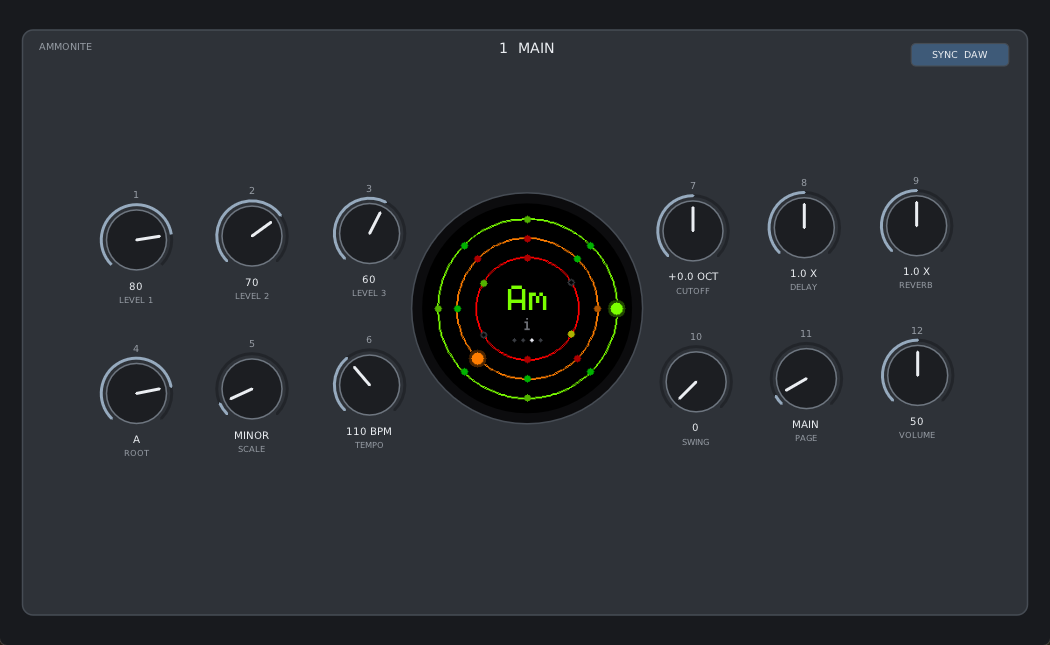
Install: download Ammonite-0.2.0-win64.zip and unzip it. Copy the Ammonite.vst3 folder into C:\Program Files\Common Files\VST3, and/or Ammonite.clap into C:\Program Files\Common Files\CLAP. Rescan plugins in your DAW and load Ammonite on an instrument track.
- Plays by itself as soon as it is loaded, like the hardware.
- SYNC DAW (the default) follows the DAW's tempo and bars: patterns and chord progressions line up with the song and follow the playhead. SYNC FREE runs on its own TEMPO knob.
- The panel: 12 knobs over nine pages and the round screen, drawn by the same code as the hardware display. Drag a knob (Shift: fine), scroll, or double-click it for its default.
- Every knob of every page is an automatable parameter (169 in all), saved with the project. Turning a knob on the panel records automation.
- Any number of instances; 44.1 to 192 kHz; no extra runtime to install.
The plugin's engine is a copy of the firmware's, checked bit for bit against it by the test suite. Tested in FL Studio 2025.
Good to know: bars are always 4/4, and Ammonite ignores MIDI notes, so a DAW's channel mute (which works by holding back notes) does not silence it: mute its mixer track instead.
The firmware (ammonite.bin) and the owner's manual are unchanged since 0.1.0 and attached again here, so this release is complete.
Licenses: Ammonite is MIT. The plugin is built with DPF (ISC) and DaisySP (MIT); its reverb, ReverbSc, is LGPL-2.1, with its full source in this repository (plugin/engine). The notices are in the zip.
Ammonite-Seed 0.1.0
The first public version of Ammonite.
Flash it: download ammonite.bin, put the Seed in bootloader mode (hold BOOT, tap RESET, release BOOT), open the Daisy Web Programmer in Chrome or Edge, and flash the file from its File Upload tab.
Read it: Ammonite_Manual.pdf is the owner's manual (31 pages).
Still to come: CPU load measured on the Seed, a hardware manual, enclosure v2 and a VST3 / CLAP plugin. See the to-do list in the README.