Dexter USB Connection
The MicroZed processor board on Dexter has as Micro B USB connector at the bottom of the board, left of the CAT5 and USB A connector, which provides a serial connection to a PC via a SiLabs CP2104 adapter. ("SiLabs" stands for "Silicon Labs", a manufacturer) To use it connect a USB A to USB Micro B cable between the PC and Dexter. Then install the CP2104 device driver, find the COM port number and use a terminal program like PuTTY to log in. Details below.
Picture of USB A to USB Micro B cable

Once the cable is connected, the driver should automatically be installed. It is commonly available and should be automatic on Windows, Mac, and most Linux distributions.
Installing the CP2104 USB adapter driver on Windows
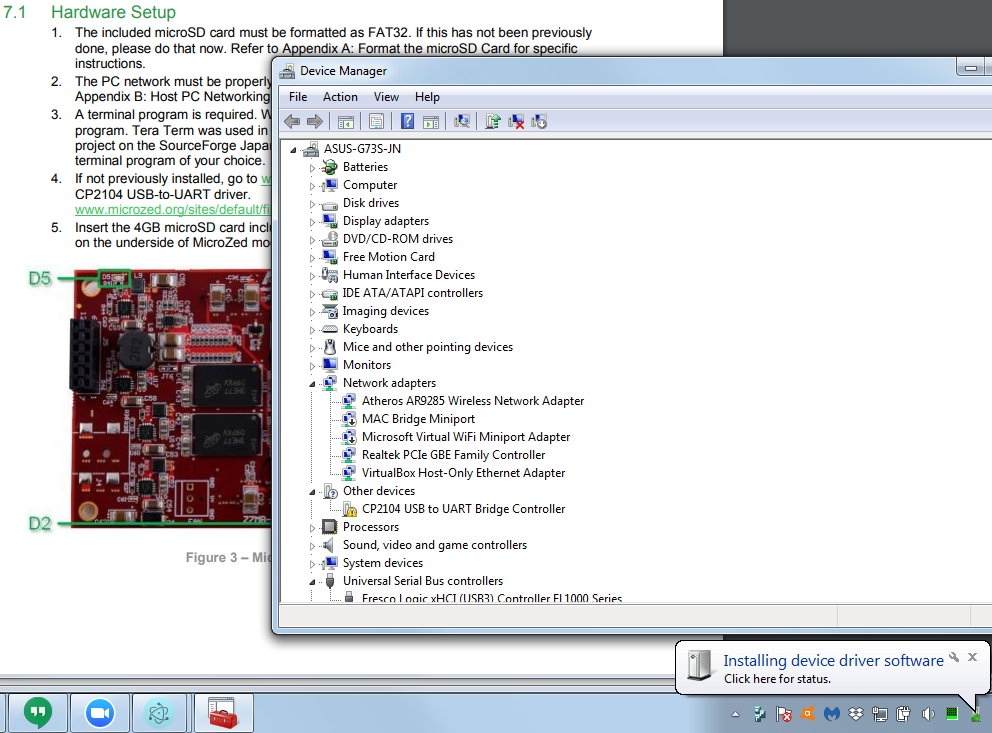
If your computer doesn't find the driver, you can download it from
https://www.silabs.com/products/development-tools/software/usb-to-uart-bridge-vcp-drivers
CP2104 USB Port Installed
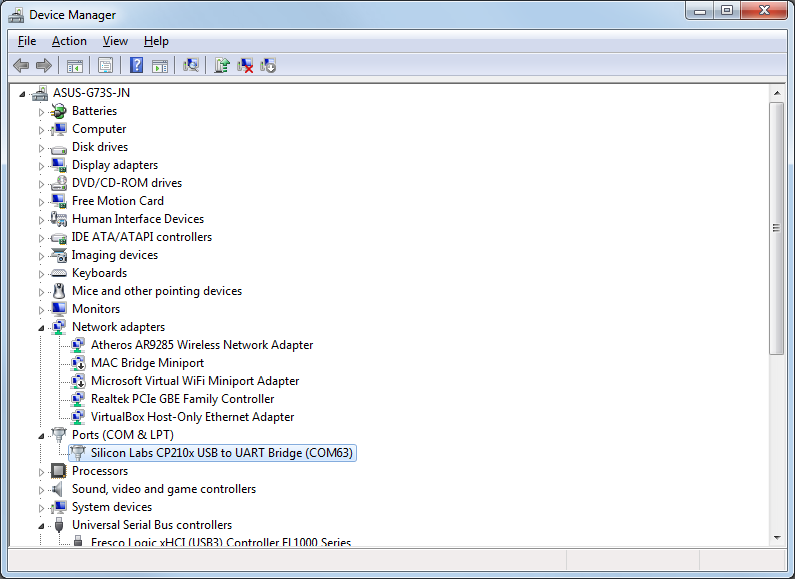
Once the driver is installed, you should see it under Ports, as COM# where # is some number. E.g. COM63 in this case.
Eval result of serial_devices() before installing: INSPECTing A Array of 0
(Here an empty array indicates that there are no serial port devices. But more definitively,
there are no Silicon Labs devices so no Dexter's connnected.)
Eval result of serial_devices() after installing:
 <    > Refresh INSPECTing  An Object of 7 properties
{comName: "COM63"
  locationId: "Port_#0001.Hub_#0006"
  manufacturer: "Silicon Labs"
  pnpId: "USB\\VID_10C4&PID_EA60\\01255890"
  productId: "EA60"
  serialNumber: "01255890"
  vendorId: "10C4"
}
Above we are inspecting the first element of the array returned by serial_devices.
Since it has a manufacturer of "Silicon Labs", we conclude that this is a Dexter.
- In PuTTY, on the "Session" screen, select "Serial".
- Enter the port name (e.g. "COM" and the number as shown in the ports list. In the above image, this is the value of the comName field, i.e. "COM63".)
- change the "Speed" to 115200.
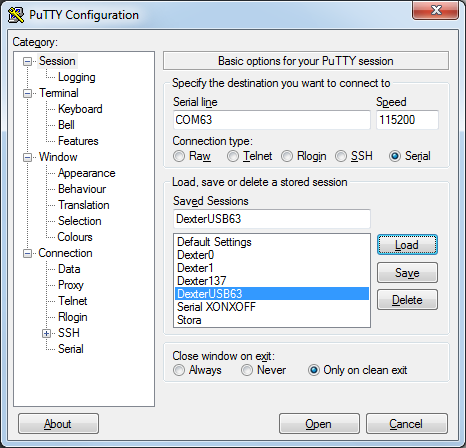
You can enter and name for this setting and save it here as well. - Under "Connection" on the "Serial" screen, make sure the "Data bits", "Stop bits" and "Parity" are 8, 1 and None.
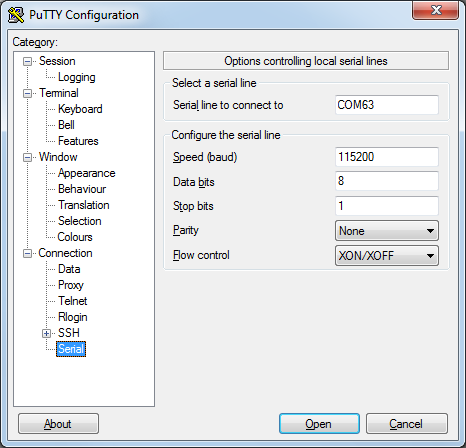
- Press "Open" and the connection should be made. You may not see any text, just press enter to get a prompt.