structure the right way
Stop guessing. Start structuring. Your project's organization should be as reliable as your code. With Scaffoldrite, it will be.
Scaffoldrite v2 introduces a dedicated config directory.
Before (v1.x):
structure.sr
.scaffoldignore
Now (v2.x):
.scaffoldrite/
├─ structure.sr
└─ .scaffoldignore
Scaffoldrite no longer reads config files from the project root.
You have two options:
sr initRun:
sr init --migrateThis will:
- Move
structure.sr→.scaffoldrite/structure.sr - Move
.scaffoldignore→.scaffoldrite/.scaffoldignore
⚠ If
.scaffoldrite/already contains these files, use--forceto overwrite:
sr init --migrate --forceIf no legacy config is found, Scaffoldrite will simply notify you:
ℹ No legacy config found to migrate.
Manually deleted files or folders are considered filesystem drift.
Changes made outside Scaffoldrite (e.g., via rm, file explorers, or other scripts) are not tracked. Scaffoldrite does not record history of such changes.
scaffoldrite generate enforces the expected structure, but does not preserve or restore file contents (unless using --copy flag).
When it recreates a manually deleted file:
- The file will be empty, or
- Created from a template if one is defined, or
- Copied from source if using
--copyflag and file exists in source
scaffoldrite generate --copy copies file contents from source to output directory. This is useful for:
- Creating project templates with actual file content
- Generating complete project structures from existing codebases
- Preserving file contents when generating to output directories
Note: The --copy flag only works when generating to a different output directory, not when regenerating in-place.
Scaffoldrite tracks structural intent only — it does not back up file contents. Use Git or another version control system to recover lost content.
"Scaffoldrite deleted my file content 😡"
This usually happens when files were removed manually outside Scaffoldrite and then regenerated.
Scaffoldrite does not delete or overwrite file contents arbitrarily — it only restores the expected structure.
Always use Git or another VCS to protect and recover file contents.
Remember that time you joined a project and spent days just figuring out where things go? Or when your team's codebase slowly became a jungle of misplaced files? We've all been there.
Projects don't fail because of bad code alone—they fail because of bad structure.
Scaffoldrite solves this by giving you:
- A single source of truth for your project layout
- Enforceable rules that prevent structural rot
- One-command generation of perfect project skeletons
- Confidence that your structure stays consistent
npm install -g scaffoldritesr # Short and sweet (recommended daily use)
scaffoldrite # Full name (great for scripts)Both do the same thing—use whichever you prefer!
sr initThis creates
.scaffoldrite/structure.sr—your project's architectural blueprint.
Edit structure.sr:
folder src {
  folder components {
    file Button.tsx
    file Header.tsx
  }
  folder utils {
    file helpers.ts
  }
  file index.ts
}

constraints {
  mustContain src index.ts
  maxFiles src/components 10
}
sr generate .Boom! Your perfect structure is now reality.
Your structure.sr file describes exactly what should exist. No magic, no wildcards—just clear declaration:
# This creates exactly what you see
folder src {
  folder pages {
    file index.tsx           # Creates: src/pages/index.tsx
    file about.tsx           # Creates: src/pages/about.tsx
  }
  folder api {
    folder users {           # Creates: src/api/users/
      file GET.ts
      file POST.ts
    }
  }
}
Every name is literal. file [...slug].tsx creates a file literally named [...slug].tsx. Perfect for Next.js, SvelteKit, or any framework with special file names.
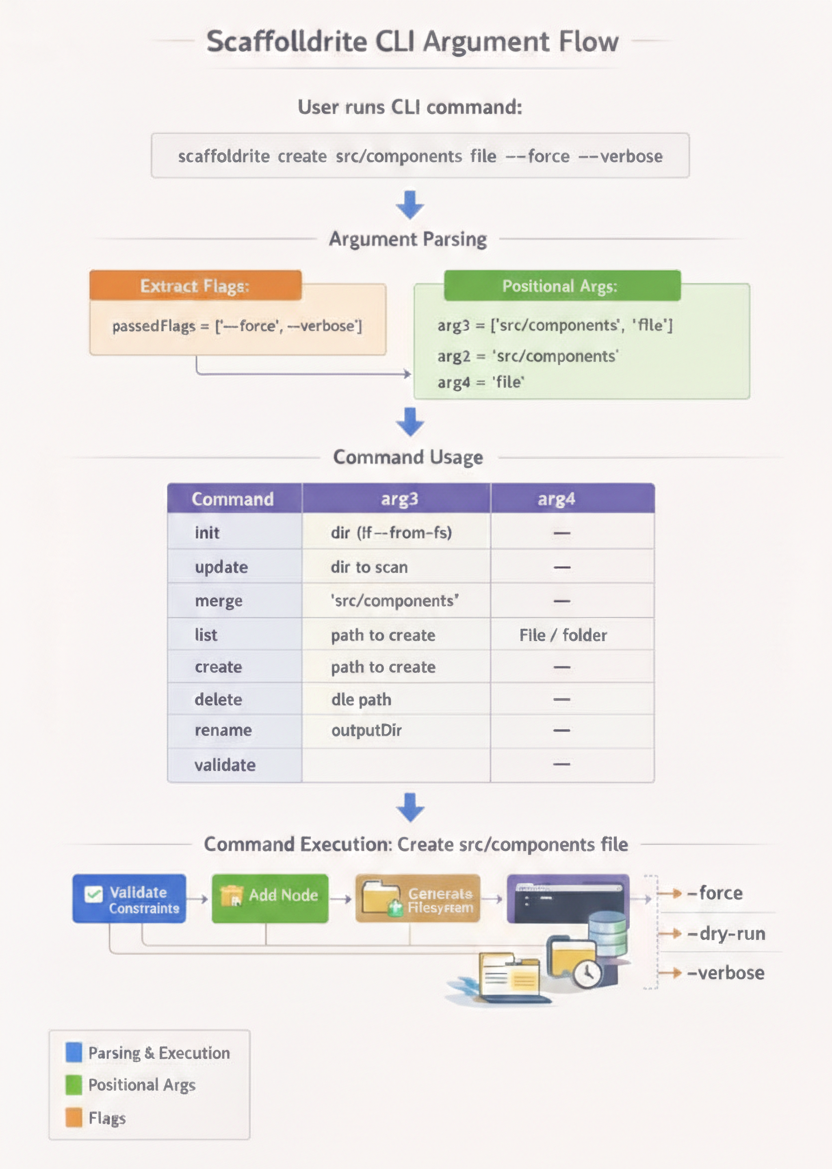
Scaffoldrite uses positional arguments where the meaning depends on their position in the command sequence. Flags (options starting with -- or -) are extracted and do not count as positional arguments.
| Command | Position 1 (arg1) | Position 2 (arg2) | Position 3 (arg3) | Position 4 (arg4) |
|---|---|---|---|---|
init |
(command itself) | — | Directory path (when used with --from-fs) |
— |
update |
(command itself) | — | Directory to scan (when used with --from-fs) |
— |
merge |
(command itself) | — | Directory to merge (when used with --from-fs) |
— |
list |
(command itself) | — | — | — |
create |
(command itself) | Path to create | file or folder |
— |
delete |
(command itself) | Path to delete | — | — |
rename |
(command itself) | Old path | New name/path | — |
generate |
(command itself) | Output directory (required) | — | — |
validate |
(command itself) | — | — | — |
When Scaffoldrite parses commands:
- Flags are extracted first - All
--flagand-foptions are removed from the argument list - Remaining arguments are treated as positional - Their meaning depends on their position
- Flag values are handled separately - Values following flags like
--from-fs ./srcare paired with their flags
# init with --from-fs
sr init --from-fs ./src
#            arg3: ./src (--from-fs doesn't count as arg2)

# generate with output directory (required)
sr generate .
#           arg2: . (current directory)

sr generate ./output
#           arg2: ./output

# create with flags and arguments
sr create src/components/ui button.ts file --force --verbose
#           arg2: src/components/ui  arg3: button.ts  arg4: file
#           --force and --verbose are extracted as flags, not counted as arguments

# rename with confirmation skipping
sr rename src/oldfile.txt newfile.txt --yes
#           arg2: src/oldfile.txt  arg3: newfile.txt
#           --yes is extracted as a flag

# generate with output directory and dry-run
sr generate ./dist --dry-run
#           arg2: ./dist
#           --dry-run is extracted as a flag

# generate with copy flag
sr generate ./template --copy --summary
#           arg2: ./template
#           --copy and --summary are extracted as flags

# This would be INVALID - flags must come after positional args
sr create --force src/components/ui button.ts file
#                                    ↑
#                         src/components/ui is now arg3, causing confusion

# This would be INVALID - generate requires output directory
sr generate --dry-run
# Error: generate requires output directory argument- Place flags after positional arguments for clarity
- Flags can appear anywhere but are recommended at the end
- Flag order doesn't matter -
sr create path file --force --verboseis the same assr create path file --verbose --force - Flag values like
--from-fs ./srcstay together as a pair
Important: For generate, the output directory argument is required. You must provide either . (current directory) or a specific path.
Each command supports specific flags:
Each Scaffoldrite command supports various flags for control and customization.
| Flag | Description | Example |
|---|---|---|
--force |
Overwrite existing structure.sr file |
sr init --force |
--empty |
Create minimal structure with only constraints block | sr init --empty |
--from-fs <directory> |
Generate from existing filesystem (must provide directory or .) |
sr init --from-fs ./src or sr init --from-fs . |
| Flag | Description | Example |
|---|---|---|
--from-fs <directory> |
Update from filesystem (must provide directory or .) |
sr update --from-fs . or sr update --from-fs ./src |
--yes / -y |
Skip confirmation prompts | sr update --from-fs . --yes |
| Flag | Description | Example |
|---|---|---|
--from-fs <directory> |
Merge from filesystem (must provide directory or .) |
sr merge --from-fs ./features or sr merge --from-fs . |
--yes / -y |
Skip confirmation prompts | sr merge --from-fs . --yes |
| Flag | Description | Example |
|---|---|---|
--yes |
Skip confirmation prompts | sr generate . --yes |
--dry-run |
Show what would happen without making changes | sr generate . --dry-run |
--verbose |
Show detailed output | sr generate . --verbose |
--ignore-tooling |
Generates without the scaffold config | sr generate . --ignore-tooling |
--summary |
Display operations as they happen | sr generate . --summary |
--copy |
Copy file contents from source to output directory | sr generate ./output --copy |
| Flag | Description | Example |
|---|---|---|
--allow-extra |
Allow extra files not in structure | sr validate --allow-extra |
--allow-extra <paths...> |
Allow specific extra files | sr validate --allow-extra README.md .env |
| Flag | Description | Example |
|---|---|---|
--force |
Overwrite existing item | sr create src/index.ts file --force |
--if-not-exists |
Skip if path already exists | sr create src/utils folder --if-not-exists |
--yes |
Skip confirmation prompts | sr create src/hooks folder --yes |
--dry-run |
Show what would happen | sr create src/components folder --dry-run |
--verbose |
Show detailed output | sr create src/utils.ts file --verbose |
--summary |
Display operations as they happen | sr create src/lib folder --summary |
| Flag | Description | Example |
|---|---|---|
--yes |
Skip confirmation prompts | sr delete src/old --yes |
--dry-run |
Show what would happen | sr delete src/temp --dry-run |
--verbose |
Show detailed output | sr delete src/deprecated --verbose |
--summary |
Display operations as they happen | sr delete src/legacy --summary |
| Flag | Description | Example |
|---|---|---|
--yes |
Skip confirmation prompts | sr rename src/index.ts main.ts --yes |
--dry-run |
Show what would happen | sr rename src/utils helpers --dry-run |
--verbose |
Show detailed output | sr rename src/lib library --verbose |
--summary |
Display operations as they happen | sr rename src/components ui --summary |
| Flag | Description | Example |
|---|---|---|
--structure / --sr |
Show structure.sr contents |
sr list --structure |
--fs |
Show filesystem structure | sr list --fs |
--diff |
Compare structure.sr vs filesystem |
sr list --diff |
--with |
prints with icon | sr list --sr/fs --with-icon |
These commands help you create or prepare a structure.sr file for your project.
| Command | What It Does | When To Use |
|---|---|---|
sr init |
Creates a starter structure.sr file. |
Starting any new project. |
sr init --empty |
Creates a minimal structure.sr with only a constraints block. |
When you want complete control over the structure. |
sr init --from-fs <directory> |
Generates a structure.sr from an existing project folder (must provide directory or .). |
Adopting Scaffoldrite in an existing codebase. |
sr update --from-fs <directory> |
Updates the existing structure.sr based on filesystem (must provide directory or .). |
Sync your structure file with changes in an existing project. |
sr merge --from-fs <directory> |
Merges an existing folder's structure into your structure.sr (must provide directory or .). |
Merging another project's layout into your current structure file. |
sr init --force |
Overwrites an existing structure.sr file. |
When you want to start fresh and replace the current structure. |
Important: For generate, update --from-fs, merge --from-fs, and init --from-fs commands, you must always provide a directory path or . (dot) to represent the current directory.
Examples:
# Generate to current directory
sr generate .

# Generate to specific directory
sr generate ./output

# Generate from current directory
sr init --from-fs .

# Generate from specific directory
sr init --from-fs ./src

# Update from current directory
sr update --from-fs .

# Update from specific directory
sr update --from-fs ./components

# Merge from current directory
sr merge --from-fs .

# Merge from specific directory
sr merge --from-fs ./features

# Start a new React project
sr init
sr generate . # Apply structure to current directory| Command | What It Does | When To Use |
|---|---|---|
sr validate |
Checks if filesystem matches structure.sr | Before commits, in CI/CD |
sr validate --allow-extra |
Allows extra files not in structure | During migration phases |
sr validate --allow-extra README.md |
Allows specific extra files | When some files are intentionally outside structure |
Example:
# Strict check (CI/CD ready)
sr validate

# "We're migrating, be gentle"
sr validate --allow-extra

# "Only these can be extra"
sr validate --allow-extra README.md .env.example| Command | What It Does | When To Use |
|---|---|---|
sr generate <directory> |
Creates entire structure from structure.sr (must provide directory or .) |
Initial setup, resetting structure |
sr generate ./output |
Generates to specific directory | Creating templates for others |
sr generate . --yes |
Skips confirmation prompts | Automation scripts |
sr generate . --dry-run |
Shows what would happen | Preview before making changes |
sr generate ./output --copy |
Copies structure with file contents | Creating complete project templates |
sr generate ./output --copy --summary |
Copies with summary only | Quick template generation |
sr generate ./output --copy --dry-run |
Preview what would be copied | Safe preview before copying |
Example:
# Create the whole structure in current directory (empty files)
sr generate .

# Create the whole structure in specific directory
sr generate ./my-project

# Copy structure AND file contents to output directory
sr generate ./project-template --copy

# Preview what would be copied
sr generate ./dist --copy --dry-run

# Copy with summary only
sr generate ./client-project --copy --summary

# "Show me what you'll do first"
sr generate . --dry-run

# "Just do it, I trust you"
sr generate . --yes| Command | What It Does | When To Use |
|---|---|---|
sr create src/utils folder |
Adds folder to structure | Adding new feature areas |
sr create src/hooks/useAuth.ts file |
Adds file to structure | Creating new modules |
sr delete src/old-feature |
Removes from structure | Cleaning up tech debt |
sr rename src/index.ts main.ts |
Renames in structure | Refactoring |
sr update --from-fs . |
Updates structure.sr from current files | After manual tweaks |
sr merge --from-fs ./new-features |
Merges new files from file system into structure.sr | Collaborative feature adds |
Example:
# "We need a utils folder"
sr create src/utils folder

# "Actually, let's call it helpers"
sr rename src/utils src/helpers

# "Add a core utility file"
sr create src/helpers/format.ts file

# "Whoops, remove it"
sr delete src/helpers/format.ts

# "Update from current directory"
sr update --from-fs .

# "Merge features from a folder"
sr merge --from-fs ./new-features| Command | What It Does | When To Use |
|---|---|---|
sr list |
Shows all structure.sr contents without respecting ignore list | Quick reference |
sr list --structure |
Shows all structure.sr contents, respecting ignore list | Quick reference |
sr list --fs |
Shows actual filesystem. Respects ignore list | Seeing current state |
sr list --diff |
Compares structure.sr vs filesystem. Respects ignore list | Finding discrepancies |
sr version |
Shows Scaffoldrite version | Debugging, reporting issues |
Example:
# "What's supposed to be here?"
sr list

# "What's actually here?"
sr list --fs

# "What's different?"
sr list --diffConstraints are where Scaffoldrite becomes powerful. They're rules that must always be true about your structure.
| Constraint | What It Means | Real-World Use |
|---|---|---|
require src |
src/ must exist |
Ensuring core directories exist |
forbid temp/ |
temp/ must NOT exist |
Preventing temporary clutter |
mustContain src index.ts |
src/ must contain index.ts |
Entry point validation |
mustHaveFile src/components Button.tsx |
Must have exact file | Critical component checks |
maxFiles src/components 10 |
No more than 10 files | Preventing component bloat |
maxDepth src 4 |
Maximum 4 nested folders | Controlling complexity |
fileNameRegex src/ ^[a-z-]+\.tsx$ |
Files must match pattern | Enforcing naming conventions |
Example:
constraints {
  require src
  forbid .temp
  mustContain src index.ts
  maxFiles src/components 15
  fileNameRegex src/components/ ^[A-Z][a-zA-Z]+\.tsx$
}
These are your superpowers. They apply rules to multiple folders at once:
| Scope | Meaning | Visual Example |
|---|---|---|
* |
Every direct child folder (non-recursive) | src/* = src/a/, src/b/, but NOT src/a/nested/ |
** |
All nested folders (recursive) | src/** = src/a/, src/a/nested/, src/b/, etc. |
| Constraint | What It Means |
|---|---|
eachFolderMustContain * src index.ts |
Every folder in src/ must contain index.ts |
eachFolderMustContainFile ** src README.md |
Every folder (recursive) must have README.md |
eachFolderMustContainFolder * src tests |
Every folder must contain tests/ subfolder.This is not always used as it never ends. |
eachFolderMustHaveExt ** src .ts |
Every folder must have at least one .ts file |
Example Scenarios:
-
Monorepo Package Consistency:
constraints {
  eachFolderMustContainFile * packages package.json
  eachFolderMustContainFile * packages/package.json
  eachFolderMustContain ** packages/src index.ts
}
"Every package must have package.json and README, and every src folder must have index.ts"
-
Next.js API Route Standards:
constraints {
  eachFolderMustContainFile ** src/pages _app.tsx
  eachFolderMustContainFile * src/api GET.ts
  fileNameRegex src/api/* ^(GET|POST|PUT|DELETE|PATCH)\.ts$
}
"Every page needs _app.tsx, every API route needs GET.ts, and only HTTP methods allowed"
-
React Component Organization:
constraints {
  eachFolderMustContain * src/features index.ts
  eachFolderMustContainFolder * src/features components
  eachFolderMustContainFile * src/features/components index.ts
  maxDepth src/features 3
}
"Every feature has the same structure: index.ts, components/ folder, and components have their own index.ts"
| Constraint | Arguments | Example |
|---|---|---|
require |
<path> |
require src |
forbid |
<path> |
forbid .temp |
mustContain |
<path> <value> |
mustContain src index.ts |
mustHaveFile |
<path> <fileName> |
mustHaveFile src/components Button.tsx |
fileNameRegex |
<path> <regex> |
fileNameRegex src/ ^[a-z-]+\.tsx$ |
maxFiles |
<path> <number> |
maxFiles src/components 10 |
maxFolders |
<path> <number> |
maxFolders src 5 |
minFiles |
<path> <number> |
minFiles src 1 |
minFolders |
<path> <number> |
minFolders src 2 |
maxDepth |
<path> <number> |
maxDepth src 4 |
maxFilesRecursive |
<path> <number> |
maxFilesRecursive src 100 |
maxFoldersRecursive |
<path> <number> |
maxFoldersRecursive src 50 |
maxFilesByExt |
<path> <ext> <number> |
maxFilesByExt src .ts 10 |
maxFilesByExtRecursive |
<path> <ext> <number> |
maxFilesByExtRecursive src .ts 50 |
eachFolderMustContain |
<scope> <path> <value> |
eachFolderMustContain ** src index.ts |
eachFolderMustContainFile |
<scope> <path> <fileName> |
eachFolderMustContainFile * src README.md |
eachFolderMustContainFolder |
<scope> <path> <folderName> |
eachFolderMustContainFolder * src tests |
eachFolderMustHaveExt |
<scope> <path> <ext> |
eachFolderMustHaveExt ** src .ts |
Sometimes you need exceptions. That's where .scaffoldignore comes in:
# .scaffoldignore - works like .gitignore
node_modules/      # Ignore dependencies
dist/             # Ignore build output
.temp/            # Ignore temporary files
Used when:
sr init --from-fs(snapshots ignore these)sr validate(validation ignores these)sr list --fs(listing ignores these)sr generate(generation)
# From your well-structured project
sr init --from-fs ./my-awesome-app

# Create a complete template
sr generate ./my-template --copy

# Result: ./my-template has exact structure AND file content# Create a clean starter kit
sr generate ./react-starter --copy --summary
# Package and share
tar -czf react-starter.tar.gz ./react-starter# Generate multiple projects from template
sr generate ./client-a --copy --yes
sr generate ./client-b --copy --yes
sr generate ./client-c --copy --yes
# Each gets identical structure AND content# See what files would be copied
sr generate ./new-project --copy --dry-run --verbose
# Output shows: COPY src/index.ts, COPY src/components/Button.tsx, etc.# Get clean output showing only copy operations
sr generate ./output --copy --summary
# Output: COPY (10 files), FOLDER (5 folders), SKIP (2 existing)# Day 1: Vision
sr init --empty
# Edit structure.sr with your dream structure
sr generate .
# Day 7: Add constraints as patterns emerge
# Add to constraints block:
# eachFolderMustContain * src/features index.ts
# fileNameRegex src/components/ ^[A-Z][a-zA-Z]+\.tsx$
# Day 30: Scale with confidence
sr validate # CI/CD passes every time# Template team creates golden structure
sr init --from-fs ./golden-template
# Add strict constraints
# Save to company template repo
# Development teams:
sr init --from-fs company-templates/react-starter
sr generate .
sr validate # Ensures compliance
# Can't violate standards even if they tryconstraints {
eachFolderMustContainFile * examples README.md
eachFolderMustContain ** src tests
maxFiles src/lib 20
}
"Every example has docs, every module has tests, and the core library stays lean."
# Your personal template
sr init --from-fs ./best-client-project

# New client? Perfection in seconds:
sr generate ./client-project --copy
# Every client gets your proven structure AND code# Create a template from your best project
sr init --from-fs ./best-project
# Generate complete templates with all file content
sr generate ./project-template --copy
# Share the template with your team
# They get structure AND content!
# Alternative: Create clean starter kits
sr generate ./starter-kit --copy --ignore-tooling
# Creates a clean starter kit without .scaffoldrite config# These create LITERAL names - perfect for framework conventions
folder src {
folder pages {
file [id].tsx # Creates: src/pages/[id].tsx
file [...slug].tsx # Creates: src/pages/[...slug].tsx
file (auth).tsx # Creates: src/pages/(auth).tsx
}
}
constraints {
# Ensure every route group has layout
eachFolderMustContainFile * src/pages layout.tsx
}
# Phase 1: Document only
sr validate --allow-extra

# Phase 2: Allow known exceptions
sr validate --allow-extra README.md .env

# Phase 3: Strict compliance
sr validate # CI/CD fails on violations# Capture current state
sr init --from-fs . --force
# Clean up in structure.sr
# Remove old folders, rename files
# Apply new structure
sr generate . --yes
# Validate no regressions
sr validate --allow-extra # Temporary allowanceScaffoldrite focuses on ensuring your project follows the expected folder and file layout.
It does not track history or file content — Git or another version control system should be used for that.
-
Detect drift in your project structure
Scaffoldrite identifies missing or extra folders/files compared to your definedstructure.sr. -
Restore the intended folder hierarchy
scaffoldrite generaterecreates missing folders or files according to the structure, without touching existing file contents. -
Prepare for scaffolding or code generation
Ensures your project has a clean, consistent layout before generating new files or scaffolds. -
Enforce consistency across teams
Keep the official folder structure consistent, even if developers create extra folders or misplace files. File content remains untouched.
When generating to output directories, you can use the --copy flag to preserve file contents:
# Generate structure with empty files (default)
sr generate ./output


## 💾 Preserving Content & Mitigating Risks

Scaffoldrite focuses on **structure, not file content**. By default, `sr generate` creates missing files or folders **without preserving existing file content**. To make this safer, follow these best practices:

### 1️⃣ Use `--copy` when generating to a different directory

```bash
sr generate ./output --copy- Copies existing file contents from source to output
- Maintains templates or boilerplate if defined
- Great for creating project templates or starter kits
Notes:
--copydoes not work in-place; use Git or manual backup for regenerating in the same directory.- Cannot be combined with
--ignore-tooling.
Always commit your work before running sr generate:
git add .
git commit -m "Save work before sr generate"
This ensures you can restore deleted or modified files if anything goes wrong.
Preview what Scaffoldrite would change without affecting your files:
sr validate --allow-extraThis shows missing, extra, or misaligned files, so you can make informed decisions.
Instead of renaming in structure.sr first:
- Rename the file in your filesystem.
- Sync your
structure.sr:
sr update --from-fs .This preserves content because the filesystem rename happens before Scaffoldrite updates the structure.
⚠ Renaming a file in
structure.srwill delete the old file in the filesystem. Commit or back up your work first.
1️⃣ Cleaning up experimental folders
Situation: You created temporary folders like src/experimental/ that are no longer needed.
Benefit: scaffoldrite generate restores the intended structure, removing extra folders while leaving real code intact.
2️⃣ Fixing missing folders
Situation: A required folder like components/ was accidentally deleted.
Benefit: Regeneration creates it automatically, ensuring the project structure is complete without affecting file contents.
3️⃣ Preparing for scaffolding
Situation: You want to run scaffoldrite generate safely without conflicts from misplaced folders.
Benefit: The tool enforces the correct structure first, reducing scaffolding errors.
4️⃣ Keeping projects consistent across teams
Situation: Team members create inconsistent folder layouts.
Benefit: Scaffoldrite ensures the official structure is maintained while allowing individual work to remain untouched.
- Scaffoldrite does not back up file contents.
- Changes or deletions made outside Scaffoldrite are not recoverable by the tool. Use Git or another VCS for content versioning and recovery.
Tip: Think of
scaffoldrite generateas a structure-only enforcement tool. It ensures your project layout matches the defined structure without overwriting any existing file content.
Run sr validate to check. Use sr update --from-fs . to accept changes, or sr generate . to revert to structure.
Not directly, but generate to different directories:
sr generate ./project-a
sr generate ./project-bExactly! It's ESLint/Prettier for your project's organization.
You can always add them to .scaffoldignore or use --allow-extra during validation to avoid heavy computation.
Use the --copy flag when generating to an output directory:
sr generate ./template --copyThis copies file contents from your source directory to the output directory.
No, these flags are mutually exclusive. Choose:
--copyto preserve file contents--ignore-toolingto generate without .scaffoldrite config
No, --copy only works when generating to a different output directory than your source.
For clarity and safety, sr generate requires you to explicitly specify where to generate the structure:
- Use
.for current directory - Use
./outputfor a specific directory This prevents accidental overwrites and makes commands more explicit.
Scaffoldrite is built by developers for developers. Whether you're:
- A solo founder keeping projects maintainable
- A team lead enforcing standards without micromanaging
- An open source maintainer guiding contributors
- A freelancer delivering consistent quality
You're in the right place.
⭐ Star on GitHub · 🐛 Report Issues · 💬 Share Ideas
MIT License - see the LICENSE file for details.
Your project's structure is code too. Treat it with the same care. With Scaffoldrite, you will.
Happy structuring! 🏗️