Repository navigation
Music library
InterTune has three kinds of playlist:
- Local
- Synced (you can edit these)
- Remote (playlists you saved from YouTube Music but did not make)
The player queue is not a playlist. It is a queue.
Each kind has its own icon in the list:
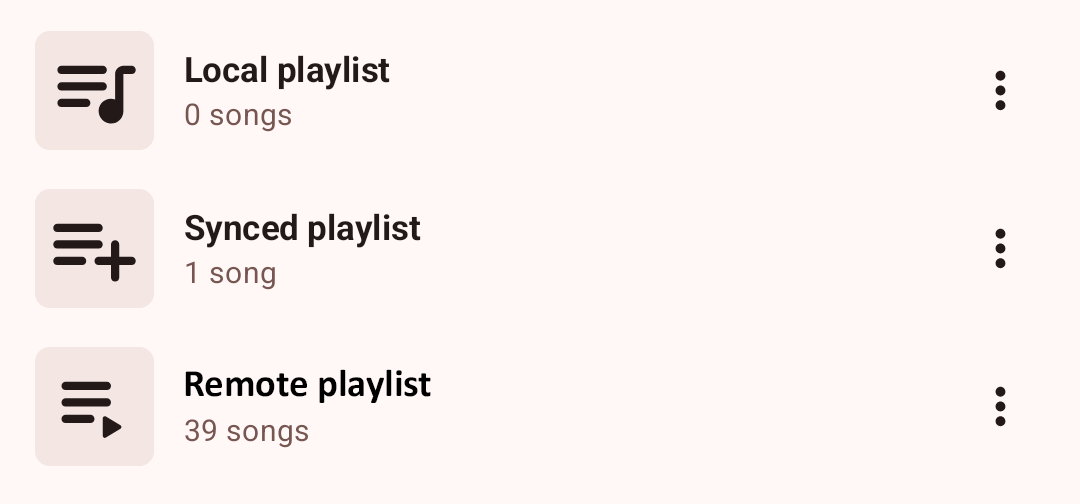
A local playlist lives only inside InterTune. YouTube Music never sees it, and nothing you do to it touches your account. Everything works here: rename it, drag songs into a new order, add songs, remove songs. Dragging needs the sort set to "Custom order" and the padlock button next to the sort open, which it is until you tap it shut.
It is also the only kind of playlist that can hold local files, meaning music already stored on your phone rather than streamed.
To make one, tap the three dots next to the playlist count on the Playlists screen and pick "Create playlist". If you are signed in, that dialog has a "Sync Playlist" switch. Leave it off and you get a local playlist. The switch cannot be changed afterwards, as the dialog warns ("This is NOT changeable later"), so decide before you tap done. If you are not signed in, every playlist you make is a local one.
A synced playlist is one of your own YouTube Music playlists, kept in step with your account. You can rename it, reorder it, and add or remove songs, and InterTune sends the change to YouTube Music as well.
You cannot put local files in one. The "Add to playlist" dialog says so near the top: "Note: Adding local songs to synced/remote playlists is unsupported. Any other combination is valid".
Deleting a synced playlist deletes it from your YouTube Music account too, not just from your phone.
Two settings control how syncing behaves.
Settings > Account and sync > Sync mode decides whether you are allowed to change these playlists at all.
- "Read only (View remote content)" shows them but blocks editing. With this on, "Add to playlist" only offers your local playlists, and it puts a red line at the bottom of the list reading "Playlists missing? Click here to enable sync read-write mode in settings". Tapping that line opens the Account and sync settings screen so you can switch it.
- "Read write (Also allow changes to remote content)" allows editing. This is the default.
Local playlists stay editable either way.
Settings > Account and sync > Conflict resolution decides what happens when your copy of a playlist and YouTube's copy disagree.
- "Keep all local content, add new remote content" keeps everything you already have and only pulls in what is new on YouTube. This is the default.
- "Overwrite local content with remote content" makes YouTube's copy win, so anything in your copy that is not on YouTube gets dropped.
A playlist that came from YouTube Music also has a sync button in its header. It refreshes that one playlist there and then, and replaces your copy of it with YouTube's. It is greyed out when you have no internet.
These are playlists you saved or liked but did not create, so somebody else owns them. You cannot reorder them or add and remove songs, and they cannot hold local files.
Whether one opens without internet depends on how you saved it. If you saved it from inside InterTune by tapping the heart, the track list is stored on your phone and it opens offline. If it arrived from your account during a sync, only the playlist itself is stored, so InterTune has to fetch the track list from YouTube Music each time you open it. Either way the songs stream from YouTube Music unless you downloaded them first.
To unsave one, tap the three dots next to it (in grid view, long press it instead) and tap the heart in the top row of the menu.
Above your playlists you may see two rows labelled "Auto playlist": "Liked songs" and "Downloaded songs". They are not really playlists. They are a live view of every song you have liked or downloaded, so there is nothing to edit or reorder. To hide them, turn off Settings > Library and content > Advanced > Show playlists for liked and downloaded songs in library.
In a playlist you are allowed to edit, long press a song to start selecting. Tick the others you want gone, then tap the three dots in the bar at the bottom of the screen and pick "Remove from playlist". On a synced playlist they are removed from YouTube Music too.
This one is specific to InterTune. OuterTune, the upstream project InterTune is forked from, still makes you remove songs one at a time.