Repository navigation
Hosting from the Launcher
Host a Cross-Com server on your own PC from the launcher's Host screen: one click to start it, a join code to send your friends.
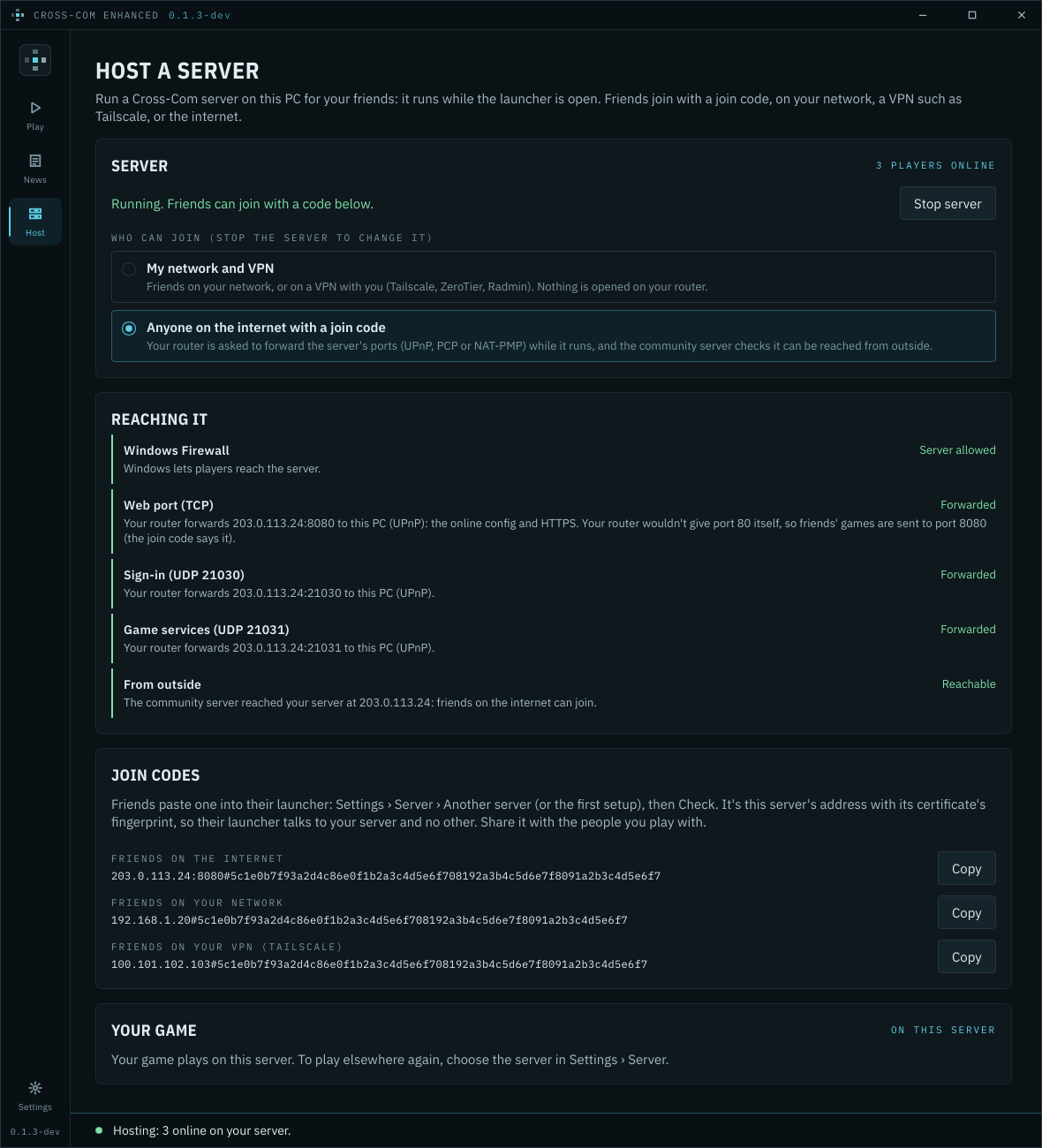
The screenshot shows sample data.
The server is built into the launcher (version 0.1.3 and later): there's nothing else to download. It runs while the launcher is open, and stops when you press Stop server or close the launcher.
- Windows 10 or 11, with the launcher set up (the game doesn't have to be, unless you want to play on your server too).
- Nothing else using TCP port 80 or UDP ports 21030 and 21031 on your PC. Another web server, IIS or a second Cross-Com server would stop it starting: Server Troubleshooting says how to find what's using them.
- For friends on the internet: a router that allows UPnP, PCP or NAT-PMP (most do; it's often a setting called UPnP), or ports you forward yourself, and a connection with a public address. Port Forwarding and Routers explains.
Under Who can join (you can only change it while the server is stopped):
| Choice | Who can join | What changes on your PC and router |
|---|---|---|
| My network and VPN (the default) | Friends on your network, or on a VPN with you (Tailscale, ZeroTier, Radmin VPN) | Windows Firewall lets the server in. Nothing is opened on your router. |
| Anyone on the internet with a join code | The above, and friends anywhere on the internet | As well: your router is asked to forward the server's ports while it runs, and the community server checks it can be reached from outside. |
The launcher remembers your choice.
Tip
If your router can't forward ports (or your provider doesn't give you a public address), everyone joining a VPN such as Tailscale with you works just as well, with My network and VPN.
Press Start server. The first time, the launcher says Windows will ask for permission first: Continue, then Yes in Windows' prompt. That's the launcher adding two Windows Firewall rules for the server (named Cross-Com server (hosted from the launcher), one for TCP and one for UDP), for incoming connections to the server only. Windows asks once; after that, starting needs no permission.
While it starts, the screen says what it's doing: putting the server in place, letting it through Windows Firewall, asking your router to forward the ports, starting the server, checking it from outside. It takes a few seconds, longer with the check.
When the Server card says Running. Friends can join with a code below., it's ready. The number of players signed in shows at its right.
What it took to reach your server, a line each. Green is fine; yellow is worth a look; red means some friends can't join.
| Line | What it means |
|---|---|
| Windows Firewall | Server allowed: Windows lets other PCs reach it. Not allowed (red) means Windows' prompt was declined: stop and start again to be asked again. |
| Web port (TCP) | (Internet only.) Your router forwards a port to the server's web side: the game's online config and HTTPS. The launcher asks for port 80, then 8080, then 28080, and takes the port your router gives. Any port works: many routers won't forward a port under 1024, so it's often not 80, and the join code tells your friends' games which. |
| Sign-in (UDP 21030), Game services (UDP 21031) | (Internet only.) Your router forwards the game's two ports. These must be the same numbers outside: Another port (red) means your router gave different ones, and you'll need to forward them by hand. |
| From outside | (Internet only.) The community server tried to reach your server at your public address, as your friends will: its web port and both UDP ports. Reachable means friends on the internet can join. Not reachable lists the ports that didn't answer. Another address means the internet sees your PC elsewhere than your router says: another router, or your provider's NAT, is in front of yours. Not checked means the check couldn't run (the community server didn't answer, or doesn't check yet): ask a friend to try. |
What to do about each: Server Troubleshooting.
Join codes lists one code for each way friends can reach you:
-
Friends on the internet: your public address, the web port your router gave, and the server's certificate's fingerprint, such as
203.0.113.24:8080#5c1e0b7f…. Only shown for Anyone on the internet. - Friends on your network: your PC's address on your network.
- Friends on your VPN (Tailscale): your PC's address on the VPN, when it's on one.
Press Copy beside the one your friend needs, and send it to them however you chat. They paste it into their launcher: the first setup's Another server, or Settings › Server › Another server, then Check. Join Codes has the details, for you and for them.
Important
Send each friend the code for how they reach you. A friend in another house needs the internet code; your network's code won't work for them (and the internet code usually won't work for someone in your own house: most routers don't loop back to their own public address).
The codes stay the same from one start to the next: the server's certificate is made the first time and kept. Your public address may change (most home connections get a new one now and then, or when the router restarts), and the port your router gives may too: when your friends' launchers say the server didn't answer, send them the new code.
Under Your game, press Play on my server. The launcher sets your game up to play on the server on this PC, and makes your account there (with the same name you use elsewhere) the first time. Then go to Play as usual.
To play on another server again (the community network, say), choose it in Settings › Server. Your account on your own server stays there for next time.
Friends on the internet can join the matches your own game hosts, as on any server: in Multiplayer, your game asks your router to forward its port (UPnP, PCP or NAT-PMP, with Ask my router to forward the game's port on in Settings › Network), and your server gives friends your public address and that port.
Note
While your game plays on your own server, start the server before you press Play: with the server stopped, Play says the server didn't answer.
Stop server, or close the launcher. Either way the server stops and the launcher asks your router to take its forwards away. Your friends' games lose the server: tell them first.
If the launcher closes unexpectedly (it crashes, or Windows shuts it), Windows ends the server with it. The router's forwards then lapse on their own within an hour.
Everything the server keeps is in %APPDATA%\Cross-Com\Server:
| File | What |
|---|---|
crosscom-server.exe |
The server, put there from the launcher (and updated with it) |
crosscom-server.toml |
Its settings, written afresh each time you press Start |
crosscom.db |
Your server's accounts, stats, friends, squads and challenges |
https-certificate.der, https-key.der
|
Its HTTPS certificate and key: the fingerprint in your join codes. Keep the key private. |
server.log |
What the server did this run (the last lines show on the Host screen) |
logs\ |
The logs your friends' games send after each match |
news.toml |
The news the game shows in its menus, if you write one (see Server Settings) |
To start afresh (new accounts, new stats), stop the server and delete crosscom.db. Deleting the certificate files changes your join codes: your friends will need the new ones.
To keep your group's stats safe, copy crosscom.db somewhere while the server is stopped.
- Sign-up is open on a server hosted from the launcher: whoever can reach it can make an account. A join code isn't a password. Stop the server when you're not playing, or for a server that stays up, run a dedicated server with a sign-up code.
- Your PC must stay on and awake while friends play. Windows' sleep stops the server's answers.
- While you host, your own game's connection says Forwarded, not Open, once your router forwards its port: your server is inside your network, so it can't check your game from outside as it does for your friends. A friend joining is the test. Without a forward (your router refused), it says Moderate: friends behind strict routers can't join the matches you host.
- A server on a laptop that moves between networks gets new addresses, and new codes.
- More players need no more power: the matches run on the players' PCs, not on the server.
- Join Codes · Port Forwarding and Routers · Server Troubleshooting
- Windows Dedicated Server, for a server that runs without the launcher.