Repository navigation
The Launcher
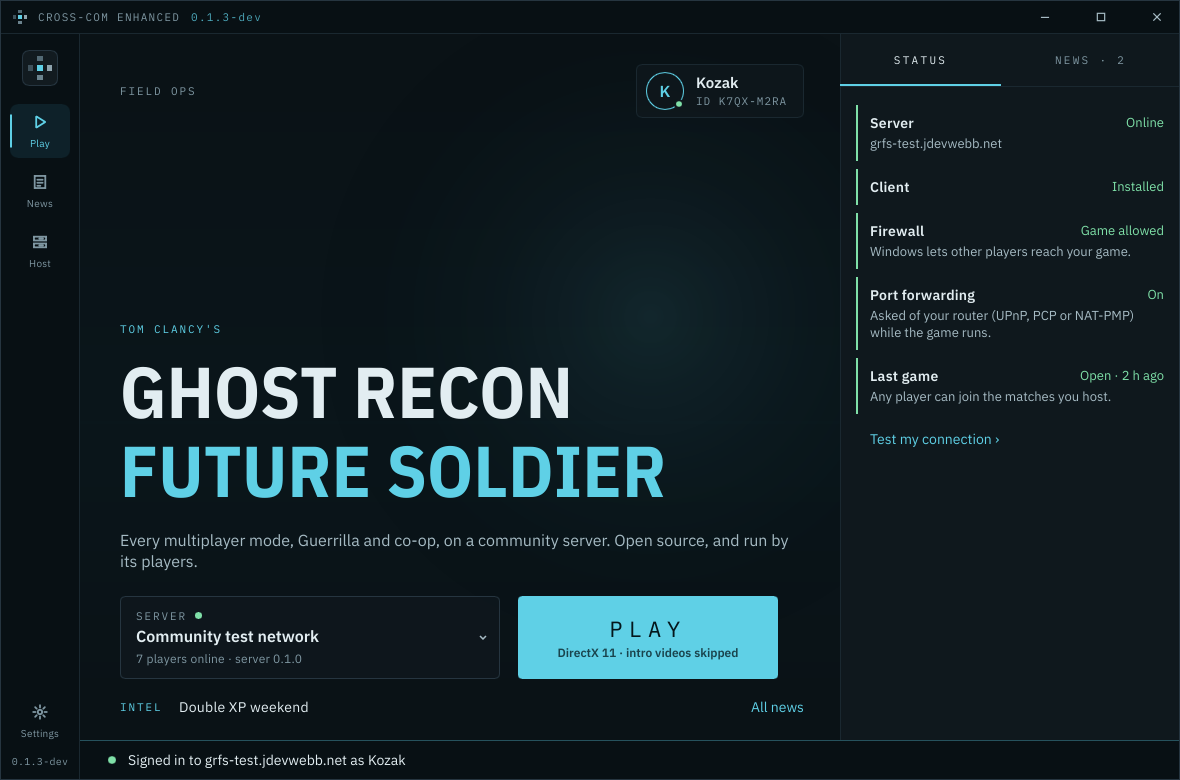
A tour of crosscom-launcher.exe once it's set up: the side menu, the Play screen and its status panel, and the bars along the top and bottom.
| Entry | Opens |
|---|---|
| Play | The Play screen: start the game, and see how things stand |
| News | The Play screen with its side panel on the server's news |
| Host | Run a Cross-Com server on this PC for your friends: see Hosting from the Launcher |
| Settings | Everything the setup set, and more: see Launcher Settings |
The launcher's version is under Settings at the foot of the menu, and in the title bar.
Until the game is set up, Play and News are locked and Play shows the setup instead.
At the top right: the account you're signed in as, and your identity's short form (ID ABCD-EFGH). Clicking it opens Settings › Identity. See Your Account and Identity.
Next to Play: SERVER, with a dot for how it is, the server's name (or address), and a line under it:
- N players online · server version once it answers.
- "An older server: no player count or news." for a server older than this launcher.
- Why it didn't answer, when it didn't.
The launcher asks the server each time the screen opens. Clicking the card opens Settings › Server, to switch servers.
Starts the game: DirectX 11 or DirectX 9, as chosen in Settings › Game › Renderer. The line under the button says which, and whether the intro videos are skipped.
If this launcher carries a newer client than the one in the game, the line says "The client is brought up to date first": pressing Play installs it, then starts the game.
Each time you press Play, the launcher checks the game's DLC packs again. A missing or incomplete pack shows a DLC warning above the news line. It's only a warning: the game still starts.
Once the game you started closes, the launcher sends its log to the server (unless you've turned that off in Settings › Logs).
INTEL, with the server's latest news headline. All news switches the side panel to the news.
Two tabs: STATUS and NEWS (with a count of items).
Each line says what's checked, how it stands, and a line explaining it. When the launcher can fix something, the line has a button.
| Line | Values | What it means |
|---|---|---|
| Server | Online / Offline / Checking | Whether the server you set up answers. The line under it is its address |
| Client | Installed | Cross-Com's client is in the game, the same version as this launcher's |
| Update ready | The launcher carries another version: "Installed when you press Play." | |
| Not installed | The game's own files are in place (for example after Restore the game's own files). Play shows the setup | |
| Firewall | Game allowed | "Windows lets other players reach your game." |
| Rules missing | "Windows may stop other players reaching your game." Press Allow to add the rules: the launcher explains first, then Windows asks for permission | |
| Port forwarding | On | Asked of your router (UPnP, PCP or NAT-PMP) while the game runs |
| Off | Turned off in Settings › Network | |
| Last game | Not checked yet | "The server checks who can reach your game during your next game." |
| Open · when | Any player can join the matches you host | |
| Moderate · when | Most players can, but not those behind strict routers | |
| Strict · when | Few players can join your matches; turn on UPnP in your router | |
| Forwarded · when | Playing on a server you host: your router forwards your game's port, which your own server can't check from inside your network |
The Last game line is what the client found during your last game (it writes it to crosscom-connection.json in the game's folder), with how long ago: just now, 10 min ago, 3 h ago, 2 days ago. Your Connection explains each value.
While the launcher is still looking, the panel says "Looking at the firewall and your last game…".
Test my connection › at the bottom opens Settings › Network, where you can run the connection test.
FROM THE SERVER: each item with its date and headline. The refresh button asks the server again. With nothing to show, it says why: "No news from the server.", "This server doesn't share its news with the launcher." or "The server didn't answer, so there's no news."
Along the bottom of the window, one line with a dot says how things stand:
| You see | It means |
|---|---|
| Signed in to server as name | All set |
| Asking server… | Waiting for the server's answer |
| The server didn't answer: … | It didn't, and why |
| Starting the game… / The game is starting. | Play was pressed |
| Cross-Com's client was brought up to date. The game is starting. | A newer client was installed first |
| Sending the game's logs… | After a game |
| Not set up: Play opens the setup. | No setup yet |
| Not set up yet: step N of 5. | You're in the setup |
| Setting up again: nothing changes until you press Set up. | You chose Run the setup again |
On the Host screen it says how your hosted server is instead.
When a newer release is out, a bar under the title says "Launcher X is available, with the client to match."
- Update downloads it, checks the release's signature, replaces the launcher and restarts it. The new launcher brings the game's client up to date the next time you press Play.
- What's new opens the release notes.
- Later hides the bar.
While the game is running, the bar says to update once the game has closed, and Update waits: the launcher has to be there to send the game's log when it ends. If an update fails, the bar says why, with Try again.
The launcher looks for a new release when it starts and every 4 hours. Settings › About › Check for updates looks straight away. Asking GitHub carries only the launcher's version.
- A short note pops up in the bottom right corner after something's done (for example "The game is let through Windows Firewall.").
- Before anything that brings up Windows' permission prompt, the launcher shows Windows will ask for permission, with what it's about to do. Continue goes on; Cancel (or Esc) leaves things as they are.