Repository navigation
The In Game Overlay
A panel Cross-Com draws over the game: the server's status, your connection, lobby settings, news, leaderboards and your account.
| Key | Does |
|---|---|
| F5 | Opens and closes the overlay (Fn+F5 on most laptops) |
| Esc | Closes it |
While it's open, the game gets no mouse or keyboard. A note in the corner reminds you which key opens it as the game starts ("Cross-Com: F5 opens the overlay").
To use another key, choose one from F1 to F12 in Settings › Game › Overlay key. To turn the overlay off, switch off Settings › Game › In-game overlay: nothing is then drawn over the game, and the overlay asks the server nothing.
The overlay starts about 10 seconds after the game does, because hooking earlier can stop a fullscreen game from starting. It works with both DirectX 11 and DirectX 9. If it can't start, the game runs without it, and crosscom.log in the game's folder says why.
Server, Lobby, News, Leaderboards, Account and Help.
| Row | Shows |
|---|---|
| Address | The server the game plays on |
| Status | Online, Offline or Checking... |
| Server version | The server's version |
| Players online | How many players are online on the server |
| Checked | When the overlay last asked (it asks every minute) |
If the server stops answering, the tab says so, and the overlay keeps asking every minute.
Under it, YOUR CONNECTION: whether other players can reach your game.
| Row | Shows |
|---|---|
| Others reach you | Open, Moderate, Strict, Forwarded (playing on a server you host: your router forwards the game's port), or Checking... until the server has checked (once the game is in Multiplayer) |
| Port forward | The forward your router made, such as UPnP 203.0.113.7:2346, or none
|
| Router | How your router handles ports: consistent, symmetric or unknown
|
A line under it says what that means and what to do. Your Connection explains each result.
How many players the lobbies you host take, and need.
Most players (2 to 12): the most players the lobbies you make from now on take. At 12 (the default), lobbies take the game's own sizes: 12 in a Quick Match, 4 in Guerrilla and co-op. Below 12, Guerrilla and co-op still take 4 at most. A lobby's size is fixed when it's made: to change it, leave the lobby and make it again. This choice lasts until the game closes.
When you're in a lobby, the tab also shows:
| Row | Shows |
|---|---|
| Lobby | Quick Match, Custom match or Squad room |
| Its most players | Its size |
| Players to start | How many players a Quick Match or squad room needs before its countdown starts |
- If you host it, Players to start has - and + buttons. The countdown starts once that many players are in. Change it before the match starts; your choice stays until it does.
- If someone else hosts it, you see their number: "Only the lobby's host can change how many players it needs."
- A custom match, Guerrilla or co-op starts when its host launches it, so there's no number.
Not in a lobby? The tab says to host a Quick Match or a squad room to set it.
The number a Quick Match starts at comes from Settings › Game › Fewest players to start a match (2 by default); squad matches need half that a side.
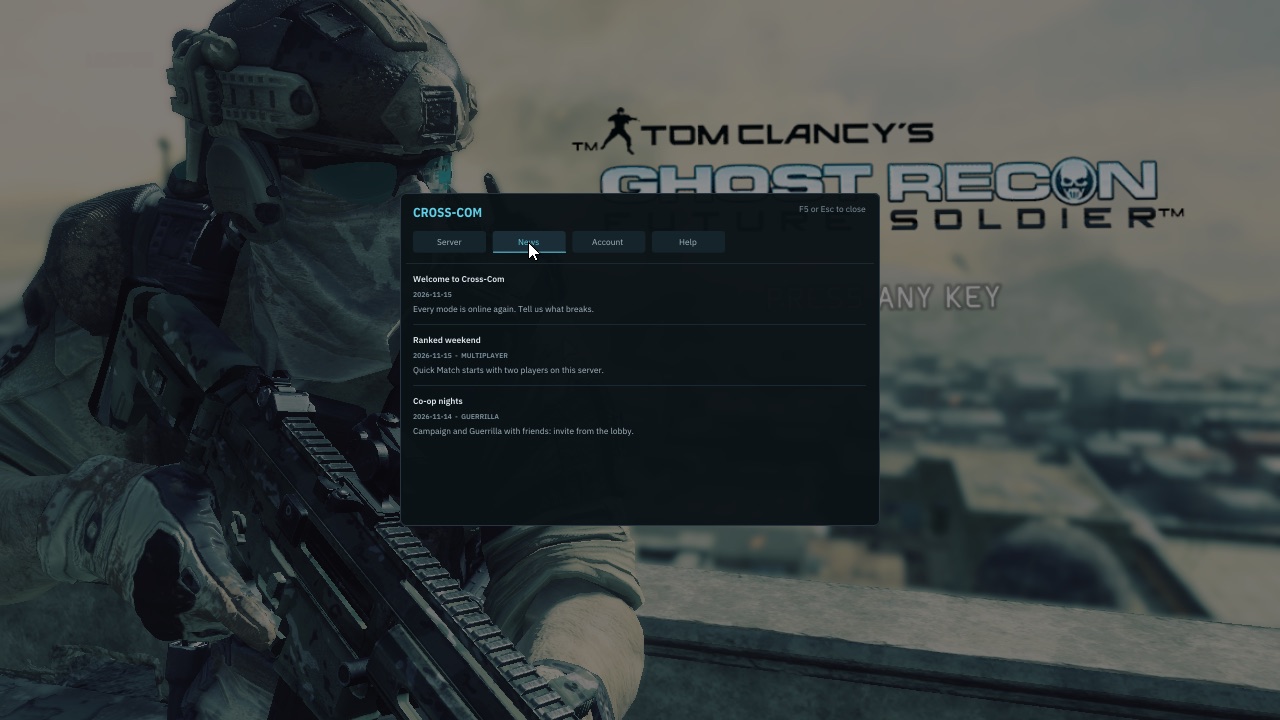
The server's news, each item with its date. A note pops up in the corner when there's new news. The same news shows in the game's own Ghost Feed and on the launcher's Play screen.
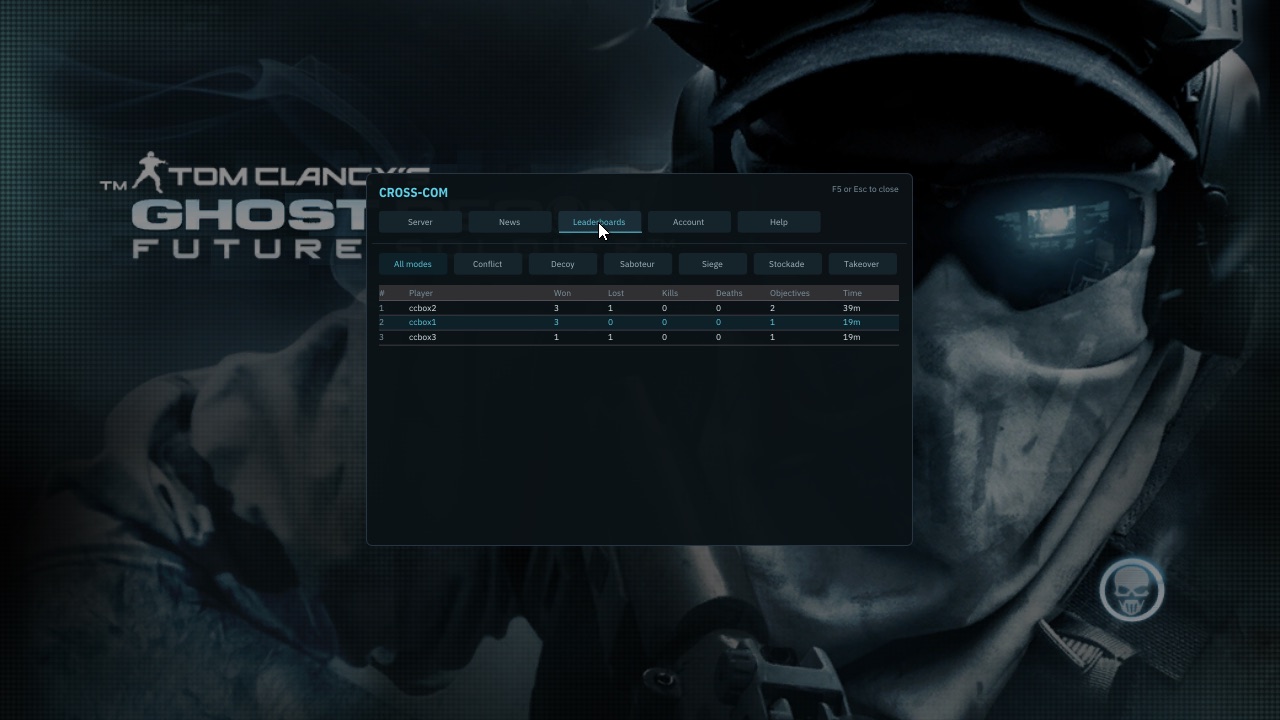
Every player on the server, by mode: All modes, Conflict, Decoy, Saboteur, Siege, Stockade and Takeover. Choose a mode with the buttons along the top.
The columns: #, Player, Won, Lost, Kills, Deaths, Objectives and Time (time played). Your own row is highlighted.
A mode nobody has played yet says so: players show up after their first match. The game's own Leaderboards screen (friends only) can't be opened on PC, which is why the overlay has its own.
The account the game signs in with, and Sign-in: Signing in once the game has its details, or Not yet (the game signs in when you go online).
The keys, how to change them, and how to report a problem: say what you did and what happened, and send crosscom.log from the game's folder with it. See Reporting a Problem.
Short notes pop up in the top right corner, even while the overlay is closed:
| Note | When |
|---|---|
| Cross-Com: signed in as NAME | The game signs in |
| Server unreachable | The server stops answering |
| 1 new news / N new news | The server has news |
| Connection: Open. Anyone can join your matches | Your connection was checked, or changed |
| Connection: Moderate. Some players can't join your matches (overlay > Server) | |
| Connection: your router forwards your game's port | Playing on a server you host: the forward is made; your server can't check it from inside your network |
| Connection: Strict. Few players can join your matches (overlay > Server) |
The launcher writes these for you; you can also set them by hand in crosscom.toml in the game's folder:
overlay = true        # false turns the overlay off
overlay_key = "F5"    # F1 to F12