Getting Started 4 Choose Data
BMW only streams the descriptors you tick under Data Selection in the portal, and it offers no API to set that selection — it is portal-only. Rather than hand-picking hundreds of technical fields, the integration builds the selection for you. There are two routes, and which one you see depends on how you got here:
- Guided setup (and later Configure → Choose streamed data) use a one-click Activate BMW data bookmarklet — the same activator described on the guided path. Pick your clusters, run the bookmarklet on the portal's stream-setup page, and Home Assistant turns the fields on for you. This route is additive (see Widening or narrowing later below).
- Manual first-time setup hands you a browser-console snippet for the portal's Data Selection page instead. Those steps are below.
This is the route the Manual setup path takes right after authorization.
-
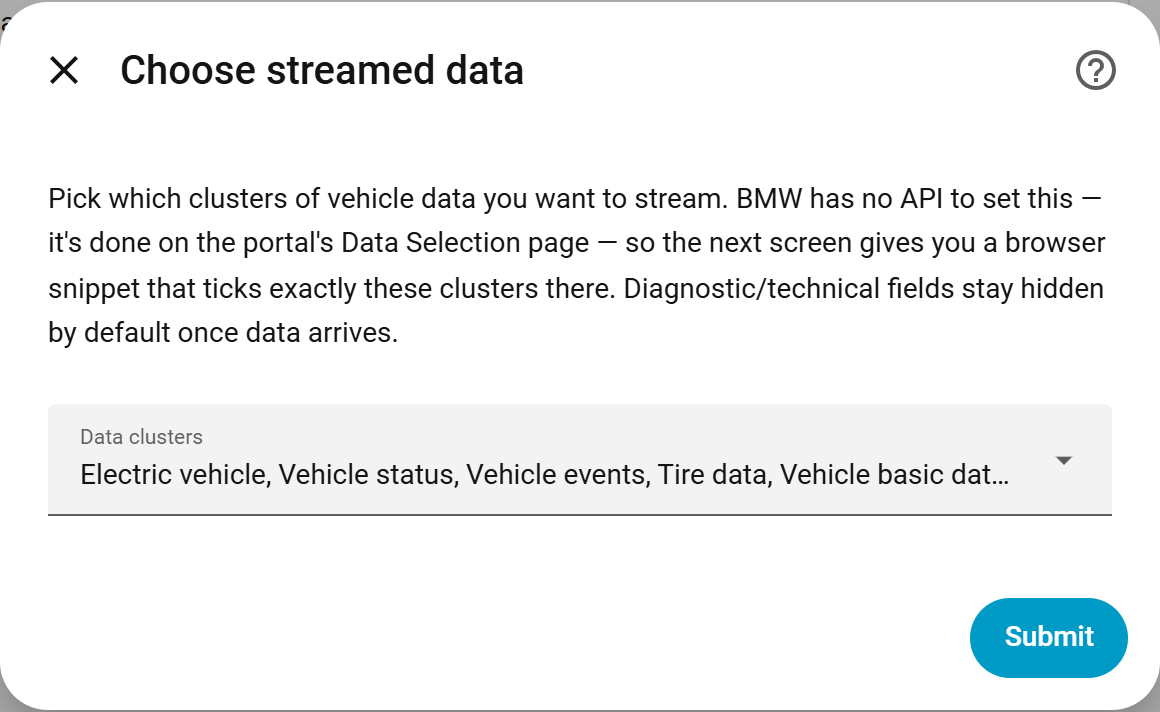
Pick the clusters you want (Electric vehicle, Vehicle status, Tire data, …). The defaults are a sensible starting set; your choice is remembered and the picker re-opens pre-filled next time.
-
The next screen shows a browser-console snippet generated for exactly those clusters. Copy it.
-
In the BMW portal, open Data Selection (Datenauswahl ändern) and click Load more until every field is listed. Open the browser console (F12 → Console), paste the snippet, and press Enter. It ticks only the checkboxes belonging to your chosen clusters — leaving any other selections untouched — and logs how many it matched.
-
Save the selection in the portal, then press Submit in Home Assistant to finish. Repeat the portal step for each vehicle.
-
Trigger something in the MyBMW app (lock/unlock) to nudge the car into sending its first update.
Re-run this any time from Configure → Choose streamed data. Reconfiguring uses the one-click activator rather than the console snippet: pick your clusters, then run the Activate BMW data bookmarklet (the same one guided setup uses) on the portal's stream setup page — Home Assistant turns on the fields for you and continues automatically, no copy-paste. See guided setup for how the bookmarklet works.
Additive: re-running the activator adds the chosen clusters to your live stream; it never removes a field you already stream. To stop streaming a field, untick it under Data Selection in the portal (the console snippet above only ticks boxes — it does not untick them either).
Requesting per-descriptor streaming scopes instead of a portal selection is rejected by BMW — see stream-scope-investigation.md. The full field-per-cluster breakdown lives in telematics-fields.md.
Some derived features need specific clusters in the stream:
-
Extrapolated state-of-charge helpers need the Electric vehicle
cluster — specifically
vehicle.drivetrain.batteryManagement.header,vehicle.drivetrain.batteryManagement.maxEnergy,vehicle.powertrain.electric.battery.charging.power, andvehicle.drivetrain.electricEngine.charging.status. - Charging history, cost and battery health need charging power from the Electric vehicle cluster.
- Charging Cost per 100 km additionally needs the odometer (Vehicle status cluster).
- Trips are reconstructed from live GPS in the stream.
If you enabled a cluster but no entities appeared, run the
bavariandata.get_coverage_report service (or Configure) — it compares
the descriptors your selected clusters should deliver against those that have
actually arrived, and lists any missing ones. It answers "is it my selection, my
car, or a bug?" and spends no API quota. See
Services reference.
Done! Head to The dashboard card to build a dashboard.