The Dashboard Card
A custom BavarianData Card is bundled and registered automatically — there is no dashboard resource to add by hand. Pick it from the card gallery to open a visual editor, or write YAML directly.
With the integration installed, the minimal config auto-discovers the car:
type: custom:bavariandata-cardThe card has several views. The default is the Overview; set view: or
cluster: to switch. Use one card per view — add several cards to a
dashboard to show them side by side.
If the card doesn't show up after an update, hard-refresh the browser.
- Overview
- Charging history
- Battery health
- Trips / driving journal
- Trip map
- Tire pressures
- Security & closures
- Single-cluster list
- Full YAML reference
The vehicle render, a state-of-charge ring (blue while charging), remaining range, charging status, and a grid of key metrics.
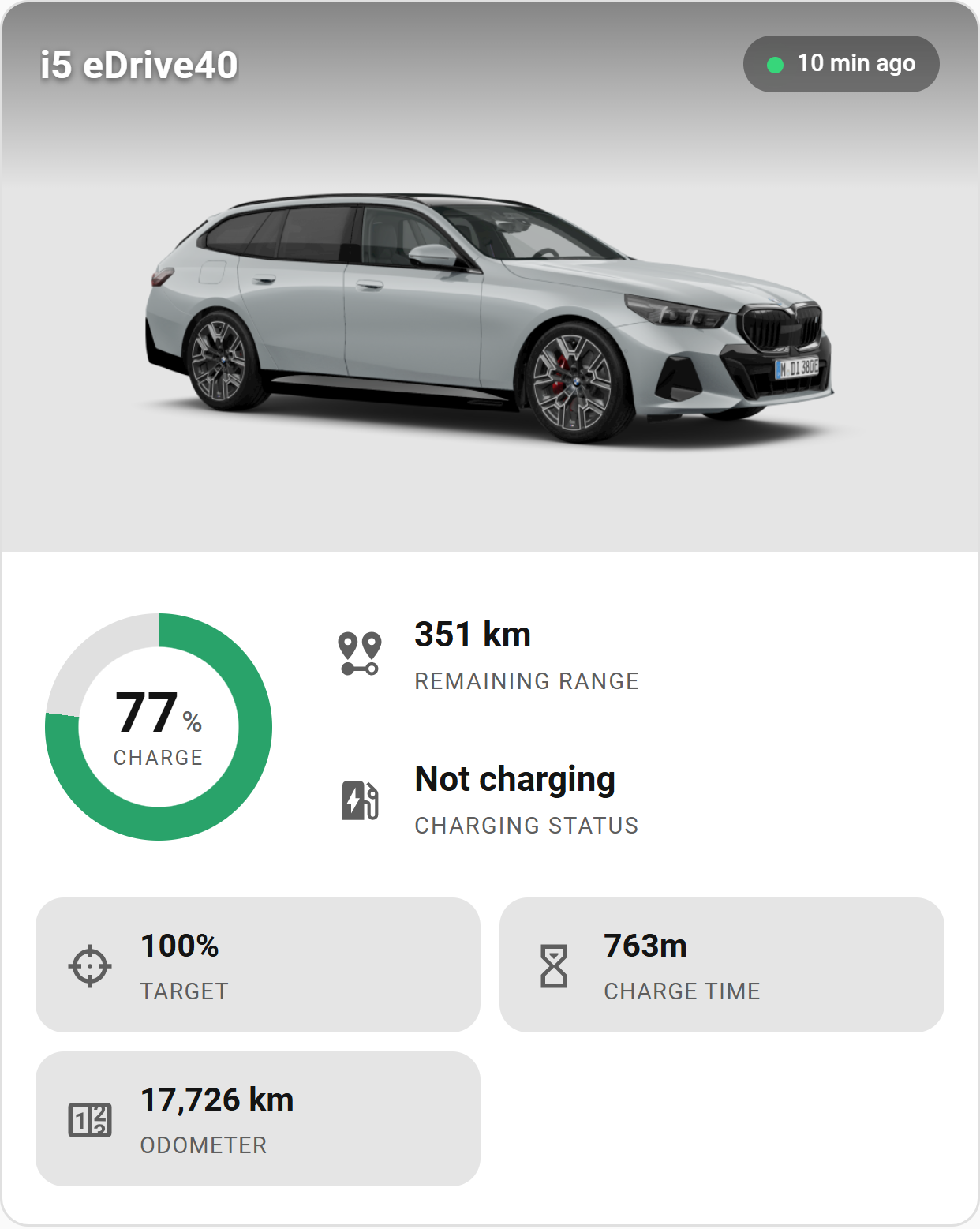
type: custom:bavariandata-cardPin a specific vehicle with device: (device id) or vin:.
Lists recorded charging sessions, newest first, each showing the date, energy, cost and a Home/Away badge. Tap a session to expand its power curve, peak and average power, duration, and grid energy. The "this month" totals ride along the top. CSV and Report buttons export the current month (see Export).
type: custom:bavariandata-card
view: charging
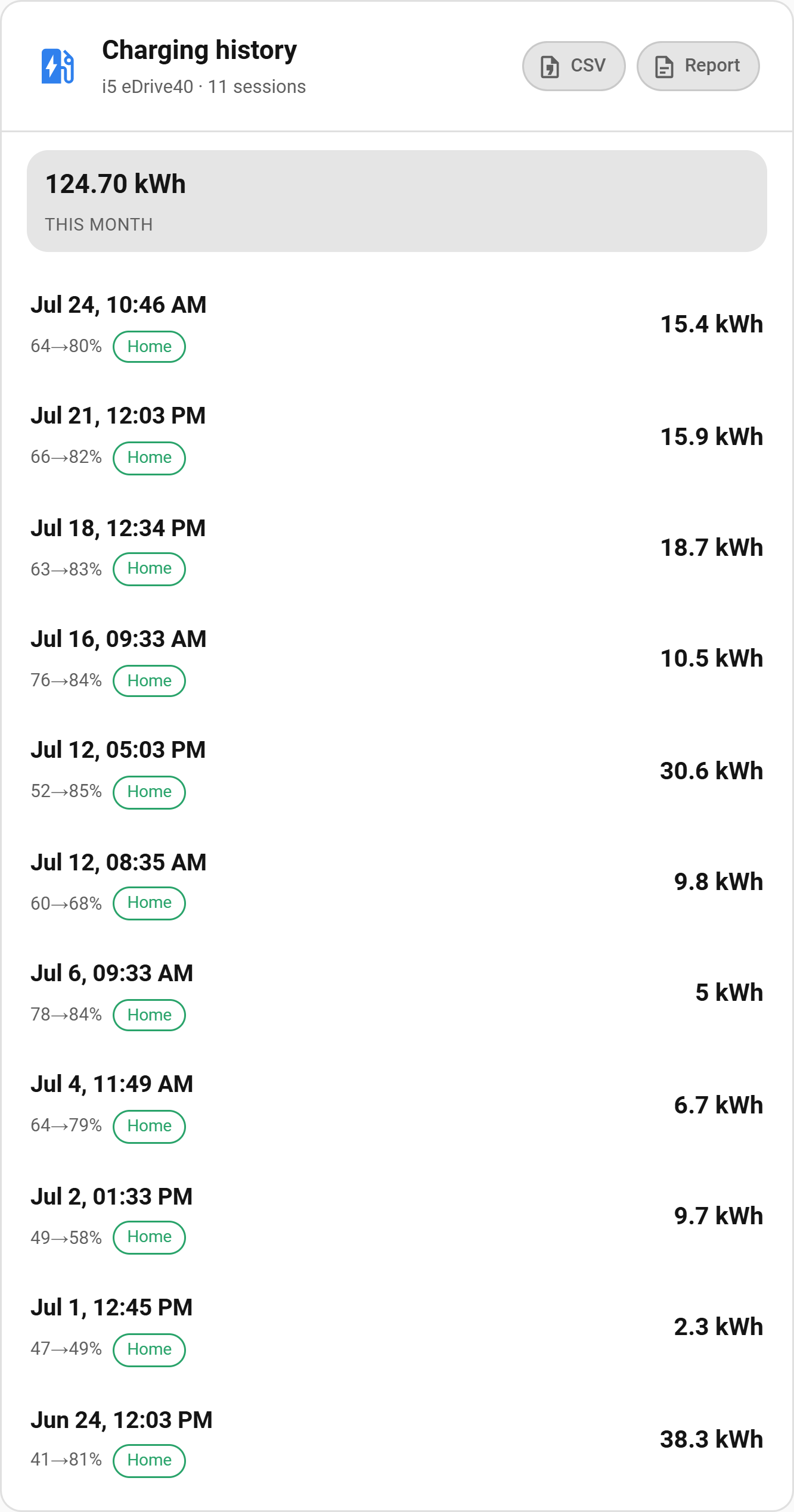
It reads the integration's stored history via the get_charging_sessions
service, so it spends no API quota. Cost only appears once a price source is
set under Configure → Charging costs & history
(see Charging history & cost); until then
sessions still list with their energy. A session charged without GPS is badged
Home · assumed, and one priced while the tariff was briefly unknown is tagged
partial price.
Shows the learned usable battery capacity as a gauge (percentage of the as-new pack) with a capacity-vs-mileage trend below.
type: custom:bavariandata-card
view: health
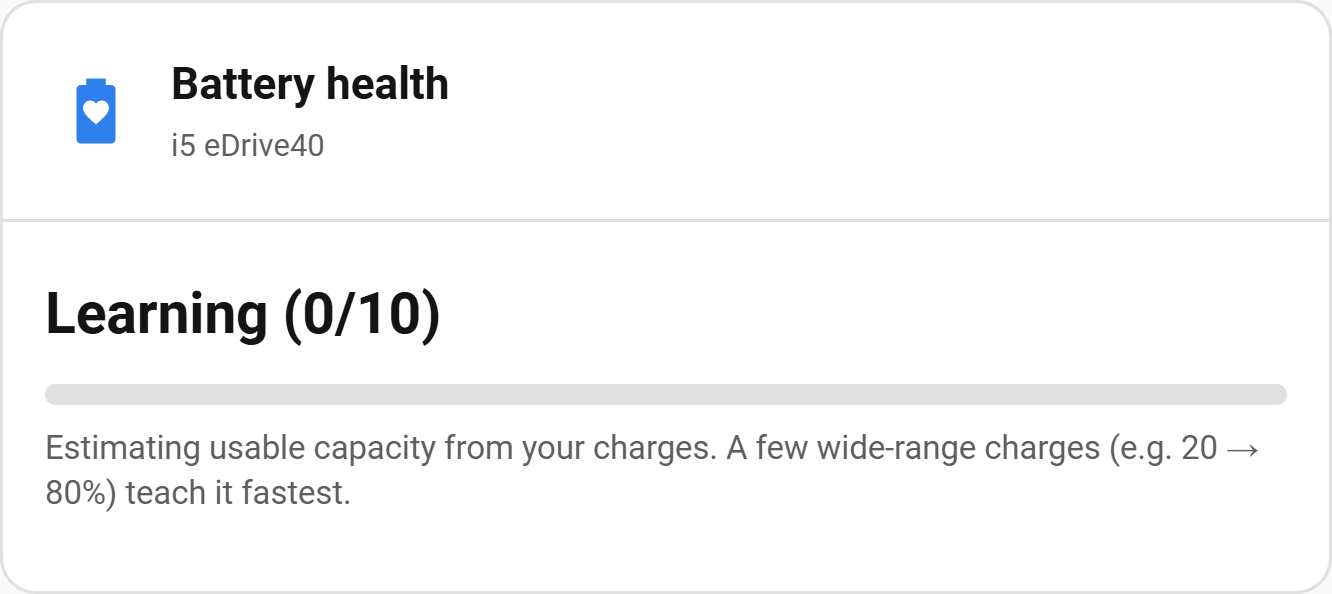
It reads the Battery Health sensor, so it spends no API quota. Until there are enough wide-range charges to be sure of the number, it shows Learning (n/10) rather than a figure that would jump around (how it's learned).
Lists your recorded drives, newest first, each showing from → to, distance, duration and a business/private/commute badge; tap one for consumption, recuperation and the SoC used, to reclassify it, and — for drives recorded with Record route on — a small map of the route (drawn as a clean line with a start and end marker; nothing leaves your browser to draw it). Above the list a month in review sums the distance (with a vs-last-month delta), the business/private/commute split, average consumption, energy recuperated, a driving-style score and your top destinations — and, once a tariff is set, an estimated driving cost. CSV and Report buttons export the current month.
type: custom:bavariandata-card
view: trips
It reads the get_trips and get_driving_summary services, so it spends no
API quota. Trips are reconstructed from the stream — no configuration needed.
Endpoints are stored as place names, never coordinates. Set a work zone
under Configure → Trips so home↔work drives are recognised as commutes
(see Trips).
This is a trip journal and expense helper — not a tax-office-compliant logbook (kein Finanzamt-konformes Fahrtenbuch): it has no legal tamper-resistance.
A destinations map: it plots where your trips end, and those markers cluster into counted bubbles when you zoom out and split apart as you zoom in — a quick read on where you go most. Only the end of each trip is shown (a trip's start is the previous trip's end, so plotting both would double-count), giving an honest "times arrived here" count. Click a cluster to zoom into it. A chip row switches the time window — This month (default), 3 months or All.
To see the route of a particular drive, open the Trips view and expand that trip — its route is drawn on a small map there.
type: custom:bavariandata-card
view: map
The map only has something to show once you turn on Record route under Configure → Trips — that opt-in setting is what stores each drive's GPS coordinates (it is the only place the integration keeps raw coordinates on disk, and it is off by default). With it off, or before your first drive with it on, the view explains that no places have been recorded yet. Drives recorded before you enabled it have no coordinates to place.
It reads endpoints through the get_trips service, so it spends no API quota,
and it reuses Home Assistant's own map component and marker clustering (map tiles
load from OpenStreetMap, as they do for the built-in Map card).
Privacy: unlike the rest of the history layer — which stores place names, never coordinates — this view uses the recorded coordinates of your trip endpoints, home included. Only enable route recording if you're comfortable with that, and remember the map is visible to anyone who can see the dashboard.
Draws a top-down car with each tire coloured by pressure vs. its target (green OK, amber high, red low) and the readings beside each wheel.
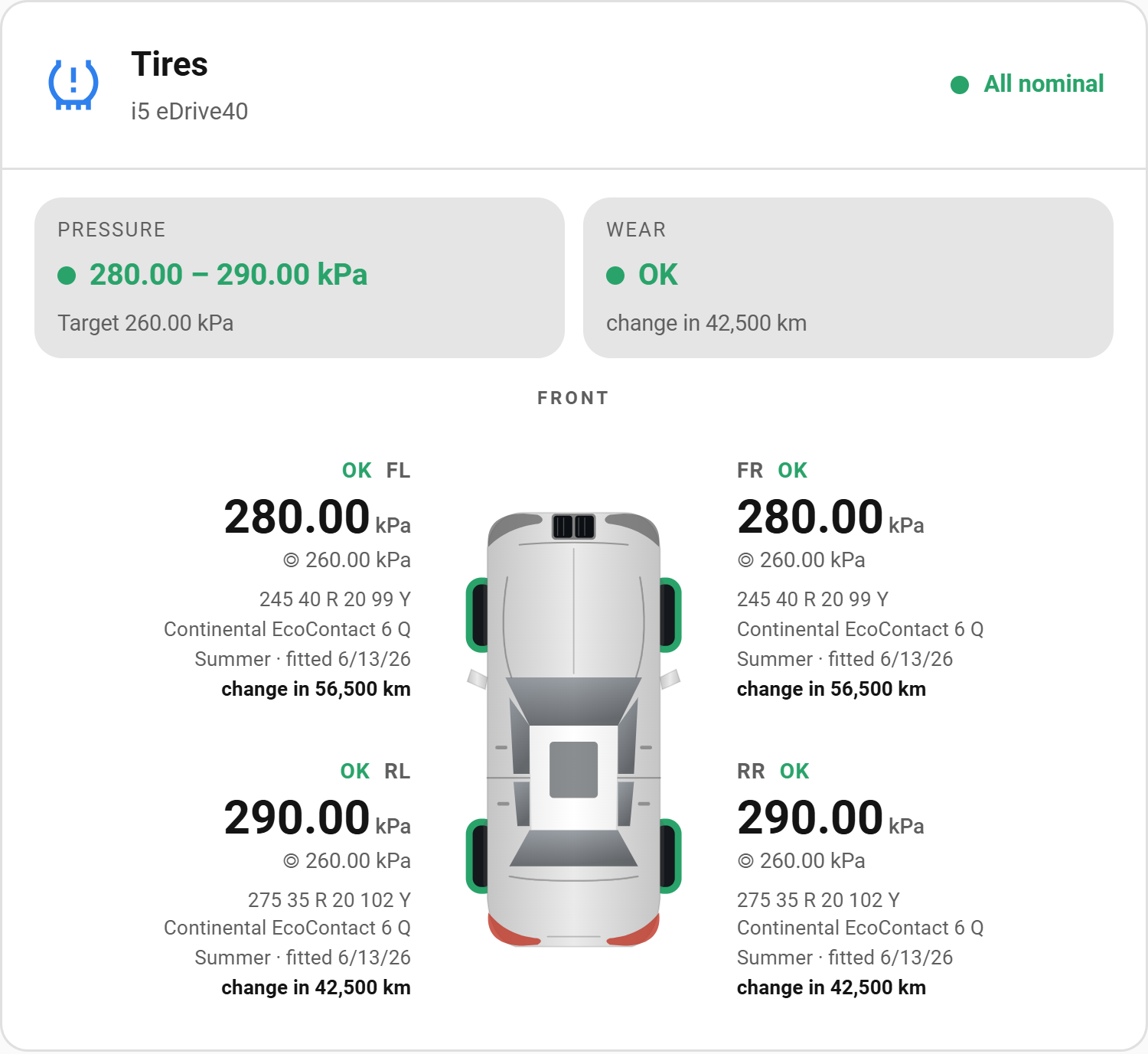
type: custom:bavariandata-card
cluster: tireShows doors, windows, hood, trunk, sunroof, the central lock and the anti-theft alarm on the same car diagram. Open doors highlight red, open windows/sunroof amber, and a central padlock reflects the lock state; a badge summarises the worst-case status and every part taps through to the underlying entity. Parts the vehicle doesn't report are simply omitted.
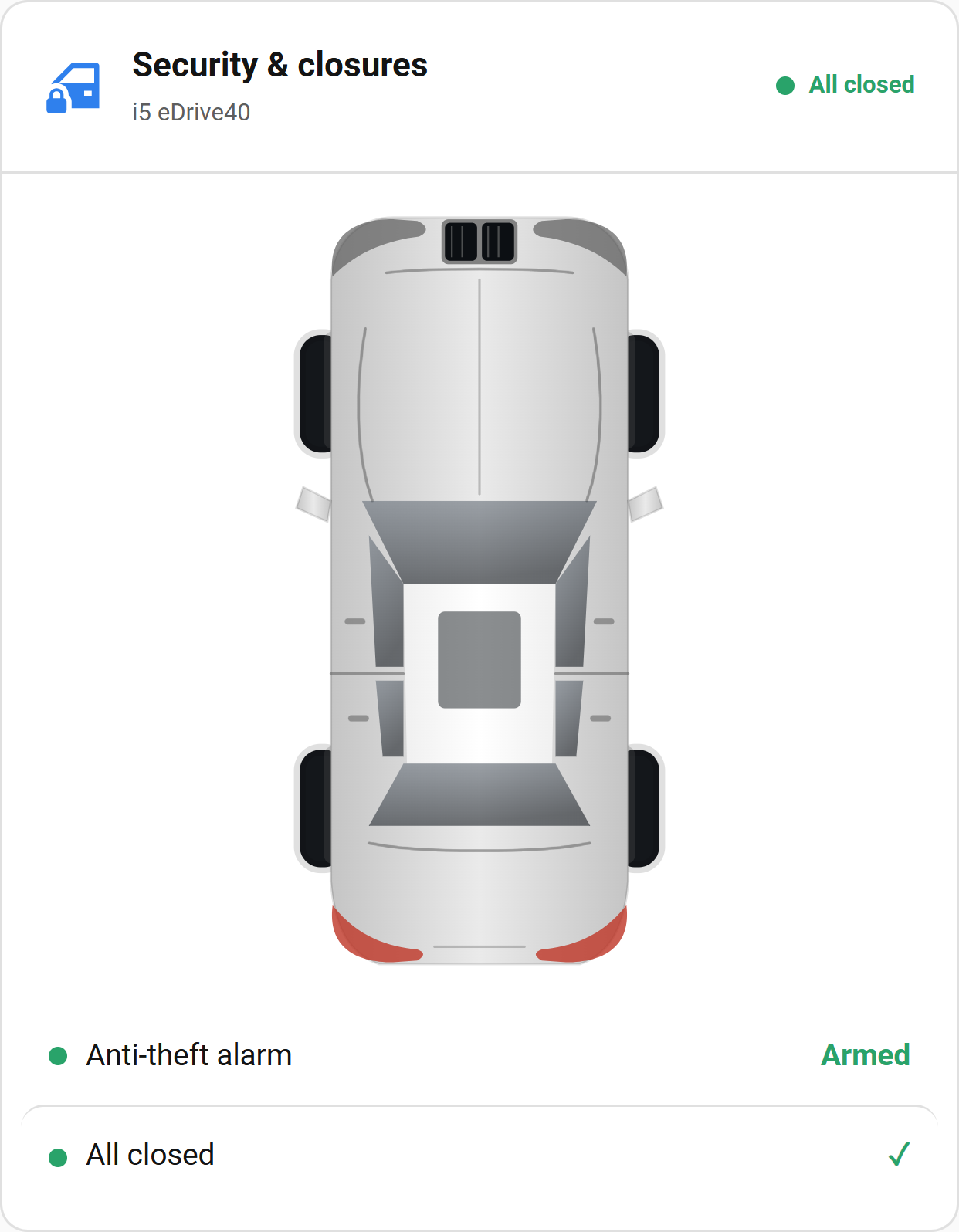
type: custom:bavariandata-card
cluster: closuresSet cluster: to list every value in one catalogue cluster. Use one card per
cluster:
type: custom:bavariandata-card
cluster: electric   # electric · status · tire · usage · events · basic · contract · metadata · other
The card groups entities via their cluster/category attributes, not their
names — so it works regardless of the user's Home Assistant language.
| Key | Purpose |
|---|---|
type |
Always custom:bavariandata-card. |
view |
charging, trips, map, or health. Omit for the Overview. |
cluster |
electric, status, tire, usage, events, basic, contract, metadata, other, closures. Renders a single-cluster list (or the special tire/closures diagrams). |
device |
Device id, to pin a specific vehicle. |
vin |
VIN, as an alternative to device. |
title |
Override the card title entity. |
image |
Override the vehicle-image entity. |
soc |
Override the state-of-charge entity. |
range |
Override the range entity. |
charging |
Override the charging-status entity. |
target_soc |
Override the target-SoC entity. |
time_to_full |
Override the time-to-full entity. |
odometer |
Override the odometer entity. |
plug |
Override the plug-status entity. |
With the integration installed, entity overrides are rarely needed — the card auto-discovers them from the vehicle's device. Use them only if you've renamed entities or want to point the card at a helper.