Configuration instructions
Some settings must be performed on the Cfg tab of the spreadsheet file.
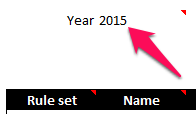
The tracker shows one year at a time. This must be set here.
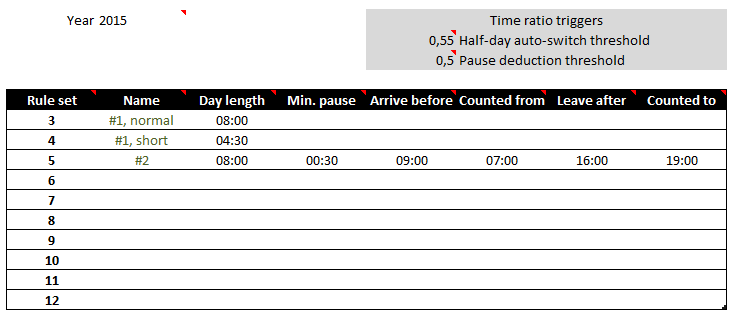
The column C of the tracker is the time ratio (see Use instructions). Some behaviors are controlled from this tab.

| Ratio | Description |
|---|---|
| Half-day auto-switch threshold | The content of C column is calculated. If you began to type your spent time on a line and the total is below this ratio of expected time for the day, it will be set to half day instead of full day. You will remain able to override the time ratio. |
| Pause deduction threshold | The minimal pause of the rule set will be deduced from your spent time only if the time ratio in column C is above this value. |
The rule sets allow you to specify several constraints on how you are supposed to spend your time at work. The possible constraints were inspired from constraints we encountered in real life.
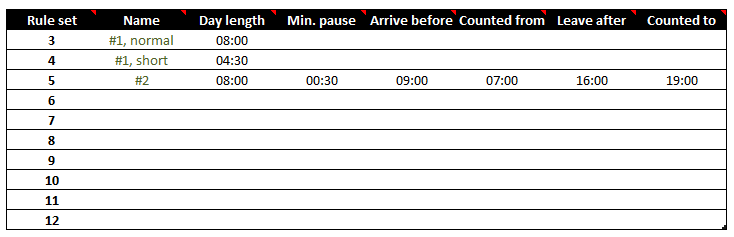
Just fill the columns as you need.
| Column name | Mandatory | Description |
|---|---|---|
Rule set |
Y | The ID for the rule set. To work properly, the IDs must be sequential integers. |
Name |
N | A name for the rule set. Has no effect whatsoever on the worksheet. |
Day length |
Y | The number of hours you should work each day. |
Min. pause |
N | If the pause is mandatory, you can set the minimal length here. It will be deduced from total if you don't take a pause at Midday. If you do take a pause but it is shorter than the minimum you set here, this value will be used instead. |
Arrive before |
N | You should not arrive after this hour. The computed time will not change if you don't, but your arrival time will be displayed in red. |
Counted from |
N | You can arrive before this hour, but that time will not be counted. |
Leave after |
N | You should not leave before this hour. The computed time will not change if you don't, but your leaving time will be displayed in red. |
Counted to |
N | You can leave after this hour, but that time will not be counted. |
💡 Rule set and Day length are the only mandatory columns of a rule set for the time tracker to work.
In most cases, one profile should be enough for your needs. So why are you allowed several? You may need them for various reasons. Among the reasons that caused us to consider them:
- The day restrictions may change according to the day of the week or due to duty periods for instance.
- You are a consultant intervening on several missions at a time.
You can add as many profiles as you like but the ID must remain a sequential list of numbers.
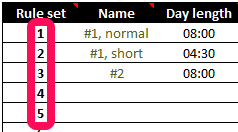
Once your rule set was created, you can apply it to a line in the time sheet by setting the associated ID in column B.