Repository navigation
Matter storage and automation
Your sand-to-glass starter line already uses a Matter Drive. Add item transport for continuous production, then more Drives when you need capacity. Each Drive holds up to six individually removable Cells in two columns of three. Its populated front bays match the Contents slots, and connected machines share all readable Cells.
Attach transport to the sides, back or bottom. Device fronts and open machine tops never connect. A sealed device's top starts Disabled. Enable it in Settings → Sides when needed. Disabled faces are plain casing, with no socket. The side diagram labels each face and shows its role. Left-click cycles forward. Right-click or Shift-click cycles backward. Energy Cubes are the exception with six configurable faces. A Matter Terminal connects only at its back. Industrial controllers use separate Machine Ports.
Recipe for Matter Drive.
Place Decomposer, Drive and Synthesizer in a touching row. Put the Cell in any of the Drive's six Contents slots. Check the connected stock in Settings before starting work.
The Drive needs no FE. Both processors still need their own FE connections.
| Left | Middle | Right |
|---|---|---|
| Decomposer | Matter Drive | Material Synthesizer |
Enable Automation on the Decomposer and configure its sealed top for item input in Settings → Sides. Place a hopper pointing down into that face with a chest above it. Put another downward hopper below the Synthesizer and an output chest below it.
| Level | Decomposer side | Center | Synthesizer side |
|---|---|---|---|
| Top | Input chest | ||
| Above machines | Hopper pointing down | ||
| Machine level | Decomposer | Matter Drive with Cell | Material Synthesizer |
| Below machines | Hopper pointing down | ||
| Bottom | Output chest |
You can dig space below the Synthesizer for its hopper and chest.
Enable Automation in both processors' Settings tabs. Hover its symbol to read the explanation. The small On/Off label shows the setting. Press Start on the Decomposer if it is paused.
On the Synthesizer, open Choose recipe or Recipe, select Glass and confirm with Use recipe. Then enable Loop beside Make 1 on the main view. Put sand in the input chest. The line now produces glass while input, power and space remain available.
Hoppers do not select recipes or request synthesis jobs. Loop supplies the continuing requests. Toggle it off to stop continuous production. Pause keeps the current order and Resume continues it. Changing the product cancels the old request.
The Cell Transfer Station holds one Source Cell on the left and one Target Cell on the right. Place both Cells in the dock (either in the menu or by right-clicking the left/right bay in the world) and press Transfer to move contents, or Swap to exchange both bays in one click.
By default, Transfer moves every compatible substance (including Primal Matter between Primal Cells). If you only want to transfer specific substances from a mixed Source Cell, click their badges in the Source Contents box below the dock. Click All to return to transferring everything. Hover the status line for exact ordinary and Primal amounts and the last transfer. Only what fits moves, and the Source Cell keeps every remainder.
Recipe for Cell Transfer Station.
Open the Cell Filter tab on the left rail and choose Source Cell or Target Cell to edit any Matter Cell or Void Cell in place. Search the catalogue and click badges to whitelist the desired substance/phase pairs. These are ghost filters, so you do not need an inventory item for the substance and no resources are consumed. Contents copies exactly the types currently stored in that Cell. All removes the restriction. Clear empties the whitelist so nothing is accepted.
The partition is saved on the Cell and works after moving it into a Matter Drive, including connected processor outputs and Primal Converter credits. Filters affect future insertion. Existing quantities remain safe and extractable even if their types no longer match the whitelist. Unknown stored substances keep their IDs and quantities. Primal Cells have a fixed resource and need no substance whitelist.
Primal Cells also retain their inventory gesture for loading Shards or ore and moving their separate reserve. Ordinary substance transfers use the Station.
A 64k Cell holds 64,000 units and uses a Matrix Crystal and a Control Circuit. A 256k Cell holds 256,000 units and uses a Matrix Cluster, a Control Circuit and two Ender Conductors. A 1M Cell holds 1,000,000 units and uses four Clusters, an Optical Circuit, a Diamond Lattice, an Ender Conductor and a Netherite Sheath. A 4M Cell holds 4,000,000 units and combines a Mint Matrix Crystal, a Cluster, two Optical Circuits, two Ender Conductors, a Diamond Lattice and a Netherite Sheath. A Void Matter Cell accepts whitelisted substance overflow and safely discards excess amounts once full.
A Cluster combines four Crystals with Rhedon, Virel, Structural Bars and Matrix Blend. An Optical Circuit uses Lumivex, glass, a Control Circuit and Diamond Lattices. Each Cell also needs a separately crafted Cell Housing.
Recipes for Matrix Cluster, Optical Circuit, 256k Matter Cell, 1M Matter Cell, 4M Matter Cell, Void Matter Cell.
Every Cell supports up to 512 substance/phase pairs. Solids, liquids and gases share its space. Water and water vapor are different types.
Crafting a new Cell gives you an empty Cell. Installed Cells keep their own contents, and the Drive pools their available stock. Connect a powered Wireless Access Point (optionally upgraded with Wireless Boosters) and sneak-use a charged Wireless Matter Terminal on it to browse your network within range.
Recipes for Wireless Access Point, Wireless Booster, Wireless Matter Terminal.
Matter Cables carry matter-network traffic and forward FE that an external generator or energy store pushes into them. They store no FE, and nothing can pull FE out through a cable. The network supports up to 64 Drives in loaded chunks. The lowest cable tier in the network sets its total node limit, counting machines and the cables on the routes between them. The limit is 256 for Matter Cable, 384 for Reinforced and 512 for Resonant. Cable branches that reach none of your machines do not count. If the network grows past that limit, cables of the weakest tier and the devices only they reach are left out. The stronger part keeps working. A cable system larger than 4,096 connected blocks is too large.
A network includes only your own machines. Other players' machines on the same cables stay separate. Cables belong to their placer. Only the owner or an operator may remove them. Cable traversal and pushed FE remain within that owner's devices. On a shared server, protect your base with a claim mod.
Connect Matter Cables to eligible rear, side or bottom ports. The Matter Terminal connects at the rear. In the Terminal's network view, open connected device menus, queue a single recipe on a compatible worker, or open Request Batch to plan and dispatch multi-step reaction, atmospheric collection and approved raw-material synthesis chains across online workers with one-click cancellation. Choose Pin lab goal in the request screen to keep a target and quantity for this play session. Open the target tab on a Matter Drive or Chemical Processor to check the next step, energy, missing inputs and leftover products against its current network. Choose Unpin goal when finished. On any Matter Drive, click Consolidate Cells to pack scattered substances into partitioned Cells first and coalesce split stacks across all six bays. Use separate transport for physical items and ordinary fluids.
In Request Batch, open Jobs to see each order's number and completed batches. Scroll to the order and use the eject button on its row to cancel outstanding work. Batches already produced stay in storage or in the machine's output. A batch requested directly at a machine takes priority there. Terminal orders end when the server stops. After restarting, check your stock before placing the remaining order.
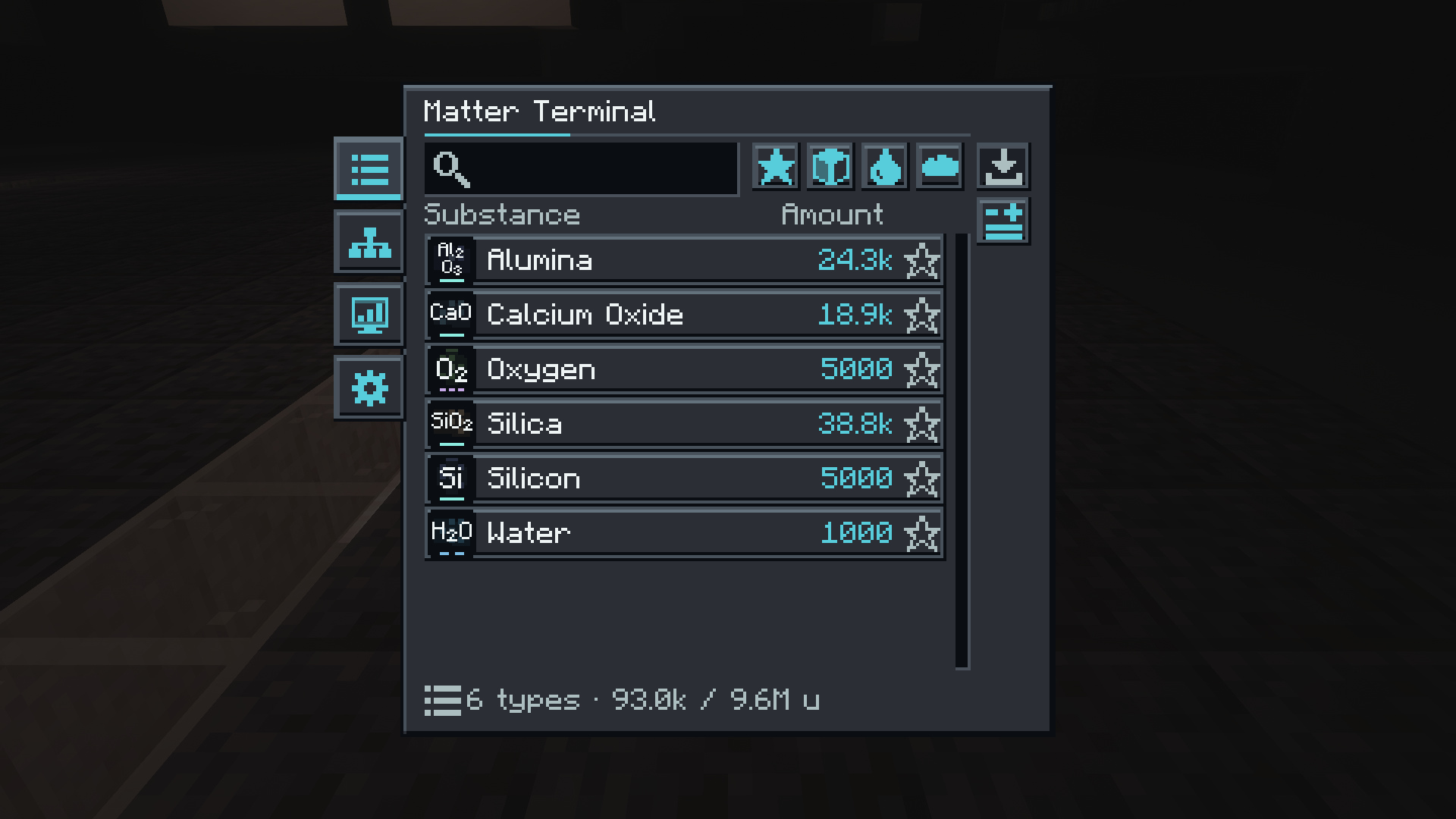
Stock views in the Terminal, Drive and Network Interface have a search field and Solids, Liquids, Gases and Favorites filters. Click a substance row to toggle its world-saved favorite mark (or Shift-click a badge in the Cell Filter and Level Emitter pickers to pin it to the top across all menus). Hover for exact quantities and details. Open the Terminal's Monitor tab to inspect live rolling net substance rates (u/min), machine target stock caps, Matter Level Emitter states and Void Matter Cell overflow coverage. A view lists up to 512 types, matches and favorites first. See Cable and controller budgets for the rate of each tier.
A Pressurized Canister holds up to 16,000 units of a single liquid or gas substance (or 16 buckets of an ordinary fluid) without mixing both modes. Shift-click a liquid or gas row in the Terminal to fill a canister in your inventory, click the drain button next to the filters to return stored canisters to the network, click directly into AE2 ME Terminals and Refined Storage Grids to insert or extract stored matter, or right-click / sneak-right-click ReMatter machines, multiblock Machine Ports, fluid tanks, and Mekanism chemical tanks (and vice versa with Mekanism Gauge Droppers or Chemical Tanks on ReMatter machines). EMI and JEI also inspect the substance or fluid stored inside a filled canister. A Configuration Card can copy and stamp Cell Filter whitelists across Cells held in your offhand, docked in a Cell Transfer Station, or mounted in a Matter Drive's front bays, while holding a Matter Wrench or Configuration Card shows a live diagnostic HUD over targeted devices.
Recipes for Matter Cable, Reinforced Matter Cable, Resonant Matter Cable, Matter Terminal.
Item and fluid automation cannot move Cells or upgrades. Owners can use buckets manually. Enable Automation only for trusted external connections. It does not share private menu access.
Connect a ReMatter Network Interface to the material network and to the chosen external system. In its Settings, select the backend and turn Automation on. Then enable Network jobs on the powered workers that should accept requests. Hover each network symbol for its full label. Use a separate Interface for AE2 and Refined Storage when both share the same ReMatter installation.
The connected systems can request supported recipes from available workers. They still need the complete ingredients, power and output space. Substance transfers through it are limited to its owner. Every player who can use the connected AE2 or Refined Storage network can request its recipes, so keep that network private. AE2 and Refined Storage cables connect only to its Automatic and Matter Network faces, and AE2 cables placed against it by another player do not connect. The automatic alloy catalogue offers powder manufacture and ingot production. It omits reverse alloy grinding so that a request for powder does not depend on first making its own ingot. Reverse grinding remains usable in physical machines and manually encoded processing patterns.
If a recipe changes, outdated jobs return their inputs to the external network. If the external network does not confirm a delivery, the Interface stops it and keeps its resources. Press Release in Settings to receive them and confirm. Matter arrives as Recovered Matter, which you use on your Drive to store it again. Fluids go into the Interface's tank.
Recipe for Network Interface.
Place every machine and Matter Cable for one stock network as the same owner. Foreign and unowned cables do not connect. FE travels only to the cable owner's devices. Current FTB Teams members may operate machines, but removal, disposal settings and held-delivery recovery remain owner/operator actions. Team membership does not merge stock networks or share advancements.
Use Production settings for a hard stock target. Matter processes count the selected substance and phase across the connected ReMatter network. Physical outputs count only the local output buffer. Set a multiple of the complete batch yield. AE2 and RS stock is outside this target.